Members & Roles
Organization roles, project membership, and the invitation flow — what each role can and cannot do.
Access in Dynamiq is decided at two levels: your organization role (Owner, Admin, or Member) and, for Private projects, your project membership. This page documents the permission model as it is actually enforced, plus the flows for inviting, editing, and removing people.
If you haven't read it yet, Organizations & Projects explains the hierarchy these roles attach to.
Organization roles
Every member of an organization has exactly one role, shown in the UI as:
| Role | UI description |
|---|---|
| Owner | Full organization control |
| Admin | Can manage projects and members |
| Member | Can access internal projects |
The first Owner is the user who created the organization. Roles gate two tiers of operations:
Management operations — require Owner or Admin:
- Rename or delete the organization
- Invite new members and cancel pending invitations
- Change another member's role or remove a member
- Open any project in the organization, including Private projects they were never added to
Membership operations — available to every role, including Member:
- View the organization, its Team list, and its Invitations list
- Create new projects (the creator of a Private project becomes its project admin)
- Open Internal projects and any Private project they are a member of
- View the Usage tab, billing status, and subscriptions
- Create, view, and delete the organization's Access Keys
Owner and Admin are currently enforced identically — every authorization check in the platform accepts either role. Reserve Owner for the people accountable for the organization; treat the distinction as organizational convention until owner-only capabilities are introduced.
A platform-level super admin flag also exists for Dynamiq operators; it bypasses these checks and is not assignable from the product UI.
Project membership
A project's Visibility decides whether membership matters:
- Internal projects are accessible by all org members — there is no member list.
- Private projects are accessible only to org Owners/Admins and users explicitly added as project members.
Project members carry a role from the admin / editor / viewer set, and the user who creates a Private project (or switches a project from Internal to Private) is recorded as its admin.
Project roles are stored but not yet enforced. Authorization checks verify only that you are a project member — an editor and a viewer can currently do the same things, and any user with access to a Private project can add or remove its members. The UI reflects this: members are added without a role selector (new members are recorded as editor). Don't rely on viewer as a read-only guarantee yet.
Switching a project's visibility resets membership: changing Private → Internal deletes the project's member list; changing Internal → Private starts a fresh member list containing only the user who made the change.
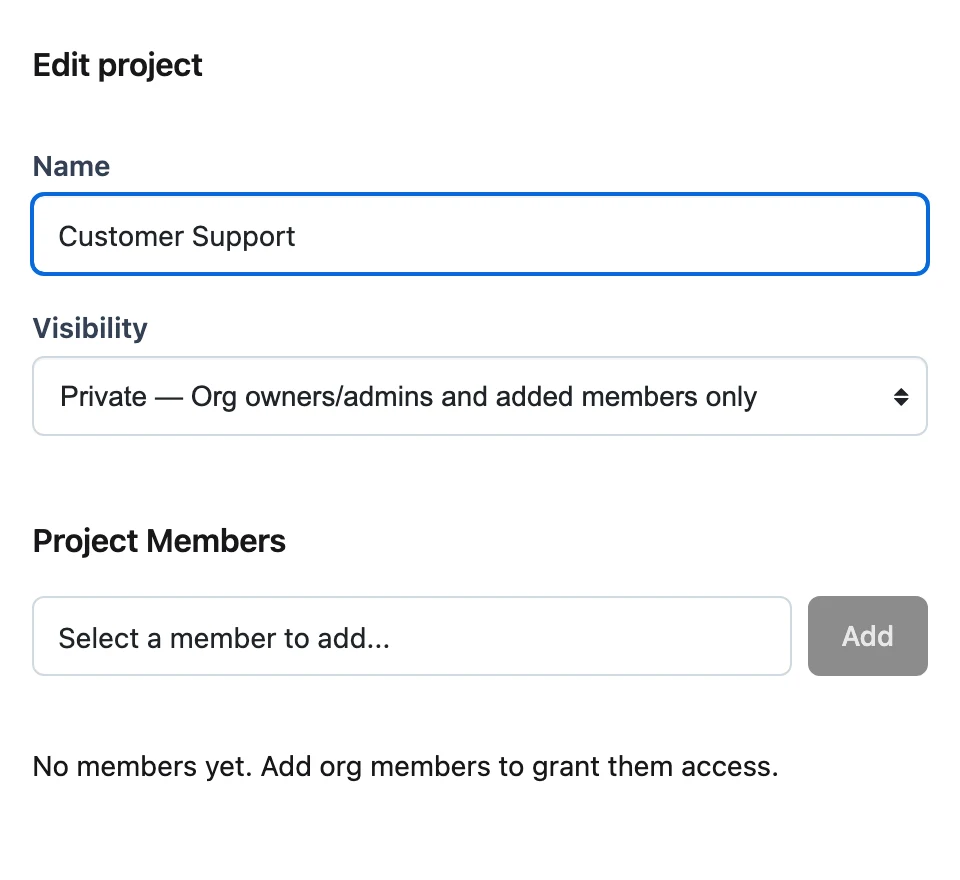
To manage members in the UI, open organization Settings → Projects, edit a Private project, and use the Project Members section to pick an org member and click Add, or remove one with the trash action. Only existing org members can be added — invite people to the organization first.
Inviting members
Send the invitation
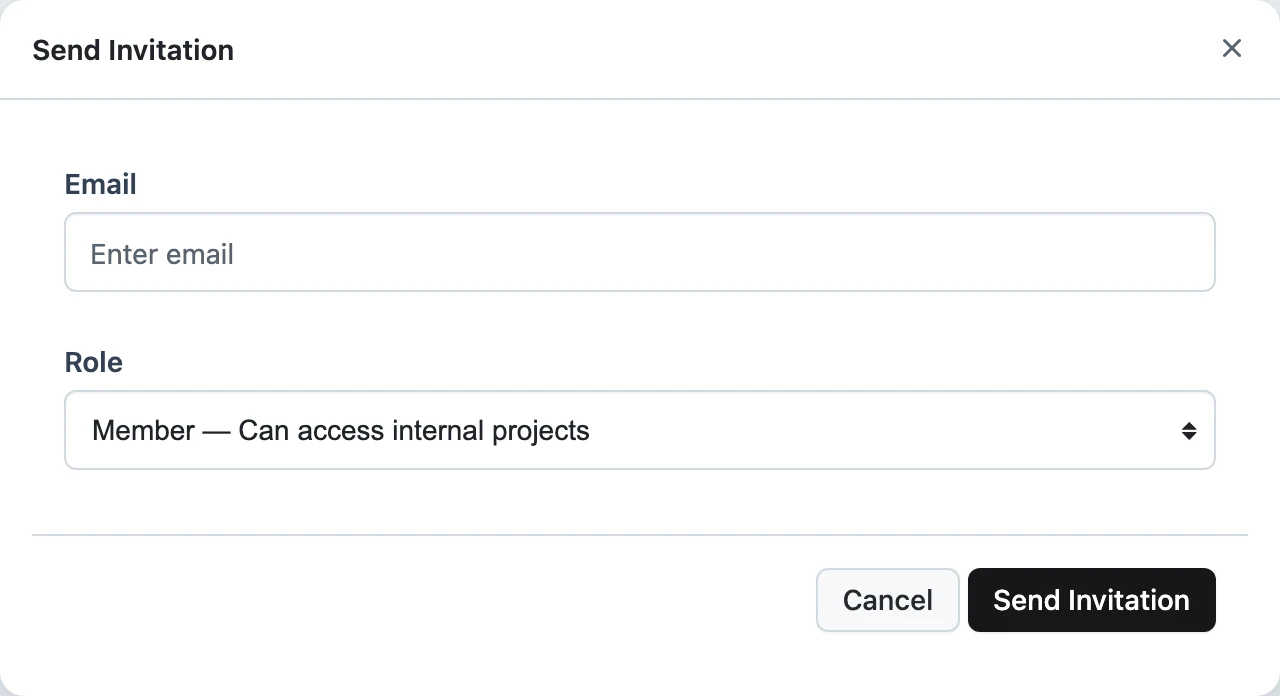
In organization Settings, open the Team or Invitations tab and click Send Invitation. Enter the invitee's Email and pick a Role (defaults to Member), then click Send Invitation. You must be an Owner or Admin.
The invitee accepts
The invitee receives an email titled "Invitation to join <org name>" with a link to accept. Invitations expire 10 days after they are sent, and the recipient can also accept or decline from inside Dynamiq. On acceptance they join with the role you chose.
Track and cancel
The Invitations tab lists every invitation with Email, Role, Status, Expires, Created, and Created by. Statuses are pending, accepted, declined, canceled, and expired. Pending invitations show an X action to cancel them.
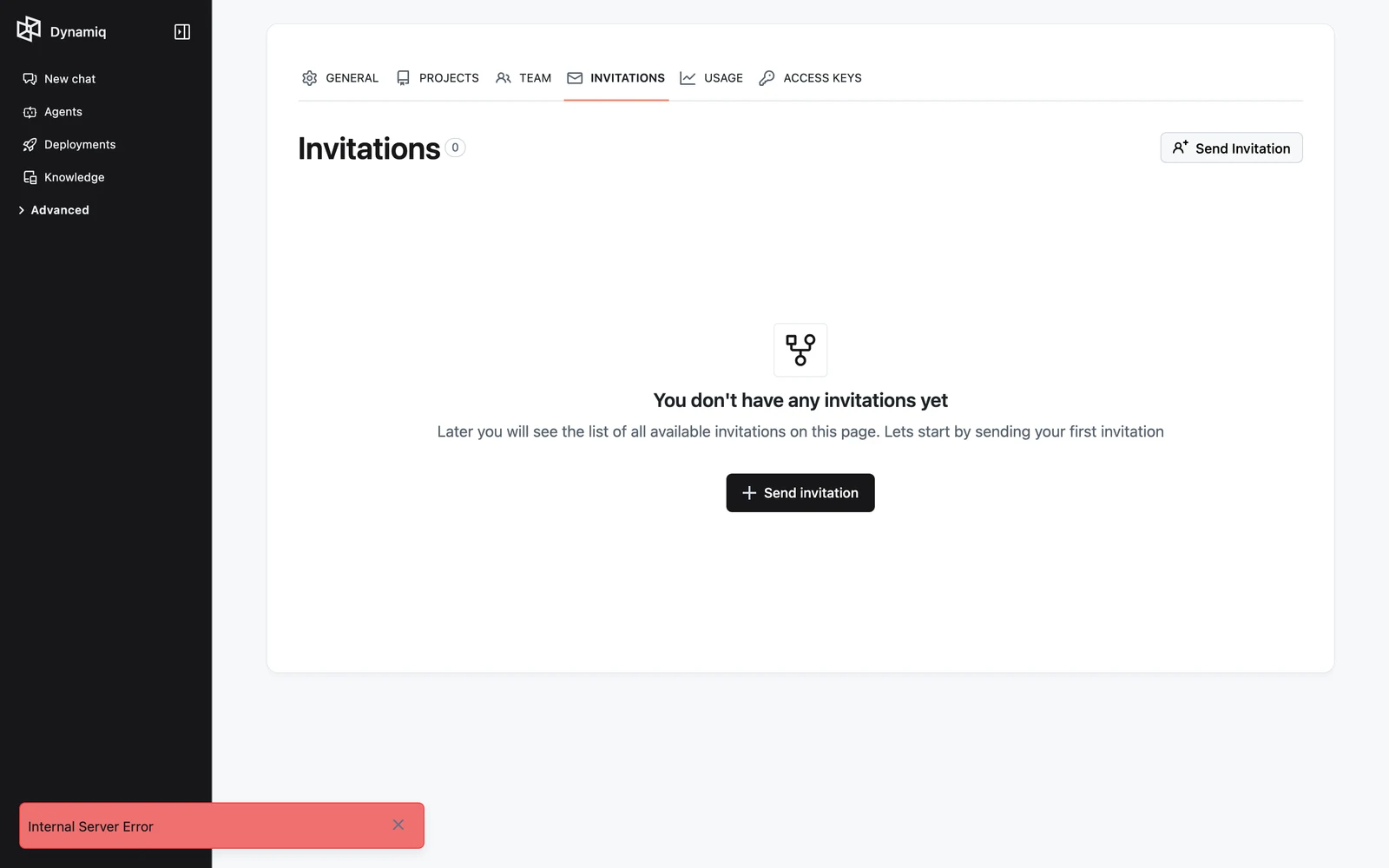
You cannot invite someone who is already a member, or who already has a pending invitation to the same organization.
Joining by email domain
Organizations can be configured with allowed email domains. Users whose email matches a configured domain see the organization as joinable in the organization picker and can join it directly — they join with the Member role, no invitation needed.
Managing existing members
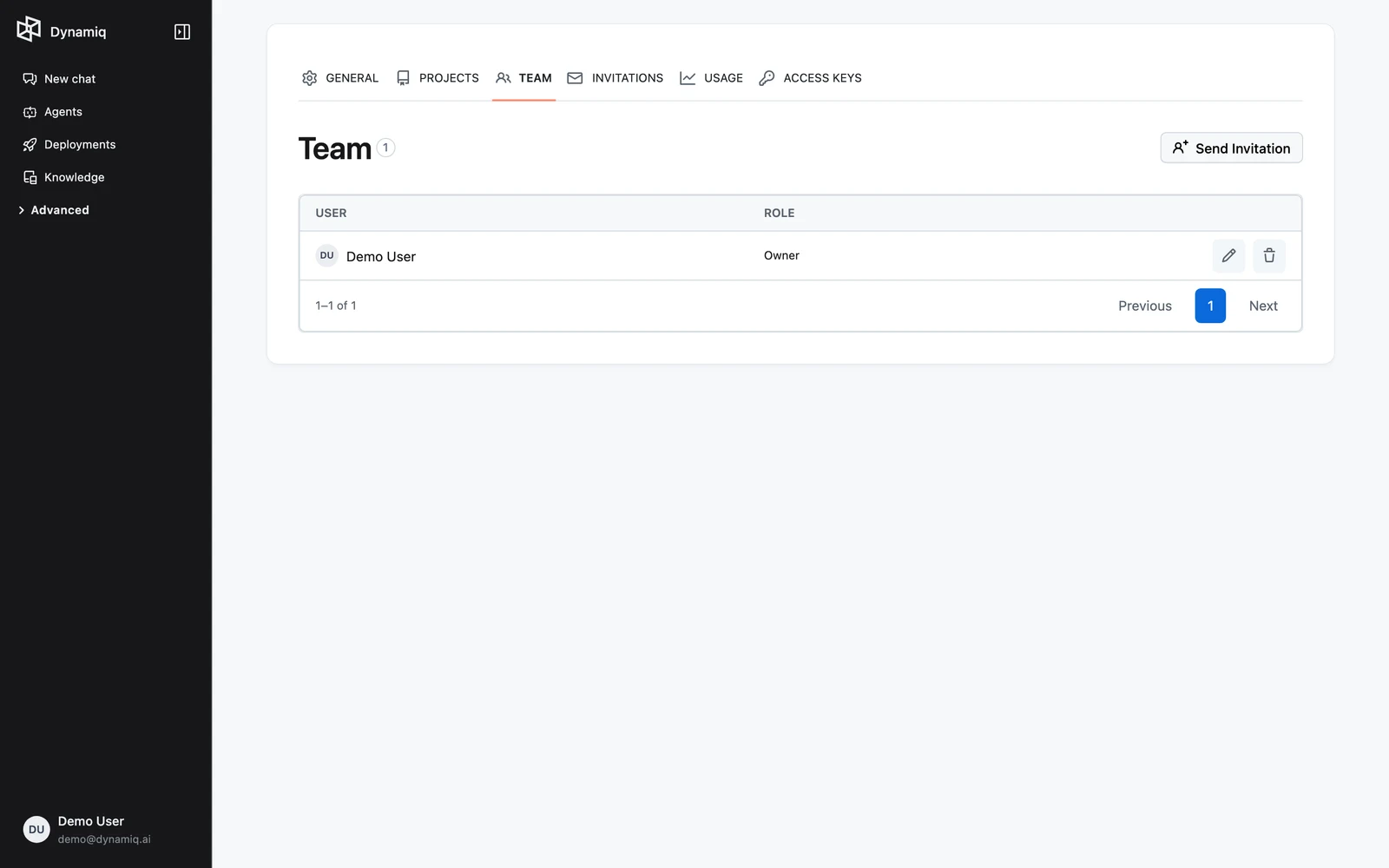
The Team tab lists members with User and Role columns and edit/delete actions:
- Edit opens the member sheet, where Owners/Admins change the member's Role and click Save.
- Delete removes the member from the organization immediately.
Any member can leave on their own from Settings → General → Leave organization. Removal and leaving delete the membership record — Access Keys the member created keep working because they belong to the organization, while their Personal Access Tokens stop being useful for orgs they can no longer access.
API reference
All endpoints live on the management API (https://api.getdynamiq.ai) and authenticate with a Personal Access Token.
Organization members and invitations
| Method | Path | Required role |
|---|---|---|
GET | /v1/orgs/{org_id}/members | any member |
PUT | /v1/orgs/{org_id}/members/{member_id} | Owner/Admin |
DELETE | /v1/orgs/{org_id}/members/{member_id} | Owner/Admin |
GET | /v1/orgs/{org_id}/invitations | any member |
POST | /v1/orgs/{org_id}/invitations | Owner/Admin |
GET | /v1/org-invitations | the invitee (lists invitations to your email) |
POST | /v1/org-invitations/{org_invitation_id}/accept | the invitee |
POST | /v1/org-invitations/{org_invitation_id}/decline | the invitee |
POST | /v1/org-invitations/{org_invitation_id}/cancel | Owner/Admin |
POST | /v1/orgs/{org_id}/join | any user with a matching email domain |
POST | /v1/orgs/{org_id}/leave | the member themselves |
Create an invitation (role is one of owner, admin, member):
curl -X POST "https://api.getdynamiq.ai/v1/orgs/$ORG_ID/invitations" \
  -H "Authorization: Bearer $DYNAMIQ_PAT" \
  -H "Content-Type: application/json" \
  -d '{"email": "teammate@example.com", "role": "member"}'
import os
import requests
resp = requests.post(
f"https://api.getdynamiq.ai/v1/orgs/{os.environ['ORG_ID']}/invitations",
headers={"Authorization": f"Bearer {os.environ['DYNAMIQ_PAT']}"},
json={"email": "teammate@example.com", "role": "member"},
)
resp.raise_for_status()
print(resp.json()["data"]["status"]) # "pending"const res = await fetch(
`https://api.getdynamiq.ai/v1/orgs/${process.env.ORG_ID}/invitations`,
{
method: 'POST',
headers: {
Authorization: `Bearer ${process.env.DYNAMIQ_PAT}`,
'Content-Type': 'application/json',
},
body: JSON.stringify({ email: 'teammate@example.com', role: 'member' }),
},
);
const { data } = await res.json();
console.log(data.status); // "pending"To change a member's role, PUT /v1/orgs/{org_id}/members/{member_id} with {"role": "admin"} — note that member_id is the membership record's id from the members list, not the user id.
Project members
| Method | Path | Notes |
|---|---|---|
GET | /v1/projects/{project_id}/members | List members of a project |
POST | /v1/projects/{project_id}/members | Body: {"user_id": "...", "role": "admin" | "editor" | "viewer"} — the user must already be an org member |
PUT | /v1/projects/{project_id}/members/{member_id} | Body: {"role": "..."} |
DELETE | /v1/projects/{project_id}/members/{member_id} | Remove a member |
All four require project access (org Owner/Admin, or membership in the project itself).