Organizations & Projects
How Organizations and Projects scope your resources, how to switch between and create them, and where member roles fit in.
Everything in Dynamiq lives inside an Organization, and almost everything you build lives one level deeper, inside a Project. Understanding this two-level hierarchy tells you who can see a resource, which credentials can call it, and where to look for it.
The hierarchy
Organization
├── Members (owner / admin / member) and Invitations
├── Access Keys (org-wide or project-scoped)
└── Projects
    ├── Workflows and their versions
    ├── Apps (deployed workflows), Runs, Traces, Triggers
    ├── Knowledge Bases, Connections, Prompts, ...
└── Project members (admin / editor / viewer)- Organizations own billing, the team, and Access Keys.
- Projects own the resources you build and deploy. When you list Apps, browse Workflows, or open Chat, you are always inside a specific project.
- A project's Visibility controls who sees it: Internal projects are accessible by all org members; Private projects are visible only to org owners/admins and explicitly added members.
Switching organizations
If you belong to more than one organization, the organization picker lists them all, along with any pending invitations you can accept and orgs in your email domain that are open to join. Selecting an organization takes you to its project list; if you belong to exactly one organization, Dynamiq takes you straight into it.
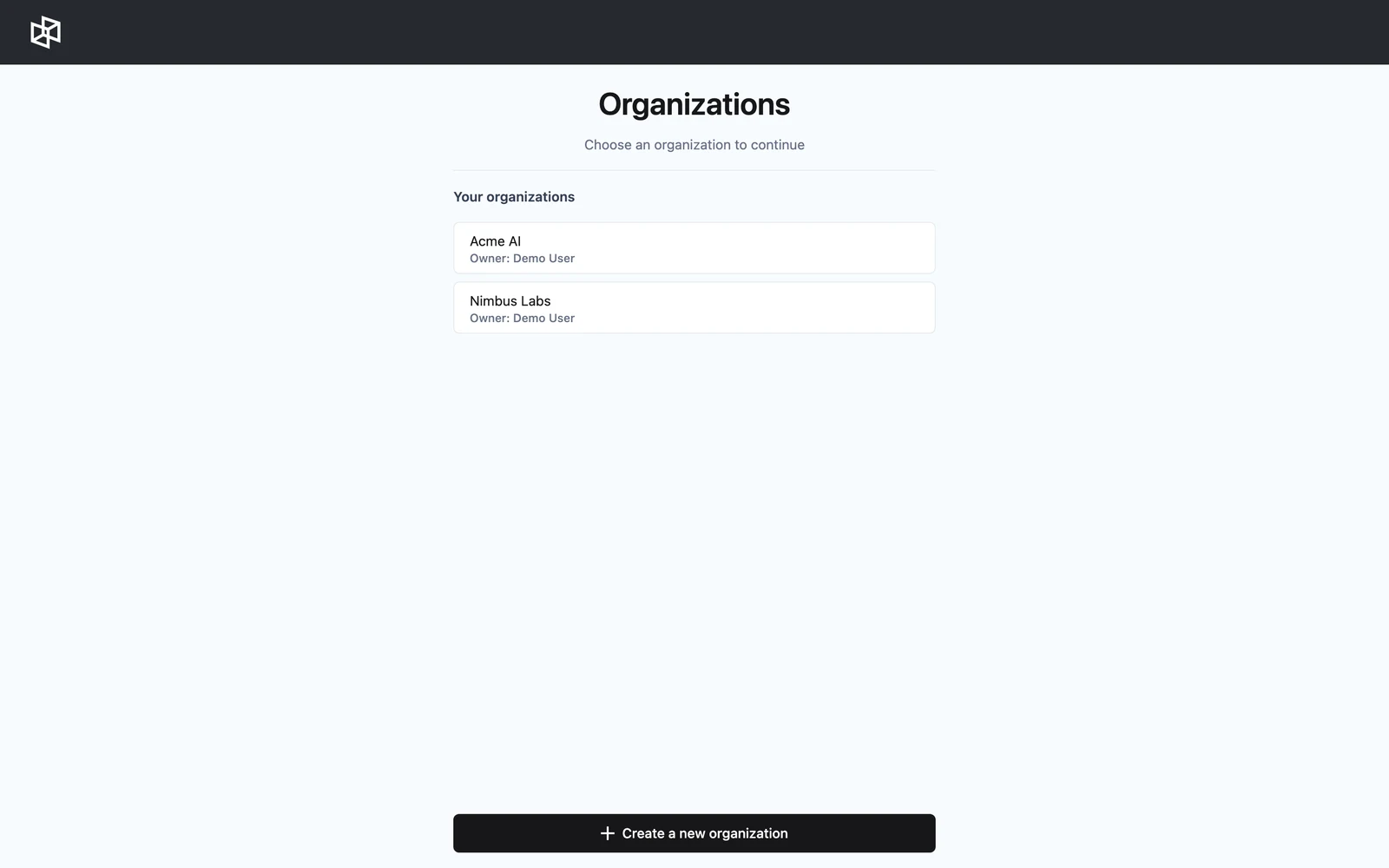
To create another organization, click Create a new organization, enter a Name, and click Create. You become its owner and land in its (empty) project list.
Organization Settings
Open your organization's Settings to manage it. The tabs are:
| Tab | What's there |
|---|---|
| General | Rename the organization; leave the organization |
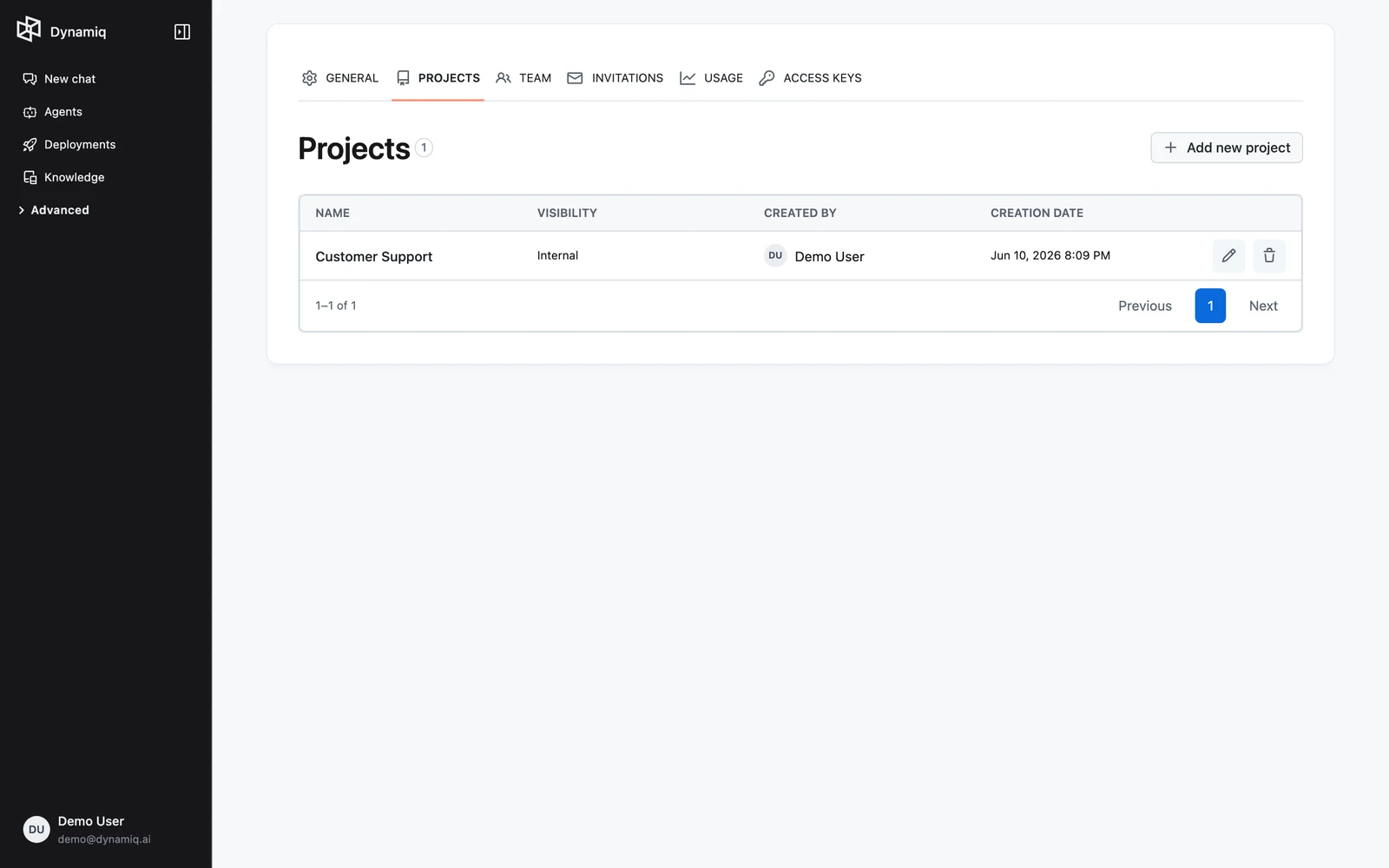
| Projects | Create, edit, and delete projects |
| Team | Members and their org roles |
| Invitations | Invite people by email with a role |
| Usage | Plan usage and limits — see Usage & Billing |
| Access Keys | Org credentials for calling deployed resources — see API Keys & Tokens |
Organization-wide app connections aren't a Settings tab — owners and admins manage them from a separate Integrations page; see Organization connectors.
Creating a project
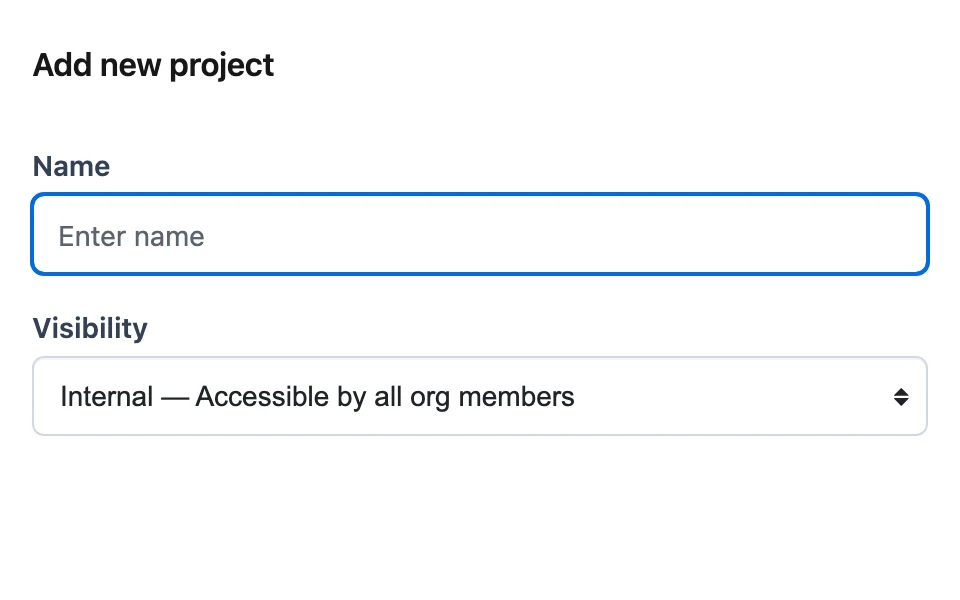
Name and visibility
Enter a Name and choose a Visibility:
- Internal — Accessible by all org members
- Private — Org owners/admins and added members only
Create
Click Create. You are switched into the new project immediately. The Projects table shows each project's Name, Visibility, Created by, and Creation date, with edit and delete actions.
Deleting a project removes the workspace that scopes its resources. Make sure nothing in production depends on its Apps before deleting.
How resources scope to projects
Every buildable resource is created in a project, and listings are always per-project — for example, the management API's GET /v1/apps requires a project_id query parameter. Practical consequences:
- Isolation — a Workflow, App, Knowledge Base, or Connection in project A is invisible from project B. Use separate projects for separate products, teams, or environments (e.g.
stagingvsproduction). - Credentials — an Access Key can be scoped to one project, so a leaked staging key can never call production Apps.
- Membership — Private projects have their own member list with project roles (admin, editor, viewer) on top of org roles.
Roles at a glance
Organization roles, as shown in the UI:
| Role | Capability |
|---|---|
| Owner | Full organization control |
| Admin | Can manage projects and members |
| Member | Can access internal projects |
Members are invited from Settings → Invitations by email with a role (default: Member), and an existing member's role can be changed from the Team tab. For the full permission matrix, including project-level roles, see Members & Roles.