Files & Artifacts
Attach files to a conversation, collect the documents and sites the agent produces, and inspect every tool step.
Files flow both ways in Chat: you attach documents for the agent to work with, and the agent produces files, images, and even deployed websites you can preview and download. This page covers attachments, generated artifacts, the web preview panel, and the tool details panel.
Attach files
Click the paperclip in the input bar or drag files onto the chat. In Dynamiq Agent mode the accepted types include images, PDF, CSV/TSV, DOC/DOCX, XLS/XLSX, PPTX, TXT, HTML, Markdown, XML, JSON/JSONL, YAML, Drools DRL rule files, RTF, ZIP, and MP4 video.
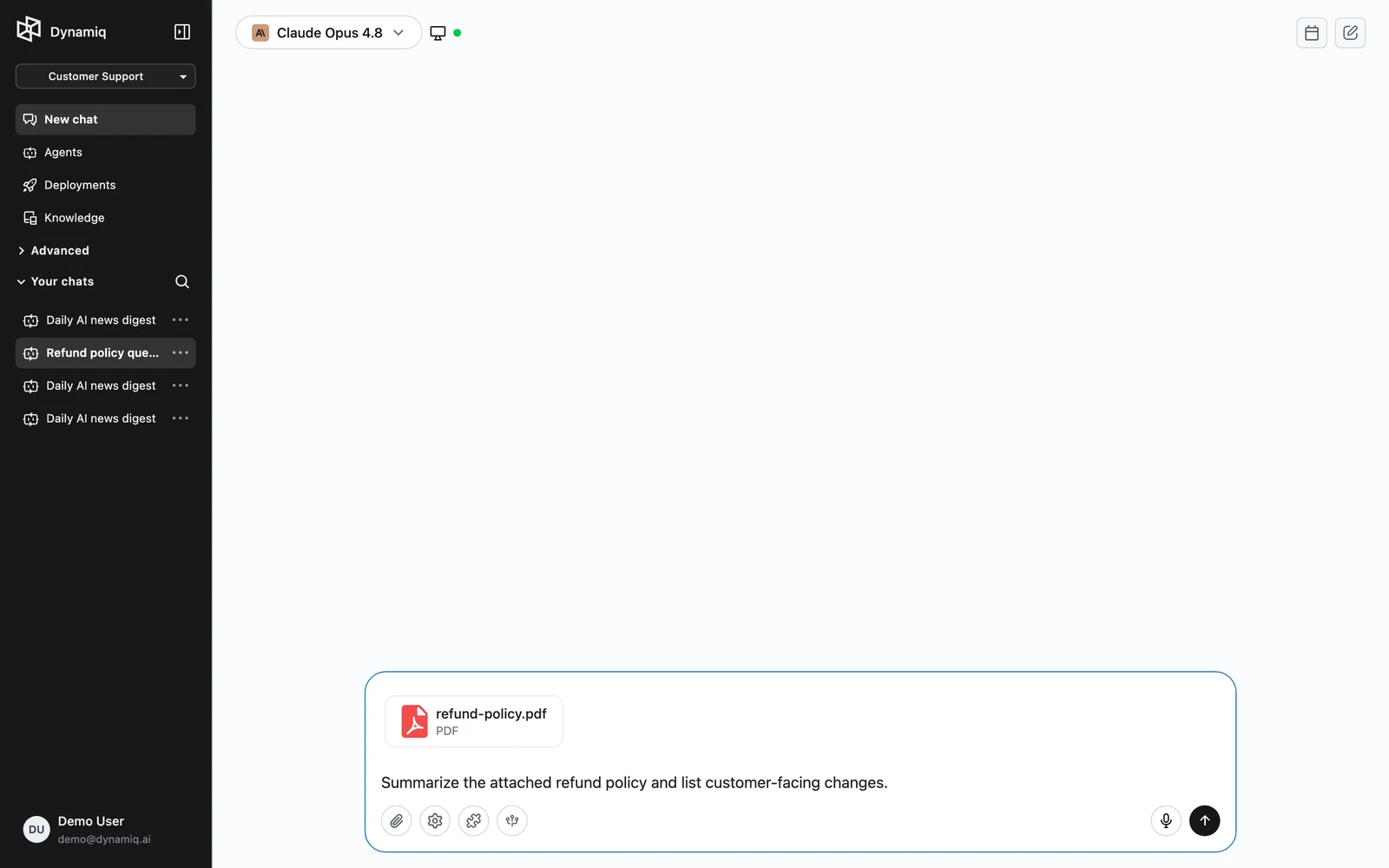
Attached files appear as cards above the input; click a card's remove icon to detach it before sending. The send button stays disabled while uploads are in progress.
Behind the scenes each file is uploaded to the conversation and placed into the agent's sandbox under /home/user/input, so the agent can read, parse, and transform it with real code — not just summarize it.
In Custom Agents mode, attachments are passed to your deployed App's workflow instead, and are disabled entirely when the Response type is WebSocket. See Chat Modes.
Artifacts the agent produces
When the agent writes a deliverable — a report, spreadsheet, chart, archive — the file appears as a card under its reply:
- Download saves the file locally.
- Previewable types (Markdown, images, PDFs, office documents, and more) open in a preview modal directly in Chat.
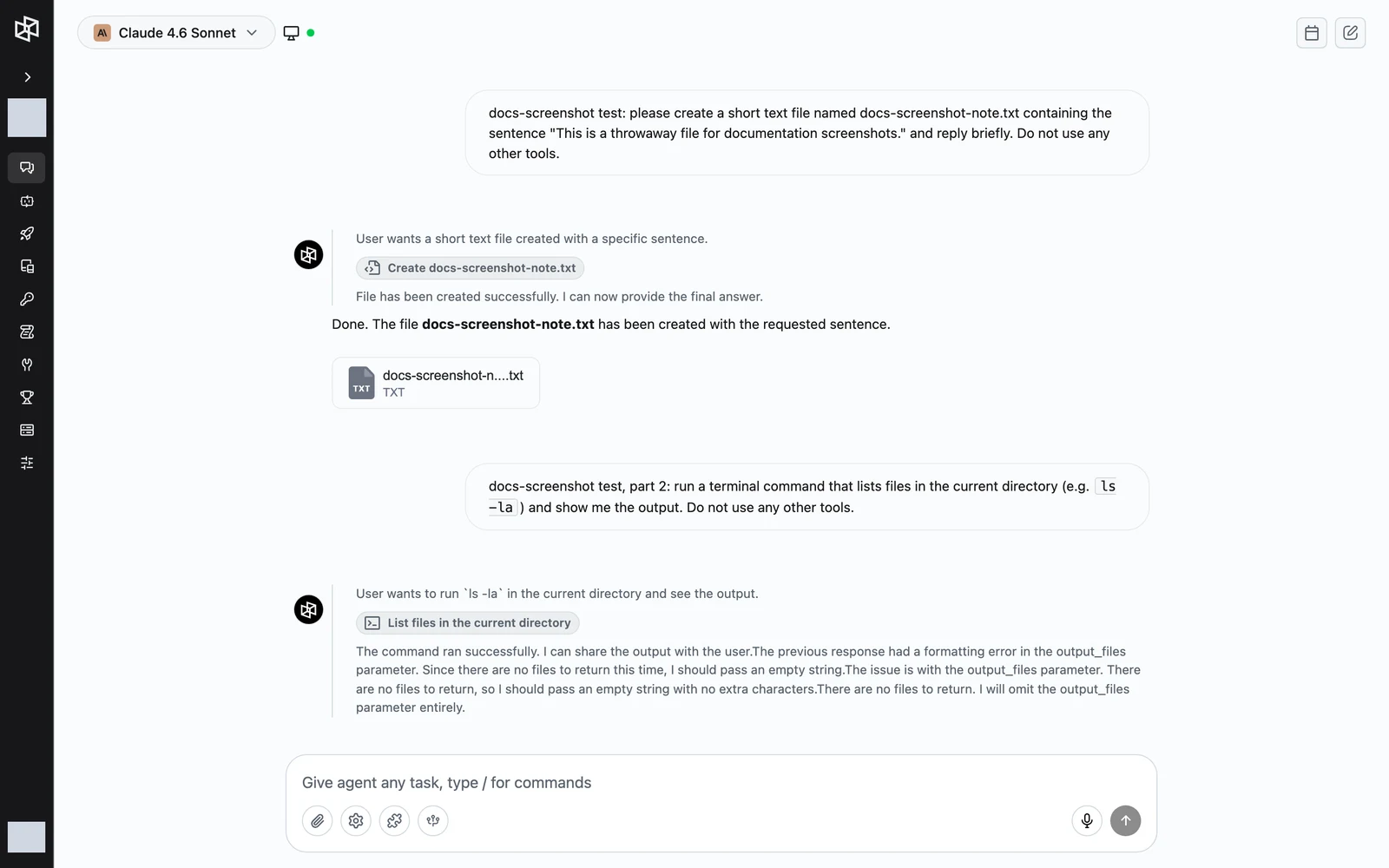
All files in a conversation — yours and the agent's — stay attached to it. Reopen the conversation later and the cards are still there.
Web preview panel
When the agent builds and deploys a website, the link in its reply renders as a Preview website chip. Click it to open the page in a side panel without leaving the conversation:
- Desktop / Mobile toggle to check both layouts.
- Fullscreen toggle, and the URL bar opens the site in a new browser tab.
- Press Escape to close.
The web preview panel open beside the conversation, with Desktop/Mobile toggle and URL bar
screenshot: chat-web-preview-panel
Tool details panel
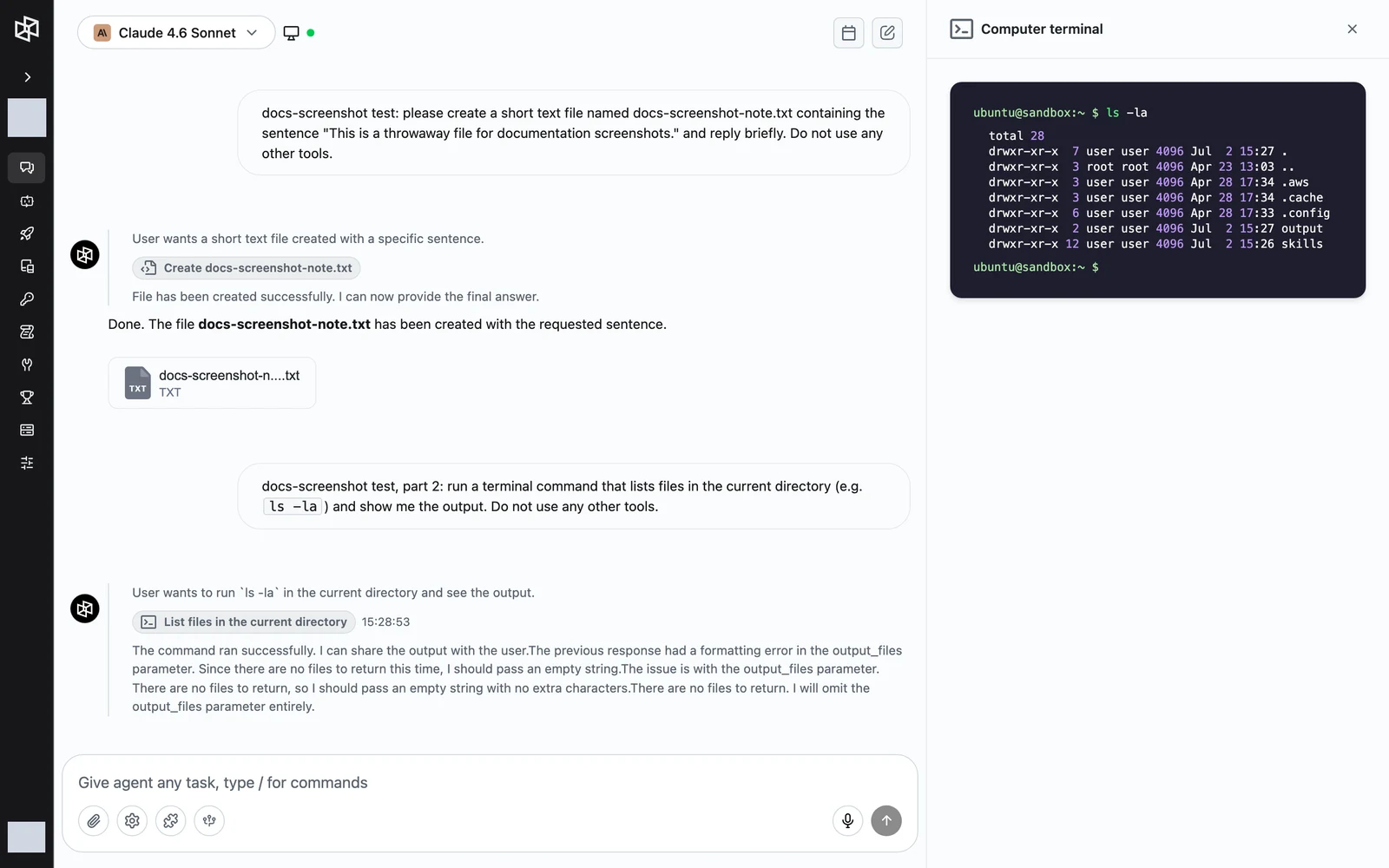
Every action the agent takes — a web search, a terminal command, a file write, a browser session — shows up as a labeled step in the reply. Click a step to open the tool details panel on the right:
- Searching the web — the query and the results it found.
- Computer terminal — the exact command and its output.
- Creating file / Reading file — the file content, streamed as it is written.
- Browsing the web — the browser session with screenshots.
- Scraping information — the page content that was extracted.
- Generating image — the rendered image.
A navigation bar at the bottom of the panel steps backward and forward through the run's tool calls, so you can audit the whole chain of work.