Overview
Chat is Dynamiq's built-in super agent — research, files, code, browsing, and your connected apps in one conversation.
Chat is the super-agent surface at /chat. Ask it anything and it plans, searches the web, browses pages, runs code in its own cloud sandbox, reads and produces files, generates images and speech, and works with the apps you connect — all inside one streaming conversation. There is nothing to build or deploy first.
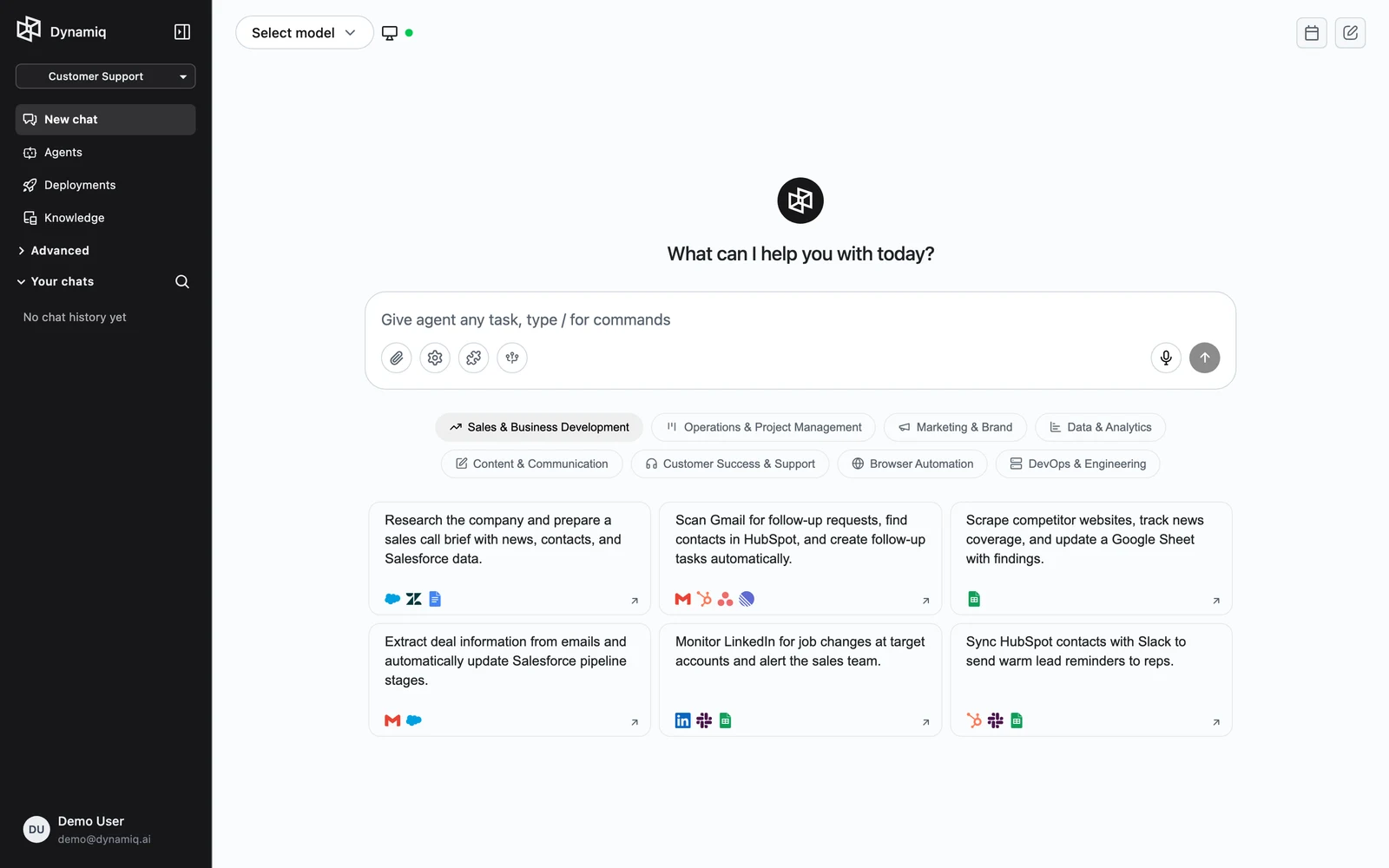
What the agent can do
In Dynamiq Agent mode (the default), every conversation gets a dedicated cloud computer — a sandbox where the agent executes shell commands, writes files, and serves web previews. On top of it, the agent ships with built-in tools:
| Capability | What you see in the conversation |
|---|---|
| Web search | "Searching the web" steps, with sources cited in the answer |
| Web scraping | "Scraping information" steps that pull page content |
| Browser automation | "Browsing the web" steps with screenshots; the agent can hand the browser over to you when a login is needed |
| Code & terminal | "Computer terminal" steps showing commands run in the sandbox |
| Files | "Creating file" / "Reading file" steps; results appear as downloadable cards |
| Image generation | "Generating image" steps with the rendered image |
| Text to speech | Audio generated with ElevenLabs v3 |
Click any step to open the tool details panel and inspect exactly what the agent did — covered in Files & Artifacts.
Beyond the built-ins, you extend the agent per conversation:
- Connectors — OAuth integrations like Google Drive, Gmail, Notion, and Slack, plus database connectors. See Connectors.
- Skills — reusable instruction packs the agent loads when relevant. See Skills & Commands.
- Subagents — parallel helper agents for large-scale research. See Subagents & Sandbox.
- Scheduled tasks — prompts that run on a schedule without you. See Scheduled Tasks.
Two modes
The selector at the top of the chat switches between two tabs:
- Dynamiq Agent — the built-in super agent described above. You pick which LLM powers it.
- Custom Agents — chat with one of your own deployed Apps instead, so business users can talk to agents your team built as workflows.
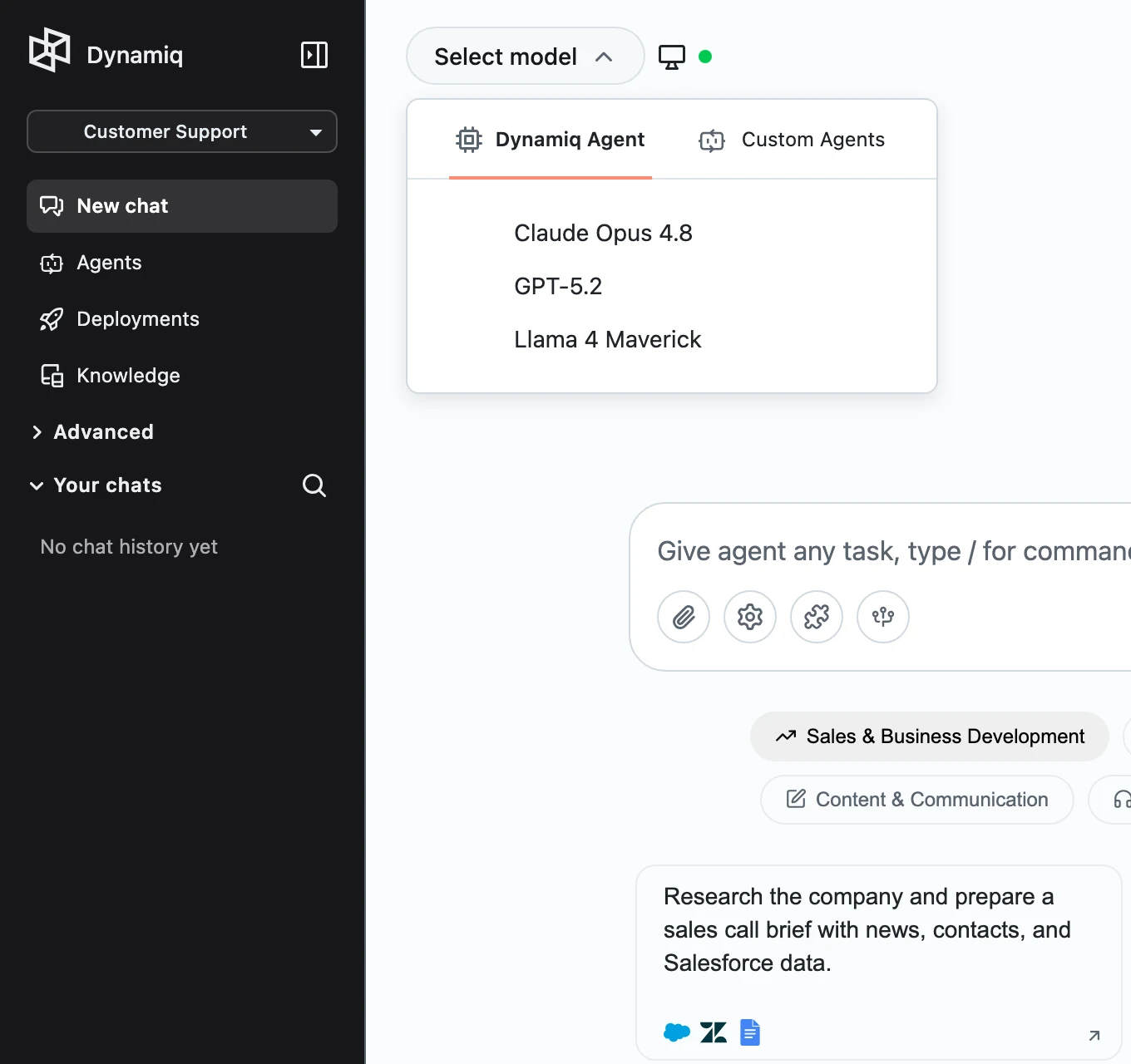
Both modes are covered in Chat Modes.
Conversations and history
Every chat is a conversation tied to your user. The sidebar lists your past conversations; each one's menu offers Rename and Delete, and New chat starts a fresh one. A conversation remembers which model (or which App) it uses, its uploaded files, its connector toggles, and — in Dynamiq Agent mode — its sandbox.
Share a conversation
Click the Share conversation icon in the chat header (or Share from a conversation's menu in the sidebar) to publish a read-only, public link to /shared-conversations/{id}. Anyone with the link can open it — no Dynamiq account is required.
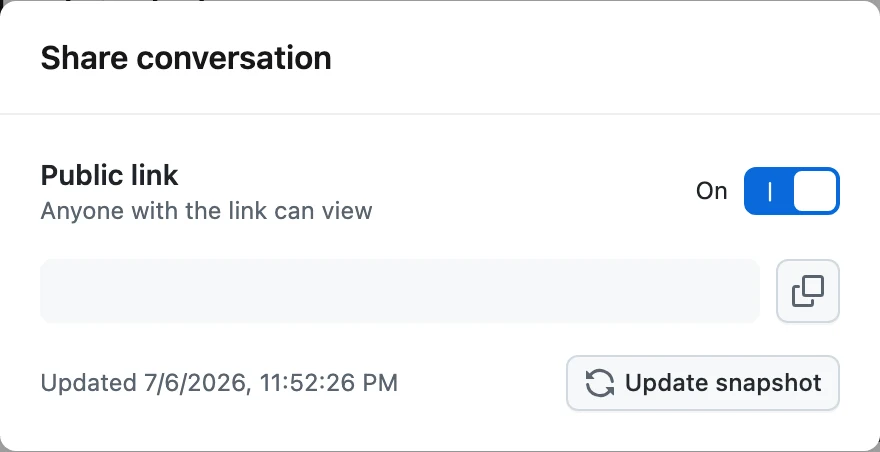
A few things to know about how sharing works:
- The link is frozen at the moment you share it. Sharing takes a snapshot up to your conversation's latest message at that time; anything you send afterward stays private.
- Viewers see the transcript up to that snapshot, including any files in it — files are downloadable (and previewable for supported types) without signing in.
- Update the snapshot to include new messages. Click Update snapshot in the same modal to move the cutoff to the conversation's current latest message. This is a manual action — new replies are never shared automatically.
- Revoke by turning sharing off. Toggling the link off deletes it; the URL stops working and re-enabling sharing later issues a new link.
This shares a Chat conversation, not a deployed App's session. A session's Share button only copies the current page URL to your clipboard for a teammate who already has access to the app — it has no public link, no snapshot, and no revoke.
Chat vs. building a workflow
Use Chat when the task is yours, interactive, and exploratory: research, analysis of a file you just received, drafting, one-off automation. You get a capable agent instantly, but its toolset and behavior are fixed by the platform. The same agent is also available inside Slack as Wilson, so a teammate can hand it work without leaving a channel.
Build a Workflow and deploy it as an App when you need the opposite: a precisely-scoped agent with your own tools, knowledge bases, guardrails, and prompts, versioned and served to other people or other systems over an HTTP endpoint, a chat widget, or triggers. The two meet in Chat's Custom Agents tab, where any deployed App becomes a chat partner.
Next steps
Internal Knowledge Assistant
Build a company-wide Q&A assistant over Google Drive, Notion, and Confluence content — with per-team isolation, per-user memory, and measurable retrieval quality.
Chat Modes
Switch between the built-in Dynamiq Agent and your own deployed Apps, and pick the model that powers the conversation.