Connectors
Connect Google Drive, Gmail, Notion, Slack, databases, and more to the Dynamiq Agent — personally or org-wide, toggled per conversation.
Connectors give the Dynamiq Agent access to your apps: read a doc from Google Drive, search your Notion, post to Slack, query your Postgres database. You connect each app once — for yourself, or an owner/admin connects it for the whole organization (see Organization connectors) — with an OAuth consent (or credentials, for a few special connectors), then toggle it on or off per conversation. Connectors are available in Dynamiq Agent mode only.
The Connect apps menu
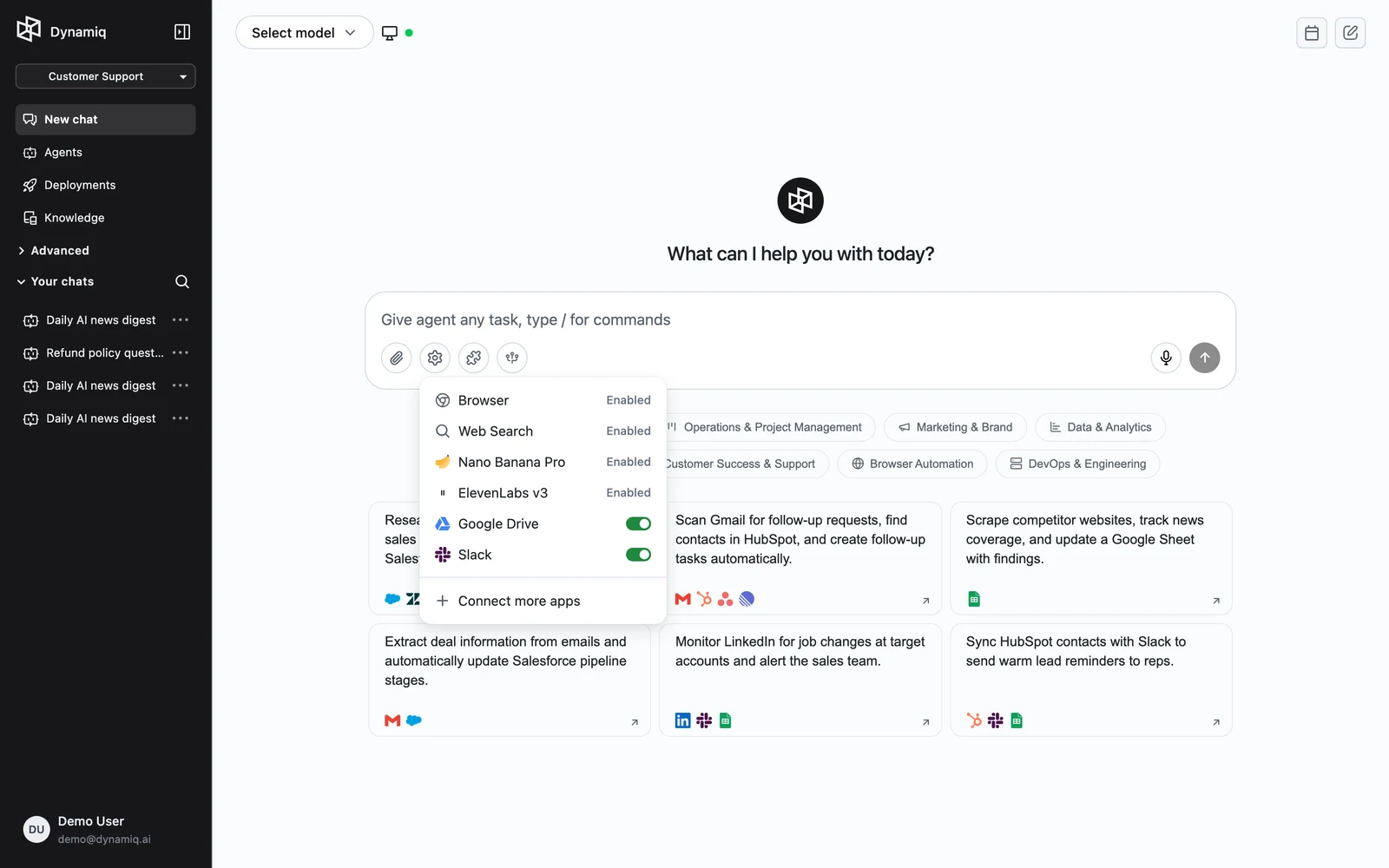
Click the gear Connect apps button in the input bar. The menu shows:
- Preinstalled apps — Browser, Web Search, Nano Banana Pro (image generation), and ElevenLabs v3 (text to speech). These are always enabled and need no setup.
- Your connections — every app you've connected, each with a toggle.
- Connect more apps — opens the full catalog.
Connect an app
Open the catalog
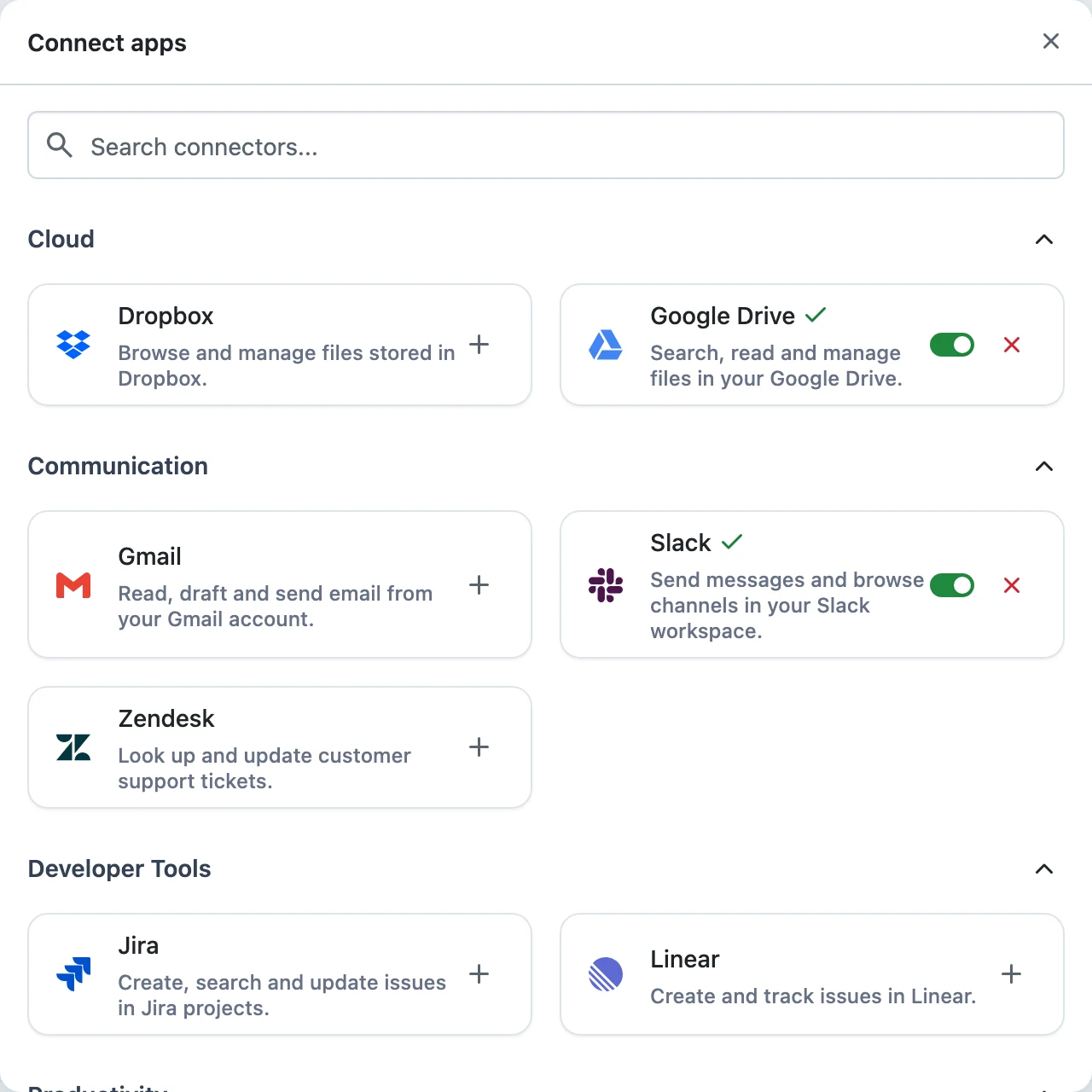
Choose Connect more apps. The Connect apps dialog lists the catalog grouped by category — productivity, communication, developer tools, cloud, monitoring, analytics, security, and database — with a search box. The catalog includes Google Workspace (Drive, Gmail, Calendar, Docs, Sheets, Meet), Notion, Slack, Dropbox, Jira, Linear, HubSpot, Salesforce, Zendesk, GitHub, and many more.
Authorize
Click the + button on a connector card. For OAuth connectors a popup opens the provider's consent page — sign in and approve the requested access. A green check appears on the card once connected.
A few connectors use credentials instead of OAuth:
- AWS — Access Key ID and Secret Access Key, entered inline.
- Google Cloud — upload a service account key JSON file.
- GitHub — OAuth, with a checklist to trim the optional scopes before authorizing.
- Databases — PostgreSQL, MySQL, Vertica, ClickHouse, and Trino take host, port, credentials, SSL/TLS settings, and an optional SSH tunnel. Give each instance a name (for example,
stagingandproduction) — once a database has at least one connection, its card switches to a Manage panel listing every named instance with Add connection, plus Edit and Remove on each row.
Toggle it per conversation
Back in the Connect apps menu, each connection has a switch. Inside a conversation, the switch controls that conversation only — disable Gmail for a research chat, enable it for an inbox-cleanup chat. Outside a conversation (a brand-new chat), the switch sets your personal default for new conversations.
Revoke access
To disconnect an app entirely, open Connect more apps and click the × (Disconnect) button on its card — or Manage for multi-connection connectors, then remove the specific connection. Disconnecting deletes the stored authorization for your user; reconnecting requires going through consent again.
Chat connectors are not workflow Connections. A Connector is an OAuth authorization — personal to one user, or shared with a whole organization (see Organization connectors) — that only the Chat super agent uses, toggled per conversation. Workflows and deployed Apps use Connections — credentials stored at the project/org level and wired into nodes by builders. If you want each end user of a deployed App to authorize their own accounts, that is a third mechanism: End-User Connection Requirements.
Organization connectors
Every connector above can also be connected once for an entire organization instead of one user. Organization-scoped connections draw from the same catalog and the same connector types — a shared Slack workspace connection or a shared production database work exactly like a personal one once they exist.
Managing organization connections
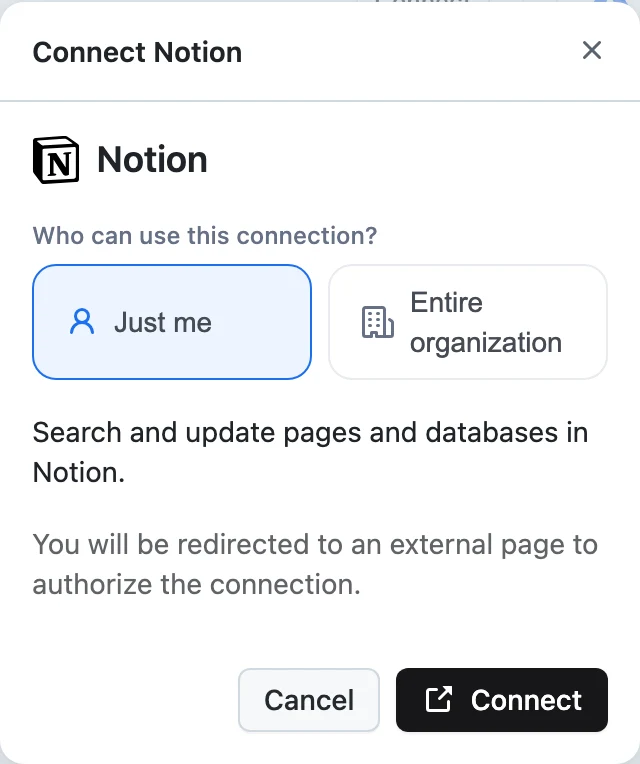
Organization owners and admins add and manage organization connections from the Integrations page. From there, connecting an app shows a Who can use this connection? choice:
- Just me — a personal connection, visible only to you (same as everywhere else on this page).
- Entire organization — shared with everyone in the organization; owners and admins can manage it afterward.
The Integrations page groups a connector's connections into Personal ("Only you can use these connections") and Organization ("Shared with everyone in your organization — owners and admins can manage"). Any org member can open the page and see what's connected, but only owners and admins can add, edit, remove, or toggle an organization-scoped connection there — a member's access to that section is read-only.
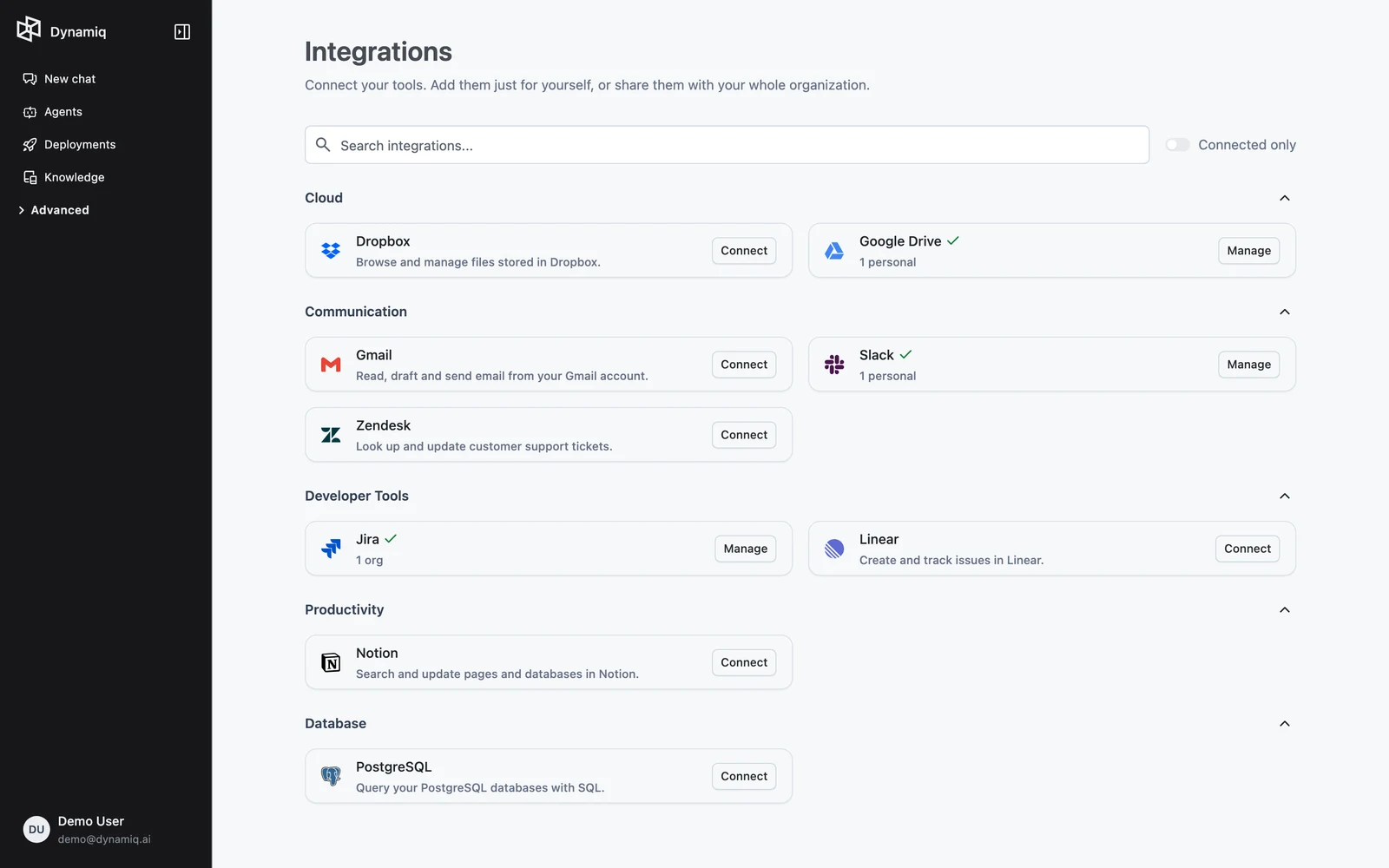
The Integrations page isn't linked from every brand's navigation yet. If your organization doesn't show an Integrations item in its sidebar, go to /orgs/<your-org-id>/integrations directly — take <your-org-id> from any other org-scoped URL you already have open (for example, its Settings page).
Organization connections and your own conversations
An organization-scoped connection does not appear as an extra row in your own web Chat conversation's Connect apps menu — that menu always reflects your personal connections, never the organization's. Organization connections apply on surfaces where the conversation itself belongs to the organization rather than to you individually; today that is the Slack-native experience — see Using Wilson.
How the agent uses connectors
Once a connection is enabled in the conversation, the agent discovers the app's tools and calls them as needed — you'll see the calls as steps in the reply, inspectable in the tool details panel. Database connections are queried through the agent's SQL tooling, which is instructed to use parameterized queries for any user-supplied value.
Check my Google Calendar for tomorrow, then draft a Slack message to #team
summarizing my availability.