Skills & Commands
Attach reusable Skills that change how the agent works, and turn your saved Prompts into slash commands.
Two features make the Dynamiq Agent repeatable: Skills, instruction packs the agent loads when a task calls for them, and commands, saved prompts you insert by typing / in the input. Both are available in Dynamiq Agent mode.
Skills
A Skill is a packaged procedure — a SKILL.md file with instructions (and optionally supporting files) that tells the agent how to approach a class of task: generating branded PDFs, auditing spreadsheets, building landing pages. Enabled Skills are mounted into the conversation's sandbox, and the agent reads them when relevant; you'll see a "Using skills" step in the reply.
Manage your Skills
Open the Skills dialog
Click the puzzle-piece Add skills button in the input bar. The Skills dialog lists your library with a search box; each skill card has a toggle to enable or disable it for the agent.
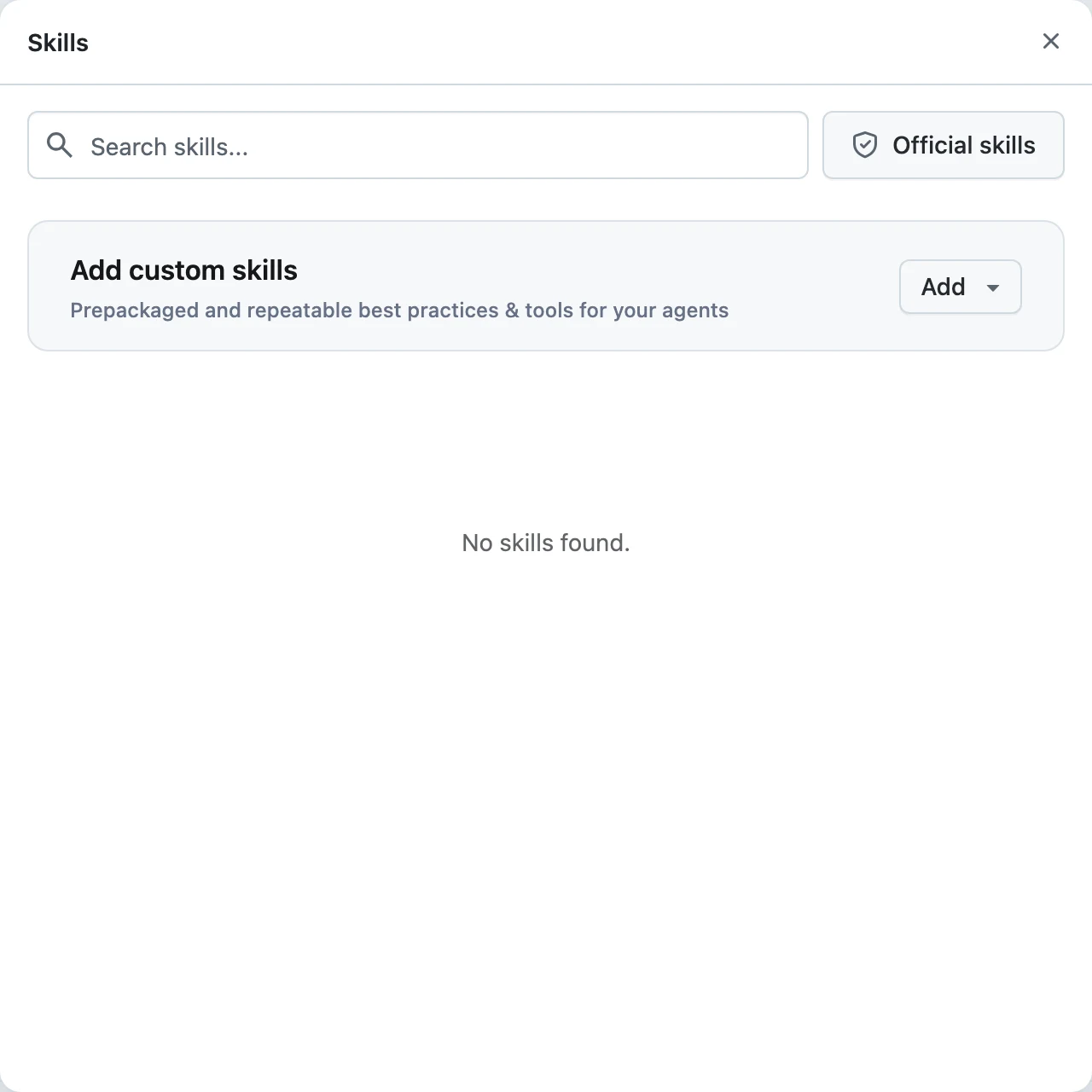
Add skills
The Add menu offers four ways in:
- Upload skill — upload a skill file from disk (1 MB limit).
- Import from Github — paste a repository folder URL that contains a
SKILL.md, for examplehttps://github.com/anthropics/skills/tree/main/skills/pdf. - Add from official repository — browse the Official skills list curated by Dynamiq and add them to your library in one click.
- Write skill manually — give a name (lowercase, like
my-skill), a short description, and the instructions, right in the dialog.
Enable what you need
Toggle a skill on and it is available to the agent in your conversations; toggle it off to remove it without deleting it from your library.
Skills also exist as a platform-wide resource for workflow agents — the same SKILL.md format powers the Agent node's Skills tool. For authoring guidance see Create a Skill and the skills marketplace.
Commands: prompts as slash commands
Commands are reusable single-message prompts you fire with /. The input placeholder reminds you: "Give agent any task, type / for commands".
Type / in the input
A popover lists your commands with a one-line preview of each. Keep typing to filter, then select one — the prompt's text is inserted as a chip and expands to the full prompt when you send.
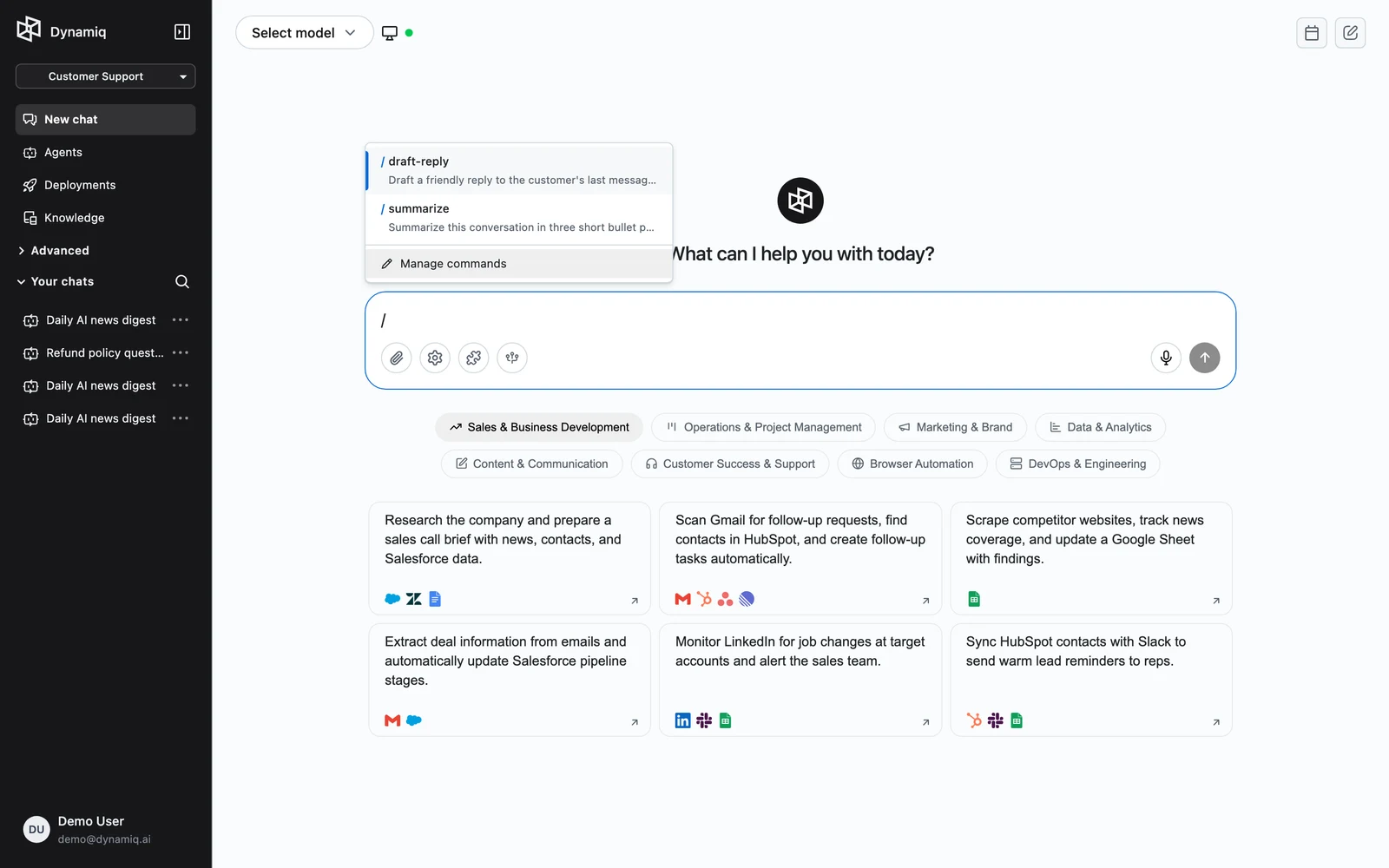
Manage commands
Choose Manage commands at the bottom of the popover to open the Commands dialog: create with New command (a title plus the prompt text), edit, or delete.
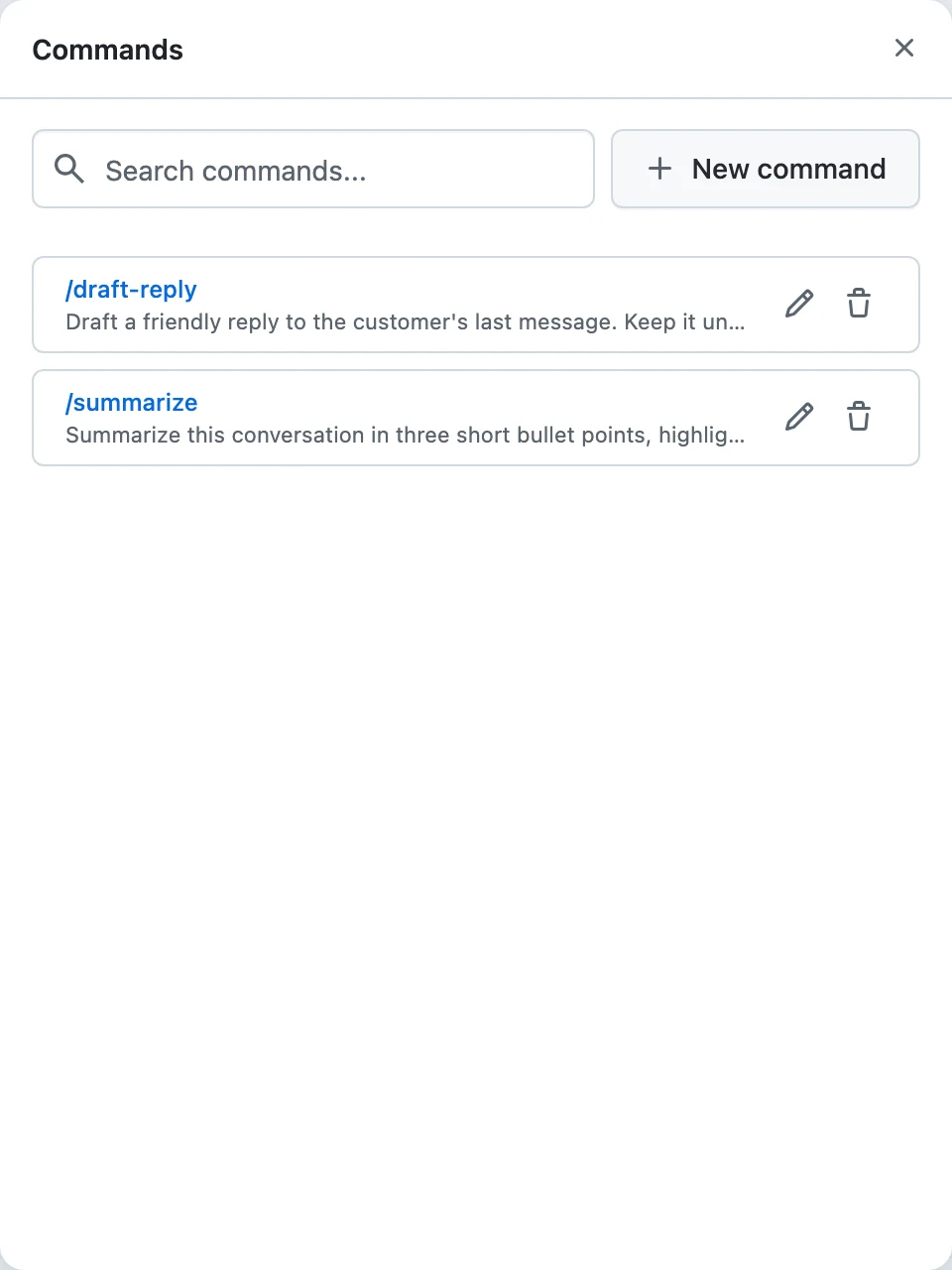
Commands are stored as Prompts in your current project — only single-message prompts appear in the slash menu. That means anything your team saves in the Prompts library as a single user message is instantly a chat command, and commands you create in Chat show up in the Prompts library too. To iterate on longer prompts with variables and model comparisons, use the Prompts Playground.
Skills or commands?
- Command — you want to say the same thing often: "summarize this for an executive audience", "review this contract for red flags". One message, inserted on demand.
- Skill — you want the agent to work the same way on a kind of task: multi-step procedures, formatting standards, tool usage rules. Loaded by the agent when the task matches.