Chat Modes
Switch between the built-in Dynamiq Agent and your own deployed Apps, and pick the model that powers the conversation.
The selector at the top of the chat decides who answers you: the built-in Dynamiq Agent super agent, or a Custom Agent — one of your own deployed Apps. Each conversation is pinned to one or the other when it is created; switching tabs starts a new chat.
Pick a mode
Open the selector
Click the pill at the top left of the chat (it shows the current model or agent name). The dropdown has two tabs: Dynamiq Agent and Custom Agents.
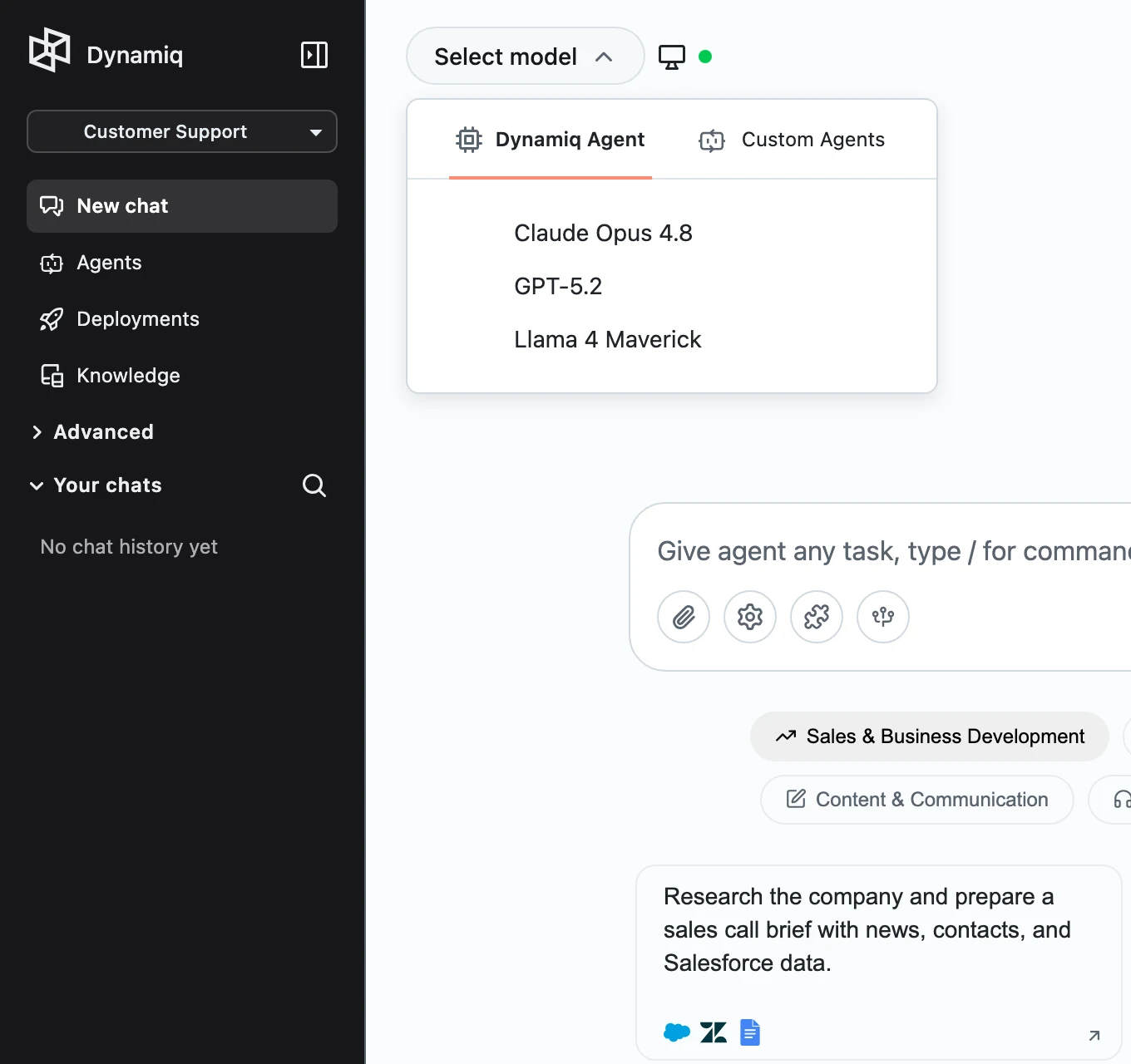
Dynamiq Agent: choose a model
The Dynamiq Agent tab lists the LLMs available to power the super agent, each with its provider icon. New conversations default to Anthropic's Claude Sonnet when available. The model you pick is saved with the conversation — reopening it from history restores the same model.
While this mode is active, a small monitor icon with a green dot appears next to the selector — hover it to see Computer is running. That is the conversation's sandbox; see Subagents & Sandbox.
Custom Agents: choose a deployed App
The Custom Agents tab lists the Apps deployed in your current project, with a search box. Pick one and the conversation runs that App's workflow — its tools, knowledge, and guardrails are whatever you built. An external-link icon next to the selected agent opens its App page in a new tab.
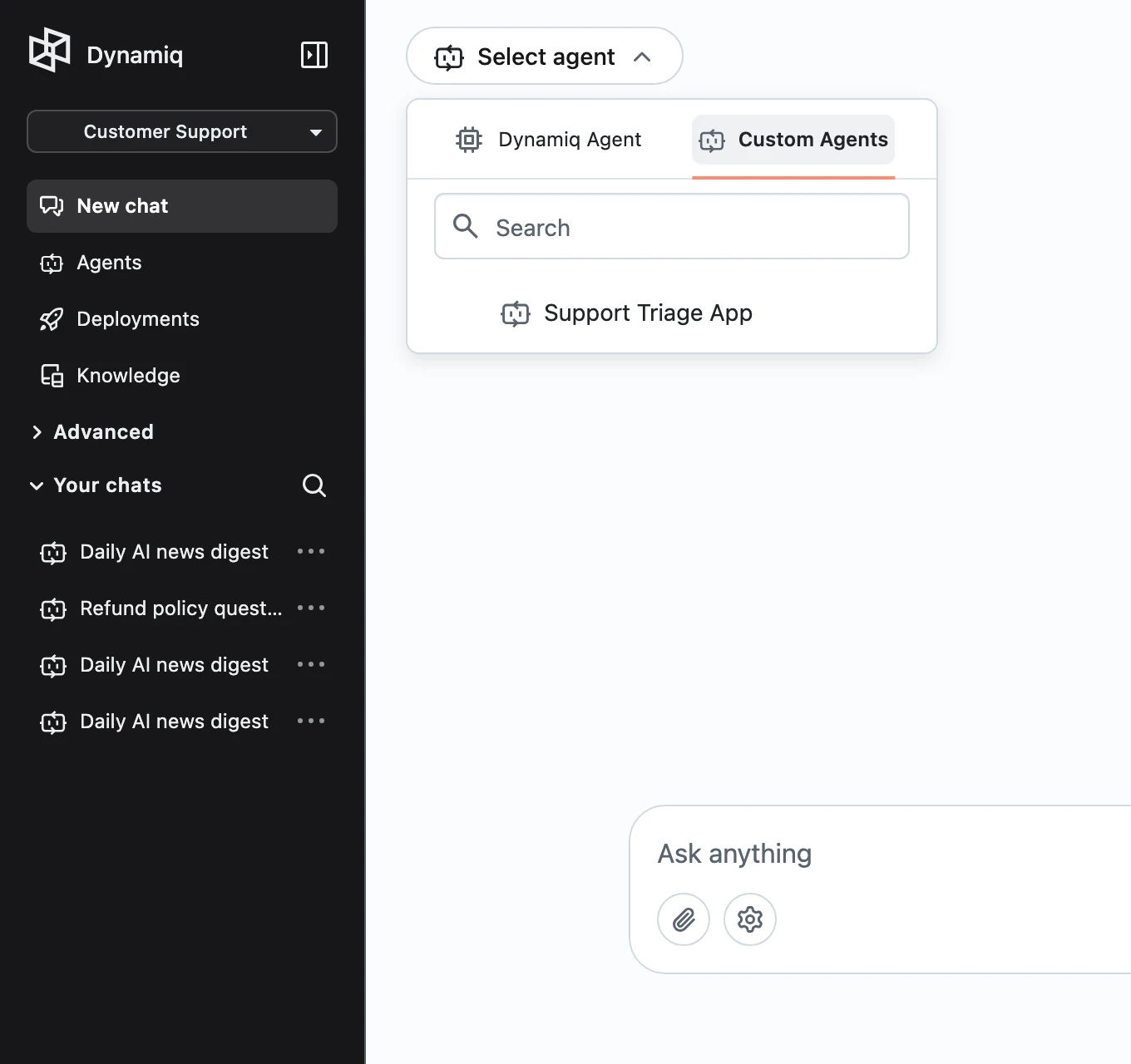
If the list is empty, you have no deployed Apps in this project yet — see Deploy a Workflow App.
What changes between modes
| Dynamiq Agent | Custom Agents | |
|---|---|---|
| Powered by | Platform super agent + the LLM you pick | Your deployed App's workflow |
| Sandbox computer | Yes, one per conversation | Only if you built one into the workflow |
| Connectors menu | Yes — Connect apps in the input bar | No — the App uses its own Connections |
| Skills, slash commands, subagents toggle | Yes | No |
| Scheduled tasks (calendar icon in the header) | Yes | No |
| Input bar Settings | — | Response type: WebSocket, Streaming, or HTTP |
Response type for Custom Agents
In Custom Agents mode, the gear Settings button in the input bar selects how Chat talks to your App:
- WebSocket — a persistent two-way connection; file attachments are disabled in this mode.
- Streaming — Server-Sent Events; tokens appear as the workflow produces them.
- HTTP — a single request/response; the answer appears when the workflow finishes.
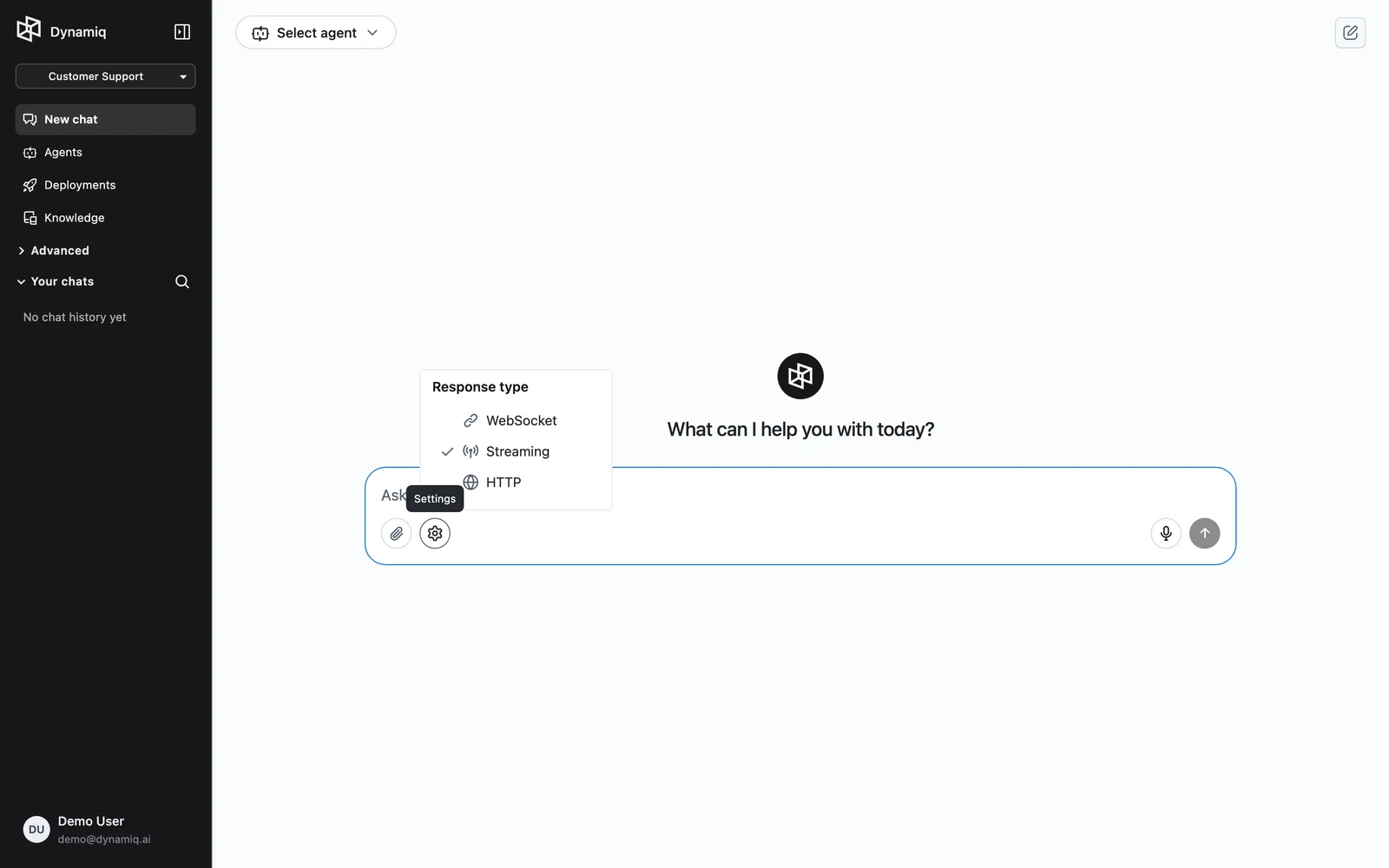
Pick Streaming unless your workflow specifically requires WebSocket sessions. The same three transports are available to your own integrations — see Streaming & Async.
Chatting with a Custom Agent is a convenient test surface, but it is the same deployed App your users call. Conversations and messages also show up in the App's monitoring and traces.