Scheduled Tasks
Have the Dynamiq Agent run a prompt for you once or on a daily, weekly, or monthly schedule, and review every run.
Scheduled tasks run a prompt with the Dynamiq Agent on a timer — a daily news digest, a weekly metrics summary, a one-off reminder to compile a report Friday morning. Each run is a full agent execution that lands in your chat history as its own conversation. Scheduled tasks are available in Dynamiq Agent mode.
Create a scheduled task
Open Scheduled Tasks
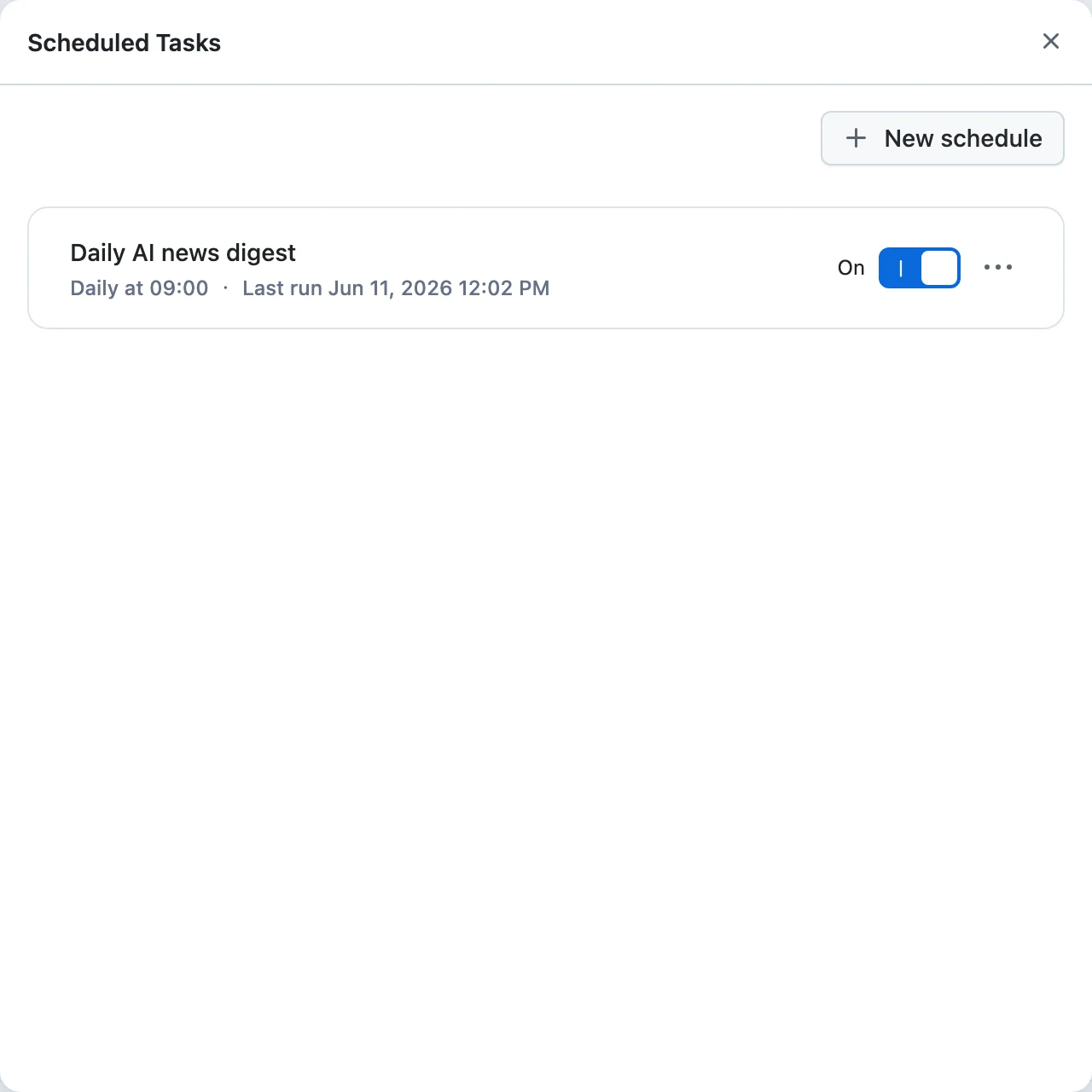
Click the calendar Scheduled tasks icon in the chat header. The Scheduled Tasks dialog lists your existing tasks; click New schedule to create one.
Write the title and prompt
Give the task a Title (for example, "Summary of AI news") and the Prompt the agent should run — exactly what you would type in chat:
Search for last week's most impactful AI news and send a brief summary to my email.The task runs with the model currently selected in your chat.
Set the schedule
Choose how it repeats:
- Run once — pick a date and a time.
- Daily — pick a time.
- Weekly — pick one or more weekdays and a time.
- Monthly — pick one or more days of the month and a time.
Recurring tasks have an optional Expires at date, after which the task stops and can no longer be edited. Times use your browser's timezone.
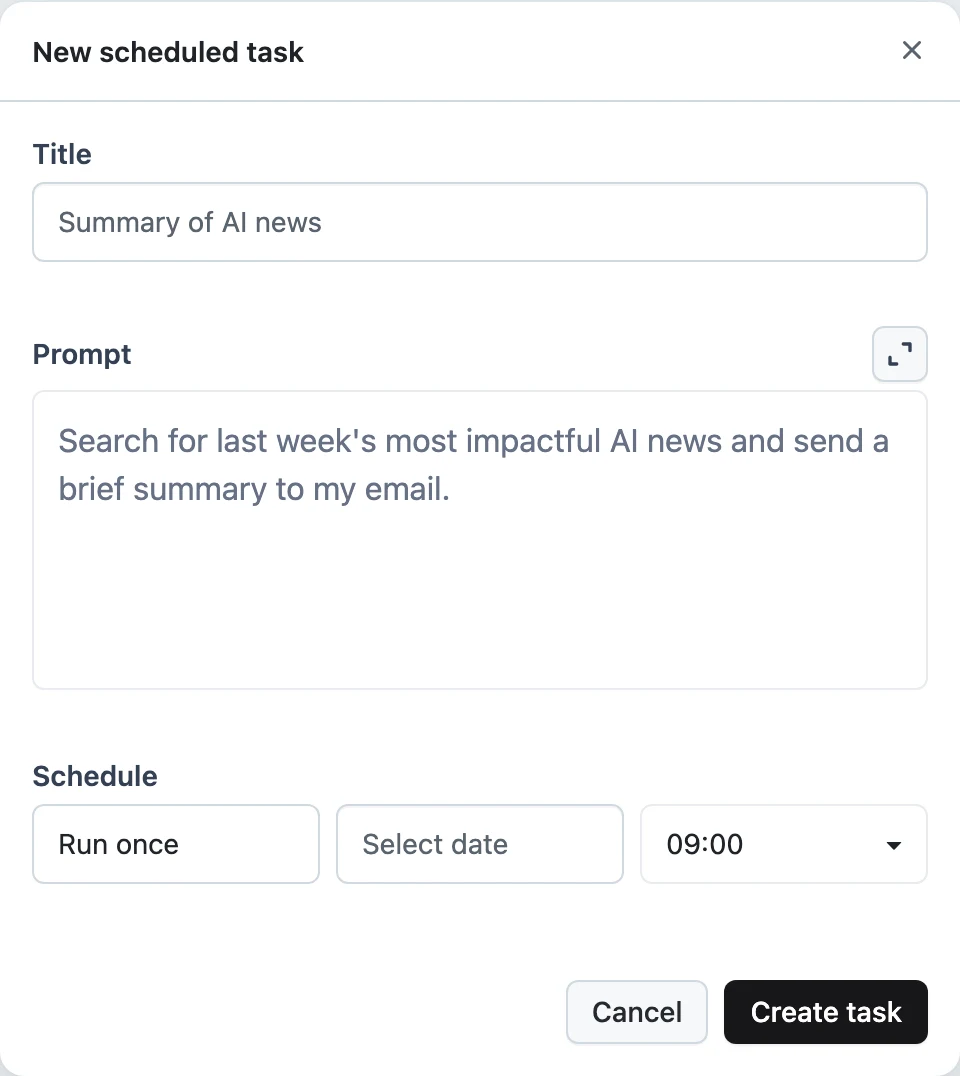
Click Create task.
Manage tasks and review runs
Each task card in the Scheduled Tasks dialog shows its schedule and status. From the card's menu you can edit, pause, resume, or Delete the task — paused tasks skip their slots until resumed, and expired one-off or past-expiry tasks are kept for reference but locked.
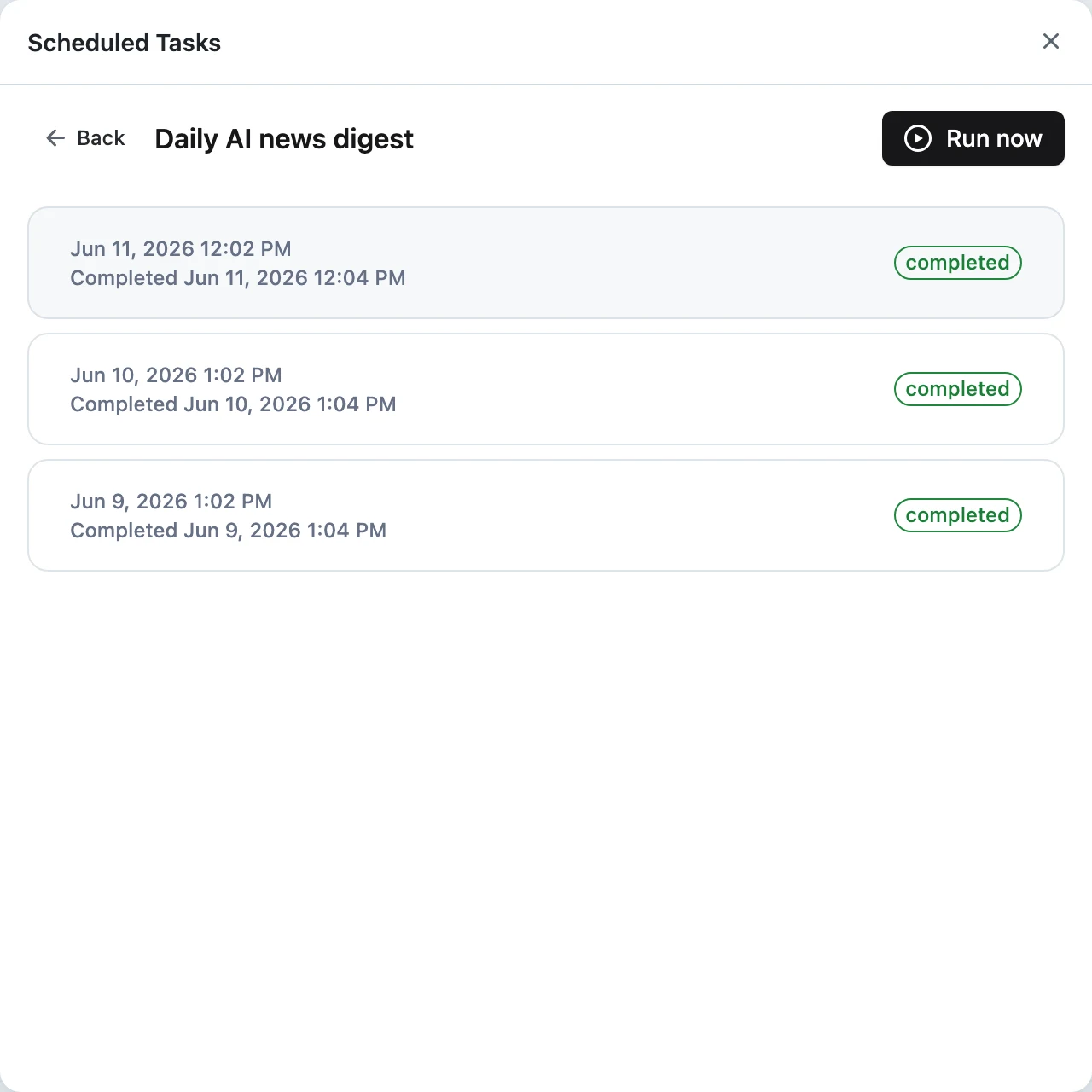
Click a task to open its run history:
- Every run shows its start time, completion time, and a status label —
running,completed, orfailed. - Click a run to open the conversation it produced, with the full reply, artifacts, and tool steps.
- Run now triggers the task immediately without waiting for the next slot — useful for testing the prompt.
Scheduled tasks run with the connectors and skills enabled for your user at run time. If a task needs Gmail or a database, connect it before the first run.
For engineers
Scheduled tasks are user-scoped resources on the management API under /v1/conversation-scheduled-tasks: create (POST), list (GET), update (PUT .../{scheduled_task_id}), POST .../pause, POST .../resume, POST .../run, delete (DELETE), and GET .../runs for the run history. A task carries either a run_at timestamp (one-off) or a cron schedule plus timezone and optional expires_at, along with name, prompt, and the model_id to run with.
For scheduling deployed Apps rather than the Chat agent, use Triggers — they belong to the App and are managed by your team, not an individual chat user.