SSH Tunnels
Reach databases on private networks by adding an ssh_tunnel block to a database Connection — supported types, config fields, and where to configure it.
Databases often sit inside a private network with no public endpoint. Dynamiq's SQL database connection types accept an optional ssh_tunnel block: instead of connecting to the database host directly, the platform connects to an SSH bastion (jump host) you expose, and routes the database traffic through that tunnel.
Supported connection types
The ssh_tunnel block is available on these Connection types:
| Type | Connection type string |
|---|---|
| PostgreSQL | dynamiq.connections.PostgreSQL |
| MySQL | dynamiq.connections.MySQL |
| ClickHouse | dynamiq.connections.ClickHouse |
| Vertica | dynamiq.connections.Vertica |
| Trino | dynamiq.connections.Trino |
For each, ssh_tunnel is a sibling of the regular config fields (host, port, database, …). The database host stays the internal address — the one reachable from the bastion, not from the internet.
Tunnel config fields
hoststringrequiredportintegeruserstringrequiredprivate_keystringprivate_key_passphrasestringAuthentication is key-based — there is no SSH password field. Use a dedicated SSH user on the bastion with its own key pair, so you can revoke Dynamiq's access without touching other users.
Create a tunneled Connection via the API
The Connections page form does not currently expose the tunnel fields, so create tunneled project Connections through the management API by including ssh_tunnel in config:
# jq builds the JSON safely, including the multi-line private key
jq -n \
  --arg project_id "$DYNAMIQ_PROJECT_ID" \
  --arg password "$DB_PASSWORD" \
  --rawfile private_key "$HOME/.ssh/dynamiq_bastion" \
  '{
    name: "analytics-postgres",
    project_id: $project_id,
    type: "dynamiq.connections.PostgreSQL",
    config: {
      host: "10.0.12.34",
      port: 5432,
      database: "analytics",
      user: "dynamiq_reader",
      password: $password,
      ssh_tunnel: {
        host: "bastion.example.com",
        port: 22,
        user: "dynamiq",
        private_key: $private_key
      }
    }
  }' | curl -X POST "https://api.getdynamiq.ai/v1/connections" \
  -H "Authorization: Bearer $DYNAMIQ_PAT" \
  -H "Content-Type: application/json" \
  -d @-
import os
from pathlib import Path
import requests
API = "https://api.getdynamiq.ai"
headers = {"Authorization": f"Bearer {os.environ['DYNAMIQ_PAT']}"}
connection = requests.post(
f"{API}/v1/connections",
headers=headers,
json={
"name": "analytics-postgres",
"project_id": os.environ["DYNAMIQ_PROJECT_ID"],
"type": "dynamiq.connections.PostgreSQL",
"config": {
"host": "10.0.12.34", # internal address, reachable from the bastion
"port": 5432,
"database": "analytics",
"user": "dynamiq_reader",
"password": os.environ["DB_PASSWORD"],
"ssh_tunnel": {
"host": "bastion.example.com",
"port": 22,
"user": "dynamiq",
"private_key": Path.home().joinpath(".ssh/dynamiq_bastion").read_text(),
},
},
},
).json()["data"]
print("Connection id:", connection["id"])The Connection is active immediately and is picked like any other Connection of its type — for example on a SQL Executor node. Updating the tunnel later is a regular PUT /v1/connections/{connection_id} with the full new config.
The ssh_tunnel block tunnels the database protocol only. SSL/TLS options on the database config (for example PostgreSQL's ssl block or ClickHouse's secure flag) still apply to the database session inside the tunnel and can be combined with it.
SSH tunnels in Chat database connectors
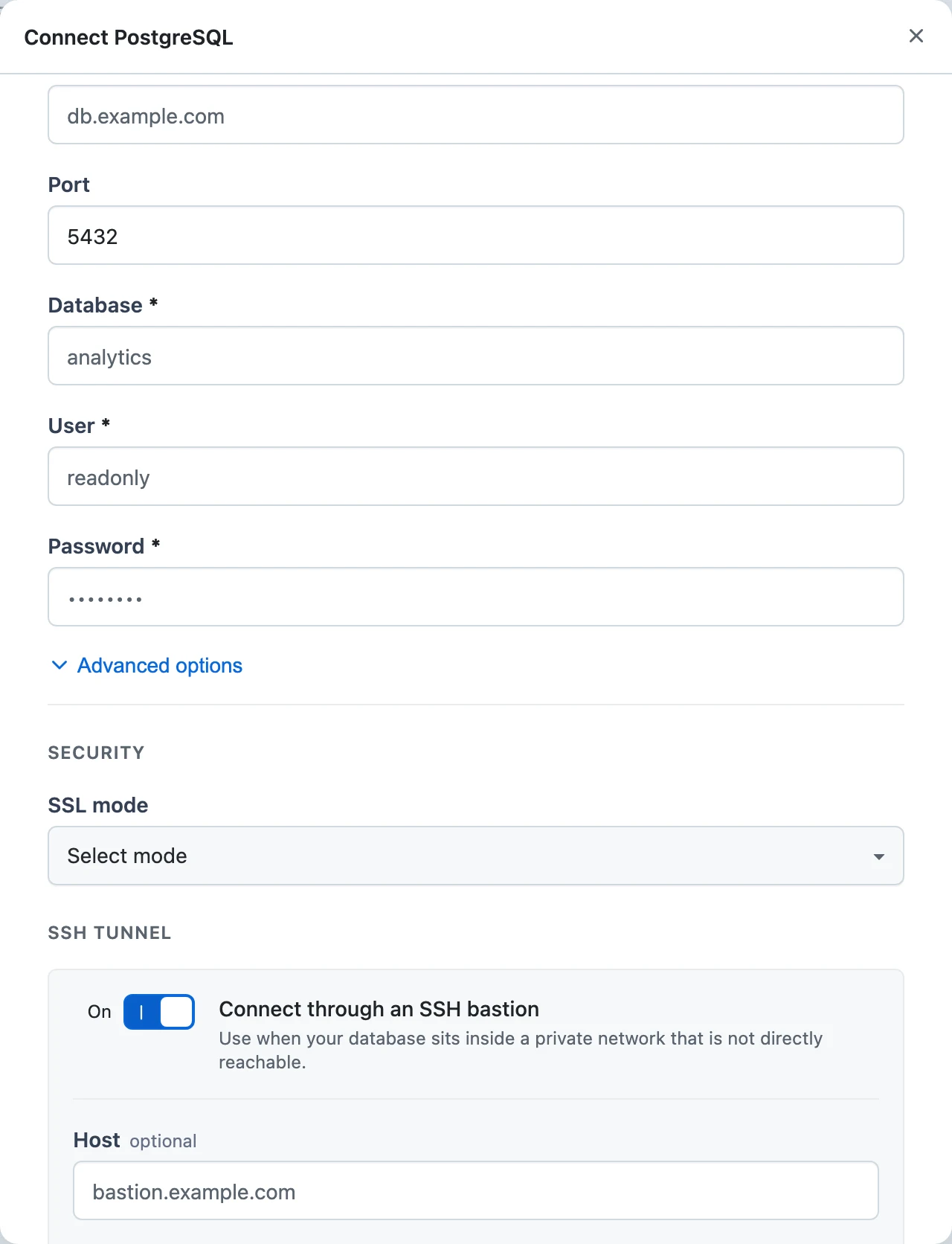
Chat has its own per-user database connectors for PostgreSQL, MySQL, Vertica, ClickHouse, and Trino — and there the tunnel is in the UI. In the connector's connect modal, the SSH tunnel section has a Connect through an SSH bastion toggle; enabling it reveals Host, Port (placeholder 22), User, Private key, and Private key passphrase fields. All four of host, port, user, and private key must be filled for the tunnel to be saved with the connector.
Bastion checklist
- Allow inbound SSH (port 22 or your custom port) on the bastion from the internet, and outbound traffic from the bastion to the database host and port.
- Create a dedicated SSH user with a dedicated key pair; paste the private key into the Connection and put the public key in the user's
authorized_keys. - Keep the database user's privileges minimal — read-only if workflows only query.