Online Evaluations
Score a deployed App's live traffic automatically from the App's Evaluations tab — sample rate, input path, and scored runs.
An online evaluation attaches a saved Metric to a deployed App and scores its live traffic. Every time the App records a trace, each enabled evaluator decides whether to sample it, pulls the metric's input out of the trace with its Input path, and runs the metric. The score lands in the evaluator's runs list. Nothing is re-executed and your App's callers see no difference.
Use online evaluations to watch quality on real traffic after you deploy; use evaluation runs to compare versions against a fixed dataset before you deploy.
Add an evaluator
Open the App's Evaluations tab
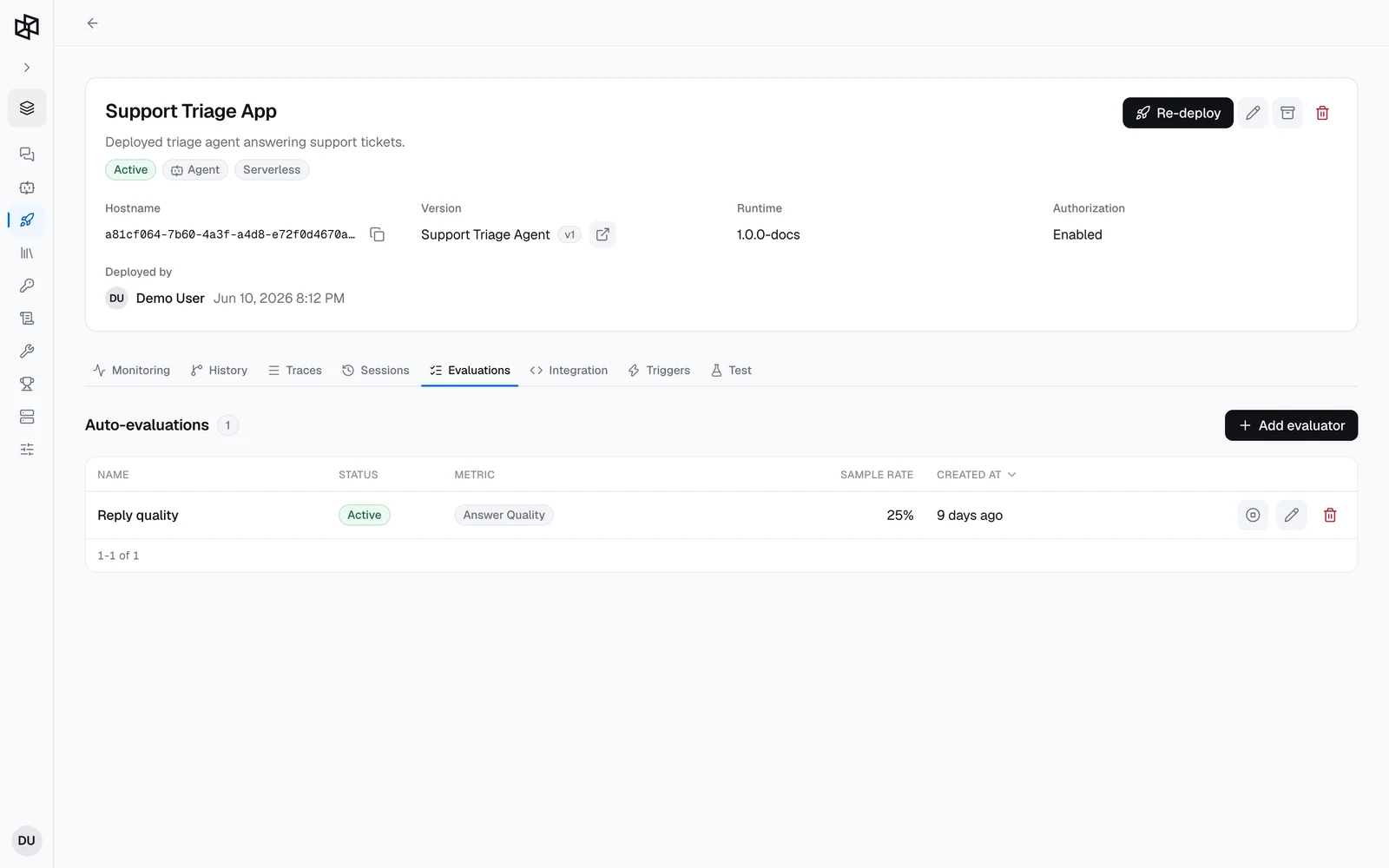
Open the App from Deployments and switch to the Evaluations tab. It lists the App's Auto-evaluations with their Name, Status (Active or Inactive), Metric, Sample rate, and Created at.
Fill in the evaluator
Click Add evaluator and fill in the form, then click Create.
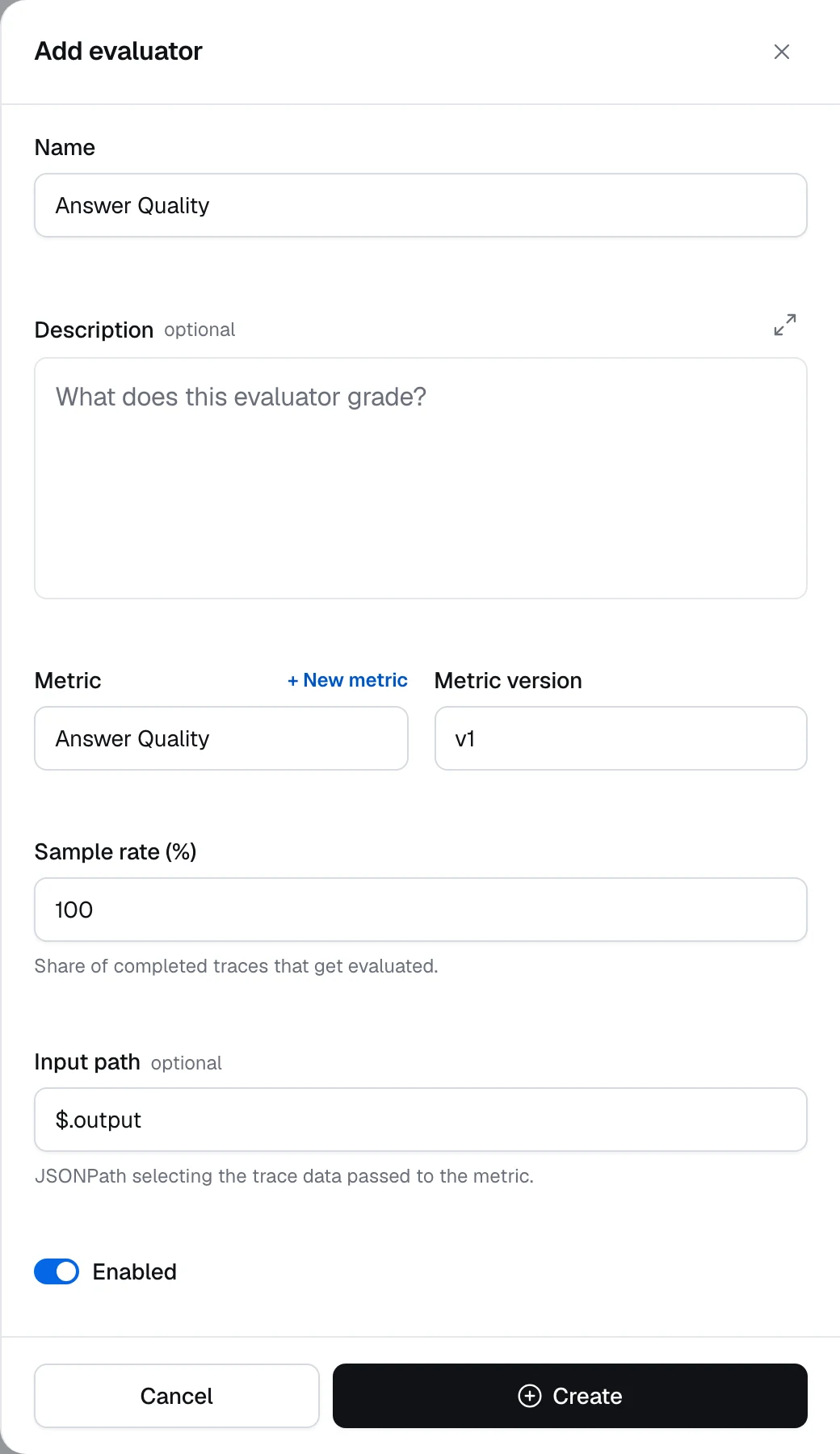
| Field | What it takes |
|---|---|
| Name | Required. Filled in with the metric's name when you pick a metric; change it if you like. |
| Description | Optional, up to 512 characters. |
| Metric | Required. Any metric in the App's project; + New metric creates one inline. Can't be changed after creation. |
| Metric version | Required. Defaults to the newest version. The evaluator keeps scoring with this version until you pick another one. |
| Sample rate (%) | Required. 0–100, default 100. The share of the App's traces to score — see Sample rate. |
| Input path | Optional, prefilled with $.output. A JSONPath that selects the metric's input from the trace — see Input path. |
| Enabled | On by default. While off, no traces are sampled. |
For a predefined metric, the form shows the inputs it expects under the Input path, for example This metric expects: questions, answers, contexts.
Send traffic and read the scores
Call the App as usual. Click the evaluator's name to open its Evaluation runs — see Read the results.
Sample rate
Sample rate (%) is the percentage of the App's traces the evaluator scores: 100 scores every trace, 10 scores roughly one in ten, 0 scores none. The API stores it as a fraction from 0 to 1 (10% is 0.1).
- Deterministic. Whether a trace is sampled is derived from the App, trace, and evaluator IDs, not from a random draw. Each evaluator samples independently, so two evaluators at 50% don't score the same half of the traffic.
- Every finished trace is eligible — including failed and canceled runs, not just successful ones.
- Only new traffic. Traces are sampled as they arrive while the evaluator is enabled. Traces recorded before you created or enabled it are never scored.
Start at 100% while you validate the evaluator, then lower the rate for high-traffic Apps — every sampled trace is one metric execution, and LLM-as-a-judge metrics cost tokens.
Input path
Input path is a JSONPath evaluated against the trace. The trace object looks like this — input is what the App was called with (the Input node's fields) and output is what it returned (the Output node's fields):
{
  "id": "2bce8dc6-a525-49cd-b24f-1f3bcb1122f0",
  "status": "succeeded",
  "input": {
    "question": "How do I rotate my API key?"
  },
  "output": {
    "answer": "Open Settings → Access Keys, create a new key, update your services, then revoke the old key."
  },
  "usage": {
    "total_tokens": 1850
  },
  "runs": []
}
runs (empty here for brevity) holds every node run in the trace, each with its name, type, status, input, and output. The path must resolve to a JSON object, and that object's keys become the metric's inputs:
| Input path | The metric receives |
|---|---|
$.output (default) | {"answer": "Open Settings → Access Keys, …"} |
$.input | {"question": "How do I rotate my API key?"} |
| (empty) | The whole trace object, runs included |
$.output.answer | A string — the run fails |
If the path doesn't resolve to an object, the run fails with metric input did not resolve to an object — check the metric input_transformer. With the default $.output, that is what happens for failed traces, which have no output.
The keys must match what the metric expects:
- LLM-as-a-judge — every key is passed to the judge. Name them after the
{{placeholders}}in the metric's instructions. - Code — keys must match the
evaluatefunction's parameters exactly. A missing or extra key fails the run with an error such asMissing required keys: ['question']. - Predefined — keys must be the preset's inputs, such as
questions,answers, andcontexts.
Match the metric's inputs
A metric often needs both the request and the response — say question and answer — but a single path selects one object. Two ways to get both:
- In the workflow (UI only). Make the Output node return everything the metric needs: add a
questionfield that references the Input node alongsideanswer, redeploy, and keep the Input path at$.output. The same technique exposes intermediate results such as retrieved documents — see Score intermediate results. Extra Output fields are also returned to the App's callers. - With a selector (API).
input_transformer.selectormaps each metric input to its own JSONPath, so nothing in the workflow changes — see Manage evaluators via the API. The UI form doesn't show selectors: leave Input path empty when you edit such an evaluator, because a path is applied before the selector.
JSONPath filter expressions such as $.runs[?(@.name=='retriever')] are not supported. Prefer Output node fields over positional paths like $.runs[3].output, which break when the workflow changes.
Read the results
Click an evaluator's name to open Evaluation runs. Each row is one sampled trace, with Status, Score, Duration, a Trace button that opens the trace, and Created at. Filter by status; the list refreshes while runs are in progress.
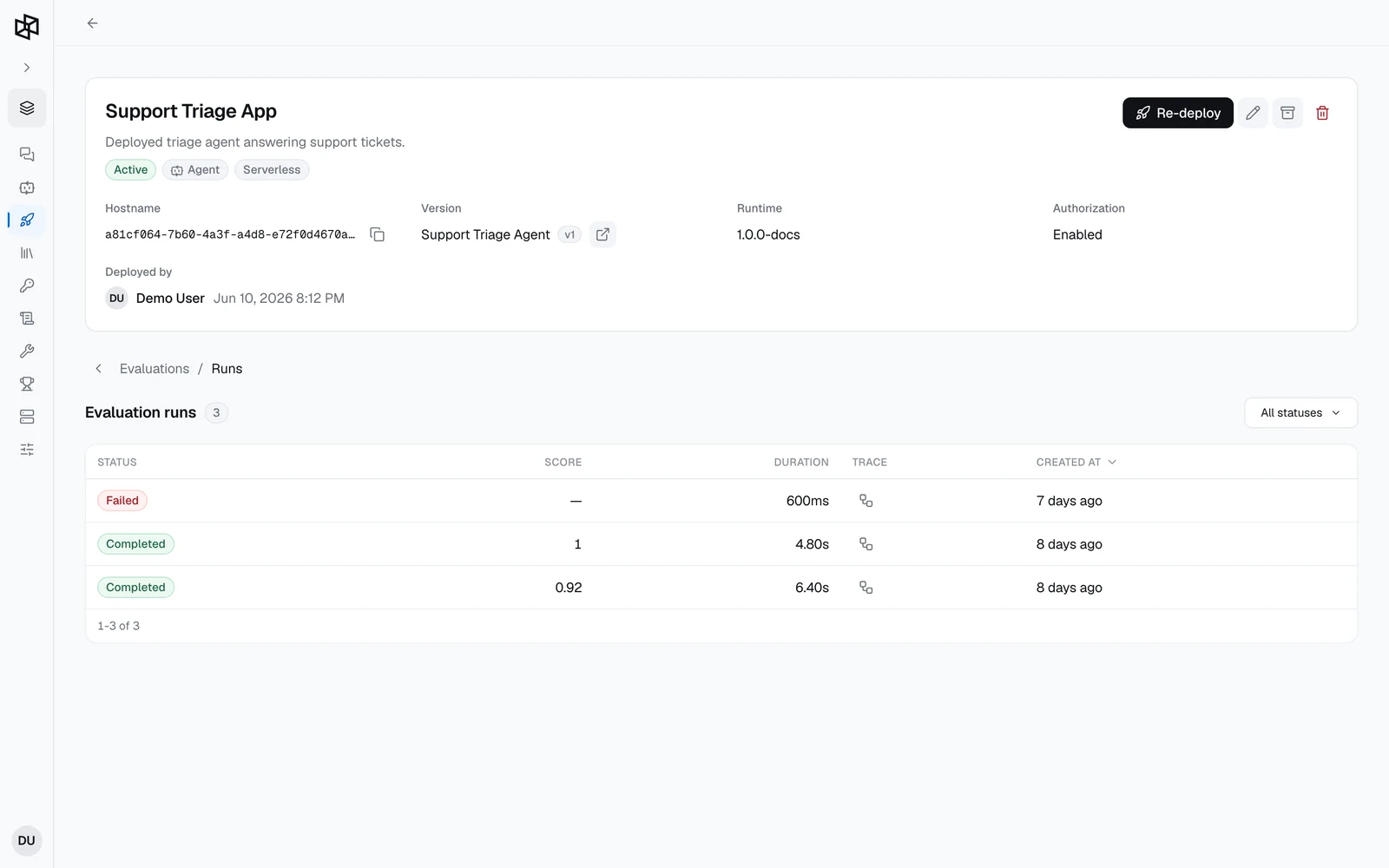
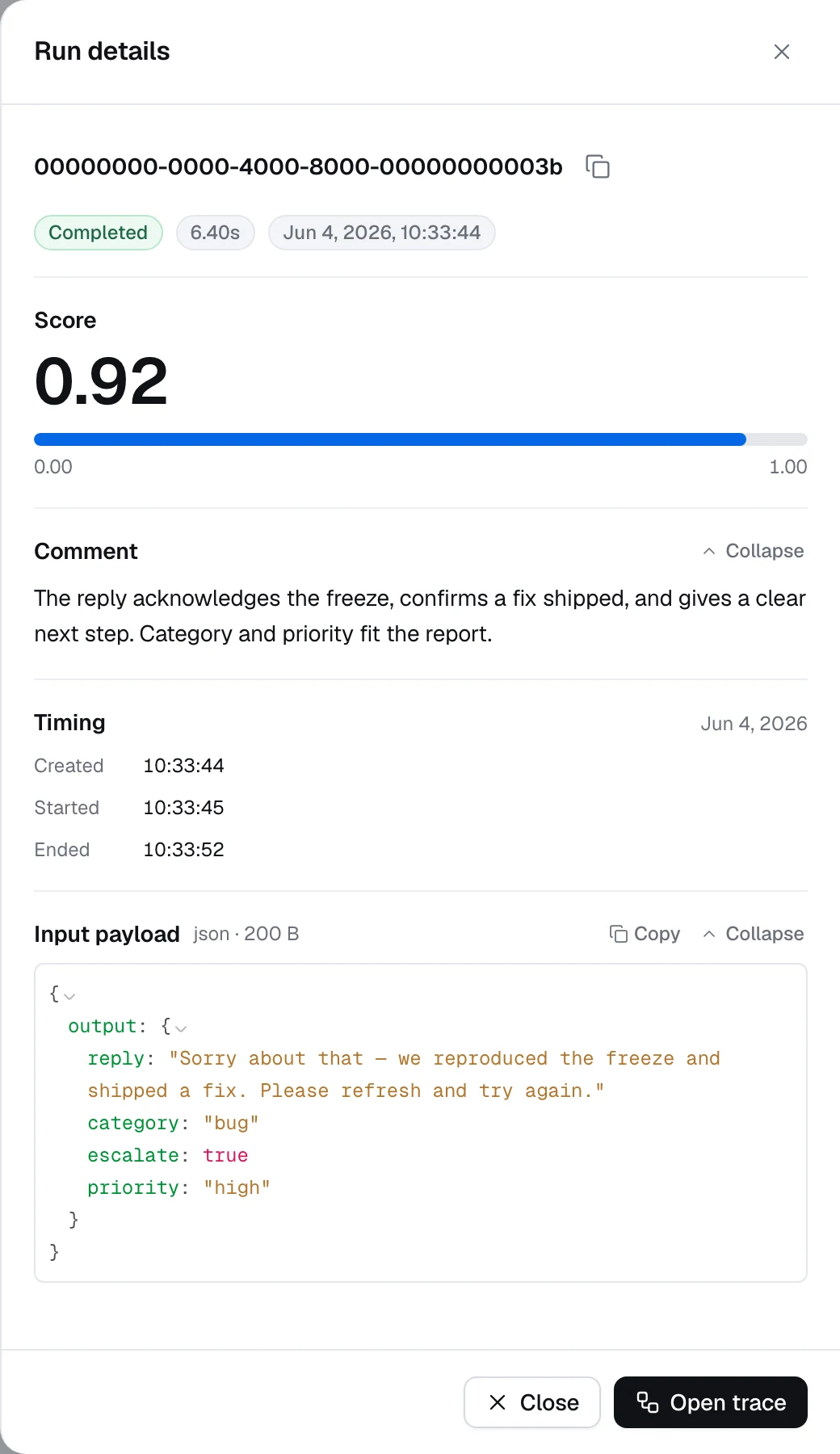
A run moves through Pending → Queued → Running and ends Completed or Failed. Click a run's status to open Run details:
- Score and Comment — the metric's score (rounded to 2 decimals) and, for LLM judges, its reasoning.
- Error — why a failed run failed.
- Input payload — the exact object your Input path resolved to (recorded for completed runs). Check it first when scores look wrong.
- Open trace — the full trace the run scored.
Scores are shown only here. The Evaluation tab of a trace's side sheet doesn't list them.
Manage evaluators
Each evaluator row has three action buttons:
- Enable / Disable (the first button) — pause sampling without losing the configuration or past runs. The Status column switches between Active and Inactive.
- Edit evaluator — change everything except the metric. To score with a different metric, add another evaluator.
- Delete evaluator — removes the evaluator and all of its runs. The metric itself is kept.
Manage evaluators via the API
The Evaluations tab is backed by the management API. This creates an evaluator that maps the request and the response separately with a selector:
curl -X POST "https://api.getdynamiq.ai/v1/apps/<app-id>/evaluations" \
  -H "Authorization: Bearer $DYNAMIQ_PAT" \
  -H "Content-Type: application/json" \
  -d '{
    "name": "Answer quality",
    "metric_id": "<metric-id>",
    "metric_version_id": "<metric-version-id>",
    "enabled": true,
    "sample_rate": 0.2,
    "input_transformer": {
      "selector": {
        "question": "$.input.question",
        "answer": "$.output.answer"
      }
    }
  }'
When both are set, path is applied first and each selector path is evaluated against its result.
Always send enabled and sample_rate: when omitted they default to false and 0, and the evaluator never scores anything. PUT /v1/app-evaluations/{evaluation_id} is a full replace, not a patch — send every field you want to keep, or description and input_transformer are cleared.
GET /v1/apps/{app_id}/evaluationslists an App's evaluators.GET,PUT, andDELETEon/v1/app-evaluations/{evaluation_id}read, update, or remove one.GET /v1/app-evaluations/{evaluation_id}/runslists its runs, filterable bystatus.