Overview
What you can deploy on Dynamiq — workflow Apps, AI models, vector databases, and services — and how the deployment lifecycle works.
The Deployments page is where workflows become production endpoints. You deploy a saved workflow version as an App with its own hostname, call it over HTTP, and manage everything around it — monitoring, run history, traces, sessions, triggers, and variables — from a single page.
Deployment types
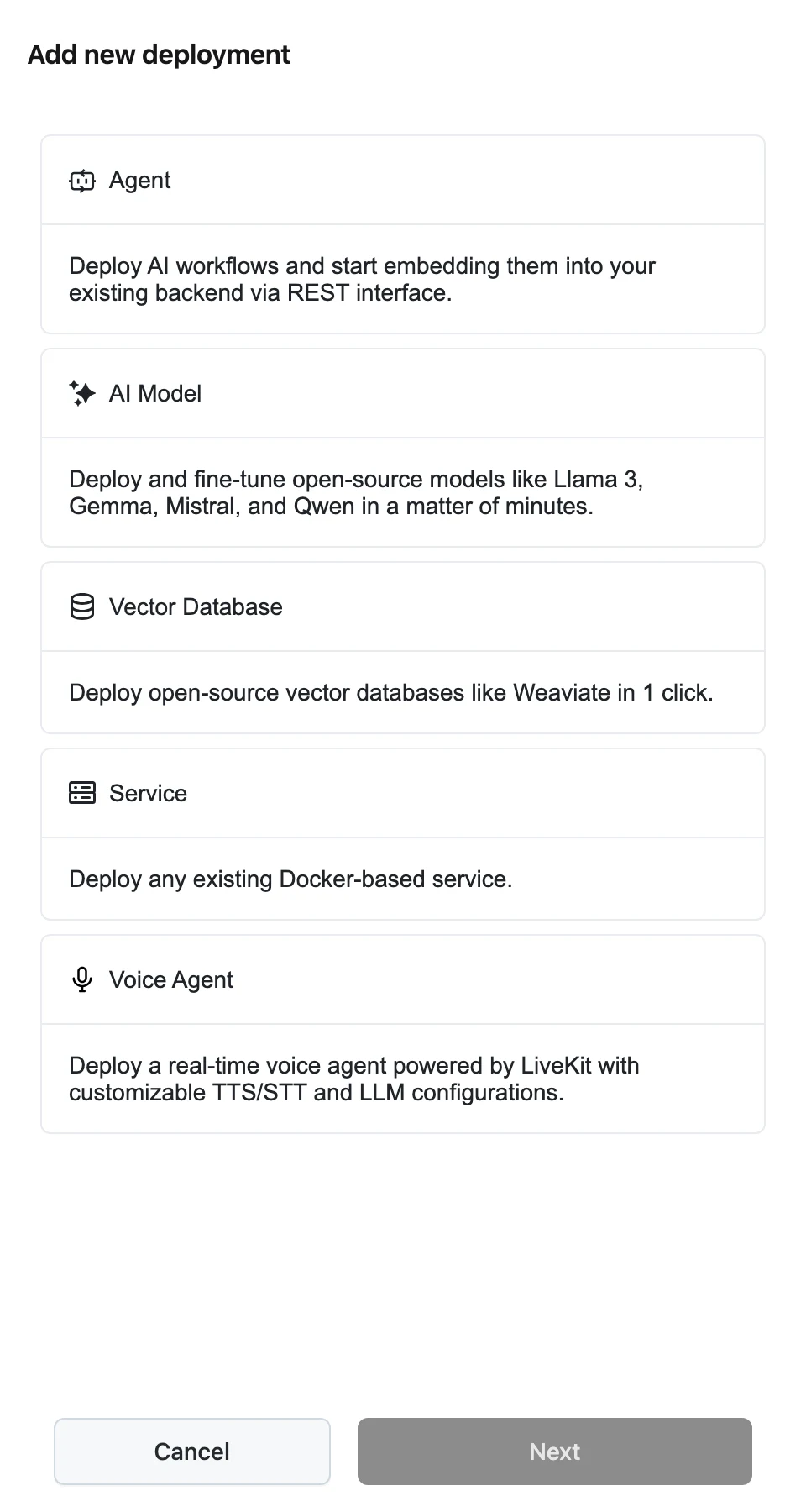
Click Add new deployment on the Deployments page and pick a type:
| Type | What it deploys |
|---|---|
| Agent | An AI workflow you built in the editor, exposed as a REST endpoint you embed into your existing backend. This is the deployment type the rest of this section covers. |
| AI Model | Open-source models like Llama 3, Gemma, Mistral, and Qwen, deployed and fine-tuned in minutes. See Model inference deployments. |
| Vector Database | Open-source vector databases like Weaviate, deployed in one click. See Database deployments. |
| Service | Any existing Docker-based service. See Service deployments. |
| Voice Agent | A real-time voice agent that talks to callers over the web, the phone, or your own transport. See Voice Agents. |
Voice agents have their own section — see Voice Agents. Sandbox, browser, and computer deployments exist in the product but are not covered in this documentation set yet. The pages in this section focus on workflow Apps, plus model inference, database, and service deployments.
The App lifecycle
An App is a deployed workflow. Its lifecycle:
- Build and save — you build a Workflow in the editor and save it. Each save creates a new version (a snapshot) the App can pin to.
- Deploy — you create an App from a workflow version. The App gets a unique hostname and starts serving requests immediately. See Deploy a Workflow App.
- Call — clients invoke the App over HTTP with an Access Key. See Call your App over HTTP.
- Redeploy — when you save a new workflow version, click Re-deploy on the App page to roll the App forward to it. The hostname does not change; every deployment is recorded in the History tab. See Deployment history and rollback.
- Archive, restore, or delete — archiving takes an App out of service while keeping its record; you can restore it later or delete it permanently.
Each invocation of an App is a Run. Runs carry an input, an output (or error), a status (created, started, paused, canceled, failed, completed), and a recorded execution Trace.
Serverless vs. server-based
Every App has a deployment type in its deployment config:
- Serverless (
serverless) — the default. Dynamiq schedules capacity for you; you never manage replicas. - Server-based (
server_based) — dedicated replicas with autoscaling you control: minimum and maximum replica counts and a target CPU percentage that drives scaling.
The active type is shown as a label (Serverless or Server-based) in the App page header next to the App's status.
Server-based deployment is not yet selectable when creating a new App in the UI — new Apps are created serverless. The deployment_config API field accepts both types.
Authorization
When you create an App you choose whether the endpoint requires authorization (Endpoint Authorization — "Require an API token to access the deployment endpoint"):
- Private (authorization enabled) — every request must carry an org- or project-scoped Access Key as a Bearer token.
- Public (authorization disabled) — anyone with the hostname can invoke the App.
The App page header shows Authorization: Enabled or Disabled; you can change it later with Edit.