Overview
Real-time voice agents on Dynamiq — how they work, how callers reach them, and what each tab of the agent page does.
A Voice Agent is a real-time conversational agent that talks to people over audio. You write its instructions, pick the models that hear and speak, give it tools and transfer destinations, then deploy it and connect a phone number or wire it into your own application.
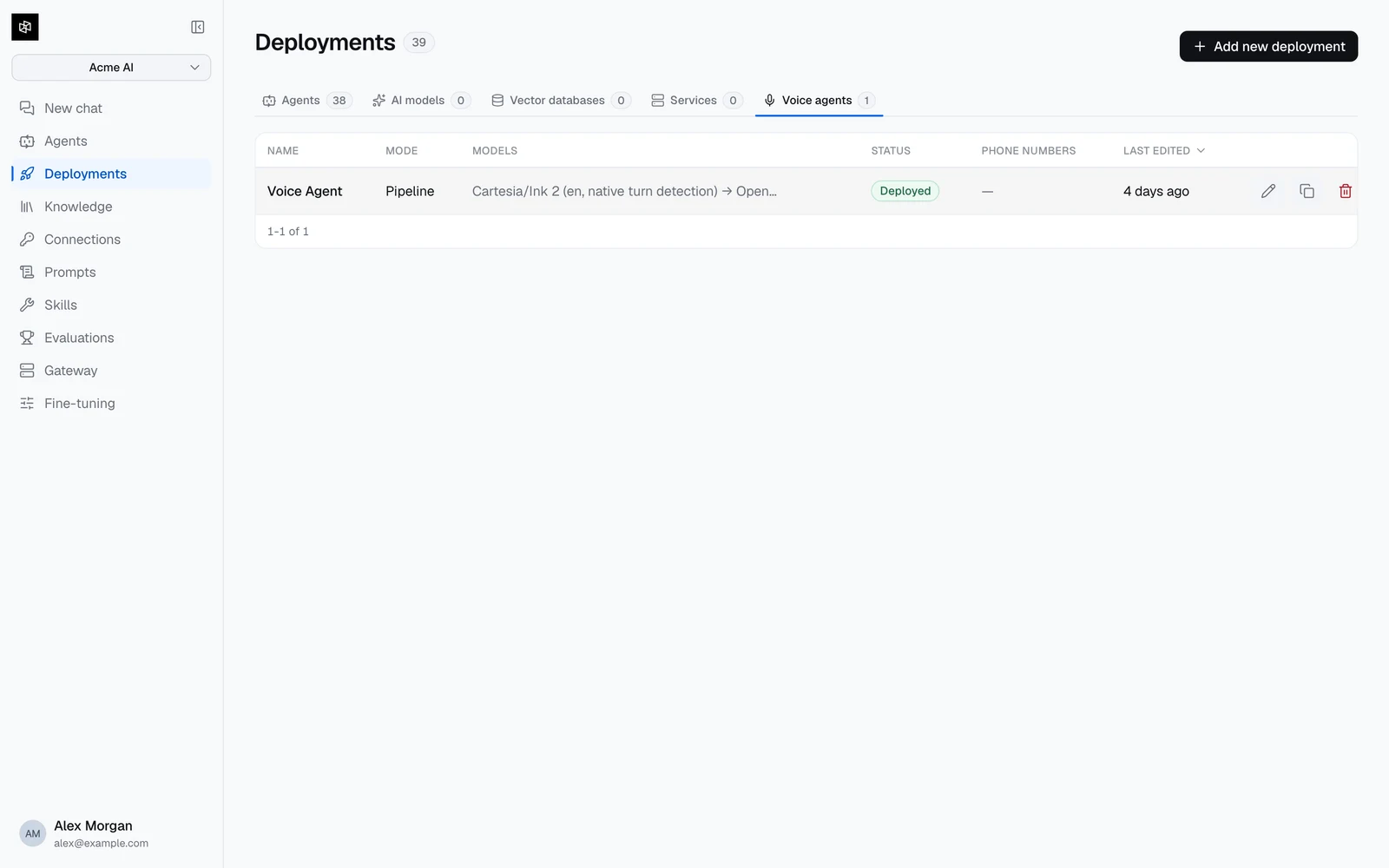
Voice agents are their own deployment type. You create and manage them from Deployments → Voice agents, not from the workflow editor — a voice agent has no canvas, because the pipeline that runs a call is fixed and what you configure is its stages.
Pipeline or realtime
Every agent runs in one of two modes, chosen with the Agent type control:
| Mode | How a turn is handled | When to use it |
|---|---|---|
| Pipeline (STT → LLM → TTS) | Three separate models: speech-to-text transcribes the caller, an LLM decides the reply, text-to-speech speaks it. | The default. Widest model choice, cheapest, and the only mode where you control each stage independently. |
| Realtime (speech-to-speech) | One model consumes audio and emits audio directly. | Lowest turn latency and the most natural prosody, at a higher per-minute cost and with fewer models to choose from. |
The mode decides which model fields you fill in: pipeline mode needs STT, LLM, and TTS; realtime mode needs a single Realtime model. Switching mode discards the configuration of the mode you are leaving, and the builder asks you to confirm before it does.
See Models & voices for the full catalog.
How a caller reaches an agent
Web and mobile (WebRTC)
Your app captures the microphone and connects with a client SDK. Also what the built-in Test tab uses.
Phone (SIP)
Connect numbers you already own at Twilio, Telnyx, or any SIP provider, and point the trunk at Dynamiq.
Your own transport (WebSocket)
Stream raw audio frames over one socket. For backends that already hold the audio, such as a telephony stack.
The agent lifecycle
An agent's status is one of draft, deploying, deployed, or failed. Deleting an agent archives it rather than adding a status: the agent keeps whatever status it had and gains a deleted_at timestamp, and it stops appearing in listings unless you ask for archived agents too.
- Create — the Deploy Voice Agent wizard collects instructions, models, actions, and advanced settings. See Build a voice agent.
- Deploy — Dynamiq provisions a hosted worker for the agent. This takes a few minutes, because the worker image is built for your agent. Status goes
deploying→deployed, orfailedwith an error banner and a Retry deploy button. - Connect numbers — phone numbers only route once the agent is deployed. See Telephony.
- Operate — every call is recorded as a row on the Calls tab with a transcript, metrics, and an optional recording. See Calls & observability.
- Undeploy — removes the hosted worker and deactivates phone routing. The agent returns to
draftand stays testable.
Configuration changes apply to new calls immediately — you do not redeploy to change settings. The worker fetches the agent's current configuration at the start of every call, so edits to instructions, models, tools, or advanced settings take effect on the next call. Calls already in progress keep the configuration they started with. Only the worker's code is pinned at deploy time, so you redeploy only to pick up a new platform worker version.
The agent page
Opening an agent gives you seven tabs:
| Tab | What it's for |
|---|---|
| Test | Talk to the agent from your browser, and see which tools it currently has. |
| Configuration | The same Instructions / AI Models / Actions / Advanced groups as the create wizard, as collapsible sections. |
| Telephony | Connect and disconnect phone numbers, and get the SIP URI to point your trunk at. |
| Calls | Every call, with transcripts, recordings, per-turn latency, and usage. |
| Deployments | Deployment history — who deployed, when, which worker version, and any error. |
| Simulations | Run scenario sets of simulated callers against the deployed agent and read the judge's verdicts. |
| Integrate | Copy-paste server and client code for the WebSocket and WebRTC transports, in Python, TypeScript, or Java. |

Each tab is addressable, so you can link straight to one: append ?table=1 for Configuration, 2 for Telephony, 3 for Calls, 4 for Deployments, 5 for Simulations, and 6 for Integrate.
Where to go next
Build a voice agent
The create wizard, field by field.
Models & voices
Every STT, LLM, TTS, and realtime provider, with cost and latency.
Tools & transfers
HTTP tools, client tools, MCP servers, and handing a call to a human.
Turn-taking & latency
Tune how quickly the agent replies and how it handles interruptions.
Service Deployments
Run any Docker container on Dynamiq — bring an image or a source bundle and get a hostname with Access Key auth, pods, logs, and traces.
Build a Voice Agent
Create a voice agent with the Deploy Voice Agent wizard — instructions, models, actions, and advanced settings — then test it in the browser.