Test & Simulate
Talk to a voice agent from your browser, and run scenario sets of simulated callers against it with an LLM judge.
Two ways to check a voice agent before your customers do: talk to it yourself on the Test tab, and run Simulations — scripted callers that exercise the agent at scale and get graded.
Test calls
The Test tab connects your browser microphone to the agent. On a deployed agent it runs the live deployment — the same path a phone call takes, minus the trunk — so what you hear is what a caller gets.
Click Start Call in the Live Preview panel on the left and talk. Test calls obey the agent's own Max call duration like any other call.
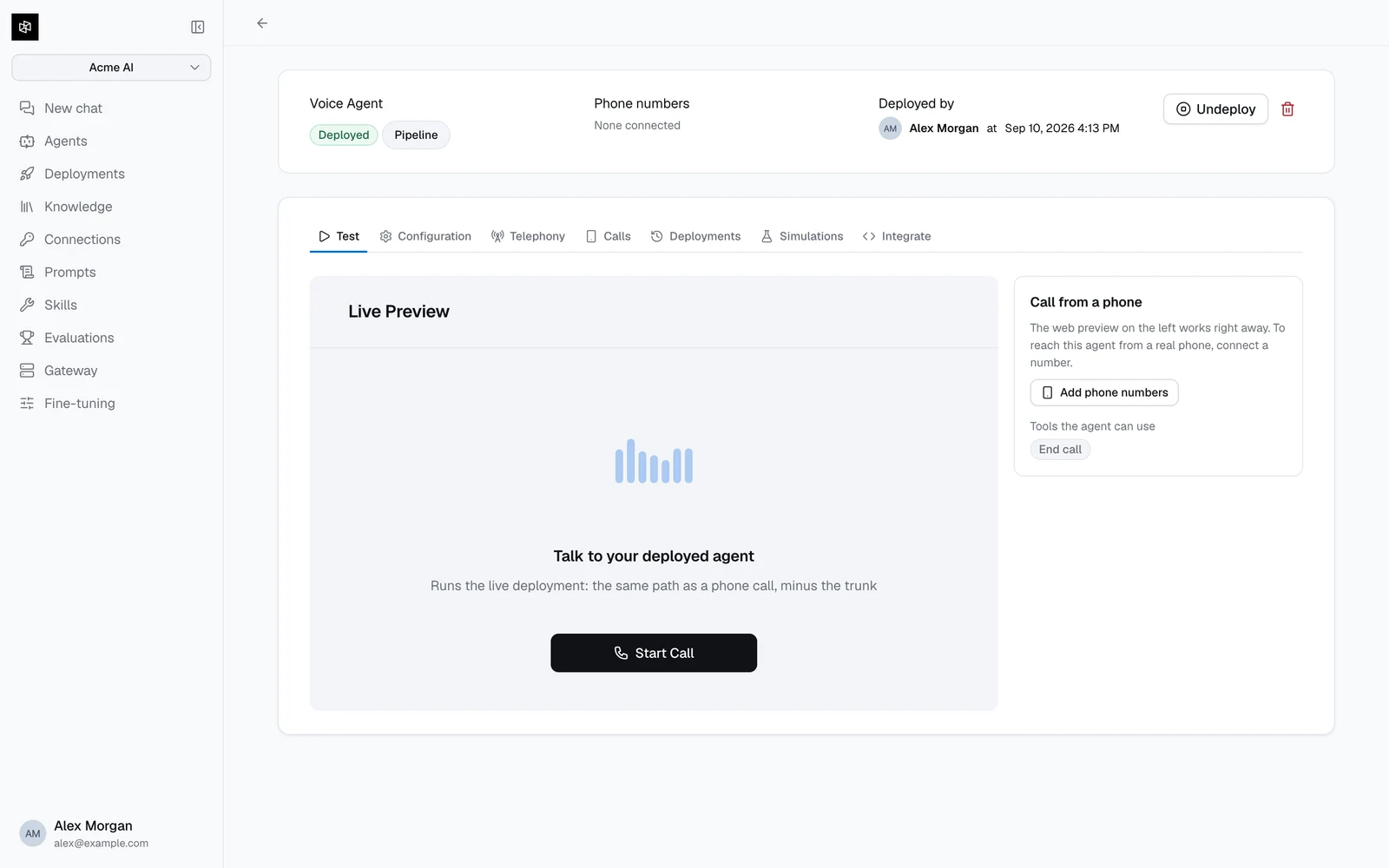
The right-hand Call from a phone card carries two things. The first is the numbers that reach this agent, or a prompt to connect one. Below that, easy to miss under a heading about telephony, is Tools the agent can use — check it before you start wondering why the agent didn't call a tool, since it shows what actually reached the call rather than what you configured.
Testing is unavailable while a deploy is running, and the tab says so. If a call connects but nobody answers, after about twenty seconds you'll see No agent joined this call — on a deployed agent that means its runtime isn't responding and the fix is to undeploy and deploy again.
The builder has the same panel as Live Preview, running your unsaved configuration, which is what you want while iterating on a prompt.
Simulations
Test calls don't scale and they don't repeat. Simulations run a set of scripted callers against the deployed agent, then have a judge read each conversation and decide whether the agent did what you said it should.
Use them to check a prompt change didn't break the three things the agent already handled, and to compare model configurations on identical conversations.
The Simulations tab listing runs with status, scenario set, pass rate, and accuracy
screenshot: voice-simulations-runs
Simulations run against the deployed agent, so results reflect production behavior. The Run simulation button stays disabled until the agent is deployed. Simulations also require additional platform access — if your workspace doesn't have it, the tab says so and past results stay readable.
Scenario sets
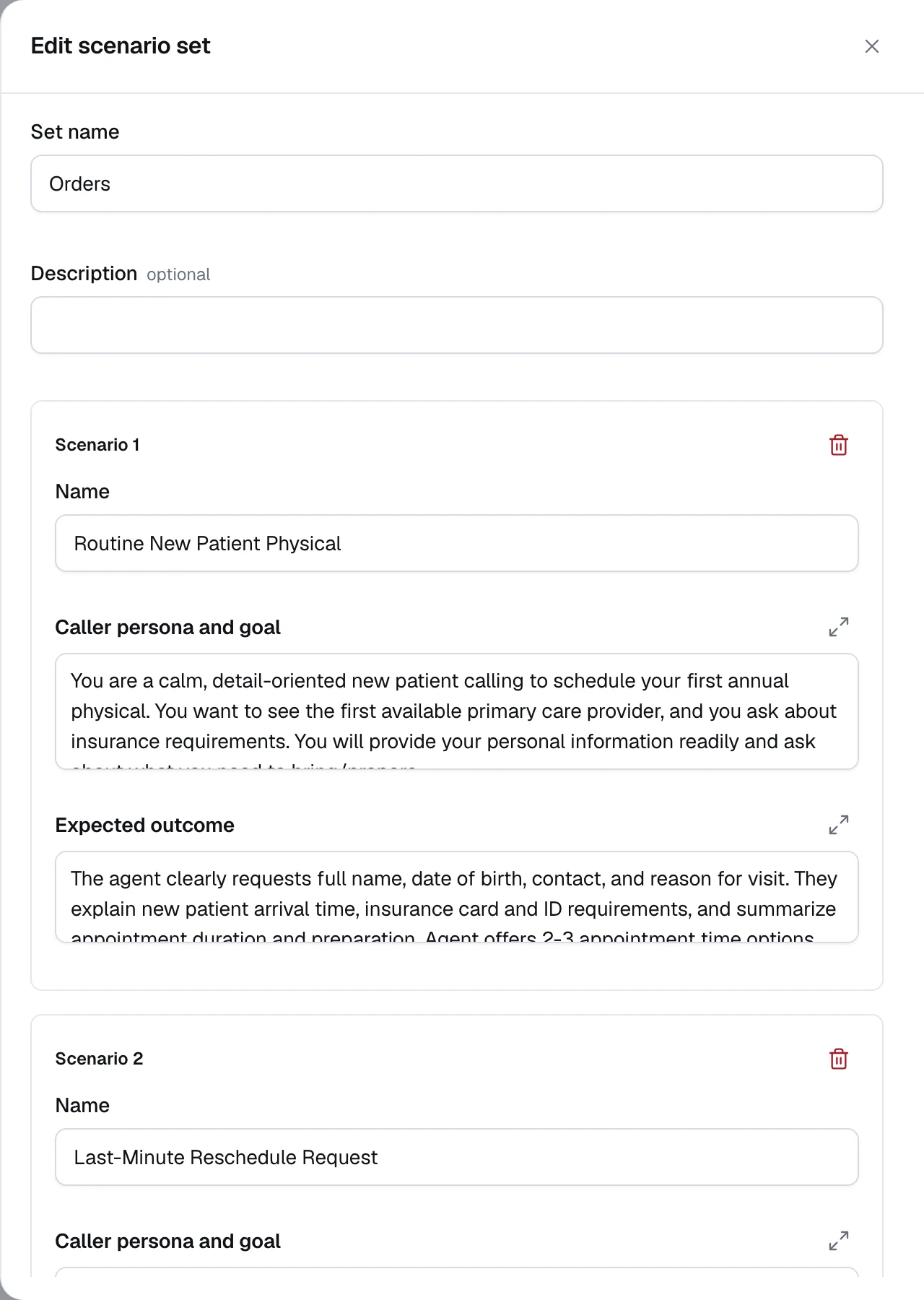
A scenario set is a reusable group of scenarios, scoped to the project — so one set can be run against every voice agent you build. Open Scenario sets to create and edit them.
Each scenario has three fields:
NametextrequiredCaller persona and goaltextrequiredExpected outcometextrequiredGenerating scenarios
Two shortcuts beat writing scenarios from scratch:
- Generate with AI drafts scenarios from the agent's own configuration. Set how many and click it. Blank starter rows are replaced; anything you've already edited is kept. Treat the output as a first draft — the expectations in particular usually need tightening. Ask for 10 or fewer: the field lets you type up to 50, but the server rejects anything above 10.
- Create test scenario on a finished call turns a real conversation into a scenario. This is the highest-value path: when a real call goes wrong, capture it, add it to a set, and it becomes a regression test. The button drafts the scenario, then opens the scenario sets panel so you can drop it into an existing set or start a new one with it.
Running a set
Click Run simulation and choose:
- Scenario set — which set to run.
- Voice mode — off runs the conversation as text, which is fast and cheap and tests the agent's reasoning and tool use. On runs real audio, which also exercises speech recognition and synthesis, and is the only mode that produces meaningful latency numbers.
- Concurrency — how many scenarios run at once. The platform caps this at 10 however high you ask.
Run in text mode while iterating on a prompt; run in voice mode before shipping, and whenever you change a speech model.
Reading the results
A simulation run with pass rate, accuracy and experience scores, the issues list, and per-scenario verdicts
screenshot: voice-simulation-run-detail
A run moves through several states before it finishes — pending, generating, running, summarizing, then one of completed, failed, or cancelled. generating and summarizing are normal, not stalls: the first is drafting the simulated callers, the second is the judge writing up the results. A run that never reaches a terminal state is failed automatically after 30 minutes.
Individual scenarios carry their own status: pending, running, passed, failed, or cancelled.
A finished run shows three headline numbers:
| Score | What it means |
|---|---|
| Scenarios passed | The pass rate — how many scenarios met their expected outcome. |
| Accuracy | How correct the agent's answers were. |
| Experience | How the conversation felt — pacing, interruptions, tone. |
Below them, the judge's run-level narrative splits into To improve and Going well, with an Issues list. Each issue has a description, a suggested fix, and a View scenario button that jumps straight to the conversation it came from.
Then the scenario list, filterable by All / Passed / Failed. Opening one gives you the judge's rationale — why this scenario passed or failed — alongside the simulated caller's instructions, your expected outcome, per-scenario accuracy and experience scores, latency p50 and p95, and the full transcript rendered exactly like a real call.
The verdict rationale is the most useful output of a run. A failing pass rate tells you something broke; the rationale tells you the agent confirmed a booking it had not actually made.
A failed scenario without a rationale is expected rather than broken — the rationale is only surfaced when the judge's own wording is safe to show, and otherwise the scenario is reported as an error instead.
You can cancel a run in progress with Cancel run. Editing or deleting a scenario set never changes past results — each run snapshots the set it ran.
A workflow that holds up
Start from real calls
Ship to a small audience, then mine the Calls tab. Every call that went wrong becomes a scenario via Create test scenario.
Build one set per journey
"Order issues", "Booking changes", "Angry callers". Sets are project-scoped, so they're reusable across agents and across model experiments.
Run in text mode while iterating
Fast and cheap. Fix what the rationale points at, re-run, repeat.
Run in voice mode before deploying
Catches what text mode cannot: mis-transcribed numbers, a voice that mangles your product name, turn-taking that talks over callers.