Chunking & Embedding
How splitter strategy, chunk size, overlap, and embedder choice shape retrieval quality — and how to tune them in your Knowledge Base.
Retrieval quality is mostly decided before the first query runs: how documents are cut into chunks, and which model turns those chunks into vectors. Both are set when you create a Knowledge Base and can be changed later by editing its ingestion workflow.
Where these settings live
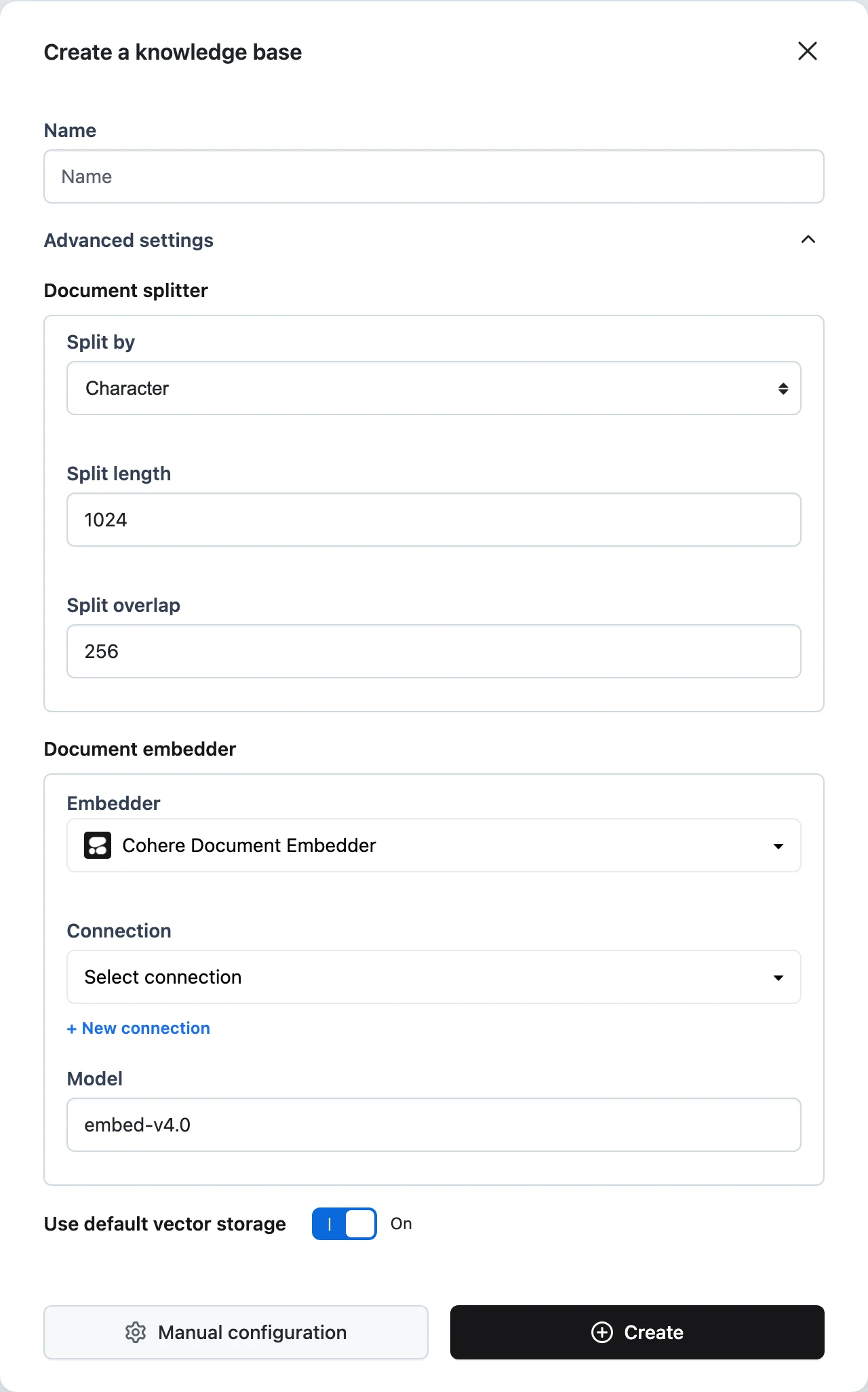
- At creation — the Create a knowledge base dialog's Advanced settings section exposes the Document splitter (split by, length, overlap) and Document embedder (provider, connection, model).
- After creation — the same settings live on the
document-splitterand document embedder nodes of the ingestion workflow, editable from the Knowledge Base's Workflow tab. See Customize the Ingestion Workflow.
Splitter strategies
The Document Splitter node cuts each converted document into chunks of Split length units, measured in the unit you pick under Split by:
| Split by | Unit boundary | Default split length |
|---|---|---|
Character | every character | 1000 (the create dialog opens preset to 1024) |
Word | space | 200 |
Sentence | . | 10 |
Page | form feed (\f) | 1 |
Passage | blank line (\n\n) | 2 |
Title | Markdown heading (\n#) | 1 |
Changing Split by in the create dialog resets Split length to that unit's default. Split overlap sets how many units consecutive chunks share — the create dialog defaults to 256 characters of overlap for character splitting.
Choosing a strategy
- Character is the predictable default: chunk size maps directly to embedding-model token budgets, but cuts can land mid-sentence. Pair it with generous overlap (the default 1024/256 is a reasonable start).
- Word and Sentence keep cuts on natural boundaries, which reads better in agent context windows. Sentence splitting treats every
.as a boundary, so abbreviation-heavy text produces shorter chunks than you'd expect. - Passage keeps paragraphs intact — a good fit for documentation and policies where each paragraph is self-contained.
- Page works for slide decks and forms where one page equals one topic.
- Title splits on Markdown headings, so each chunk is a whole section. Best when your sources are Markdown or your converter emits Markdown headings.
Size and overlap trade-offs
- Smaller chunks match queries more precisely (each vector represents one idea) but lose surrounding context; the agent may retrieve a sentence whose meaning depends on the paragraph around it.
- Larger chunks carry more context per result but dilute the embedding — a chunk covering three topics matches all three weakly. They also consume more of the agent's context window per retrieved document.
- Overlap protects against answers that straddle a chunk boundary. The cost is index size: more overlap means more near-duplicate vectors, and duplicated text in results.
A practical loop: start with the defaults, ingest a representative sample, and inspect what actually comes back in Search & Test. If results cut off mid-thought, increase length or overlap; if results mix unrelated topics, decrease length or switch to a boundary-aware unit.
Beyond the unit splitter
The Document Splitter is the only splitter the Create a knowledge base dialog exposes, and it stays the default. When you customize the ingestion workflow, the canvas's CHUNKING palette also offers four structure- and meaning-aware splitters you can drop in where fixed-unit cuts fragment your sources:
| Splitter | What it does | Key settings |
|---|---|---|
| Recursive Character Splitter | Recursively splits on a separator hierarchy (paragraph → sentence → word), keeping natural boundaries while targeting a size | Chunk size, Chunk overlap, Length unit, optional Language preset |
| Markdown Header Splitter | Splits Markdown by header level so each chunk is one section, carrying the header path | Strip headers, Return each line |
| Semantic Splitter | Breaks where the embedding similarity between adjacent passages drops, producing topically coherent chunks | Embedder, Breakpoint threshold type / amount, Buffer size |
| Auto Splitter | Picks a strategy per document from its content, with a fallback you configure | Chunk size, Chunk overlap, Length unit, Fallback strategy, Infer from content |
To swap one in, open the Knowledge Base's Workflow tab, drag the splitter into the Chunking lane in place of the Document Splitter, and rewire its documents input — see Customize the Ingestion Workflow. The Python SDK exposes these plus several more (token, code, HTML, JSON) — see Document Processing.
Embedder choice
The Document embedder turns each chunk into a vector. Available providers (each needs a Connection; your organization's system connection is pre-selected when one exists):
- OpenAI Document Embedder
- Bedrock Document Embedder
- Cohere Document Embedder (default, with model
embed-v4.0) - Hugging Face Document Embedder
- Mistral Document Embedder
- IBM watsonx Document Embedder
- Gemini Document Embedder
- VertexAI Document Embedder
Two rules matter more than the specific provider:
- Queries are embedded with the same model. When anything searches the Knowledge Base — the search endpoint, the Knowledge Base Retriever, an agent tool — Dynamiq embeds the query with the embedder configured in the ingestion workflow. You never configure a separate query embedder, and that's why changing the embedder later requires reprocessing existing items: old vectors and new queries would otherwise live in different vector spaces.
- The model fixes the vector dimensionality. With Dynamiq's default managed storage this is handled for you. If you bring your own vector store, the index's dimension must match the embedding model's output.
Dimensions
The OpenAI embedder additionally exposes a Dimensions field (default 1536) that shortens the embedding vector — supported by text-embedding-3-small and text-embedding-3-large (up to 3072 for the large model), and hidden for text-embedding-ada-002. Lower dimensions cut storage and search cost at some loss of precision; whatever you choose must match your index if you manage storage yourself.
Splitter changes apply only to items ingested after the change, and embedder changes make old vectors unsearchable for new queries. After changing either, reprocess existing items from the Files tab (or via the reprocess endpoints) so the whole Knowledge Base stays consistent.