Search & Test
Query your Knowledge Base directly, inspect the returned chunks and scores, and validate retrieval quality before agents depend on it.
Before you wire a Knowledge Base into an agent, query it yourself. A handful of test searches against real content tells you whether your chunking and embedding choices return the right passages — and is far easier to debug than an agent's final answer.
The Retrieval tab
On the Knowledge Base's page, the Retrieval tab shows the Documents Retrieval Endpoint — a ready-to-run Python snippet pre-filled with your Knowledge Base's hostname. It calls the same POST /v1/documents/search endpoint every other consumer uses.
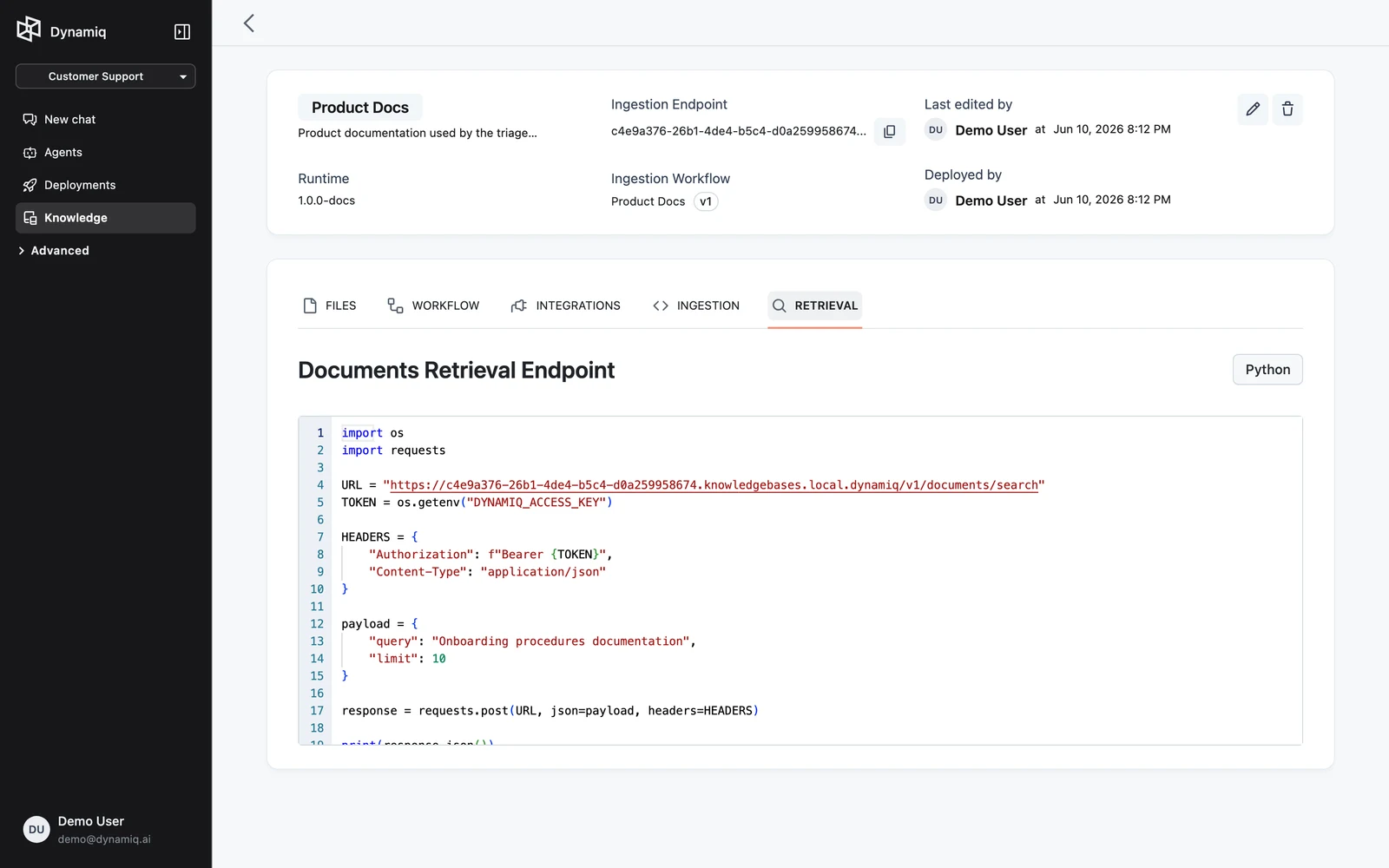
Run a search
Send a query and an optional limit (1–100) to the Knowledge Base's hostname with an Access Key:
curl -X POST "https://<your-kb-hostname>/v1/documents/search" \
  -H "Authorization: Bearer $DYNAMIQ_ACCESS_KEY" \
  -H "Content-Type: application/json" \
  -d '{"query": "What is the parental leave policy?", "limit": 5}'
import os
import requests
URL = "https://<your-kb-hostname>/v1/documents/search"
HEADERS = {
"Authorization": f"Bearer {os.environ['DYNAMIQ_ACCESS_KEY']}",
"Content-Type": "application/json",
}
payload = {"query": "What is the parental leave policy?", "limit": 5}
response = requests.post(URL, json=payload, headers=HEADERS)
for doc in response.json()["data"]:
print(f"{doc.get('score')} {doc['content'][:80]}")const response = await fetch("https://<your-kb-hostname>/v1/documents/search", {
method: "POST",
headers: {
Authorization: `Bearer ${process.env.DYNAMIQ_ACCESS_KEY}`,
"Content-Type": "application/json",
},
body: JSON.stringify({ query: "What is the parental leave policy?", limit: 5 }),
});
const { data } = await response.json();
for (const doc of data) {
console.log(doc.score, doc.content.slice(0, 80));
}The query is embedded with the Knowledge Base's own embedder and searched against its vector store. The response is the matching chunks under data:
{
  "data": [
    {
      "id": "5b1f6c3a-9f4e-4a39-8a37-1d2e0f9a6b21",
      "content": "Parental leave: full-time employees are eligible for 16 weeks of paid leave...",
      "metadata": {
        "file_id": "0d9b7a52-3c1e-4f8b-9a2d-7e6f5c4b3a21",
        "dynamiq_item_id": "0d9b7a52-3c1e-4f8b-9a2d-7e6f5c4b3a21",
        "department": "hr"
      },
      "score": 0.82
    }
  ]
}
Reading the results
Each result is one chunk, exactly as the splitter produced it:
content— the chunk text. Read a few end to end: do they start and stop at sensible boundaries? Truncated thoughts mean your split length or overlap needs adjusting.score— the similarity score for this query. Watch the spread, not the absolute values: a steep drop-off after the first results means the top hits are clearly distinguished; a flat band of similar scores means the query matches everything weakly. This is also the score the retriever's similarity threshold cuts on.metadata— everything attached at ingestion time.dynamiq_item_id(and its legacy aliasfile_id) identifies the source item, so you can pull up the original file or its ingestion trace via the items API. Items synced from a source also carrydynamiq_item_source_id,dynamiq_item_source_provider, and the provider's own fields prefixeddynamiq_item_source_provider_*. Your custom upload metadata (likedepartmentabove) appears alongside.
If an expected document never shows up, check its item status on the Files tab first — a Failed or Pending item has no vectors to find. See Data Sources.
Testing metadata filters and thresholds
The HTTP search endpoint takes only query and limit — filtering, hybrid search, and similarity thresholds are configured on the retriever node that consumes the Knowledge Base. To test those:
- In a workflow, add a Knowledge Base Retriever node (under VECTOR STORES in the palette) and point it at your Knowledge Base.
- Configure Filters with metadata conditions (built from the metadata you attached at ingestion), Max documents, Use hybrid search, or Enable similarity threshold — the full parameter reference is in Connect a Knowledge Base to Agents.
- Run the workflow with Test and inspect the node's
documentsoutput in the run result.
This is also the fastest way to compare configurations: duplicate the retriever node, vary one parameter, and run both against the same query.
Testing through an agent
Once direct searches look right, test the same queries through an agent with the Knowledge Base attached as a tool. Every retriever call an agent makes is recorded in the run's trace with the query it wrote and the chunks it got back — so when an agent answers wrong, you can tell whether retrieval returned bad chunks or the agent misused good ones. See Testing and debugging workflows.
Next steps
Customize the Ingestion Workflow
Open the ingestion workflow behind a Knowledge Base, edit its four stages, add your own nodes, and deploy a new version.
Connect a Knowledge Base to Agents
Attach a Knowledge Base Retriever tool to an Agent node and tune top-k, hybrid search, filters, and similarity threshold.