Knowledge Graphs
Turn on Build knowledge graph when you create a Knowledge Base to extract entities and relationships alongside the vector store.
A Knowledge Base stores your documents as chunks and finds them by similarity. A knowledge graph stores them as facts — Jane Doe -[WORKS_AT]-> Acme Capital — and finds them by connection. Turning it on adds graph extraction alongside the vector store, so the same documents are searchable both ways.
Enable it when you create a Knowledge Base
The knowledge graph is set up in the Create a knowledge base dialog.
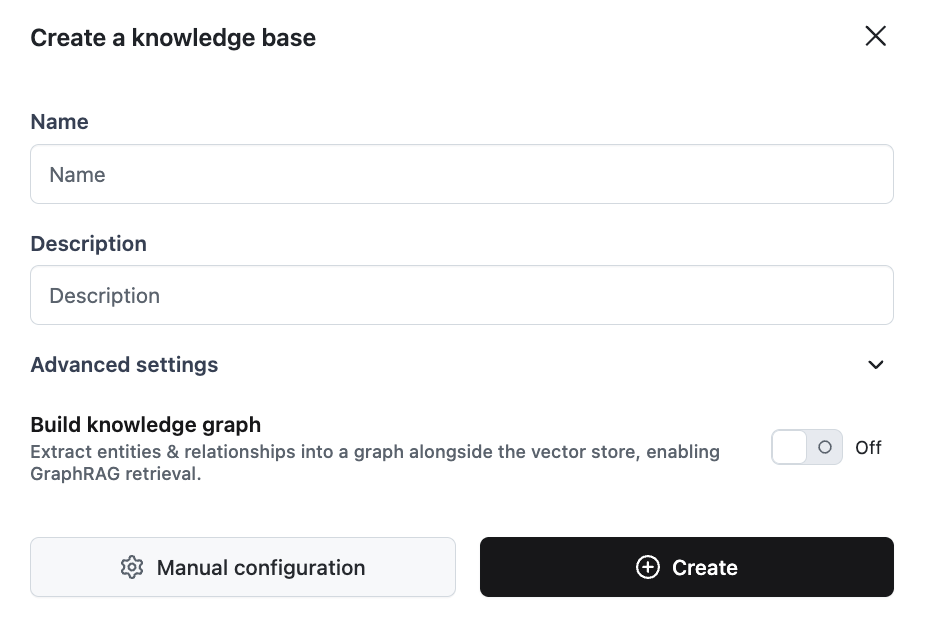
Name the Knowledge Base
Fill in Name and an optional Description.
Turn on Build knowledge graph
Switch Build knowledge graph on. The description says what it does: extract entities & relationships into a graph alongside the vector store, enabling GraphRAG retrieval. A panel of graph settings appears below the toggle.
Choose the extraction model
Under Extraction model, pick a Provider and a Model — this is the LLM that reads each document and pulls out entities and relationships. It defaults to OpenAI gpt-4o-mini.
The provider needs a system connection configured for your organization. If none exists, the dialog says so instead of letting you continue.
Point it at a graph database
Graph database selects the backend — Neo4j. Then pick an existing Graph database connection, or click + New connection to create one without leaving the dialog.
Review the extraction schema
Extraction schema defines what the model is allowed to find. It comes pre-filled with a starter schema you can edit or replace — see The extraction schema below.
Create
Click Create. The Knowledge Base is created with graph extraction wired into its ingestion, so every document you add from then on populates both the vector store and the graph.
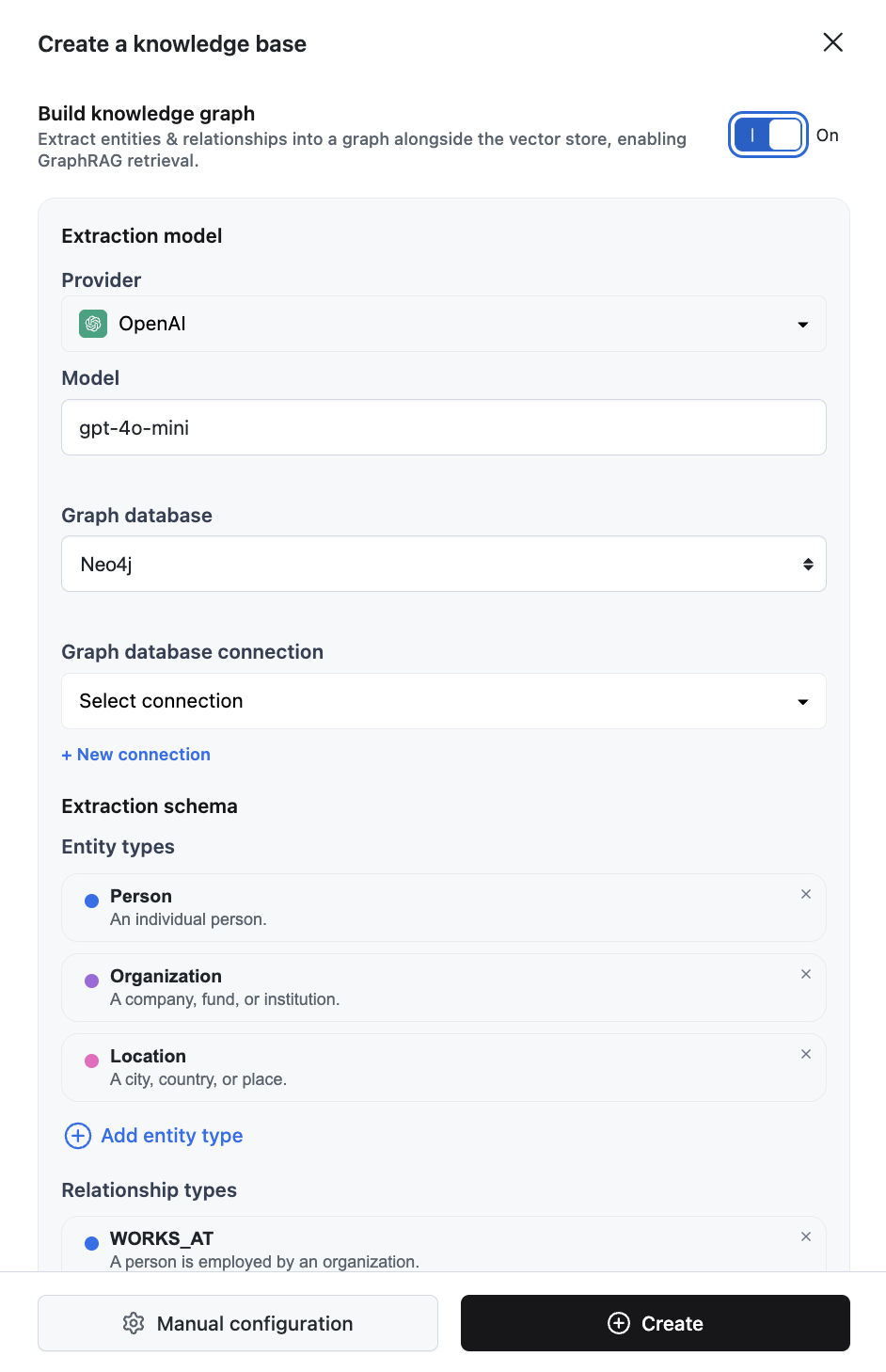
The extraction schema
The schema — the ontology — is the contract for extraction. The model is told what it may find, and anything outside the schema is discarded rather than written. It has three parts:
- Entity types — the kinds of things in your documents:
Person,Organization,Location. Each carries a short description that tells the model what the type means. - Relationship types — how they connect:
WORKS_AT,LOCATED_IN. These take descriptions too. - Triples — the legal patterns, written Source → Relationship → Target, such as
Person → WORKS_AT → Organization.
The dialog starts from this schema:
| Part | Default |
|---|---|
| Entity types | Person (an individual person), Organization (a company, fund, or institution), Location (a city, country, or place) |
| Relationship types | WORKS_AT (a person is employed by an organization), LOCATED_IN (an entity is situated in a place) |
| Triples | Person → WORKS_AT → Organization, Organization → LOCATED_IN → Location |
Use Add entity type, Add relationship type, and Add triple to extend it, and the × on any row to remove it. Replace the defaults with the vocabulary of your own documents — a support corpus might use Customer, Ticket, and Product rather than Person and Organization.
Descriptions steer the extraction; triples enforce it. Leave the triple list empty to allow any declared relationship between any two declared entity types; once it has entries, only those patterns survive.
Editing the schema later
A Knowledge Base built with a knowledge graph gains an ONTOLOGY tab, which edits the same schema after the fact. It shows your Entity types and Relationship types as lists, an Allowed triples table, and a schema diagram that draws the types as nodes and the allowed triples as the edges between them.
Edits stay local until you click Save schema, which is enabled only once something has changed and confirms with a Schema saved message.
Changing the schema affects future extractions. Documents already ingested keep the facts they were extracted with until you re-ingest them.
Building a graph in a Workflow
The dialog covers the common case. To assemble extraction yourself — a custom ingestion Workflow, or a graph that is not attached to a Knowledge Base — the workflow builder has a KNOWLEDGE GRAPH section in the node menu with two nodes:
| Node | Configuration |
|---|---|
| Knowledge Graph Entity Extractor | LLM to extract with, and the Ontology editor — the same entity types, relationship types, and triples as above |
| Knowledge Graph Writer | Connection to the graph database, and an optional Entity embedder that lets entities be matched semantically rather than by name alone |
Connect the extractor's output to the writer's input. The writer works out which extracted entities are the same entity before writing, so re-running ingestion converges onto the entities already in the graph instead of duplicating them.
Use one Knowledge Graph Writer per graph. Running several in parallel against the same database can produce duplicate entities.
Using the graph
Attach the Knowledge Base under Knowledge in Chat settings and the super-agent can draw on its knowledge graph when it answers — following the relationships between entities, not just matching text. The same graph is available from the SDK, where retrieval can be configured in detail.
Graph Retrieval (SDK)
Query the graph, filter by access, and give an agent GraphRAG.
Knowledge Graphs (SDK)
The same extraction and writing, configured in Python.
Create a Knowledge Base
The rest of the create dialog: splitting, embedding, and vector storage.
Cypher Graph Query
Run raw Cypher against the same graph database.
Connect a Knowledge Base to Agents
Attach a Knowledge Base Retriever tool to an Agent node and tune top-k, hybrid search, filters, and similarity threshold.
Vector Store Search vs Knowledge Base
When to use a managed Knowledge Base and when to query your own vector store directly with Vector Store Search and Writer nodes.