Customize the Ingestion Workflow
Open the ingestion workflow behind a Knowledge Base, edit its four stages, add your own nodes, and deploy a new version.
Every Knowledge Base is powered by a real Dynamiq Workflow that runs each incoming file through conversion, chunking, embedding, and storage. You can open that workflow in the editor, change any node, add new ones, and deploy the result as a new version — without recreating the Knowledge Base.
The four stages
The ingestion workflow editor arranges the canvas into four fixed lanes, top to bottom, with the input node above them and the output node below:
| Lane | Default node | What it does |
|---|---|---|
| Pre-processing | multi-file-converter | Routes each file by type to a converter (LLM image, PDF, PPTX, DOCX, text, with an unstructured-file fallback) and produces documents |
| Chunking | document-splitter | Splits documents into chunks — see Chunking & Embedding |
| Vectorization | cohere-document-embedder (by default) | Embeds each chunk into a vector |
| Storage | default-vector-storage | Upserts vectors into the vector store; its upserted_count feeds the workflow output |
The input node carries two fields into the flow: files (the uploaded files) and metadata (the per-file metadata array). Whatever you build between input and output receives them through the same node wiring as any workflow — see How nodes connect.
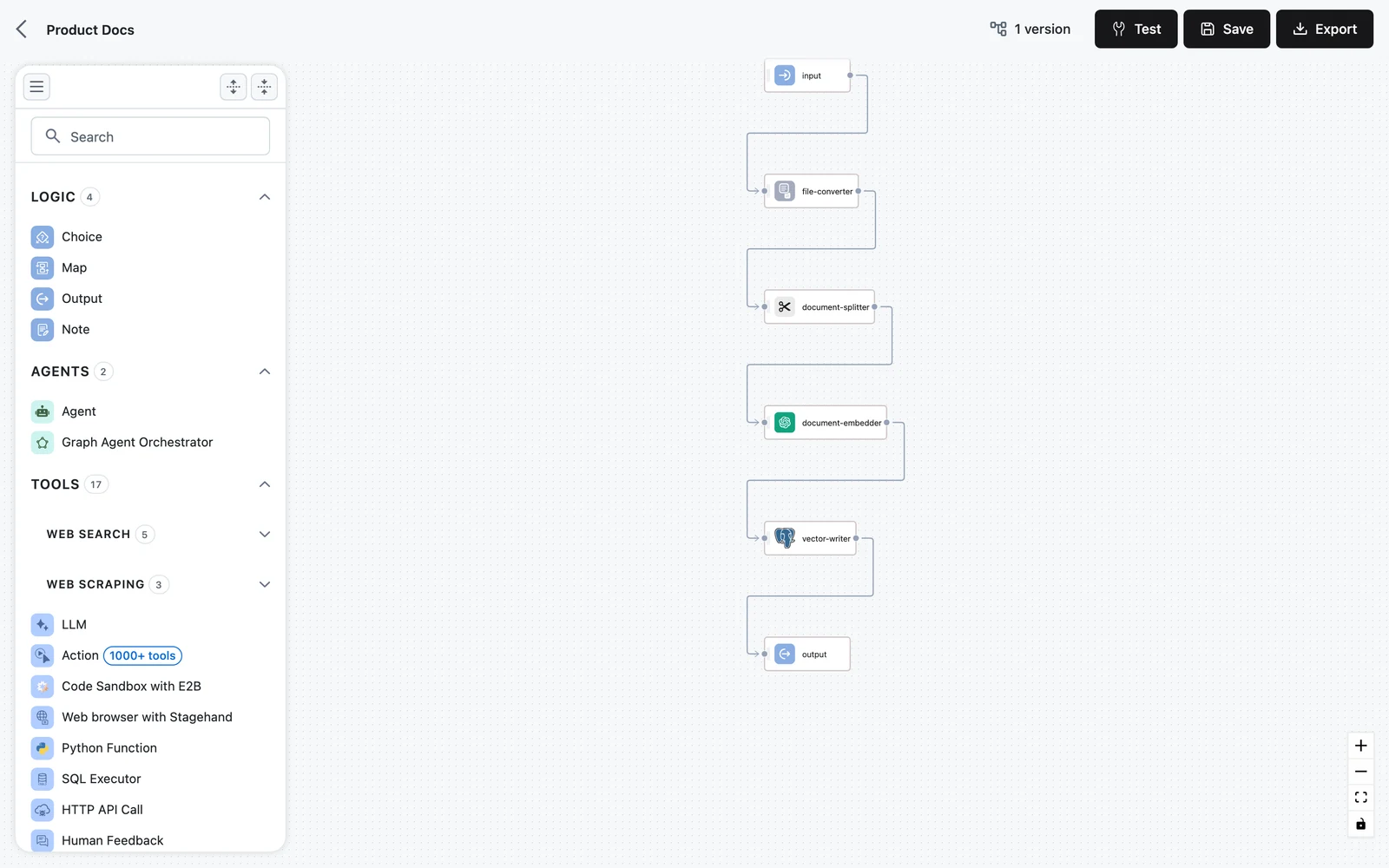
Edit the workflow
Open the editor
On the Knowledge Base's page, open the Workflow tab. It shows a read-only preview of the current flow; click Edit to open the full editor.
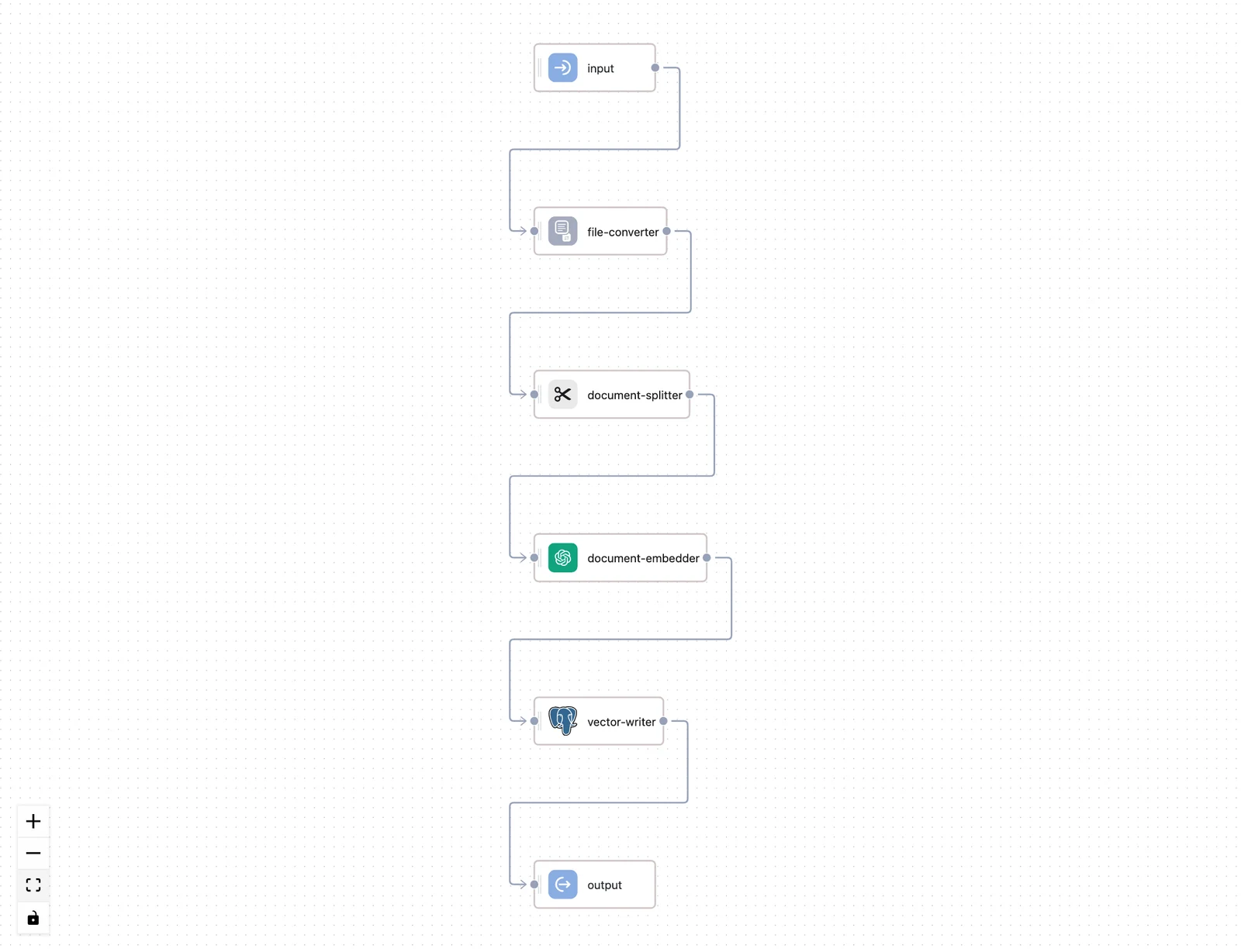
Change or add nodes
Select any default node to tune it in the inspector — splitter settings, embedder model, converter strategy. To add a node, drag it from the palette into the lane where it belongs. The palette categories that matter here:
- PRE-PROCESSING — converters: Unstructured Converter, LLM Image Converter, LLM PDF Converter, PDF File Converter, PPTX File Converter, DOCX File Converter, CSV File Converter, Text File Converter, and Multi-file Converter.
- CHUNKING — the Document Splitter (the default), plus the Recursive Character, Markdown Header, Semantic, and Auto splitters for structure- or meaning-aware chunking. See Beyond the unit splitter.
- RANKERS — LLM Document Ranker, Time Weighted Document Ranker, and Cohere Ranker, for reordering or filtering chunks before they're embedded.
- VECTORIZATION — the document embedders.
Wire the new node into the chain and remap its inputs with an input transformer — for example, point the splitter's documents selector at your new converter's output instead of the multi-file converter's.
Test before saving
Click Test to run the flow with a sample input and inspect each node's output. Fix any node validation errors the editor reports — you can't save a flow with errors.
Save a new version
Click Save. A side sheet shows the next version number (for example v2) and takes an optional Version description; click Update. The new version is saved, and the editor asks: Do you want to deploy latest changes?
Deploy it
Confirm with Yes to open the Deploy knowledge base sheet, pre-filled with the version you just saved and the latest runtime, and click Save. The Knowledge Base now ingests with the new version. (Choose No to keep the current version live — you can deploy any saved version later from the Knowledge Base's edit dialog, which lists versions with the current one marked.)
Deploying a new version changes how files are ingested from now on. Items processed under the old version keep their existing chunks and vectors until you reprocess them — use the Files tab or the reprocess endpoints in the Knowledge Base API.
What stays fixed
The four lanes themselves and the input/output nodes can't be deleted — every ingestion workflow converts files to documents, chunks them, embeds them, and writes vectors. The flow must always contain a document embedder and a vector store writer: retrieval reuses that pair (the embedder for queries, the writer's store for search), so the search endpoint knows how to query whatever this workflow wrote. That's also why creating a Knowledge Base from Manual configuration starts you in this same editor with the default flow pre-placed.
Example: route CSVs through their own converter
The default multi-file converter handles common formats, but suppose your CSV exports need dedicated handling:
- Drag a CSV File Converter from PRE-PROCESSING into the Pre-processing lane.
- Connect the input node's
filesoutput to it alongside the multi-file converter. - Update the
document-splitterinput transformer so itsdocumentsselector merges both converters' outputs. - Test with a CSV and a PDF, Save, and deploy.
Next steps
Chunking & Embedding
How splitter strategy, chunk size, overlap, and embedder choice shape retrieval quality — and how to tune them in your Knowledge Base.
Search & Test
Query your Knowledge Base directly, inspect the returned chunks and scores, and validate retrieval quality before agents depend on it.