Create a Knowledge Base
Create a Knowledge Base with your choice of splitter settings, embedding provider, and vector store — Dynamiq generates the ingestion workflow for you.
Creating a Knowledge Base takes a name and (optionally) a few advanced choices: how documents are split, which provider embeds them, and where the vectors are stored. Dynamiq generates a complete ingestion workflow from those choices, so the Knowledge Base is ready to accept files immediately.
Create from the UI
Open Knowledge Bases and start creation
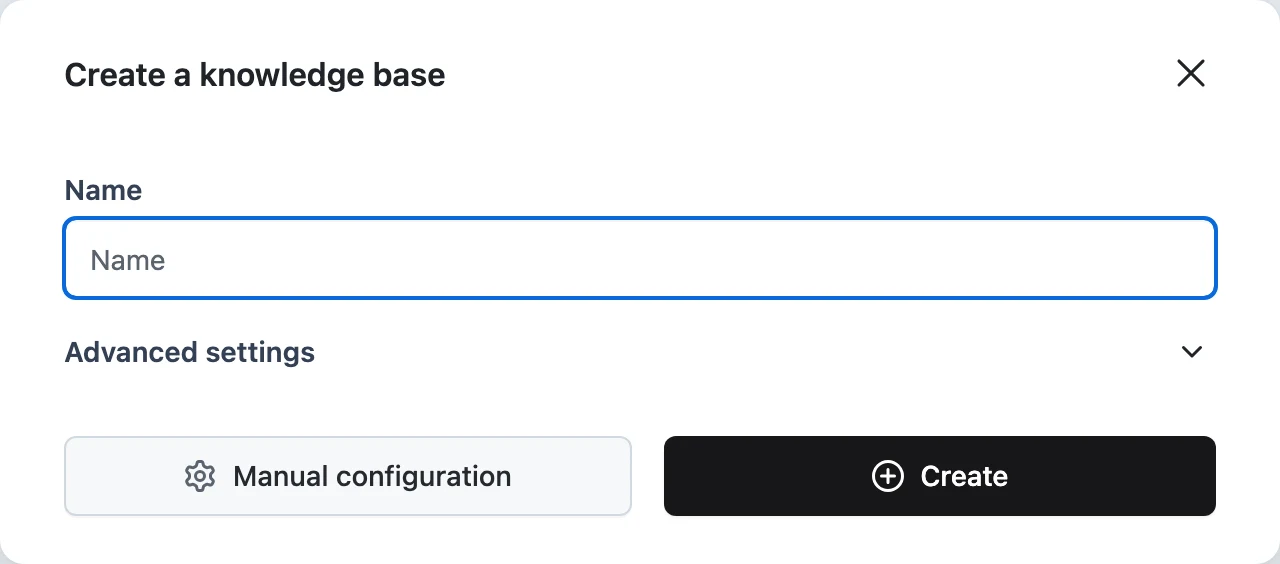
In your project, open Knowledge Bases and click the create button. The Create a knowledge base dialog opens.
Name it
Enter a Name. If the defaults suit you — character splitting, Cohere embeddings, Dynamiq-managed vector storage — you can click Create right now and skip the rest.
(Optional) Configure the file converter
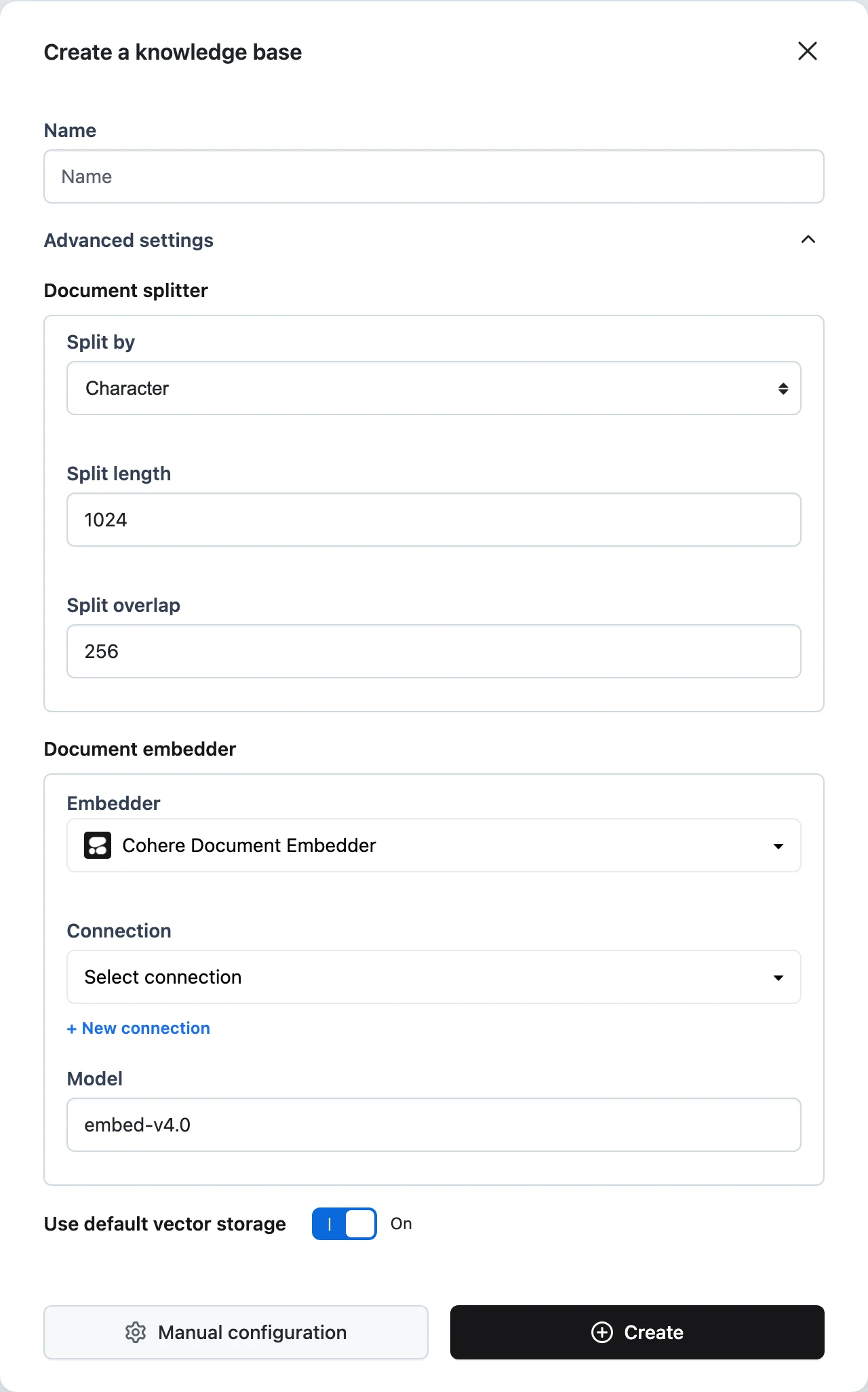
Expand Advanced settings. Under File converter, choose how uploaded files are turned into documents before they're chunked. The default is the Multi-file converter, which routes each file by type to the right converter (LLM image, PDF, PPTX, DOCX, and text) and falls back to the Unstructured converter for formats the type-specific converters don't handle:
- Multi-file Converter — the default; one node that dispatches each file to the matching converter.
- Unstructured Converter — the fallback for files the other converters can't read.
(Optional) Tune the document splitter
Under Document splitter, choose how documents are chunked:
- Split by —
Character,Word,Sentence,Page,Passage, orTitle. - Split length — how many units per chunk (defaults to
1024for character splitting; each split-by mode has its own sensible default, e.g.200words or10sentences). - Split overlap — how many units consecutive chunks share (defaults to
256for character splitting).
Keep Split overlap smaller than Split length. An overlap equal to or larger than the chunk size leaves no new content between consecutive chunks, so the splitter can't move forward through the document.
(Optional) Pick the embedder
Under Document embedder, select the Embedder, its Connection, and the Model. Available embedders:
- OpenAI Document Embedder
- Bedrock Document Embedder
- Cohere Document Embedder (default, with model
embed-v4.0) - Hugging Face Document Embedder
- Mistral Document Embedder
- IBM watsonx Document Embedder
- Gemini Document Embedder
- VertexAI Document Embedder
The Connection dropdown is pre-filled with your organization's system connection for the selected provider when one exists; use + New connection to add your own credentials instead. See Create a Connection.
(Optional) Choose vector storage
Use default vector storage is on by default — Dynamiq stores vectors in managed storage (a Weaviate-backed vector store) with no setup. Toggle it off to bring your own store and configure Storage, Connection, and Index name. Available writers:
- Weaviate Writer
- Pinecone Writer
- Milvus Writer
- Chroma Writer
- Qdrant Writer
- Elasticsearch Writer
- OpenSearch Writer
- pgvector Writer
Create
Click Create. You land on the new Knowledge Base's page, ready to add content on the Files and Integrations tabs.
Prefer full control over the pipeline? Click Manual configuration instead — it opens the ingestion workflow editor where you build the flow node by node. See Customize the Ingestion Workflow.
Choose your embedder and chunking strategy deliberately: retrieval embeds queries with the same embedder used at ingestion, so switching providers later means reprocessing existing items.
What gets created behind the scenes
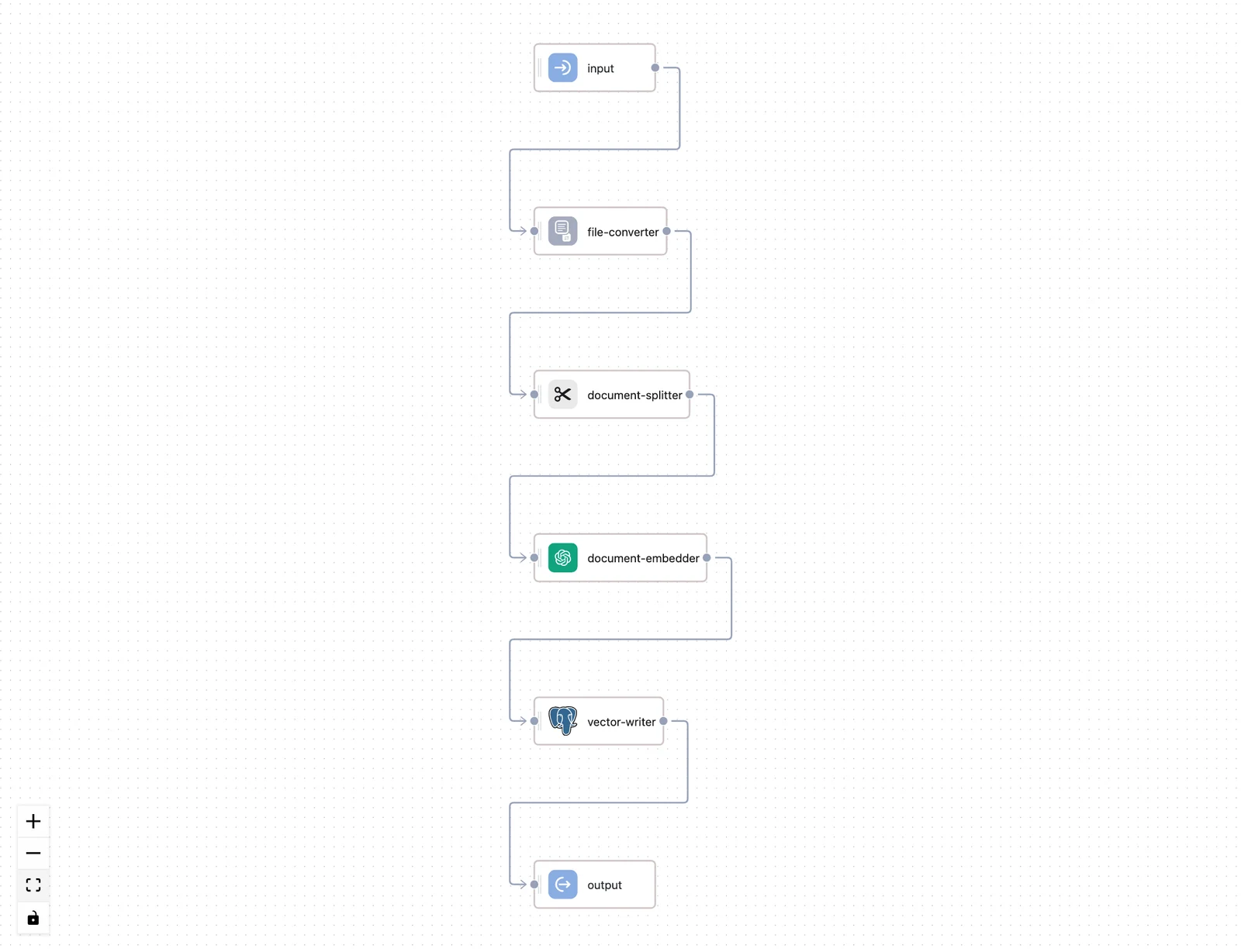
The dialog's choices are compiled into an ingestion workflow — a real Workflow you can open on the Knowledge Base's Workflow tab. The generated flow has four stages:
| Stage | Node | What it does |
|---|---|---|
| Pre-processing | multi-file-converter | Routes each file by type to a converter: LLM image converter, PDF, PPTX, DOCX, and text converters, with an unstructured-file converter as fallback |
| Chunking | document-splitter | Splits documents using your Split by / Split length / Split overlap settings |
| Vectorization | document embedder | Embeds each chunk with your selected provider and model |
| Storage | vector store writer | Upserts vectors into the configured store; the workflow output reports the upserted_count |
The Knowledge Base also gets its own hostname (shown on its page) that serves the ingestion and POST /v1/documents/search retrieval endpoints — see Knowledge Base API.
Create via the management API
POST /v1/knowledgebases creates a Knowledge Base programmatically. The payload requires name, project_id, and the full ingestion workflow definition (flow and flow_ui); description and runtime_id are optional:
curl -X POST "https://api.getdynamiq.ai/v1/knowledgebases" \
  -H "Authorization: Bearer $DYNAMIQ_PAT" \
  -H "Content-Type: application/json" \
  -d @knowledgebase.json
Because flow and flow_ui describe the entire ingestion workflow graph, the practical path is to create the Knowledge Base in the UI and use the API for everything afterwards — uploading items, managing sources, and searching. Those endpoints are covered in Data Sources and Knowledge Base API.
Next steps
Overview
Knowledge Bases are managed RAG: an ingestion workflow, vector storage, and a retrieval endpoint your agents can query as a tool.
Data Sources
Fill a Knowledge Base by uploading files, crawling websites, or syncing OAuth sources like Google Drive and Notion — with pause, resume, and sync history.