Connect a Knowledge Base to Agents
Attach a Knowledge Base Retriever tool to an Agent node and tune top-k, hybrid search, filters, and similarity threshold.
Agents use Knowledge Bases through the Knowledge Base Retriever — a tool the agent can call whenever a step needs grounded information. You attach it on the Agent node, point it at a Knowledge Base, and tune how many chunks come back and under what conditions.
Add the retriever to an Agent node
Open the Agent node's configuration
In the workflow editor, select your Agent node to open its configuration panel.
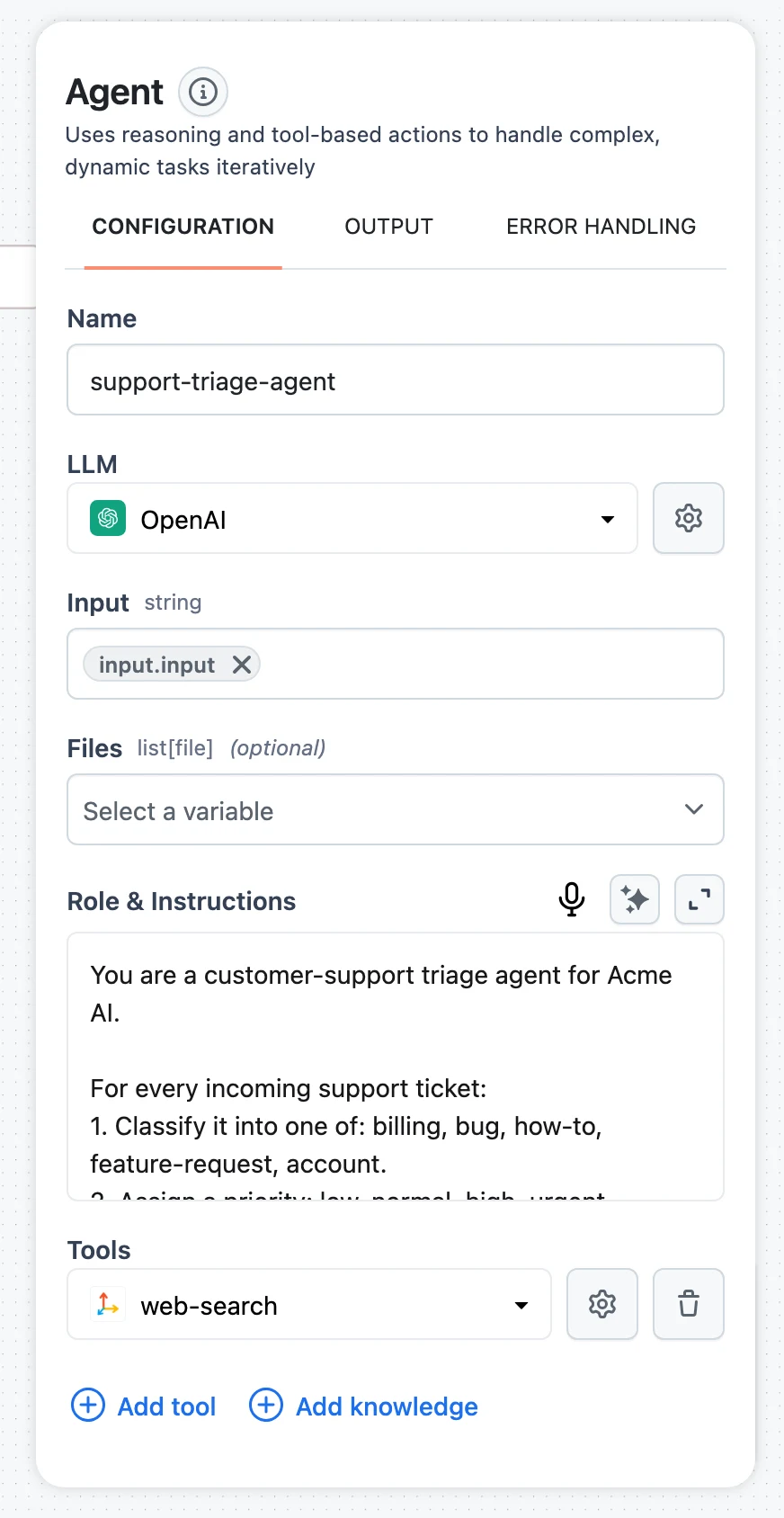
Click Add knowledge
In the tools section, click Add knowledge. This adds a Knowledge Base Retriever tool to the agent in one click. (Equivalently, click Add tool and pick Knowledge Base Retriever from the list — it also appears under VECTOR STORES in the node menu.)
Select the Knowledge Base
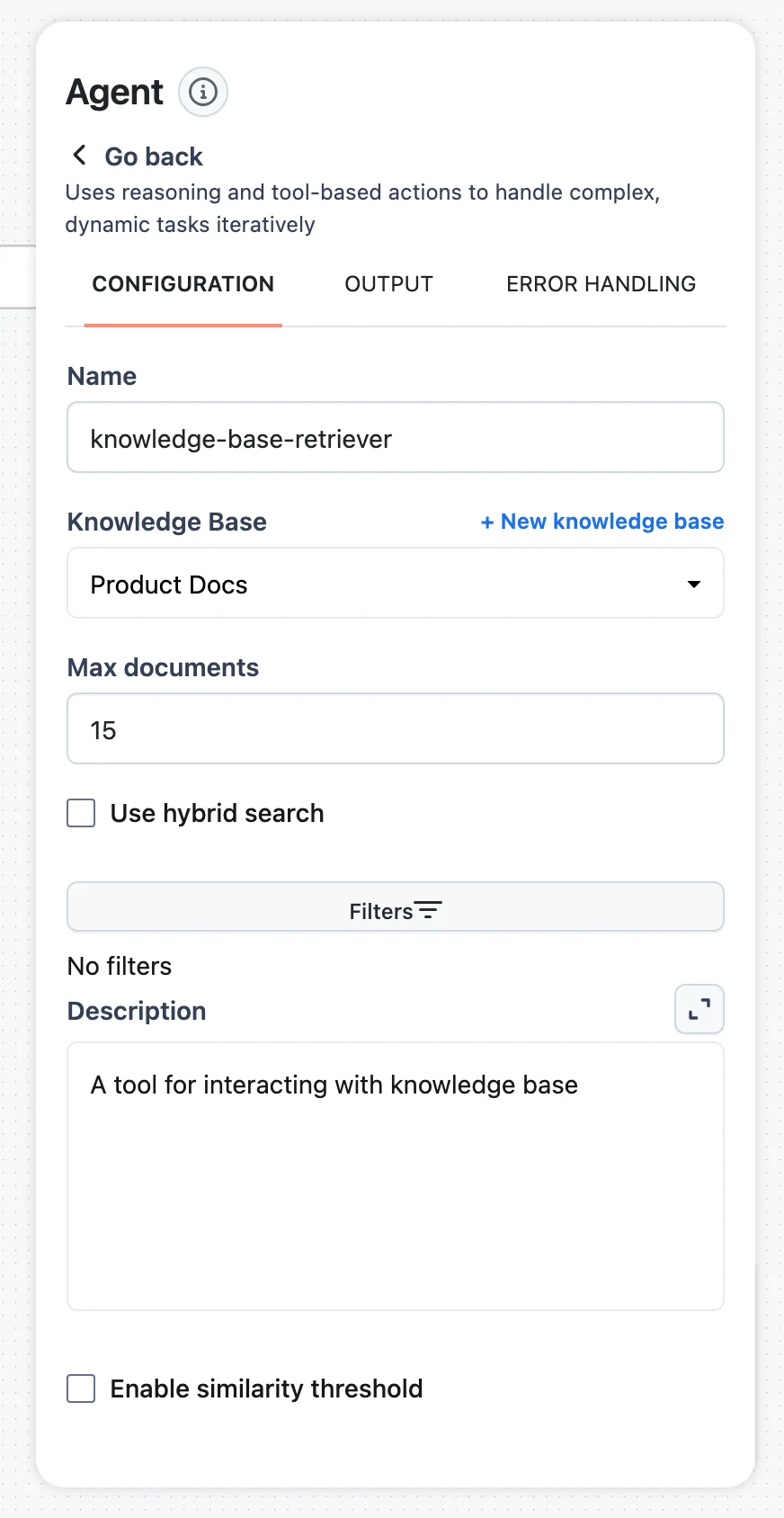
Click the gear icon on the new tool to configure it. Under Knowledge Base, select one of the project's Knowledge Bases — or click + New knowledge base to open Knowledge Base creation in a new tab.
Tune retrieval and describe the tool
Set the retrieval parameters (reference below), and write a clear Description — this is what the agent reads when deciding whether to query the Knowledge Base. Be specific: "Searches the internal HR handbook for policies, benefits, and onboarding procedures" beats "knowledge search".
Retrieval parameters
Knowledge BaseselectrequiredMax documentsnumberUse hybrid searchcheckboxFiltersconditionsDescriptiontextEnable similarity thresholdcheckboxYou can also remap the tool's inputs with an input transformer, like any other node — see Input Transformers & Jinja.
When the agent queries it
The Agent node runs a reasoning loop: at each step the LLM reasons about what it needs next and picks a tool. The Knowledge Base Retriever is queried when the agent decides the current step needs information from your documents — it writes a search query, calls the retriever, and the returned chunks (with their metadata) flow into the agent's context for the next reasoning step. The agent may search multiple times with refined queries within a single run.
Two practical consequences:
- The description drives usage. An agent with a vague tool description either over-queries or ignores the Knowledge Base. Name the domains it covers.
- Every query is traced. Each retriever call appears in the run's trace with the query and retrieved chunks, so you can see exactly what the agent looked up — useful when an answer cites the wrong document.
Need retrieval on every run, not at the agent's discretion? Use the Knowledge Base Retriever as a standalone workflow node before your LLM node instead of as an agent tool. The configuration is identical; the Description field simply doesn't apply.
Querying over HTTP instead
Agents aren't the only consumers. Every Knowledge Base also serves a direct search endpoint on its own hostname:
curl -X POST "https://<your-kb-hostname>/v1/documents/search" \
  -H "Authorization: Bearer $DYNAMIQ_ACCESS_KEY" \
  -H "Content-Type: application/json" \
  -d '{"query": "What is the parental leave policy?", "limit": 10}'
query is required; limit is optional and accepts 1–100. The response returns matching chunks under data. Full details in Knowledge Base API.