Input Transformers & Jinja
How data moves into a node — JSONPath selectors over upstream results, the literal-fallback rules, and Jinja templating inside prompts.
Two mechanisms shape the data a node receives: JSONPath selectors, which pick values out of upstream results and bind them to the node's input fields, and Jinja templates, which render those bound values into prompt text. Every variable token the picker inserts is a selector underneath; every {{ variable }} in a prompt is a Jinja parameter that must be fed by one. This page covers both layers and the rules that bite when a path is wrong.
What a node can see
When a node is about to run, the platform assembles its input context by merging:
- the workflow input keys at the top level, and
- one entry per upstream node, keyed by the node's name, containing that node's full result:
{
  "input": { "status": "success", "output": { "input": "What can you do?" } },
  "agent": { "status": "success", "output": { "content": "I can ...", "files": [] } }
}
Each upstream entry has status, output, and — after a failure — an error object with type and message. That is why every selector you see in the editor goes through .output:
$.<node-name>.output.<output-key>Only nodes upstream of the current node (connected directly or transitively into its target handle) appear in the variable picker — see How nodes connect.
Selectors: the input mapping layer
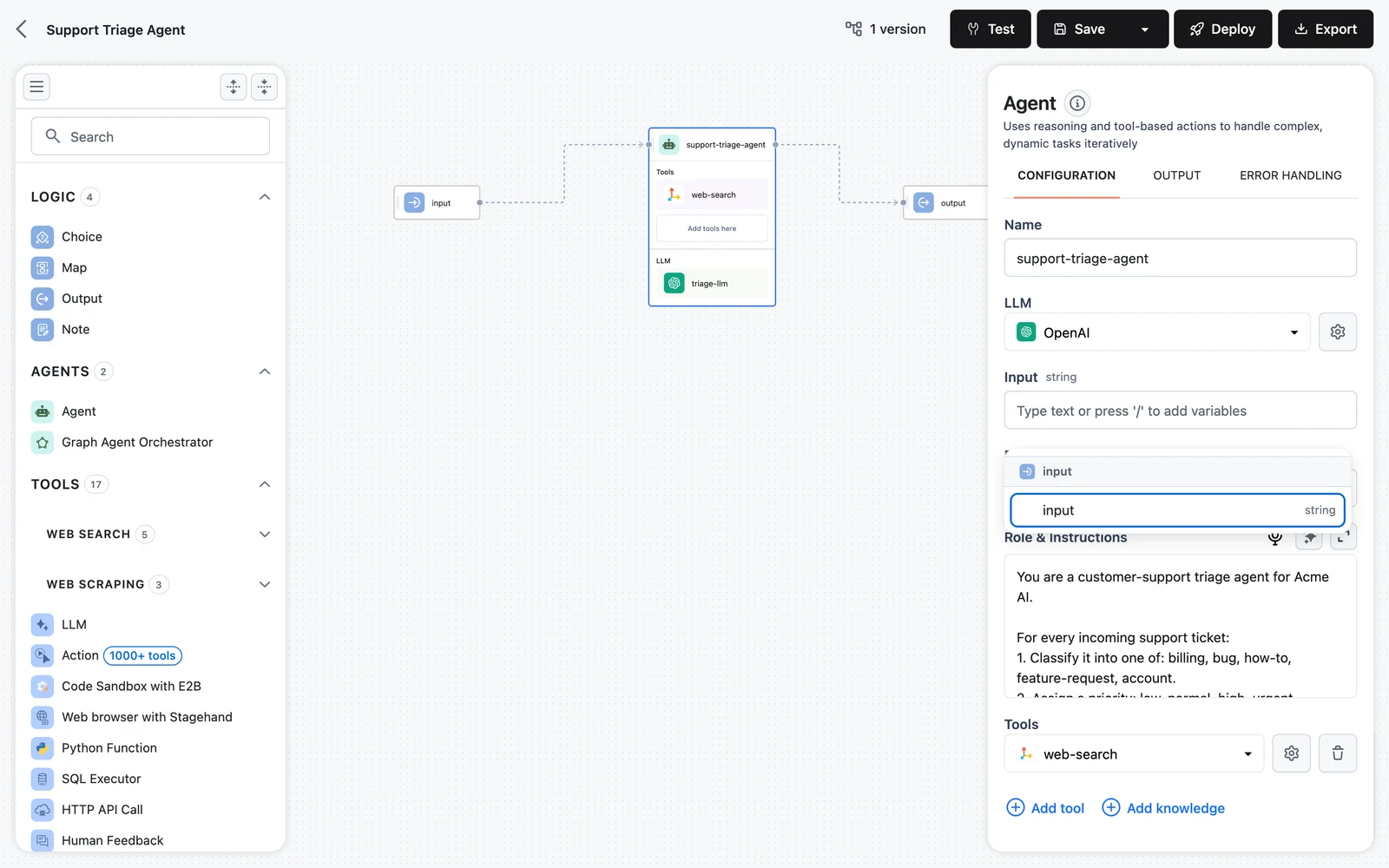
Every input field you fill on a node's CONFIGURATION tab is stored as a key–value pair in the node's input transformer: the key is the field name, the value is whatever the field holds. Press / in a field to insert a variable token; the token is a JSONPath string like $.agent.output.content, displayed in shorthand as agent.content.
Common selector patterns
| Selector | What it binds |
|---|---|
$.input.output.input | The input field callers sent to the workflow (via the Input node). |
$.agent.output.content | An Agent's answer string. |
$.websearch.output.content.result | A drill-down into a tool's content dict — chain keys as deep as the output goes. |
$.retriever.output.documents | A retriever's list[Document] for a downstream documents field. |
$.scraper.status | An upstream node's result status — "success" or "failure". |
$.scraper.error.message | The error message of a failed node whose Behavior is Return. |
Resolution rules (and the silent-null trap)
At runtime every selector value is evaluated against the merged context with these rules:
- One match — the field gets the matched value.
- Multiple matches — the field gets a list of all matched values.
- No match, value starts with
$or@— the field getsnull. No error is raised. - No match, anything else — the value is kept as a literal string. This is how plain text in a field works.
Rules 3 and 4 explain the two classic mapping bugs: a typo in an explicit path ($.agnet.output.content) silently delivers null, and a path that doesn't start with $ is delivered as the literal text of the path itself. The trace view shows each node's resolved input, which makes both immediately visible — see Testing and debugging.
Selectors reference nodes by name. Renaming a node after you've mapped its outputs elsewhere breaks every selector that mentions the old name — they start resolving to null. Name nodes early, rename with care.
Jinja: the prompt templating layer
LLM prompt messages are Jinja templates. Every {{ variable }} you write in a prompt becomes a required input of the node, and the editor immediately renders a mapping field for it under the prompt — wire each one to an upstream output (or literal text) exactly like any other input field.
Answer the user's question using only the context below.

Question: {{ question }}

Context:
{{ context }}
This prompt produces two fields, question and context. The full Jinja syntax is available, and the editor recognizes control structures when extracting variables:
{% for doc in documents %}
- {{ doc.content }}
{% endfor %}

{% if tone == "formal" %}Respond formally.{% endif %}
Here documents and tone become input fields, while the loop variable doc does not. Filters work too: {{ question | upper }}.
The same applies beyond inline LLM prompts:
- Stored prompts — selecting a Prompt on an LLM node imports its template variables as input fields the same way.
- Agent Role & Instructions — the Agent's role text also accepts Jinja templates, so you can parameterize an agent's persona from upstream data. See Agent prompts and roles.
Every Jinja variable in the prompt must be mapped. If a required parameter is missing at runtime, the LLM node fails with: Error: Invalid parameters were provided. Expected: {'question', 'context'}. Got: {...} — the fastest fix is to open the node and fill the unmapped field.
The two layers together
A typical RAG answer node shows the whole pipeline in one place:
- The prompt contains
{{ question }}and{{ context }}→ two input fields appear. - question is mapped with the picker to
$.input.output.query. - context is mapped to
$.kb-search.output.content. - At runtime the selectors resolve against upstream results, then Jinja renders the resolved values into the prompt text the LLM actually receives.
The trace records both steps: the node's input shows the resolved variables, and the prompt view shows the final rendered text.
Under the hood: the InputTransformer model
In the workflow's YAML (and the Python SDK) each node carries an input_transformer with two parts:
selector— the mapping you build in the UI: a dict offield name → JSONPath (or literal).path— an optional JSONPath filter applied to the whole merged context first; the selector then runs against the filtered result. The visual editor doesn't exposepath; it's available when authoring YAML or SDK code.
prompts:
  answer-prompt:
    messages:
      - role: user
        content: "Answer using the context.\nQuestion: {{ question }}\nContext: {{ context }}"

nodes:
  answer-llm:
    type: dynamiq.nodes.llms.OpenAI
    name: Answer LLM
    model: gpt-4o-mini
    connection: openai-conn
    prompt: answer-prompt
    depends:
      - node: kb-search
    input_transformer:
      path: null
      selector:
        "question": "$.input.output.query"
        "context": "$.kb-search.output.content"
(In YAML, selector roots are the keys of the nodes map — node ids. In the visual editor, the picker writes selectors using node names; the saved flow keeps the two consistent.)
The same structure round-trips through workflow export and Workflow.from_yaml_file in the SDK — see YAML workflows.
Common mistakes
Next steps
Node Configuration
The node inspector explained tab by tab — Configuration, Output, and Error Handling — plus the special Input/Output node panels and retry semantics.
Error Handling
What happens when a node fails — Raise vs. Return semantics, retries with backoff, timeouts, and fallback paths that keep the run alive.