The Agent Node
Configure the Agent node — LLM, role, tools, memory, inference modes, loop limits, streaming, and structured output.
The Agent node is the reasoning core of Dynamiq workflows. It wraps an LLM in a reasoning loop (reason → act → observe): the model thinks about the task, calls tools, observes the results, and repeats until it can produce a final answer. This page covers every configuration group on the node; Agent Tools and Agent Memory go deeper on their respective panels.
How the agent loop works
A plain LLM node makes one model call and returns the text. The Agent node instead runs a loop, and each iteration produces one of three outcomes:
- Thought + tool call — the model explains its reasoning, picks one of its tools by name, and provides the tool's input. The agent executes the tool and appends the result to the conversation as an observation the model sees on the next iteration.
- Final answer — the model decides it has enough information and returns the answer. The loop ends.
- Recovery — the model's reply could not be parsed (bad JSON, missing tags, empty response). The agent appends a correction instruction describing the error and lets the model retry on the next iteration, so a single malformed reply does not fail the run.
The loop runs until a final answer is produced or the Max loop budget is exhausted (see Loop limits below). Every thought, tool call, and observation is recorded in the run's trace, so you can replay exactly what the agent did.
Choosing an agent setup
The Agent node covers a wide range of behaviors — from a single direct answer to a full tool-using loop — through configuration alone. Use this table to pick the right setup:
| Goal | Setup |
|---|---|
| One model call with a prompt you fully control | An LLM node — no loop, no agent instructions, cheapest and most predictable. Supports saved Prompts. |
| A conversational agent — role, memory, structured output — but no tools | An Agent node with an empty tool list. With nothing to act on, it answers in a single reasoning pass, and you keep memory, streaming, files, and Response format. |
| Visible self-critique before the final answer | An Agent node with reflection-style instructions in Role & Instructions — tell it to draft, critique its own draft, then revise before answering. |
| Tasks that need tools, search, or multiple steps | An Agent node with tools — the full loop described above. |
| Several specialized agents cooperating | An Agent with sub-agents, or a Graph Orchestrator. Keep each agent's role and tool list small. |
Add and configure an Agent node
Add the Agent node to the canvas
Drag an Agent node onto the Workflow canvas, or pick it from the node palette. The palette describes it as a node that "uses reasoning and tool-based actions to handle complex, dynamic tasks iteratively".
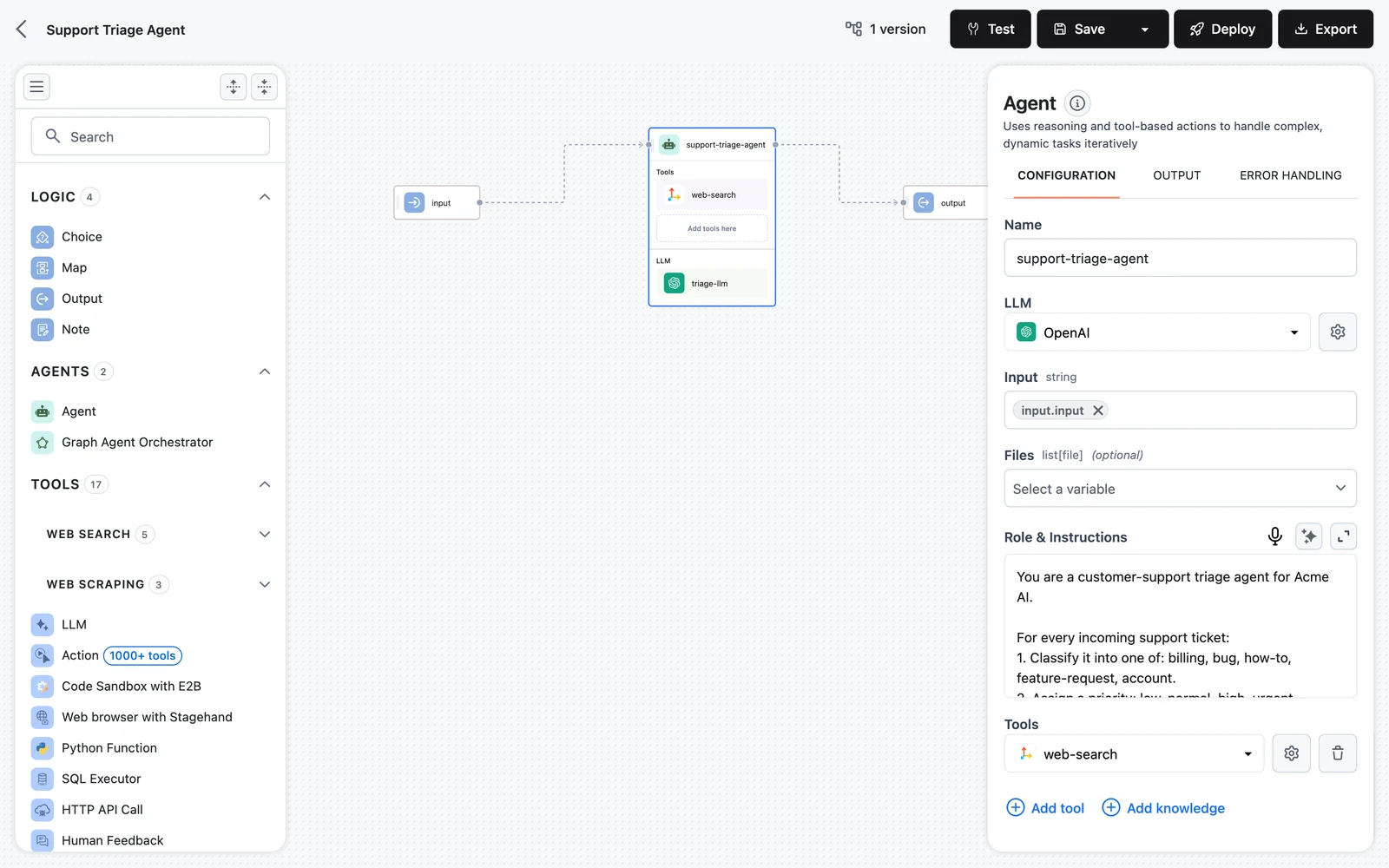
Select an LLM
In the configuration panel, pick a model under LLM. The gear icon next to the selector opens the model's own settings (model, temperature, max tokens, connection). Any LLM provider available in your project works; some features depend on model capabilities — Function calling inference mode requires a model that supports native tool calling.
Write the role
Fill in Role & Instructions — who the agent is, what it must and must not do, and how to format answers. The field accepts Jinja templates, so you can inject workflow inputs into the role at runtime (each template variable you reference appears as a mapped input field above). See Agent Prompts and Roles for patterns.
Attach tools and memory
Use Add tool / Add knowledge under Tools to give the agent capabilities, and the Enable memory toggle to persist conversations across calls. Both are covered in detail on Agent Tools and Agent Memory. The panel also has Skills and Sandbox sections — see Skills and Sandbox.
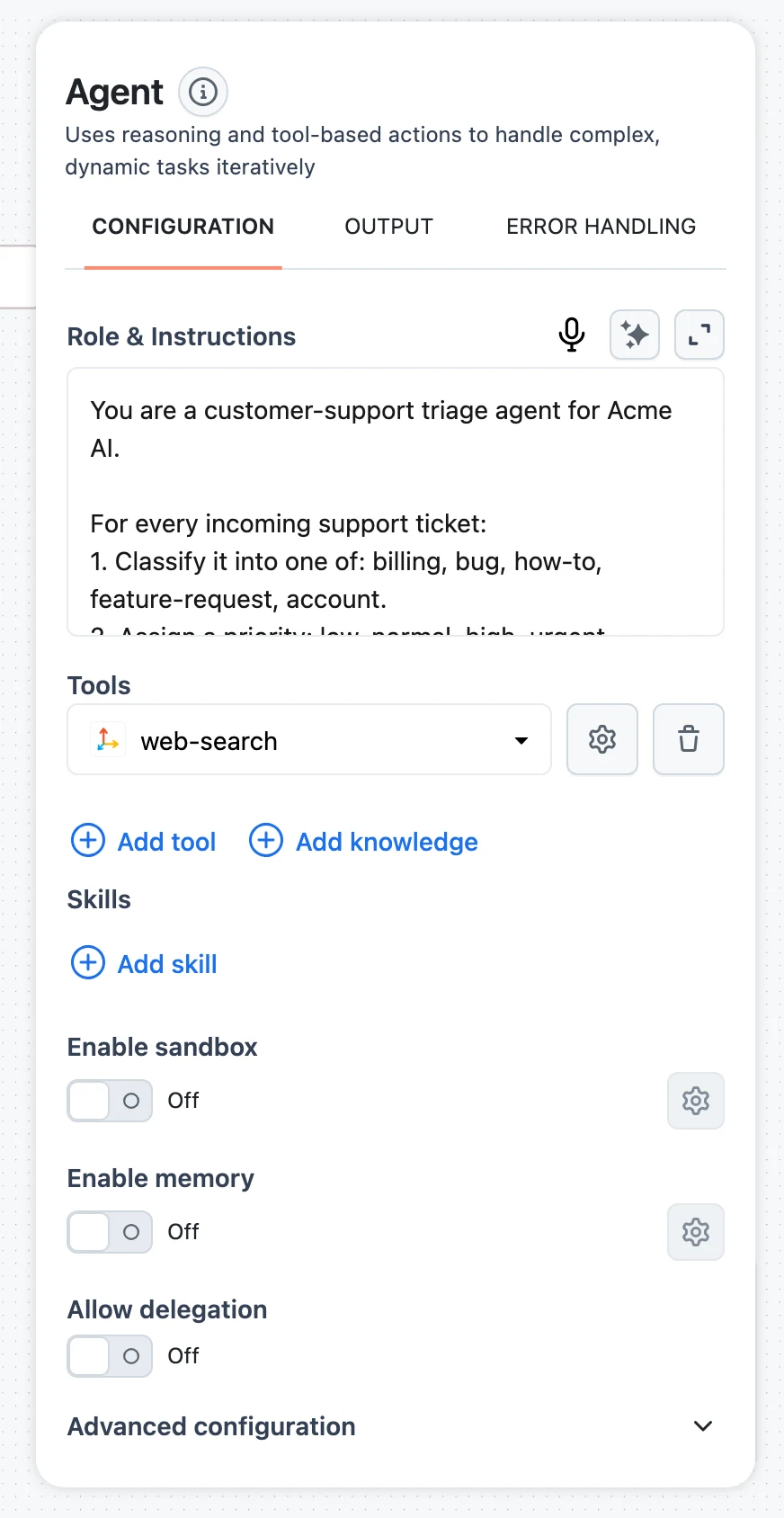
Tune advanced settings
Open the Advanced configuration accordion for Max loop, Behaviour on max loops, Inference mode, Response format, Streaming, Enable tool params, Enable parallel tool calls, context summarization, and file storage — all explained below.
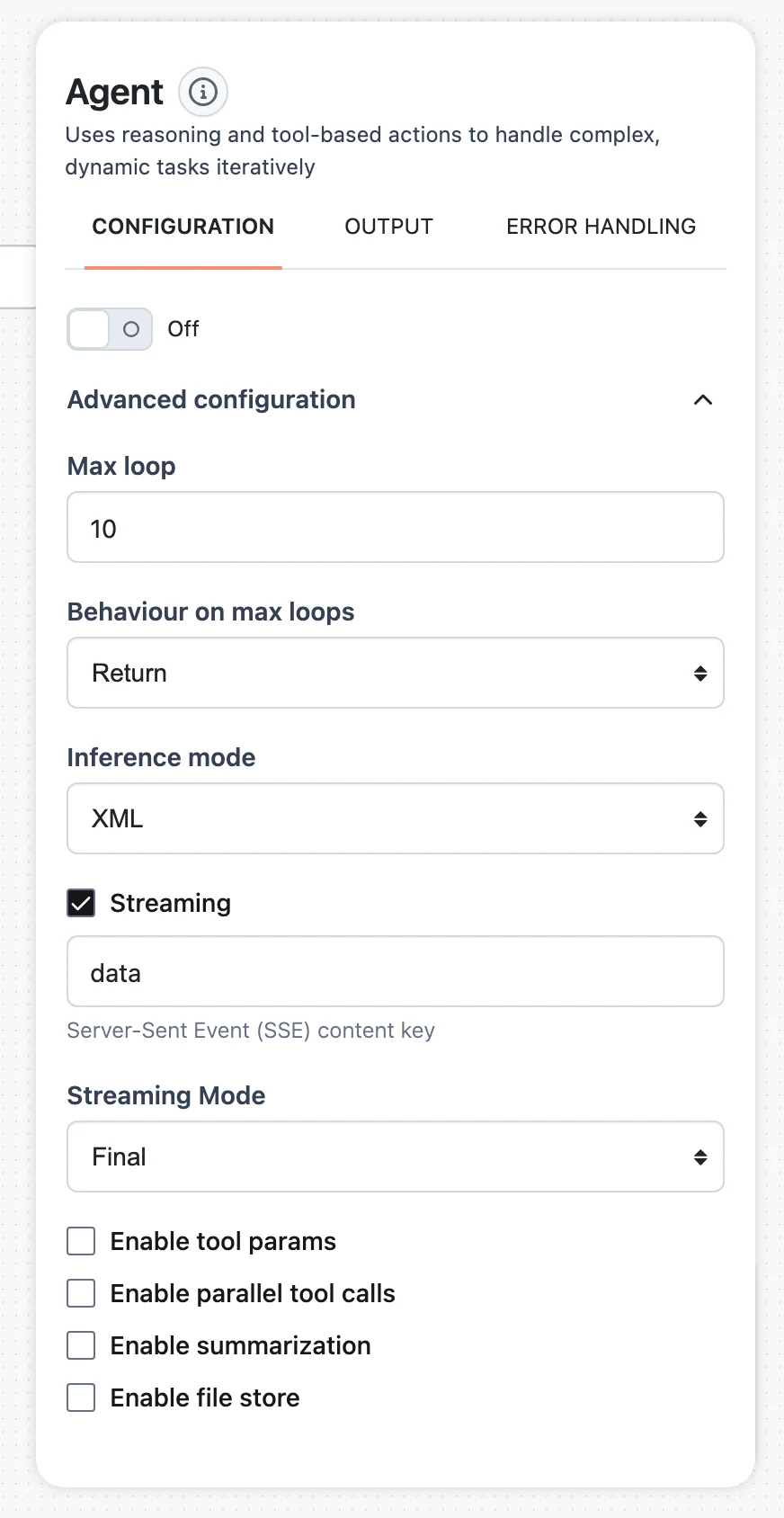
Agent inputs
When the workflow runs (or when you call a deployed App that contains the agent), the Agent node accepts these input fields:
inputstringrequiredfilesarrayimagesarrayuser_idstringsession_idstringmetadataobjecttool_paramsobjectMemory is only consulted when user_id and/or session_id is provided — without them every run starts a fresh conversation. Input files land in the agent's file store or sandbox; tool_params is detailed on Agent Tools.
Inference modes
Inference mode controls the wire format the agent uses to exchange thoughts and tool calls with the model. There are exactly four modes:
| Mode | UI label | How it works | When to use |
|---|---|---|---|
DEFAULT | Default | Plain-text Thought: / Action: / Action Input: / Answer: sections, with stop sequences on Observation:. | Works with any model; good baseline. |
XML | XML | The model replies with <thought>, <action>, <action_input>, and <answer> tags. | Robust parsing for models that follow XML well. |
FUNCTION_CALLING | Function calling | Tools are exposed as native functions; the final answer is itself a provide_final_answer function call. The agent forces a tool choice so the model can never reply with bare text. | Models with strong native tool calling; required for native parallel tool calls. |
STRUCTURED_OUTPUT | Structured output | Every step is a JSON object with thought, action, and action_input keys; action: "finish" ends the loop. | Models with reliable JSON-schema support. |
Mode-specific behavior worth knowing:
- Function calling validates at configuration time that the selected model actually supports function calling and rejects the configuration otherwise.
- If you set a Response format (below) while the mode is Default or XML, the agent automatically switches itself to Structured output, because those text modes cannot guarantee schema-conformant JSON.
- Structured output combined with tools on a Bedrock-hosted model is automatically downgraded to XML (the provider rejects emulated structured output when other tools are present); a warning is logged.
- In every mode, parse failures are recoverable: the agent feeds the error back to the model with format guidance and retries within the loop budget.
Response format (structured final output)
For Function calling and Structured output modes, the panel shows a Response format setting (the gear icon opens the schema editor). Provide a JSON schema and the agent's final answer is parsed from JSON into an object that conforms to it — downstream nodes receive structured data instead of prose. If the model's final answer is not valid JSON for the schema, the agent appends a correction instruction and retries.
Leave it empty to keep the default behavior: the final answer is returned as a string.
Loop limits
Two settings govern the loop budget:
- Max loop — the maximum number of reasoning iterations. The UI defaults to 10 (accepted range 1–10000); in the Python SDK the
max_loopsfield defaults to 15 (minimum 2). Each iteration is one LLM call plus any tool executions, so this is also a cost ceiling. - Behaviour on max loops — what happens if the budget runs out before a final answer:
- Raise (default) — the run fails with a max-loops-exceeded error that includes the agent's last response. Pick this when a non-answer must be treated as a failure.
- Return — the agent makes one extra LLM call with a special "wrap it up" prompt and the full loop history, and returns the best answer it can extract from that attempt. Pick this for user-facing flows where a partial answer beats an error.
If an agent regularly hits the loop limit, the task is usually too broad for the budget: split it across sub-agents, raise Max loop, or tighten the role so the agent stops exploring.
Streaming
Enable the Streaming checkbox in Advanced configuration to emit Server-Sent Events while the agent runs:
- Server-Sent Event (SSE) content key — the event key your client listens for (defaults to
data). - Streaming Mode —
- Final: stream only the final answer.
- All: additionally stream intermediate events — each reasoning step (thought + chosen tool + tool input) and each tool result as it completes. Use this to render live "agent is searching the web…" UIs.
See Streaming and Async for consuming these events from a deployed App.
Delegation and parallel tool calls
- Allow delegation — when the agent has sub-agent tools, this toggle lets a sub-agent's output be returned directly as the final answer (the sub-agent call carries a
delegate_finalflag), skipping a re-summarization pass by the parent. Off by default. See Subagents & Delegation. - Enable parallel tool calls — lets the model request several tool calls in a single step; independent calls run concurrently, and tools that declare themselves sequential-only still run one-by-one. In Function calling mode this uses the provider's native parallel tool calling.
Context and files
Two more groups in Advanced configuration:
- Context summarization — when enabled, the agent watches its token usage and automatically compacts older conversation history with a summarization pass once the budget is exceeded, so long tool-heavy runs do not overflow the context window. A hidden
context-managertool is added for this; the model can also trigger compaction itself. Full details on Context Management & Summarization. - File store — gives the agent a working file system. The agent gains file tools (read, search, list, and optionally write), uploaded input
filesland here, and the agent can name produced files in its final answer (output_files) so they are returned in the run output alongsidecontent. Full details on File Store & Artifacts; for an isolated execution environment with shell access, see Sandbox.
Worked example (Python SDK)
The same node, configured in code. Field names map one-to-one to the UI settings above.
from dynamiq.connections import OpenAI as OpenAIConnection
from dynamiq.connections import Tavily
from dynamiq.memory import Memory
from dynamiq.memory.backends import SQLite
from dynamiq.nodes.agents import Agent
from dynamiq.nodes.llms import OpenAI
from dynamiq.nodes.tools.tavily import TavilyTool
from dynamiq.nodes.types import Behavior, InferenceMode

agent = Agent(
    name="research-agent",
    llm=OpenAI(
        connection=OpenAIConnection(),
        model="gpt-4o",
        temperature=0.1,
        max_tokens=4000,
    ),
    role=(
        "You are a careful research assistant. Search the web before answering, "
        "cite your sources, and say so explicitly when you cannot verify a claim."
    ),
    tools=[TavilyTool(connection=Tavily())],
    memory=Memory(backend=SQLite(db_path="conversations.db")),
    inference_mode=InferenceMode.FUNCTION_CALLING,
    max_loops=10,
    behaviour_on_max_loops=Behavior.RETURN,
    parallel_tool_calls_enabled=True,
)

result = agent.run(
    input_data={
        "input": "What changed in the EU AI Act implementation timeline this year?",
        "user_id": "user-42",
        "session_id": "session-2026-06-10",
    }
)
print(result.output["content"])
The run output is a dict whose content key holds the final answer (a string, or a parsed object when Response format is set). If the agent produced files, they are returned under files.
Next steps
Agent Tools
Attach web search, code execution, sub-agents, and more — and learn how the agent picks between them.
Agent Memory
Persist conversations per user and session across runs with a memory backend.
Prompts, Roles & Inference Modes
Write roles and instructions that keep the loop on track.
Subagents & Delegation
Split broad tasks across specialized agents and delegate final answers.