Agent Tools
Attach tools to the Agent node, write descriptions the model can act on, and pass runtime tool parameters with tool_params.
Tools are what turn an Agent node from a chatbot into a worker. Every tool is a regular workflow node attached to the agent; on each loop iteration the agent's LLM decides whether to call one, which one, and with what input. This page covers attaching tools, how the model chooses between them, the tool catalog, and runtime parameter injection with tool_params.
Attach tools to an agent
Open the Tools section
Select the Agent node and find Tools in the configuration panel. Each attached tool shows a selector, a gear icon to open the tool's own configuration, and a trash icon to detach it.
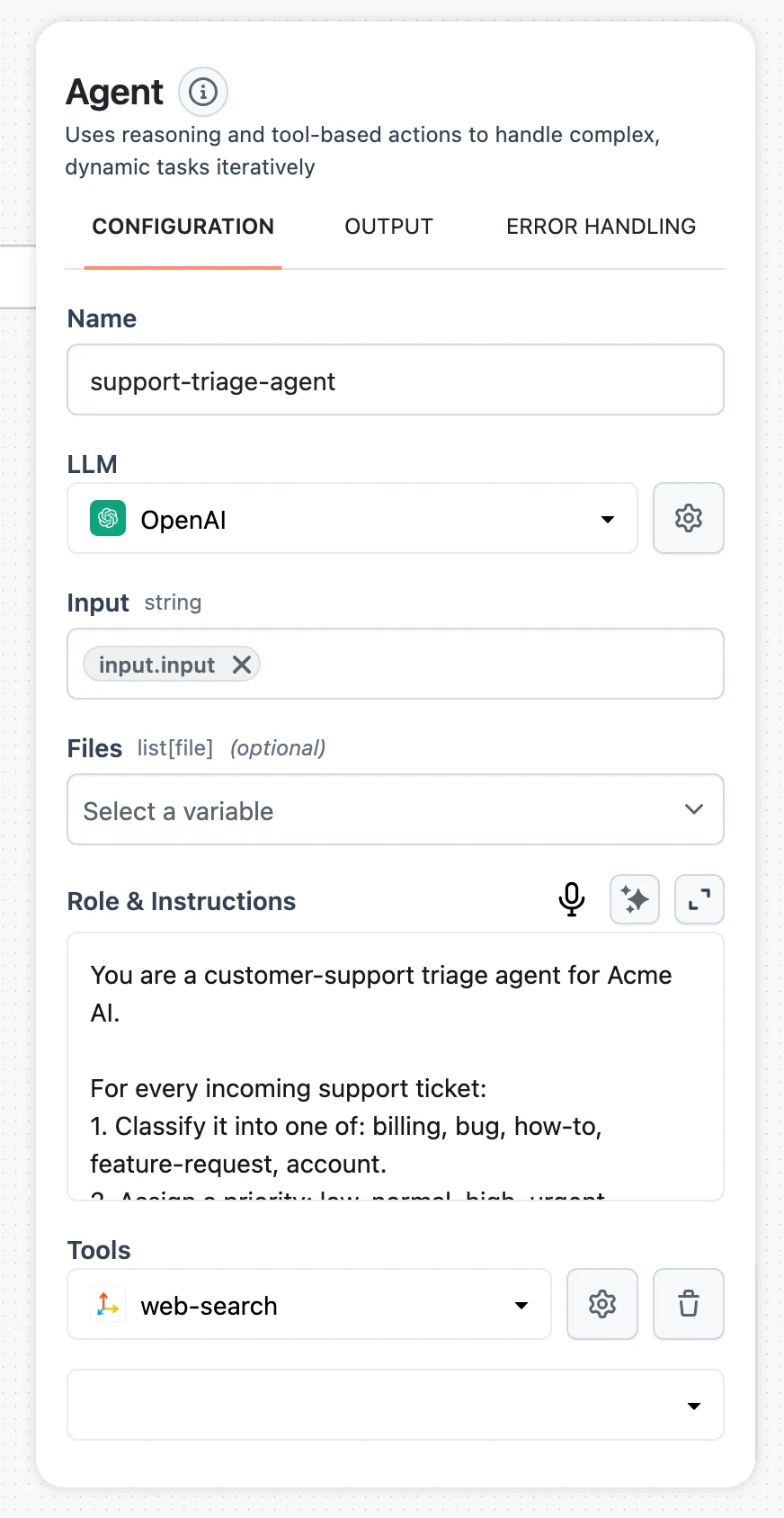
Add a tool
Click Add tool and pick from the tool catalog — the selector lists every tool node plus other agents (so an agent can be attached as a sub-agent). To attach a Knowledge Base in one click, use Add knowledge, which adds a Knowledge Base Retriever tool.
Configure the tool
Click the gear icon to set the tool's connection and parameters — for example which Tavily connection a web search uses, or the connection string for a SQL Executor. Tools attached to an agent render as child nodes on the canvas, hanging off the Agent node's tool handle.
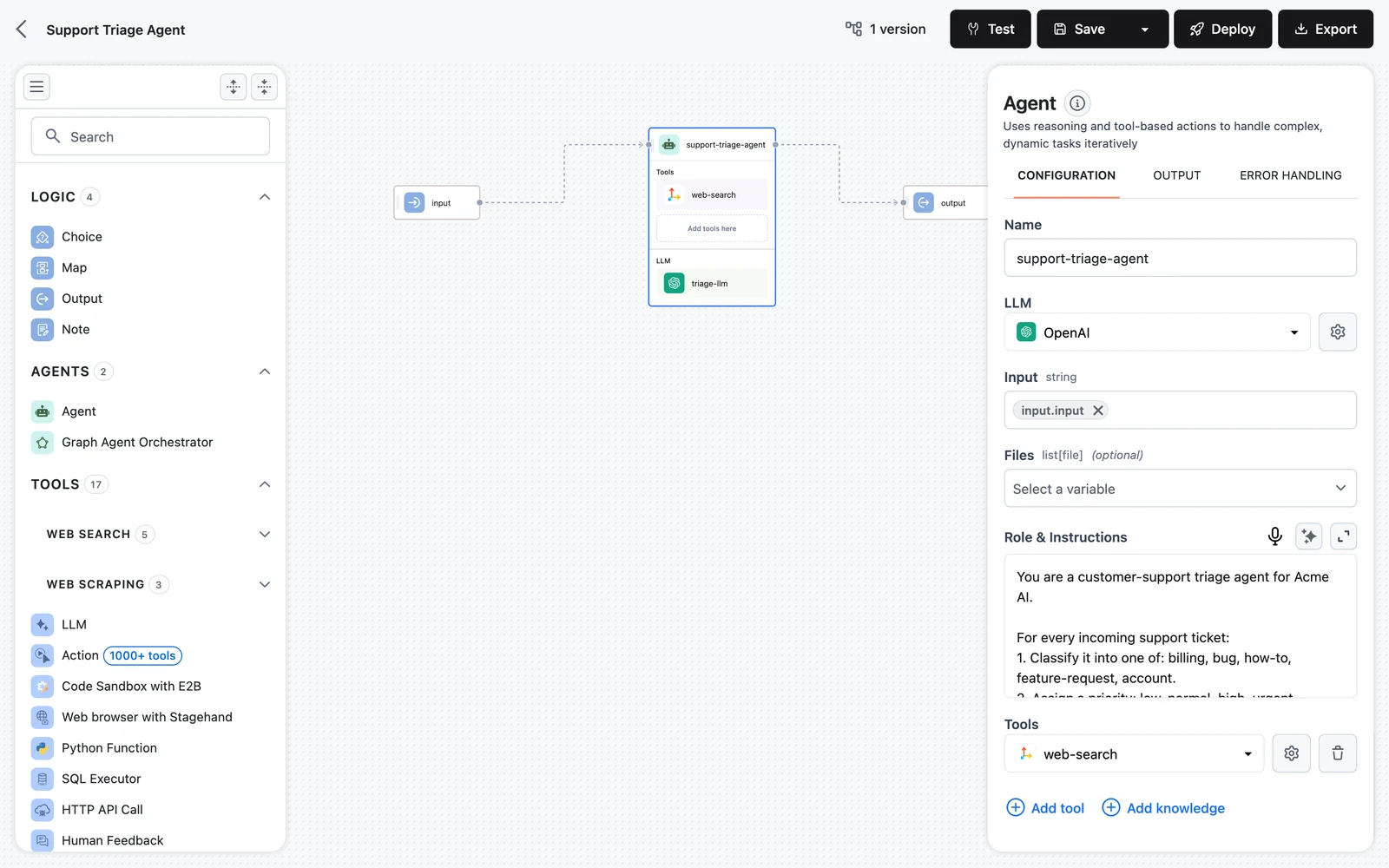
Names and descriptions drive tool selection
The agent's system prompt contains one line per tool, built from the tool's name and description:
- tavily-search: Searches the web for current information...
- sql-executor: Executes SQL queries against the configured database...
The LLM has nothing else to go on — it picks a tool by matching the task against these lines, then fills in the input schema. That makes naming the highest-leverage tool setting:
- Make names say what the tool does.
crm-contact-lookupbeatstool-2. Names are sanitized before they reach the model: spaces become hyphens and any character outside letters, digits,_, and-is stripped — the model must reference the sanitized name exactly, so keep names simple. - Write descriptions for the model, not for teammates. State what the tool does, when to use it, and when not to: "Searches internal HR policies. Use for questions about leave, benefits, or onboarding — not for general web questions."
- Disambiguate overlapping tools. If an agent has two search tools, say in each description which domains or query types it should own. Vague, overlapping descriptions are the most common cause of an agent calling the wrong tool.
If the model names a tool that does not exist, the agent returns an "Unknown tool" observation listing the constraint, and the model corrects itself on the next loop — but every such round-trip burns one iteration of the Max loop budget.
Tool catalog
Categories of tools you can attach, with the built-in node names the agent sees:
| Category | Tools |
|---|---|
| Web search | Tavily (tavily-search), Exa (exa-search), ScaleSerp (scale-serp-search), Firecrawl Search (firecrawl-search), Jina web search |
| Web scraping | Firecrawl (firecrawl-scrape), ZenRows (zenrows-scrape), Jina (scraping) (jina-scrape) |
| Code execution | E2B code interpreter (e2b-code-interpreter-tool) — Python, shell, and file operations in a remote sandbox; Local Python Code Sandbox (python-code-executor); Custom Python Tool (python-tool) — your own Python function as a tool, see Custom Python tools |
| Databases | SQL Executor (sql-executor), Cypher Graph Query for graph databases |
| HTTP | HTTP API Call (api-call) — call any REST endpoint with configurable method, headers, and parameters |
| Actions | Action (dynamiq.nodes.tools.Pipedream) — run one operation in an external app (send a Gmail message, post to Slack, update a CRM record) from a connector catalog of 1,000+ apps; see Action tools |
| MCP | MCP Server — attach a Model Context Protocol server; each MCP tool it exposes is expanded into an individual agent tool. See MCP Servers for connection setup and tool filtering |
| Knowledge | Knowledge Base Retriever (via Add knowledge) and Vector Store Retriever for semantic search over your data — see Connect a Knowledge Base to Agents |
| Human in the loop | Human Feedback — pause and ask a person for approval, confirmation, or missing information; see Human in the Loop |
| Sub-agents | Any other Agent attached as a tool — see below |
| Browser automation | Stagehand (stagehand-browser) — see Browser automation with Stagehand; E2B Desktop Tool |
| Utilities | Extended Thinking (thinking-tool) for scratch-pad reasoning, LLM summarizer (llm-summarizer) for cleaning up long text |
Skills are a related but separate mechanism — reusable instruction packages enabled in the Skills section of the agent panel rather than attached as individual tools. See Skills.
Sub-agents
Attaching another Agent as a tool creates a sub-agent: the parent delegates a task by calling the child with a brief (a short summary of what it is delegating), an input (the actual task), and optionally files to hand over. Sub-agents are how you keep each agent's role and tool list small while still solving broad tasks.
Two parent-side settings interact with sub-agents:
- Allow delegation — lets the parent return a sub-agent's answer directly as the final answer (the call sets
delegate_final), instead of re-summarizing it. The sub-agent's Description field is what the parent's LLM reads when deciding to delegate, so write it like a tool description. - Call limits — a sub-agent tool can carry a maximum number of invocations per run (
max_callsin the SDK); once exhausted, further delegation attempts are rejected with an observation telling the parent to use other tools or finish.
When the parent runs with memory identifiers, sub-agents automatically receive scoped ids (user_id and session_id suffixed with the sub-agent name) so their memory never collides with the parent's — see Agent Memory. For multi-agent design patterns and delegation flows, see Subagents & Delegation.
Action tools
An Action tool runs one operation in an external app — send a Gmail message, post a Slack message, update a CRM record — picked from a connector catalog of 1,000+ apps, with no custom HTTP integration. Each Action tool wraps exactly one action of one app; attach several Action tools when the agent needs several operations. The node reference is at Action.
Pick the app and action
Click Add tool and choose Action — the entry marked with a 1000+ tools badge. In the Select App Action sheet, search for an app, expand it to list its actions, and click one to attach it. To hand the agent an app's whole surface at once, click Add all actions on the app row — each action becomes its own tool.
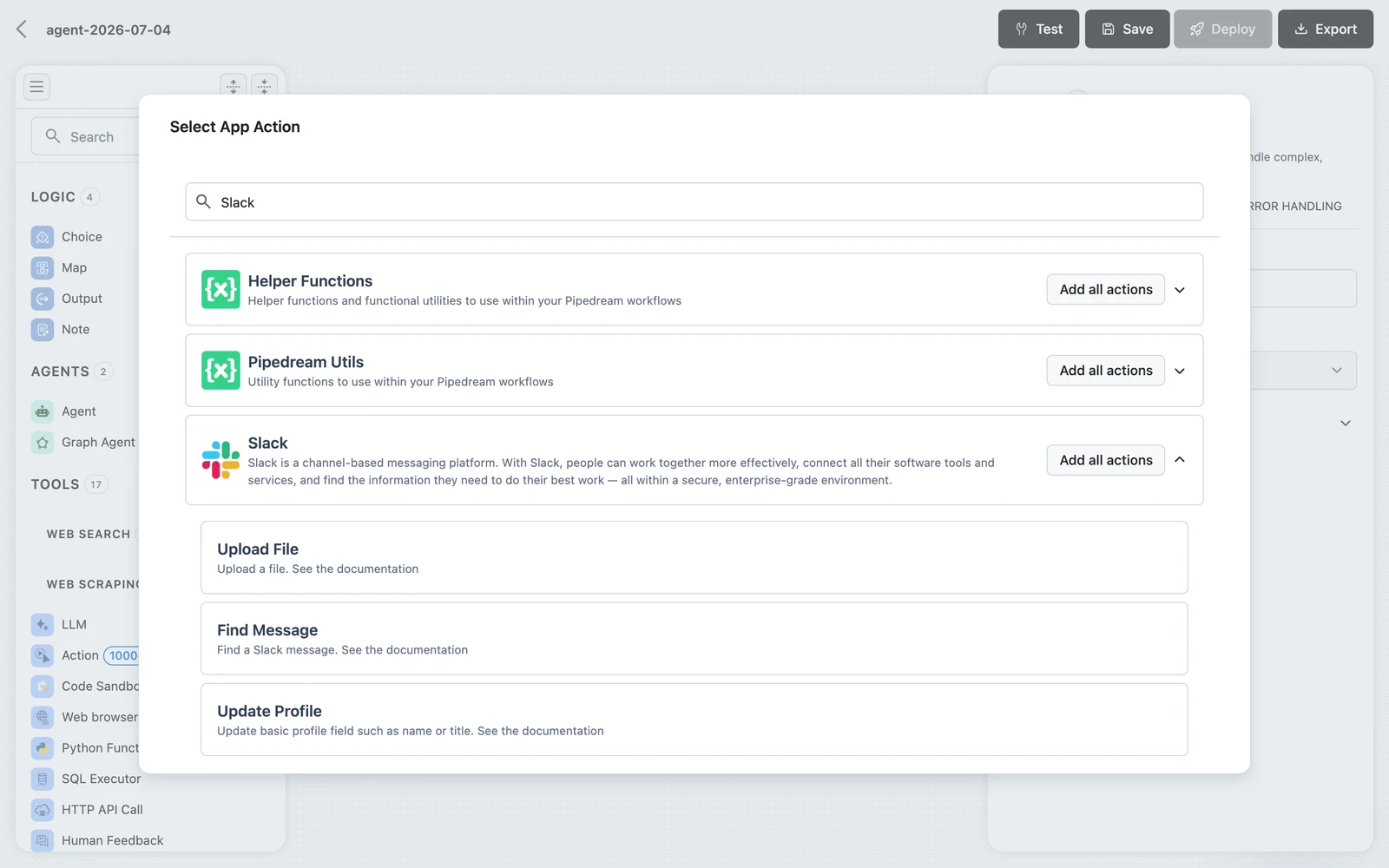
Configure the action's fields
The tool's configuration panel shows the chosen app/action pair under Select action, the action's description, and a form generated from that action's own fields. Anything you fill here is fixed at build time; the remaining fields stay in the tool's input schema for the model to fill at call time. Pre-filled values become optional for the model, and the generated tool description lists them as parameters it may override. Some fields load their options from the linked account (a Slack channel list, a CRM pipeline), so link the account first.
The tool's name and description are generated from the action; like any tool, the description is what the agent's LLM reads when choosing it — edit it if the agent has overlapping Action tools.
Link the account
The app's account field has two tabs:
- Accounts — select an account you already linked, or pick Connect new … account to authorize one now. Every run of the workflow then acts through this single account, for all users. Right for shared, organization-owned accounts (a team Slack bot, a support inbox).
- Requirements — click + New requirement to flag the account as something each end user of the deployed App must connect themselves before the App runs for them. Right when the action must act as the user — reading their inbox, posting as them. Save the workflow first; the Requirements tab is disabled on an unsaved workflow.
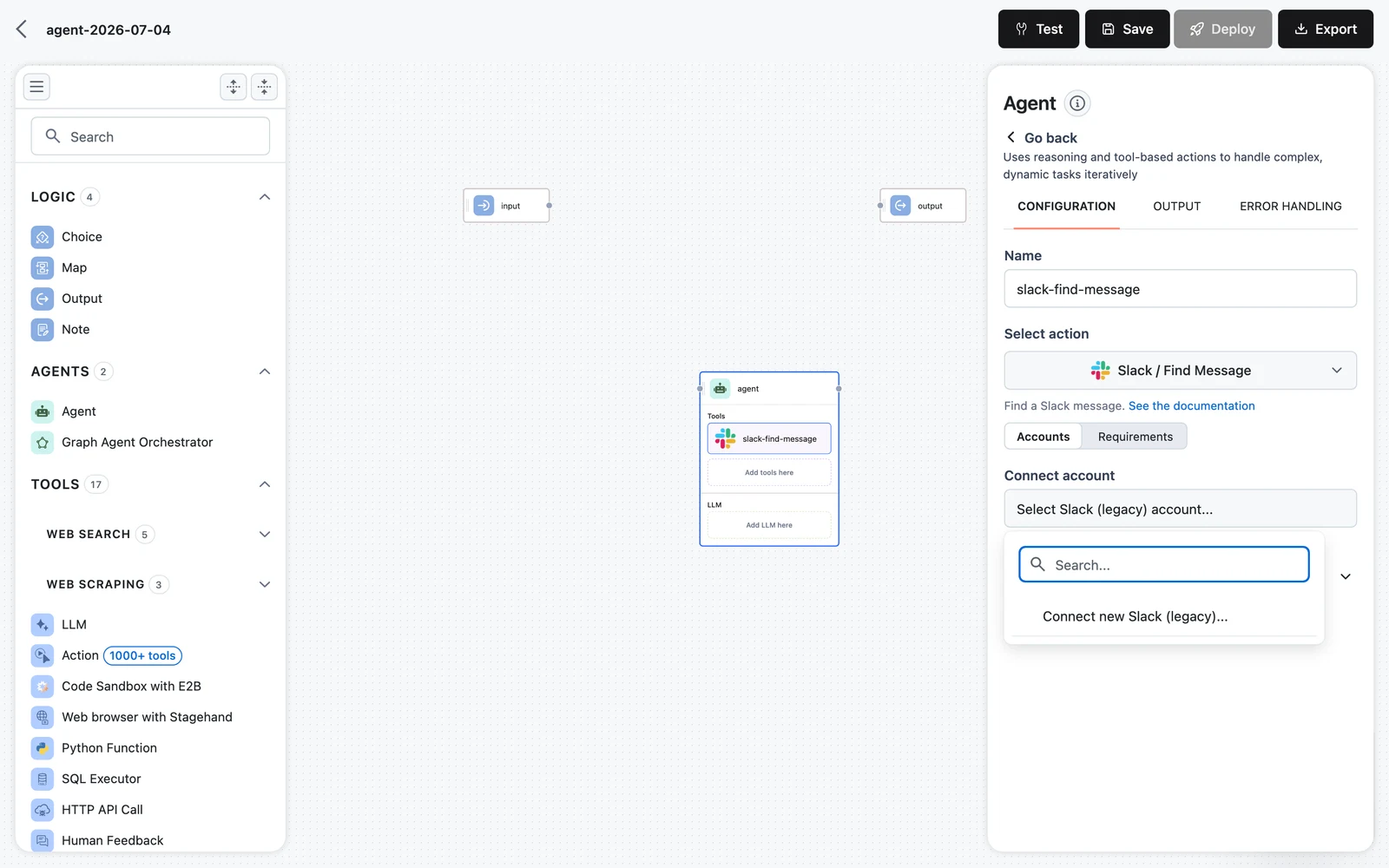
For how per-user requirements are discovered and fulfilled at run time, see End-User Connection Requirements.
At run time the tool returns the action's response as content (plus files when the action produces file artifacts). Failures with status 400, 401, 402, or 422 — bad input or a missing account — come back as recoverable observations the agent can react to; other failures raise a non-recoverable error.
Add an HTTP endpoint as a tool
Any REST endpoint becomes an agent tool through the HTTP API Call node — no custom code needed. Attach it with Add tool, pick HTTP API Call, and open the gear icon:
- Connection — an HTTP Connection stores the base
url, default method, and any standingheaders,params, anddata(the right place for API keys, kept out of the workflow definition). - Method — GET, POST, PUT, DELETE, or PATCH.
- Request tabs — HEADERS and PARAMS are key-value editors; DATA is a JSON editor for the request body; SETTINGS holds Payload type (
rawform data orjsonbody), Response type, Timeout, and the accepted success codes. - Description — when the node is attached to an agent, write what the endpoint does and when to call it, like any tool description.
Configuration reference (SDK field names in parentheses):
urlstringmethodenumheaders / params / dataobjectpayload_typeenumresponse_typeenumtimeoutnumbersuccess_codesarrayThe tool returns {"content": ..., "status_code": ...}. A non-success status code becomes a recoverable observation — the agent sees the status and response text and can retry with different input or report the failure. The model can supply url, method, headers, params, and data per call, so one HTTP tool can serve a whole API — or you can pin everything in the configuration and expose a single fixed endpoint.
Custom Python tools
When no built-in tool fits, write one: the Custom Python Tool (python-tool) runs your Python function in a restricted sandbox. Attach it with Add tool, pick Custom Python Tool, and write the code in the Source Code editor. The contract:
- The code must define a function named
run. By default it is called asrun(input_data)with a single dict containing every input field. With Use multiple params checked (in Advanced configuration;use_multiple_paramsin the SDK), the dict is unpacked into named arguments instead —run(amount, base, target)— and the builder parses the signature to create one input variable per parameter. - Imports are limited to an allowlist:
base64,collections,copy,cmath,csv,datetime,dynamiq,functools,io,json,math,operator,pydantic,random,re,requests,statistics,time,typing,urllib,uuid,pandas,numpy,openpyxl,docx,pptx,pdfplumber,pypdf,matplotlib,seaborn,yaml. Anything else raisesImportError; relative imports are not supported, and attributes starting with_are blocked. - Return a dict with a
contentkey to control the tool's output exactly; any other return value is wrapped as{"content": <value>}. When the tool is attached to an agent,contentis stringified into the observation the model reads. The return value is the only output —printis not available in the sandbox. - Exceptions become recoverable tool errors: the agent sees
Code execution error: ...as an observation and can retry with different input.
A complete currency-converter tool:
import requests


def run(input_data):
    amount = float(input_data.get("amount", 1))
    base = str(input_data.get("base", "USD")).upper()
    target = str(input_data.get("target", "EUR")).upper()

    response = requests.get(
        f"https://api.frankfurter.dev/v1/latest?base={base}&symbols={target}",
        timeout=10,
    )
    response.raise_for_status()
    rate = response.json()["rates"][target]

    return {
        "content": f"{amount:.2f} {base} = {amount * rate:.2f} {target} (rate: {rate})"
    }
Because the agent's LLM only sees the tool's name and description — never the code — describe the expected fields explicitly, for example: "Converts an amount between currencies. Input fields: amount (number), base (3-letter currency code), target (3-letter currency code)."
Browser automation with Stagehand
The Stagehand tool (stagehand-browser) gives the agent a real remote browser it drives with natural-language instructions — for sites that have no API: JavaScript-rendered pages, form-driven portals, click-through flows. Each call performs one step, selected by action_type:
action_type | What it does | Key input |
|---|---|---|
goto | Navigate to a URL | url |
act | Perform one page action — click, fill, select | instruction |
extract | Pull structured data described in plain language | instruction |
observe | List candidate page elements for a planned interaction | instruction |
upload | Perform an action that opens a file chooser, then upload the provided file | instruction + files |
go_back | Return to the previous page | — |
Any extra input fields are forwarded to the underlying browser call — for example "iframes": true when the page nests content in iframes. The tool's built-in description teaches the model to split work into small single-action steps, so a task like "find the price of the top search result" plays out as a sequence of calls:
{"action_type": "goto", "brief": "Open the shop", "url": "https://shop.example.com"}
{"action_type": "act", "instruction": "Type 'mechanical keyboard' into the search field", "brief": "Enter the search query"}
{"action_type": "act", "instruction": "Press Enter on the search field", "brief": "Submit the search"}
{"action_type": "extract", "instruction": "Get the name and price of the first product in the results", "brief": "Extract the top result"}
Configuration: the browser session runs on a remote provider — in the UI, create a Stagehand Connection (Browserbase API key, Browserbase project ID, and a model API key for the LLM Stagehand uses to interpret instructions); the SDK additionally accepts a SteelBrowser connection for Steel cloud or self-hosted browsers. Set the model with model_name, and optionally enable screenshots captured after act, goto, go_back, and upload steps (is_return_screenshot_bytes_enabled) or a live view URL of the session (is_return_live_view_url_enabled). Each call returns content with the step's result, plus screenshot and live_view_url when enabled.
When to choose what: use Stagehand when the agent must interact with a website as a user; use the sandbox or a code tool when the job is data processing or the target has an API — scripted HTTP is faster and cheaper than driving a browser. For full desktop GUI control beyond the browser, there is the E2B Desktop Tool.
Pass runtime parameters with tool_params
Sometimes a tool needs a value that is only known at request time — a tenant id for a SQL query, a per-user API key, a feature flag. You should not make the LLM supply these (it may hallucinate them, and secrets must never enter the prompt). Instead, pass them in the agent's tool_params input: the values are merged into the tool's input at execution time and are never visible to the model.
Enable it in the UI with the Enable tool params checkbox in Advanced configuration, which adds a Tool params input field to the node, then map a value into it. The structure:
{
  "global": { "user_tenant": "acme" },
  "by_name": {
    "sql-executor": { "query_timeout": 30 }
  },
  "by_id": {
    "9f3a1c2e-tool-node-id": { "api_key": "value-from-secret-store" }
  }
}
Merging follows a fixed precedence, lowest to highest:
global— applied to every tool call.by_name— applied when the tool's name (raw or sanitized) matches the key.by_id— applied when the tool node's id matches; overrides everything else.
Values are dictionaries merged into the tool's input; nested dict values are deep-merged key by key rather than replaced (and when both sides hold a list, the lists are concatenated). For sub-agents, a by_name/by_id entry can itself be a full tool_params object, which is forwarded to the child agent for its tools.
Worked example: per-user Knowledge Base filtering in a deployed App
A common production pattern: one deployed App serves many users, and each request must restrict the agent's Knowledge Base search to the calling user's documents. The agent has a Knowledge Base Retriever tool whose filters input accepts metadata conditions — but the caller, not the model, must control the filter.
Set it up once in the workflow:
- Attach the Knowledge Base with Add knowledge (this adds the Knowledge Base Retriever tool).
- Check Enable tool params in the agent's Advanced configuration — a Tool params field appears among the node's inputs.
- Map Tool params from a workflow input field (for example
tool_paramson the Input node), then deploy the workflow as an App.
Now every caller injects its own values at invoke time. The request below pins the retrieval filter to one tenant for every search-style tool, sets the result count for the Knowledge Base Retriever by name, and narrows one specific retriever node (by its node id) to a single department:
curl -X POST "https://<your-app-hostname>" \
  -H "Content-Type: application/json" \
  -H "Authorization: Bearer $DYNAMIQ_ACCESS_KEY" \
  -d '{
    "input": {
      "input": "What does our travel policy say about business-class flights?",
      "tool_params": {
        "global": {
          "filters": { "tenant_id": "acme" }
        },
        "by_name": {
          "knowledge-base-retriever": { "top_k": 5 }
        },
        "by_id": {
          "9f3a1c2e-tool-node-id": {
            "filters": { "department": "hr" }
          }
        }
      }
    },
    "stream": false
  }'
What happens on each retriever call in this run:
- The model writes only the search
query; it never seestool_params. globalvalues merge into every tool call first — only put keys there that every attached tool accepts (or harmlessly ignores). Here every retrieval call getsfilters.tenant_id = "acme".- The
by_nameentry matches the tool's name (knowledge-base-retrieveris the default name Add knowledge assigns; if you renamed the tool, use your name). Raw and sanitized forms both match, so a name containing spaces works either way. - The
by_identry matches one tool node's id and wins last. Becausefiltersexists in both layers and both values are dicts, they deep-merge: that node searches withtenant_id = "acme"anddepartment = "hr". Useby_idwhen two attached tools share a name. - If the model had hallucinated a
filtersvalue, the injected one overrides it — the tenant boundary holds regardless of what the LLM writes.
The result: one workflow, one App, and per-request data isolation without a redeploy. The same pattern carries any caller-owned value — per-user API keys into an HTTP tool's headers, feature flags, or row-level SQL constraints.
In the SDK:
from dynamiq.connections import Http as HttpConnection
from dynamiq.connections import HTTPMethod
from dynamiq.connections import OpenAI as OpenAIConnection
from dynamiq.nodes.agents import Agent
from dynamiq.nodes.llms import OpenAI
from dynamiq.nodes.tools.http_api_call import HttpApiCall

crm_lookup = HttpApiCall(
    name="crm-lookup",
    description="Looks up a customer in the CRM by email.",
    connection=HttpConnection(
        url="https://crm.example.com/api/contacts",
        method=HTTPMethod.GET,
    ),
)

agent = Agent(
    name="support-agent",
    llm=OpenAI(connection=OpenAIConnection(), model="gpt-4o"),
    tools=[crm_lookup],
    role="You resolve support tickets using the CRM.",
)

result = agent.run(
    input_data={
        "input": "Why was order #1234 delayed?",
        "tool_params": {
            "by_name": {
                "crm-lookup": {"headers": {"X-Tenant": "acme"}}
            }
        },
    }
)
print(result.output["content"])
tool_params overrides whatever the model supplied for the same field. Use it for trusted, machine-provided values; if a parameter should be chosen by the model, put it in the tool's input schema and describe it instead.
Execution behavior
A few runtime details that affect how you design tool sets:
- Caching — within a single run, calling the same tool with the exact same input returns the cached result instead of re-executing.
- Parallel calls — with Enable parallel tool calls on, the model can request several tools in one step; eligible tools run concurrently, while tools flagged sequential-only run one at a time afterwards. Results come back as one combined observation, each marked
SUCCESSorERROR. - Failure handling — a recoverable tool error becomes an observation (
ToolExecutionException: ...) that the model sees and can react to: retry with different input, switch tools, or report the failure in its answer. The run itself does not fail. - Output size — long tool outputs are truncated before being added to the conversation to protect the context window; enable the agent's File store if tools produce large artifacts the agent should keep.