Data Sources
Fill a Knowledge Base by uploading files, crawling websites, or syncing OAuth sources like Google Drive and Notion — with pause, resume, and sync history.
A Knowledge Base ingests content from three kinds of sources: files you upload directly, websites it crawls, and external services it syncs through connected integrations. Everything that arrives — regardless of source — becomes an item on the Files tab and runs through the same ingestion workflow.
Direct file upload
Open the Files tab
On your Knowledge Base's page, open the Files tab and click the upload button to pick files from your machine.
Watch items process
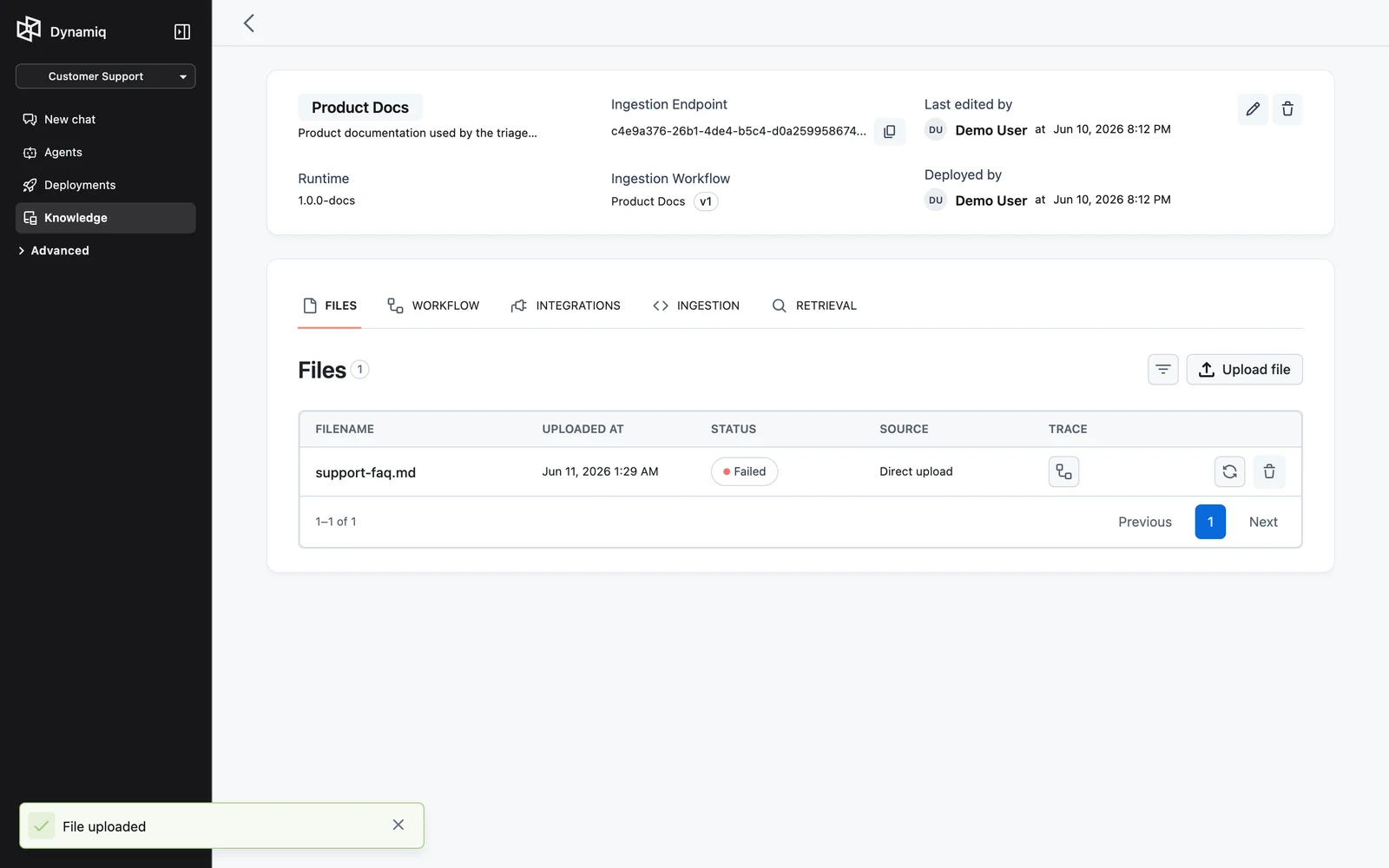
Each file appears as an item with a status: Pending, Processing, Processed, or Failed. Use the status filter to find failed items, and the source filter to narrow to a single integration (directly uploaded files show Direct upload in the SOURCE column).
Inspect or retry
Click a filename to open the item's ingestion trace — the full execution tree of the ingestion workflow run for that file. Failed items can be reprocessed individually from the row actions, or in bulk.
Upload over HTTP
Each Knowledge Base exposes its own hostname (shown on the Knowledge Base page, and as a ready-made snippet on the Ingestion tab). POST multipart form data to it: a files field per file, plus an optional input field containing a JSON object whose metadata array has one entry per file (lengths must match). Requests are limited to 128 MB.
curl -X POST "https://<your-kb-hostname>" \
  -H "Authorization: Bearer $DYNAMIQ_ACCESS_KEY" \
  -F "files=@handbook.pdf" \
  -F "files=@org-chart.png" \
  -F 'input={"metadata": [{"department": "hr"}, {"department": "hr"}]}'
import json
import os
import requests
URL = "https://<your-kb-hostname>"
HEADERS = {"Authorization": f"Bearer {os.environ['DYNAMIQ_ACCESS_KEY']}"}
file_paths = ["handbook.pdf", "org-chart.png"]
files = [("files", open(path, "rb")) for path in file_paths]
data = {"input": json.dumps({"metadata": [{"department": "hr"}, {"department": "hr"}]})}
response = requests.post(URL, data=data, files=files, headers=HEADERS)
for _, file in files:
file.close()
print(response.json())import { openAsBlob } from "node:fs";
const form = new FormData();
form.append("files", await openAsBlob("handbook.pdf"), "handbook.pdf");
form.append("files", await openAsBlob("org-chart.png"), "org-chart.png");
form.append(
"input",
JSON.stringify({ metadata: [{ department: "hr" }, { department: "hr" }] }),
);
const response = await fetch("https://<your-kb-hostname>", {
method: "POST",
headers: { Authorization: `Bearer ${process.env.DYNAMIQ_ACCESS_KEY}` },
body: form,
});
console.log(await response.json());The metadata you attach is stored on every chunk produced from that file, so retrievers can filter on it later — see Connect a Knowledge Base to Agents.
Manage items via the management API
The management API at https://api.getdynamiq.ai covers the item lifecycle:
| Method | Path | Purpose |
|---|---|---|
POST | /v1/knowledgebases/{knowledgebase_id}/upload | Upload files to a Knowledge Base |
GET | /v1/knowledgebases/{knowledgebase_id}/items | List items; filter with status and source_id query params |
GET | /v1/knowledgebase-items/{knowledgebase_item_id} | Get one item |
GET | /v1/knowledgebase-items/{knowledgebase_item_id}/download | Download the original file |
PUT | /v1/knowledgebase-items/{knowledgebase_item_id}/upload | Replace the item's file (multipart file field) and re-ingest |
POST | /v1/knowledgebase-items/{knowledgebase_item_id}/reprocess | Re-run ingestion for one item |
POST | /v1/knowledgebases/{knowledgebase_id}/items/reprocess | Reprocess items by status ({"statuses": ["failed"]}) |
DELETE | /v1/knowledgebase-items/{knowledgebase_item_id} | Delete one item |
POST | /v1/knowledgebases/{knowledgebase_id}/items/bulk/delete | Delete many items ({"ids": [...]}) |
Integrations: external sources and websites
The Integrations tab connects external sources. Each integration is a source the Knowledge Base can sync from.
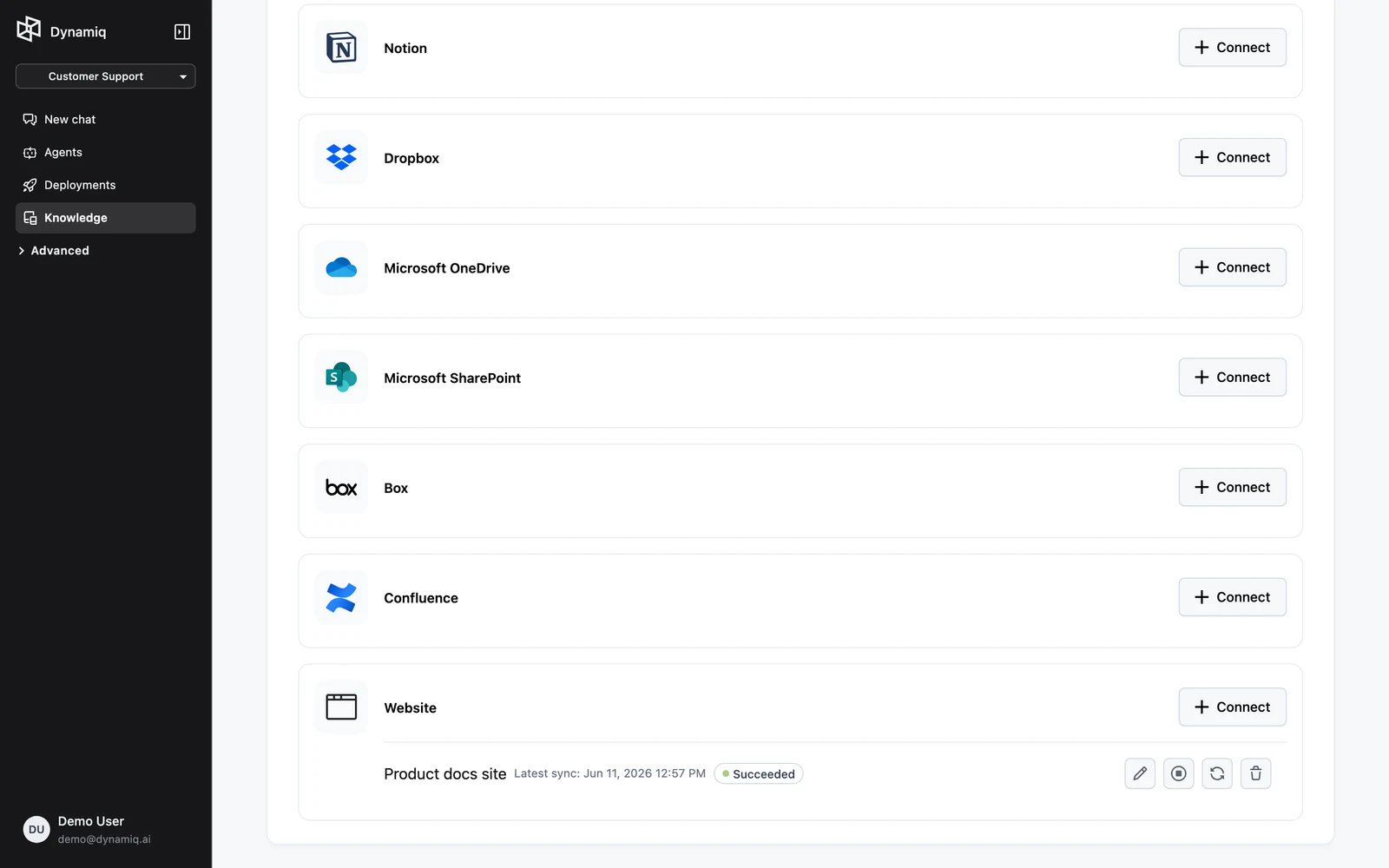
Available source types:
| Source | Connection required |
|---|---|
| Google Drive | Google OAuth Connection |
| Notion | Notion OAuth Connection |
| Dropbox | Dropbox OAuth Connection |
| Microsoft OneDrive | Microsoft OAuth Connection |
| Microsoft SharePoint | Microsoft OAuth Connection, or a Microsoft Entra App Connection for permission syncing — see SharePoint |
| Box | Box OAuth Connection |
| Confluence | Atlassian Connection |
| Website | None — just a URL |
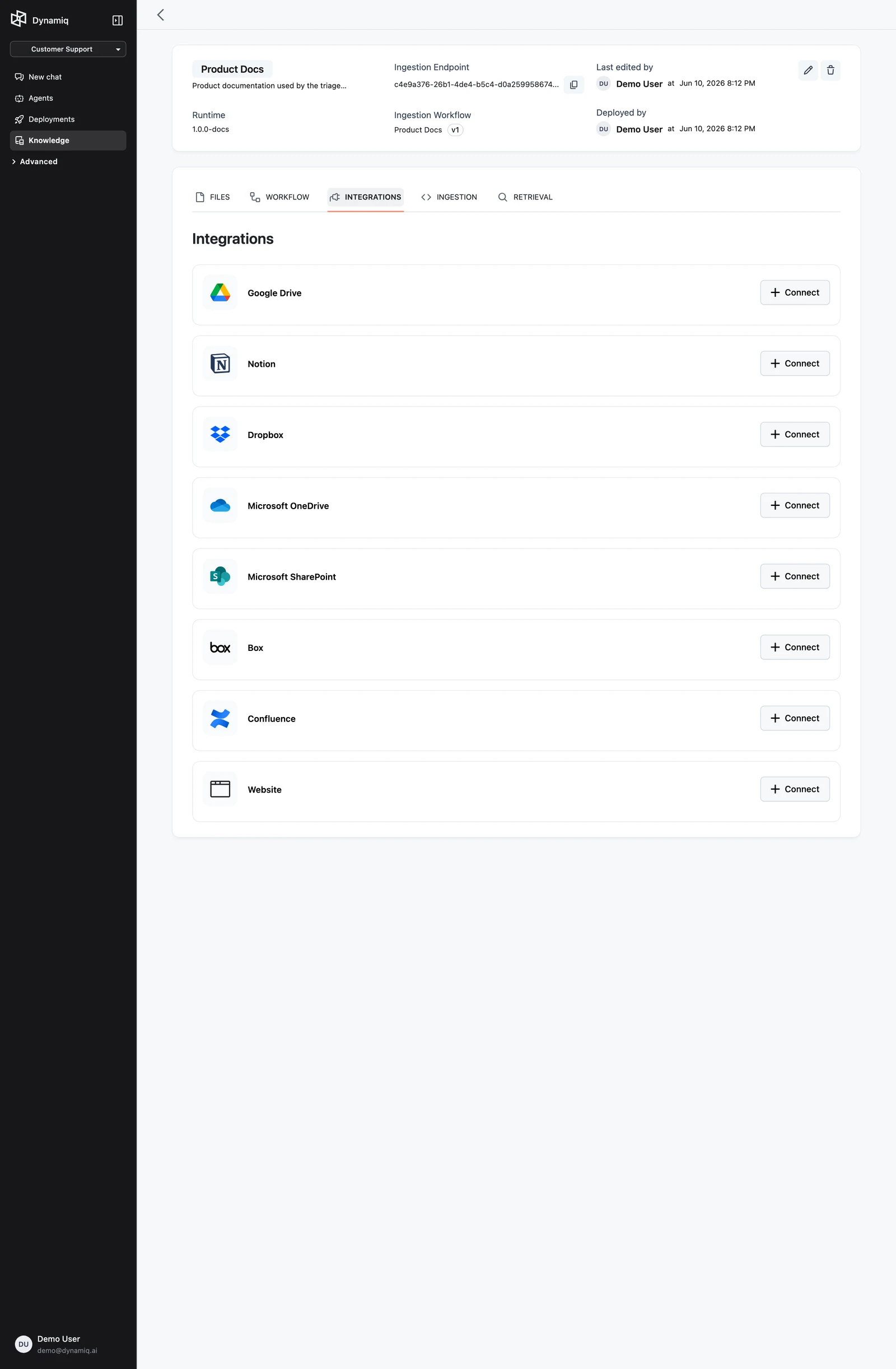
Connect and select content
For service sources, give the integration a Name, pick (or create) the matching Connection — OAuth for most providers (see OAuth Connections), an Atlassian Connection for Confluence — then browse and select the files or pages to sync. An integration can track up to 200 files.
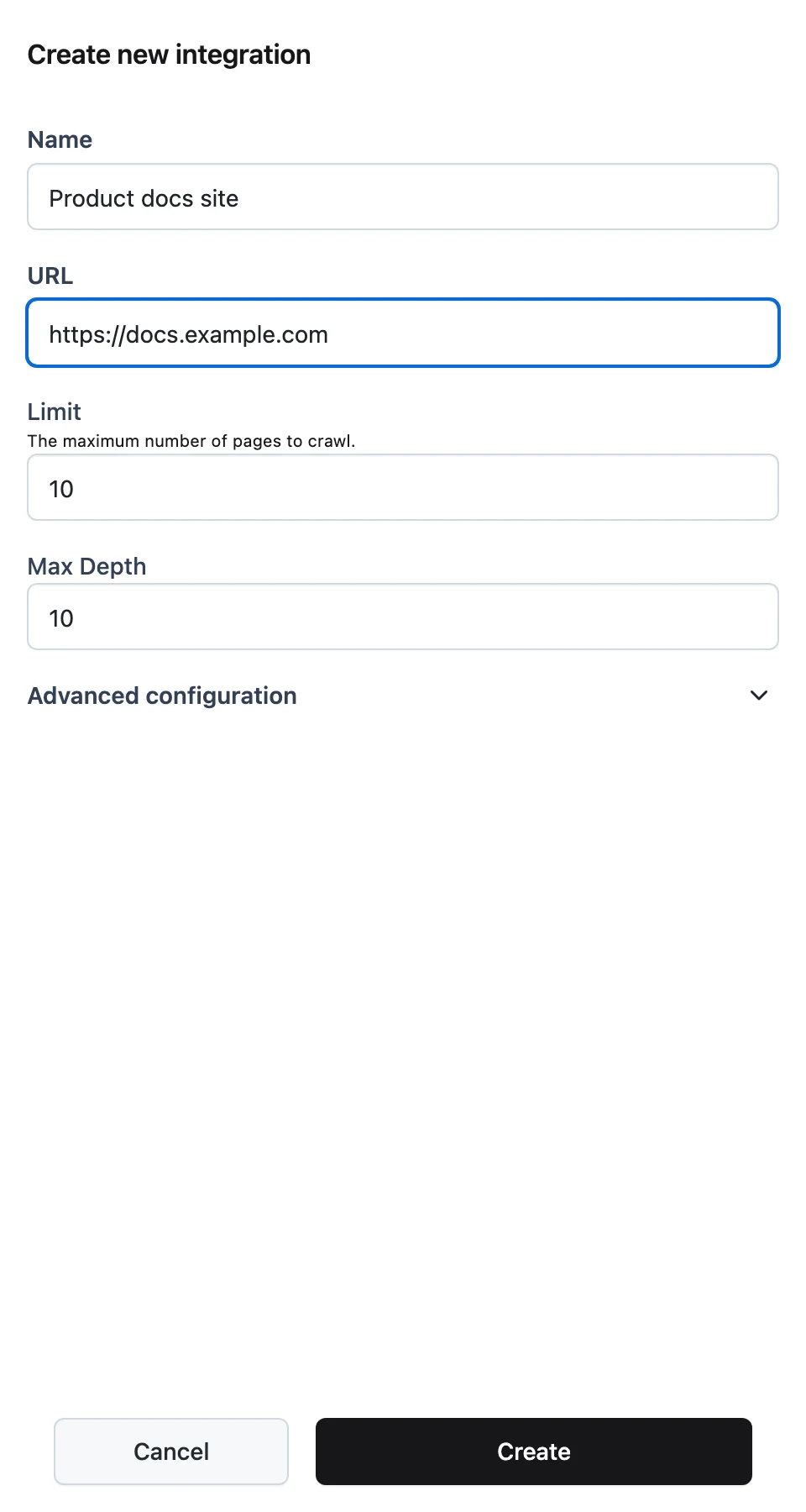
For a Website source, configure the crawl instead:
- URL — the starting page.
- Limit — maximum number of pages to fetch (default
10). - Max Depth — how many links deep to follow (default
10). - Include Paths / Exclude Paths — regular expressions that allow or block URL paths.
- Include PDFs — also ingest linked PDF files.
Sync
Save the integration, then click Sync on its card to pull content in. Synced files appear on the Files tab attributed to the source.
Sync behavior
Active sources re-sync automatically in the background — every 6 hours for connected services (Google Drive, Notion, and the like) and weekly for website sources. You don't need your own scheduler to keep a Knowledge Base fresh.
Each integration card shows Latest sync with its timestamp and status, and you can still control syncing per source:
- Sync — starts a sync on demand; the UI confirms with "Source sync started".
- Pause — stops the source from syncing (including the automatic background syncs) until you resume it.
- Resume — re-enables a paused source.
The same operations exist on the management API, along with sync history:
| Method | Path | Purpose |
|---|---|---|
GET | /v1/knowledgebases/{knowledgebase_id}/sources | List a Knowledge Base's sources |
POST | /v1/knowledgebases/{knowledgebase_id}/sources | Create a source (name, provider, config, connection_id — connection required for all providers except website) |
GET / PUT / DELETE | /v1/knowledgebase-sources/{source_id} | Get, update (provider + config), or delete a source |
POST | /v1/knowledgebase-sources/{source_id}/sync | Trigger a sync |
POST | /v1/knowledgebase-sources/{source_id}/pause | Pause syncing |
POST | /v1/knowledgebase-sources/{source_id}/resume | Resume syncing |
GET | /v1/knowledgebase-sources/{source_id}/syncs | List past syncs (sync history) |
GET | /v1/knowledgebase-sources/{source_id}/items | List the items a source produced |
Provider values for the API are google_drive, notion, dropbox, onedrive, sharepoint, box, confluence, and website.
Deleting a source also deletes the items it synced — their files, database records, and vectors are removed from the Knowledge Base, so no stale content lingers after disconnecting.