Testing & Debugging
Run a workflow straight from the editor — the Test panel's Request, Chat and Test cases tabs, per-node trace inspection, dry runs, and the iterate loop.
You never need to deploy to find out whether a workflow works. The Test button runs the current canvas directly — unsaved changes included — and returns a full execution trace you can inspect node by node: resolved inputs, outputs, rendered prompts, errors, and timing. This page covers the panel, the trace, and the debugging loop.
Open the Test panel
Click Test in the editor header. The editor validates the canvas first — nodes with configuration errors are outlined in red and the panel shows "Your workflow has errors. You need to fix them before saving." until they're fixed.
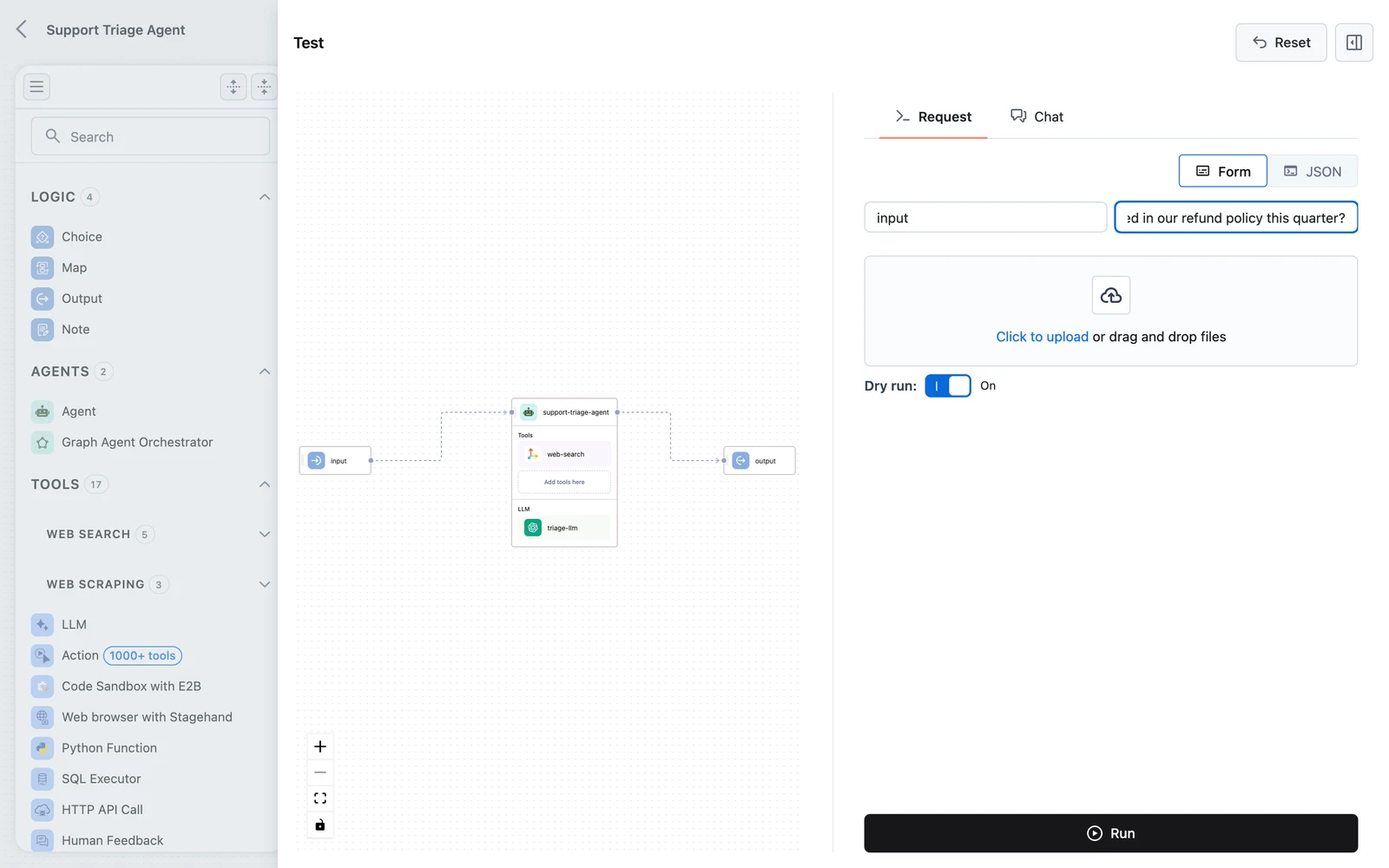
The panel fills the screen: your workflow graph on the left, and a tabbed pane on the right with three tabs — Request, Chat and Test cases. A Reset button in the header clears the form, attached files, and chat history.
Test is disabled when the workflow uses end-user requirements: "Testing is not available when workflow nodes use requirements. Deploy the workflow to test with requirements." Requirements are fulfilled per end user, so they only exist on a deployed App.
The Request tab
The form is generated from your Input node's fields — one control per field, exactly what a caller would send. Below the fields:
- File upload — attach files for workflows whose Input node takes them.
- Dry run toggle — on by default. The workflow still runs for real, tools included; a dry run deletes afterwards what the run wrote into a vector store — the documents a writer ingested and a collection it created, inside a Sub-workflow node's callee too — so a test leaves no data behind there, and nothing else a node did is undone. Turn it off when you want the writers' data to stay.
- Run — executes the workflow and streams the run into the trace view.
When the run finishes, a Duration label shows the end-to-end time, and Save run as test case keeps the request together with the output it produced as a test case.
Inspect the trace
After a run, the left side switches from the plain canvas to the execution trace: every node that ran, with its status. Click any node to inspect it on the right:
- Status and timing — whether the node succeeded, failed, or was skipped, and how long it took.
- Error banner — for failed nodes, the exact error message.
- Input / Output — the node's resolved input (after selectors were applied) and its produced output. This is where mapping bugs become obvious: a
nullwhere you expected text means a selector matched nothing. - Prompt — for LLM and Agent nodes, the final rendered prompt after Jinja templating.
- Configuration — the configuration values the node ran with.
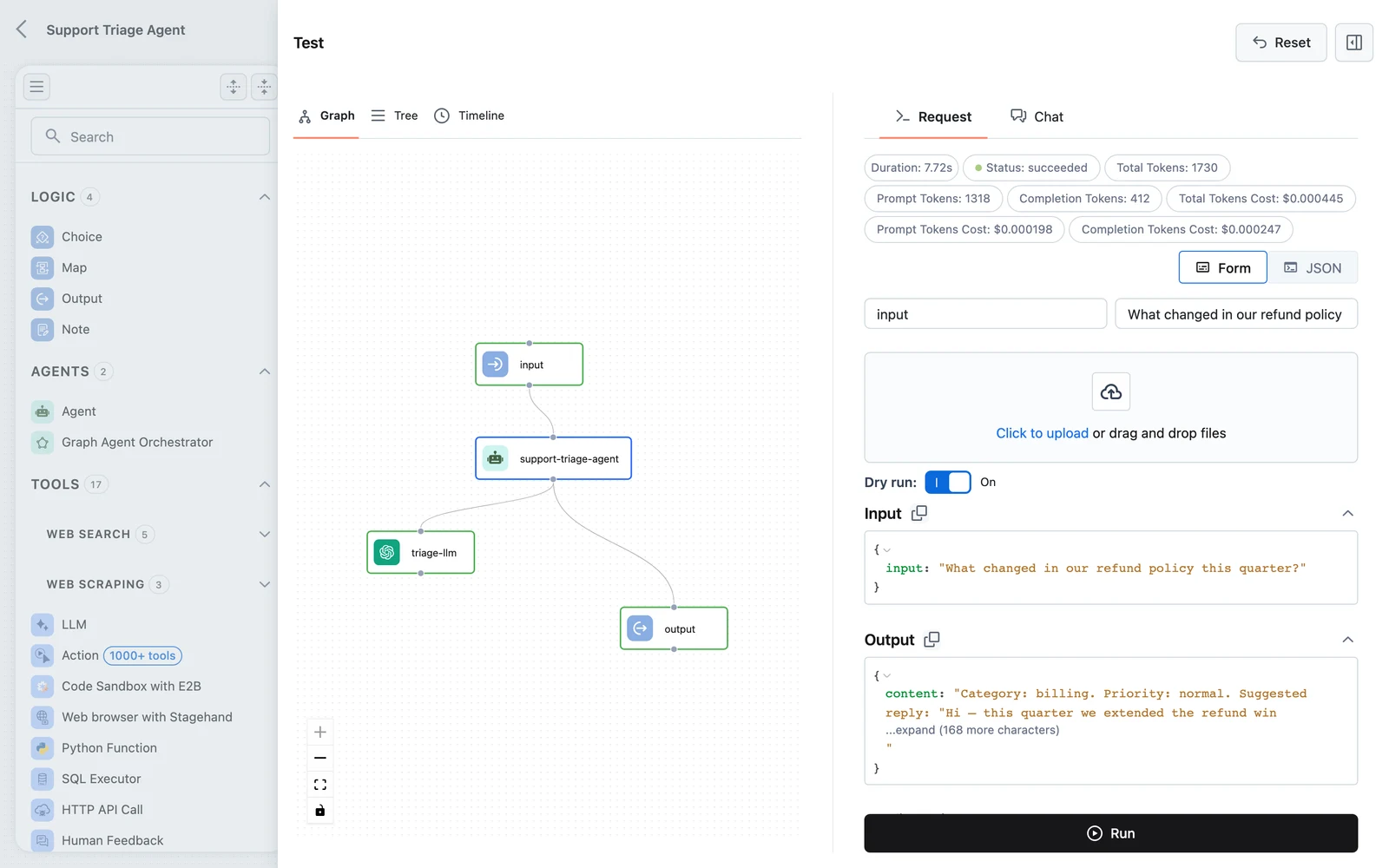
Reading order for a broken run: find the first failed node, read its error, then check its input — most failures are caused by what arrived, not by the node itself. Walk one node upstream and check its output to see which side of the mapping is wrong.
The Chat tab
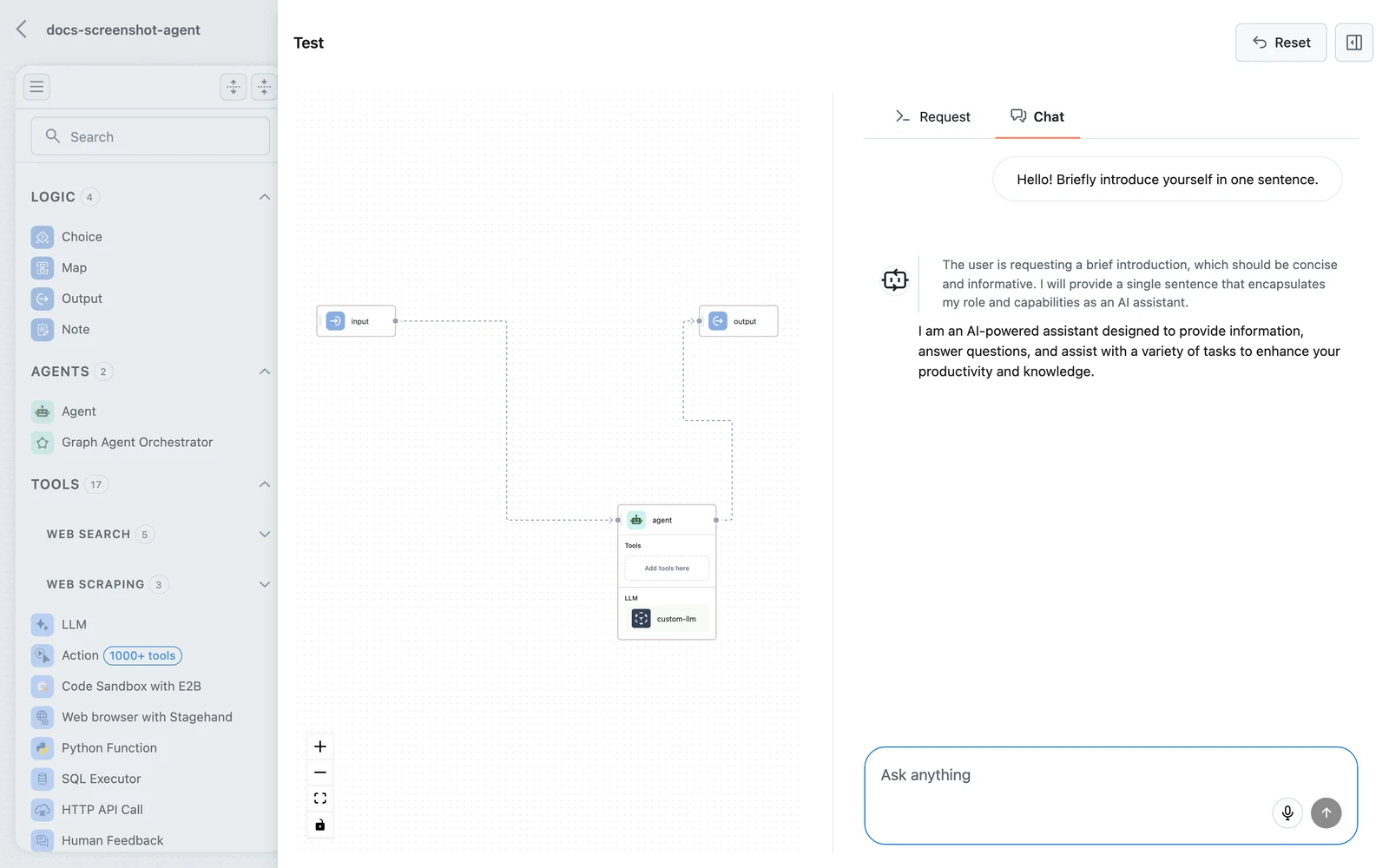
For conversational workflows, switch to Chat and talk to the workflow turn by turn instead of composing request payloads. The chat view exercises the same graph with the same trace behind it — use it to feel out agent behavior, then return to Request when you need to inspect a specific exchange.
The Test cases tab
Saved requests with the output they must produce. Run all replays every case against the canvas and marks each one Passed, Failed (with the mismatches by path) or Error; the By rule view shows which rules of the Decision Tables and Rules nodes on the canvas the cases fired. It is the regression loop for rule-based workflows — see Test cases.
The iterate loop
The panel stays open while you debug, but edits happen on the canvas:
- Run on the Request tab.
- Find the first failing or surprising node in the trace; read error → input → upstream output.
- Close the panel, fix the node (mapping, prompt, configuration), and Test again. Every run uses the canvas as-is — no save required between iterations.
- When the run is right, Save to create a version. See Versions and releases.
You can also test previous versions: open one from the version history (read-only preview) and click Test there — useful to confirm whether a regression came from your latest edits.
Test via the API
The same capability is exposed on the management API as a multipart request (authenticate with a Personal Access Token). The editor uses exactly this endpoint:
curl -X POST "https://api.getdynamiq.ai/v1/workflows/test" \
  -H "Authorization: Bearer $DYNAMIQ_PERSONAL_ACCESS_TOKEN" \
  -F 'flow={"id":"<uuid>","nodes":[...your flow JSON...]}' \
  -F 'input={"input":"What can you do?"}' \
-F 'dry_run=true'| Form field | Type | Description |
|---|---|---|
flow | JSON string, required | The flow definition — id plus the nodes array, as saved by the editor. |
input | JSON string | The workflow input, matching the Input node's fields. |
files | file parts | Attachments for file inputs. Repeat the part per file. |
dry_run | boolean | Delete afterwards what the run wrote into a vector store. Defaults to true. |
stream | boolean | Stream execution events back instead of a single response. |
last_node_output | boolean | Return only the final node's output. |
error_on_node_failure | boolean | Treat any node failure as a request error. |
The response includes the run's tracing data — the same structure the trace view renders.
After deployment
Once a workflow is deployed as an App, every production run is recorded with the same per-node trace — see Monitoring, history and traces. The skills transfer directly: a production trace reads exactly like a test trace.
Next steps
Test cases
Save requests with expected outputs and re-run them after every change.
Troubleshooting workflows
The symptom → cause → fix catalog for the failures you'll meet in the trace.
Input transformers and Jinja
Why a node's resolved input looks the way it does.
Monitoring, history and traces
The same trace view for every production run of a deployed App.
Error Handling
What happens when a node fails — Raise vs. Return semantics, retries with backoff, timeouts, and fallback paths that keep the run alive.
Test Cases
Save requests with the output they must produce, run them against the canvas after every change, read pass/fail and mismatches, import and export cases as CSV, and see which rules they cover.