Quickstart: Chat
Get your first answer from the Dynamiq Chat super agent in five minutes — modes, file attachments, and connectors.
Chat is Dynamiq's built-in super agent. You can ask it anything immediately — no workflow, no deployment, no configuration. This quickstart gets you to a first answer, then shows the three features that make Chat genuinely useful: agent modes, file attachments, and connectors.
Before you start
You need a Dynamiq account and a project. If you just signed up, the platform lands you in Chat already; otherwise click New chat at the top of the sidebar.
Get your first answer
Open Chat
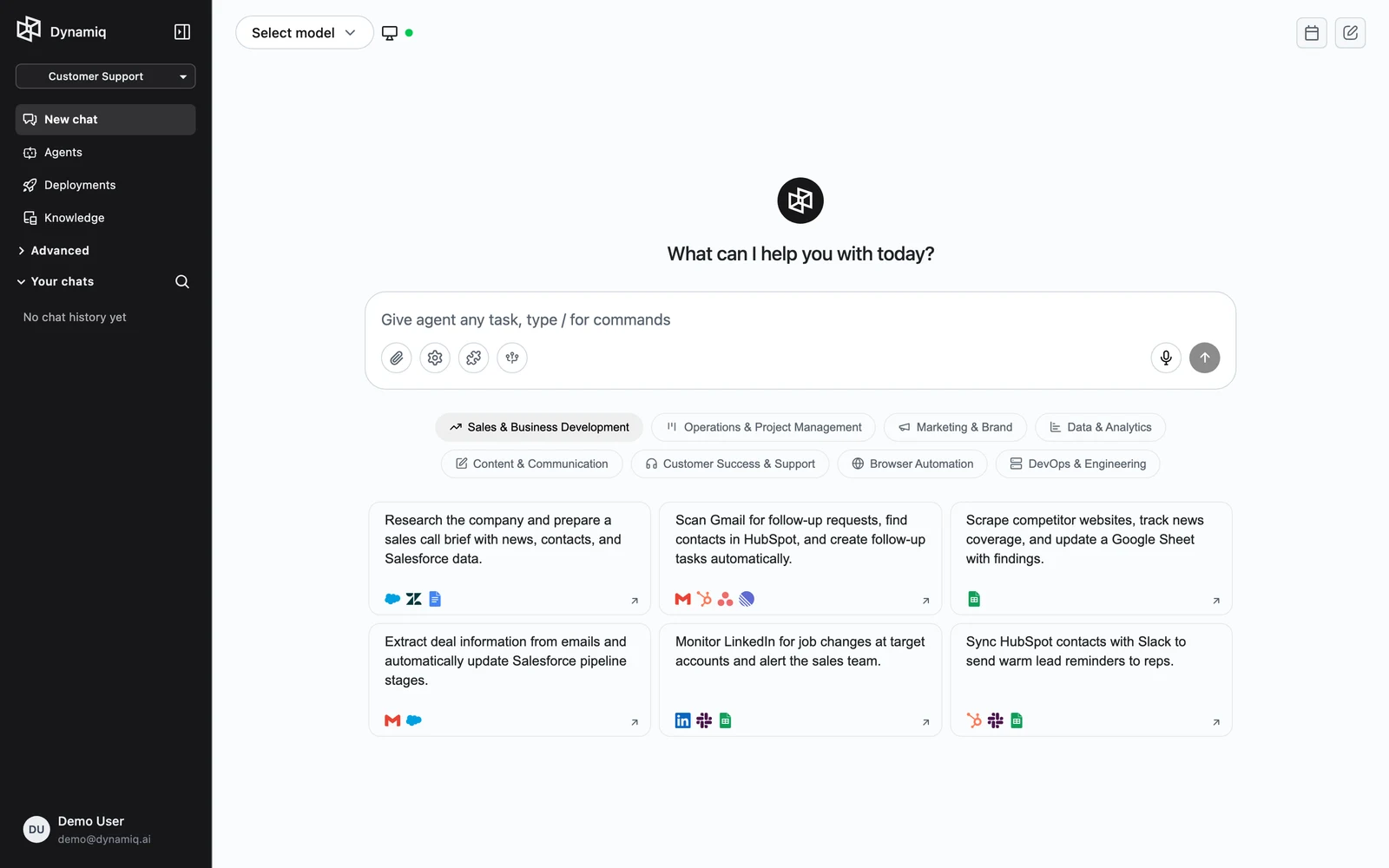
Click New chat in the sidebar. You land on an empty conversation with the prompt "What can I help you with today?" and an input box at the bottom.
Pick a mode
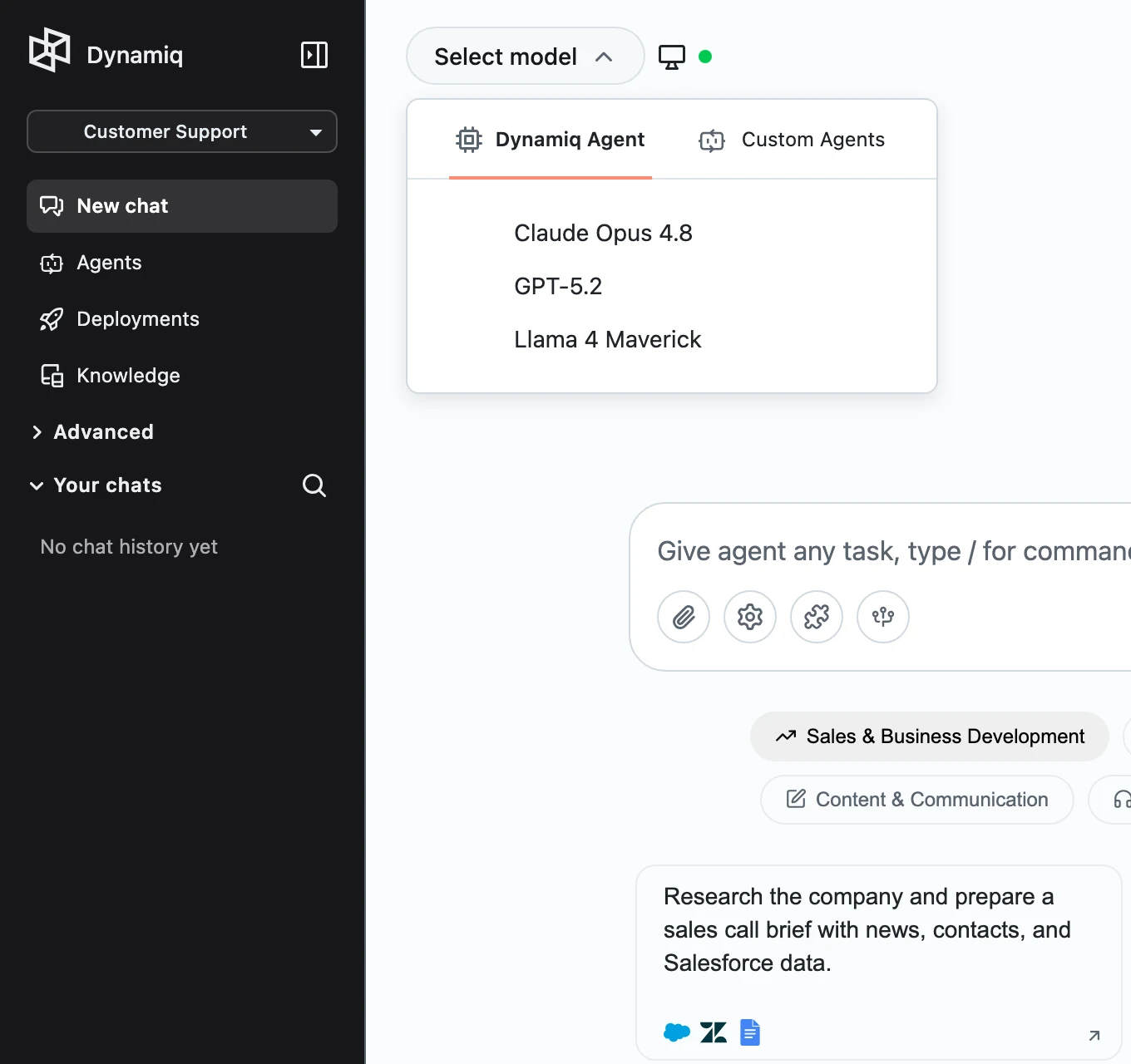
The selector at the top of the chat has two tabs:
- Dynamiq Agent — the built-in super agent. You choose which underlying model powers it, and it can search the web, work with your files, and use your connected apps. This is the default and the right choice for this quickstart.
- Custom Agents — your own deployed apps. Pick one to chat with an agent you built and deployed yourself (see Quickstart: Deploy & Call).
The two modes are covered in depth in Chat Modes.
Ask a question
Type a question and press Enter — for example:
Summarize the three biggest announcements in AI this week, with sources.The agent streams its answer and shows the tools it used (web searches, code runs) as expandable steps. Click any step to inspect what the agent actually did.
Attach files
Click Attach files (the paperclip in the input bar) or drag files onto the chat. Uploaded files become part of the conversation: the agent reads them and can answer questions about them, extract data, or transform them.
Here is our Q2 sales export. Which region grew fastest, and why might that be?The send button stays disabled while files are still uploading. File handling, generated artifacts, and download behavior are covered in Files & Artifacts.
Connect your apps
Click Connect apps in the input bar to open the connectors menu. Connectors are OAuth app integrations — Google Drive, Gmail, Notion, Slack, and database connectors among them — that let the agent read from and act on your tools:
Find the latest pricing deck in my Google Drive and list the plan tiers it mentions.Each connector is connected once per user and can then be toggled on or off per conversation. See Chat Connectors for the full catalog and scope controls.

Go further
Two more buttons are worth knowing about right away:
- Add skills — attach reusable instruction packs (Skills) that change how the agent approaches a task. See Skills & Commands.
- Scheduled tasks — the calendar icon in the chat header (available in Dynamiq Agent mode) lets the agent run prompts for you on a schedule. See Scheduled Tasks.
When you switch to a Custom Agent, you're talking to one of your own deployed Apps — the conversation runs that App's workflow, with exactly the tools, knowledge, and guardrails you built into it. Chat Modes covers the differences in detail.