Navigating the Platform
A tour of the Dynamiq sidebar — what each item does and where its documentation lives.
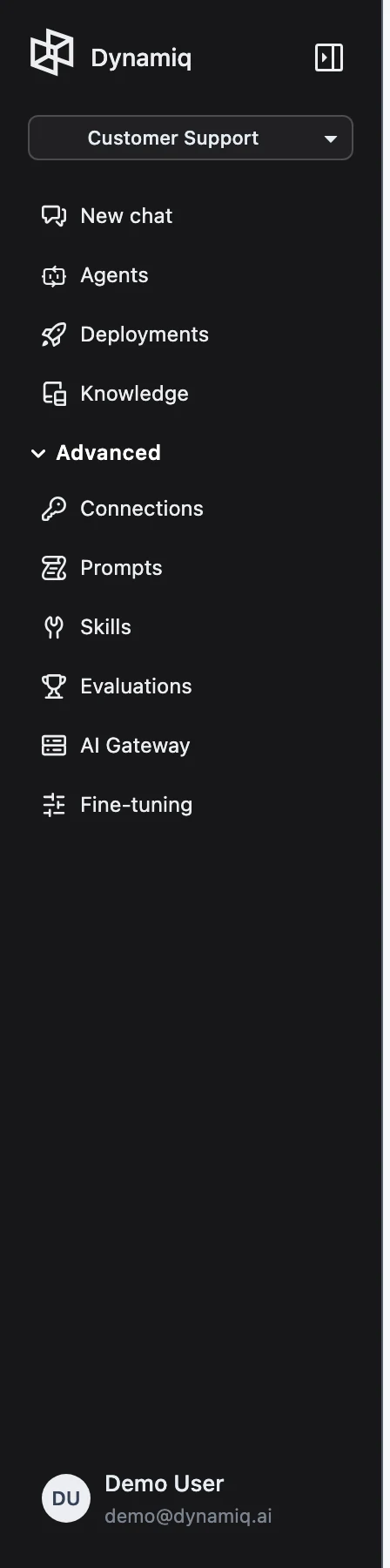
Everything in Dynamiq is reachable from the sidebar on the left. The top shows the project selector; below it sit the primary items, an Advanced group you can expand, and your profile and plan at the bottom. This page walks the sidebar top to bottom and points each item at its docs section.
Project selector
The dropdown at the top of the sidebar switches between projects in your organization. Every primary item below it is scoped to the selected project — switching projects switches the workflows, apps, and knowledge bases you see. Organization-level pages (settings, members, billing) are reached through your profile menu at the bottom of the sidebar. See Organizations & Projects.
Primary navigation
New chat
Opens Chat, the super agent. Ask questions, attach files, use connectors, or talk to your deployed agents. Your conversation history appears in the sidebar while you're in Chat. Start with Quickstart: Chat.
Agents
The workflow builder — the list of Workflows in the project and the canvas editor where you build them. Despite the label, the resources here are Workflows: DAGs of nodes that usually center on an Agent node. Documented in Workflows; start with Build Your First Workflow.
Deployments
Everything running in production: your Apps (deployed workflows) plus other deployable resource types such as model inference endpoints, databases, and services. Each app page has MONITORING, HISTORY, TRACES, SESSIONS, INTEGRATION, TRIGGERS, and TEST tabs. Documented in Deployments; start with Quickstart: Deploy & Call.
Knowledge
Your Knowledge Bases: create one, attach data sources, tune chunking and embedding, and test search — then connect it to agents. Documented in Knowledge Bases.
Advanced group
Click Advanced to expand the power-user items.
Connections
Stored credentials for external services — LLM provider keys, databases, search APIs — that workflow nodes reference instead of embedding secrets. Documented in Connections.
Prompts
Versioned prompt templates you manage centrally and reference from LLM and Agent nodes, plus a playground for iterating on them. Documented in Prompts and Prompts Playground.
Skills
Reusable instruction packs for agents and Chat. Create your own, upload them, or import from GitHub. Documented in Skills.
Evaluations
Datasets, metrics, and evaluation runs for measuring agent quality systematically instead of eyeballing outputs. Documented in Evaluations.
AI Gateway
A unified API in front of many LLM providers, with routing, tracing, and document parse/extract endpoints. Documented in AI Gateway.
Fine-tuning
Train adapters on top of base models and serve them through inference deployments. Pairs with Model Inference Deployments.
Organization settings
From your profile menu you reach organization Settings, which includes:
- Access Keys — org credentials for calling deployed apps and services. See API Keys & Tokens.
- Team and Invitations — members, invitations, and roles. See Members & Roles.
- Projects — create and manage the org's projects. See Organizations & Projects.
- Usage — plan usage; billing itself is handled via Manage Billing in the profile menu. See Usage & Billing.
Personal Access Tokens — user credentials for the management API — live on your Profile page (profile menu → your profile), not in organization Settings. Same docs page: API Keys & Tokens.
Quick reference
| Sidebar item | What it manages | Docs |
|---|---|---|
| New chat | The Chat super agent | Chat |
| Agents | Workflows (the canvas) | Workflows |
| Deployments | Apps, inference, databases, services | Deployments |
| Knowledge | Knowledge Bases | Knowledge Bases |
| Connections | External service credentials | Connections |
| Prompts | Prompt templates + playground | Prompts |
| Skills | Reusable agent instructions | Skills |
| Evaluations | Datasets, metrics, eval runs | Evaluations |
| AI Gateway | Unified LLM API + OCR | AI Gateway |
| Settings (profile menu) | Access keys, team, projects, usage | Administration |
Next steps
Core Concepts
The Dynamiq glossary: organizations, projects, workflows, apps, deployments, traces, access keys, and how they fit together.
Use Cases
End-to-end journeys showing how enterprise teams assemble Dynamiq features into production agents — architecture, permissions, deployment, and evaluation.