Templates
Start a workflow from the template gallery — browse by category, load a prebuilt graph onto the canvas, and customize it into your own.
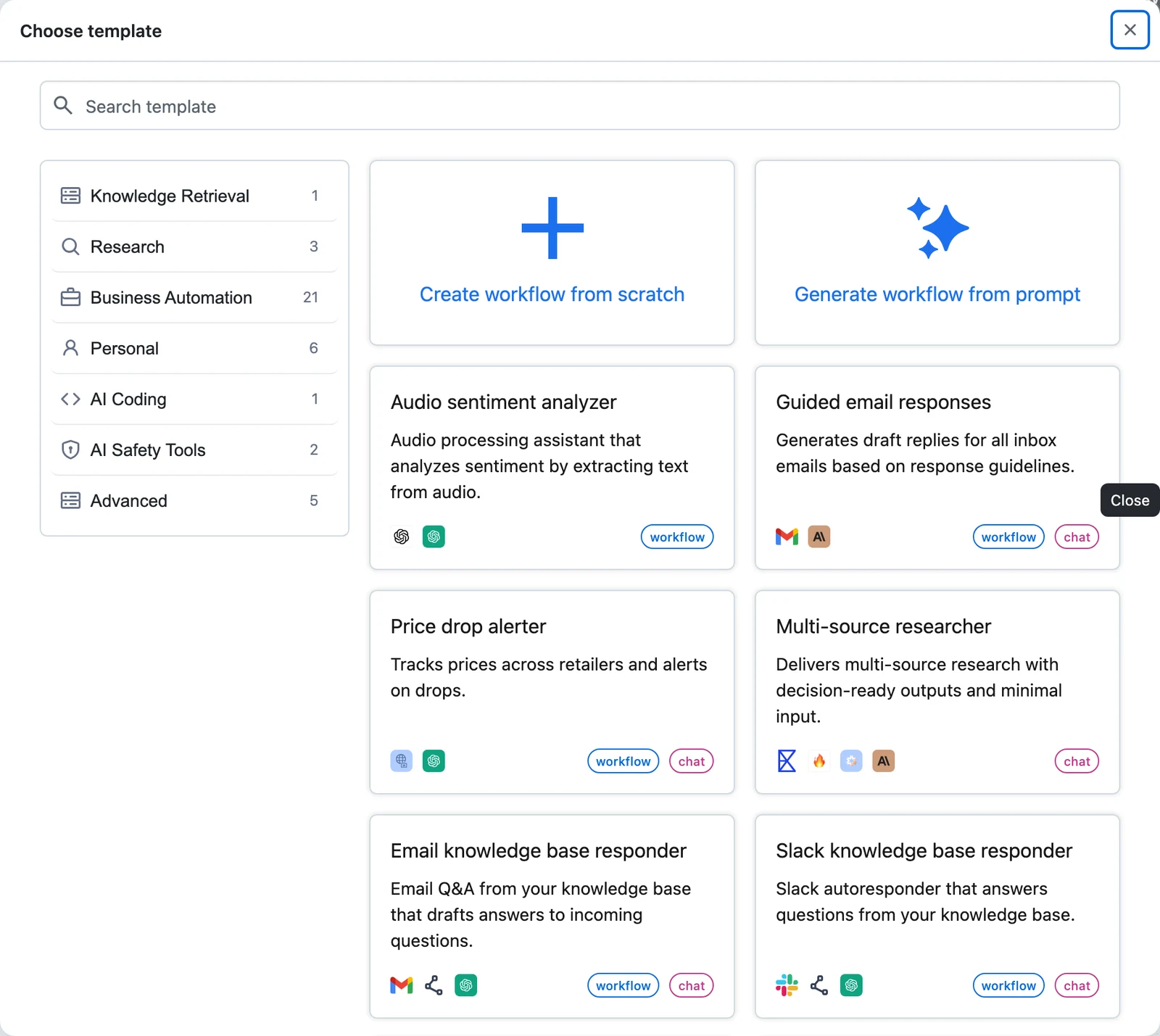
Every new workflow starts at the Choose template dialog: a gallery of prebuilt workflows — RAG pipelines, research agents, email automations, safety guards — that load a complete, wired graph onto your canvas. A template is a starting point, not a subscription: once loaded, it's ordinary nodes and edges you edit freely, and nothing is saved until you click Save.
The template gallery
Open the gallery
Go to Workflows and create a new workflow. The Choose template dialog opens automatically on a fresh canvas.
Browse or search
Use the Search template box to filter by title or description, or pick a category on the left. Clicking a selected category again clears the filter. The categories:
| Category | Typical templates |
|---|---|
| Knowledge Retrieval | Slack knowledge base responder |
| Research | Grounded answers searcher, Market dossier generator, Multi-source researcher |
| Business Automation | Guided email responses, Meeting auto scheduler, Linear issue manager, CV screening agent, Website SEO Auditor |
| Personal | Audio sentiment analyzer, Itinerary Planning Agents, Inbox Digest, Slack Digest |
| AI Coding | Instant website builder |
| AI Safety Tools | Prompt injection guard, Prompt injection firewall |
| Advanced | Knowledge base retrieval pipeline, Multi database RAG, Multi query reranker, PII safe FAQ builder |
Each card shows the template's title, a one-line description, labels for where it shines (workflow, chat), and icons of the tools and model providers it uses.
Pick a starting point
Two special cards sit ahead of the gallery:
- Create workflow from scratch — a blank canvas with just the Input and Output nodes.
- Generate workflow from prompt — describe what you want in natural language and the generator drafts the nodes and edges for you in a side panel.
Clicking any template card closes the dialog and loads the template's nodes, edges, and configuration onto the canvas.
You can also deep-link a template: the editor URL accepts a templateId query parameter (for example ?templateId=smart-search), which loads that template directly and skips the dialog.
What loading a template does
- The full graph appears on the canvas — nodes, edges, prompts, and node configuration included.
- Where your organization has system connections available, the template's LLM and tool nodes are wired to them automatically, so many templates are testable immediately.
- Nothing is persisted yet. The workflow only exists once you Save it, which creates
v1— and if you navigate away before saving, the editor warns you about unsaved changes.
Customize the template
Swap in your Connections
Click through each node that calls an external service — LLMs, web search, scrapers, vector stores — and make sure its Connection points at credentials you own; the card's tool icons tell you up front which services the template uses. Validation flags any node whose connection is still missing when you test or save. See Connections.
Adjust prompts and inputs
Edit the agent roles and LLM prompts to your domain. Check the Input node's fields — they define what callers send — and the Output node's mappings, which decide what comes back. Anything templated with {{ variables }} follows the normal mapping rules from Input transformers and Jinja.
Test, then save
Run the Test panel to verify the flow end to end (Testing and debugging), then Save. Saving creates version 1 of your workflow — it has no further relationship to the template.
Next steps
Versions & Releases
The full workflow lifecycle — drafts, what every Save creates, version history and previews, Save as new, archiving, export, and what Apps pin to.
Troubleshooting Workflows
A symptom → cause → fix catalog for the most common workflow mistakes — empty outputs, broken mappings, agent loops, and draft confusion.