Versions & Releases
The full workflow lifecycle — drafts, what every Save creates, version history and previews, Save as new, archiving, export, and what Apps pin to.
Workflows are immutable-by-version: every Save snapshots the entire graph as a numbered version, Apps pin to a specific version, and the version history lets you preview and restore any earlier state. This page walks the whole lifecycle — draft to release to redeploy — plus Save as new and exporting a workflow as runnable code.
The lifecycle at a glance
| State | Meaning |
|---|---|
| Draft | A workflow that has never been released. The workflows list shows a Draft label instead of a version count. Drafts are fragile: leaving the editor with unsaved changes offers to delete the draft. |
| Released | The workflow has at least one saved version. Each subsequent Save appends a version. |
| Version | An immutable snapshot of the graph (nodes + layout) with a number (v1, v2, …), description, author, and date. |
| App | A deployed workflow. Each deployment pins one specific version — editing the workflow never changes a running App. |
Every Save is a version
Click Save in the editor header. The save panel shows the version about to be created — v3 when the workflow has two versions — with a Version description field (new workflows and drafts also get a Name). Confirming:
- creates the new version from the current canvas,
- makes it the workflow's latest version, and
- for a draft, performs the first release — only drafts can be released, and releasing is what turns a draft into a regular versioned workflow.
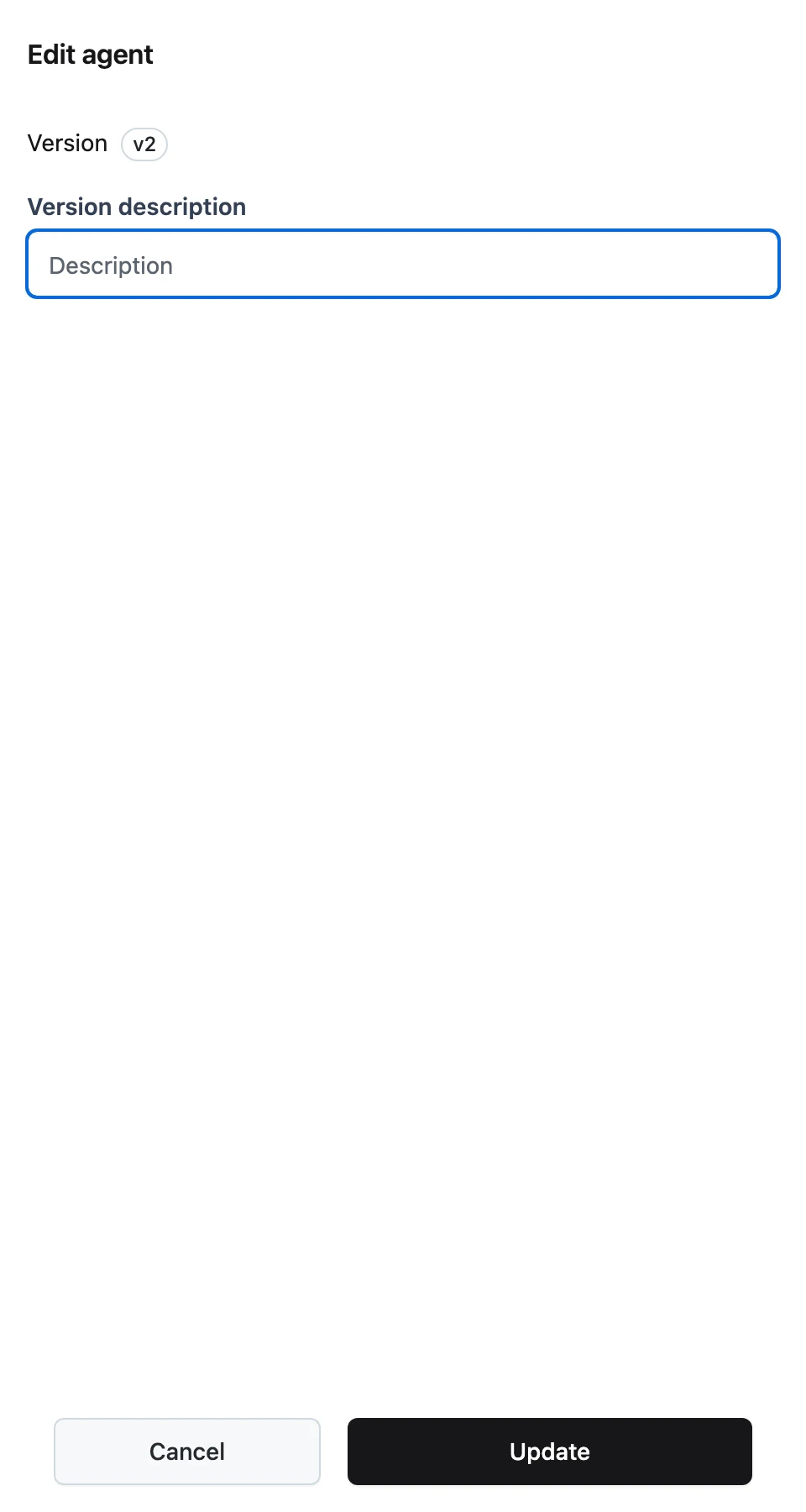
There is no "minor save": versions are the only persistence. Test runs don't save anything, and the editor blocks navigation when the canvas differs from the last saved state — but only Save writes a version.
A draft behaves differently on exit: the unsaved-changes dialog reads "You have unsaved changes. Leaving will delete this draft." and the confirm button is Delete & leave. Save a draft before stepping away if you want to keep it.
Version history
The versions button in the editor header (next to the workflow name) toggles the Version history panel. Each entry shows the version label, the version description, who created it, and when. The latest version is marked Current; every other entry has a preview (eye) button.
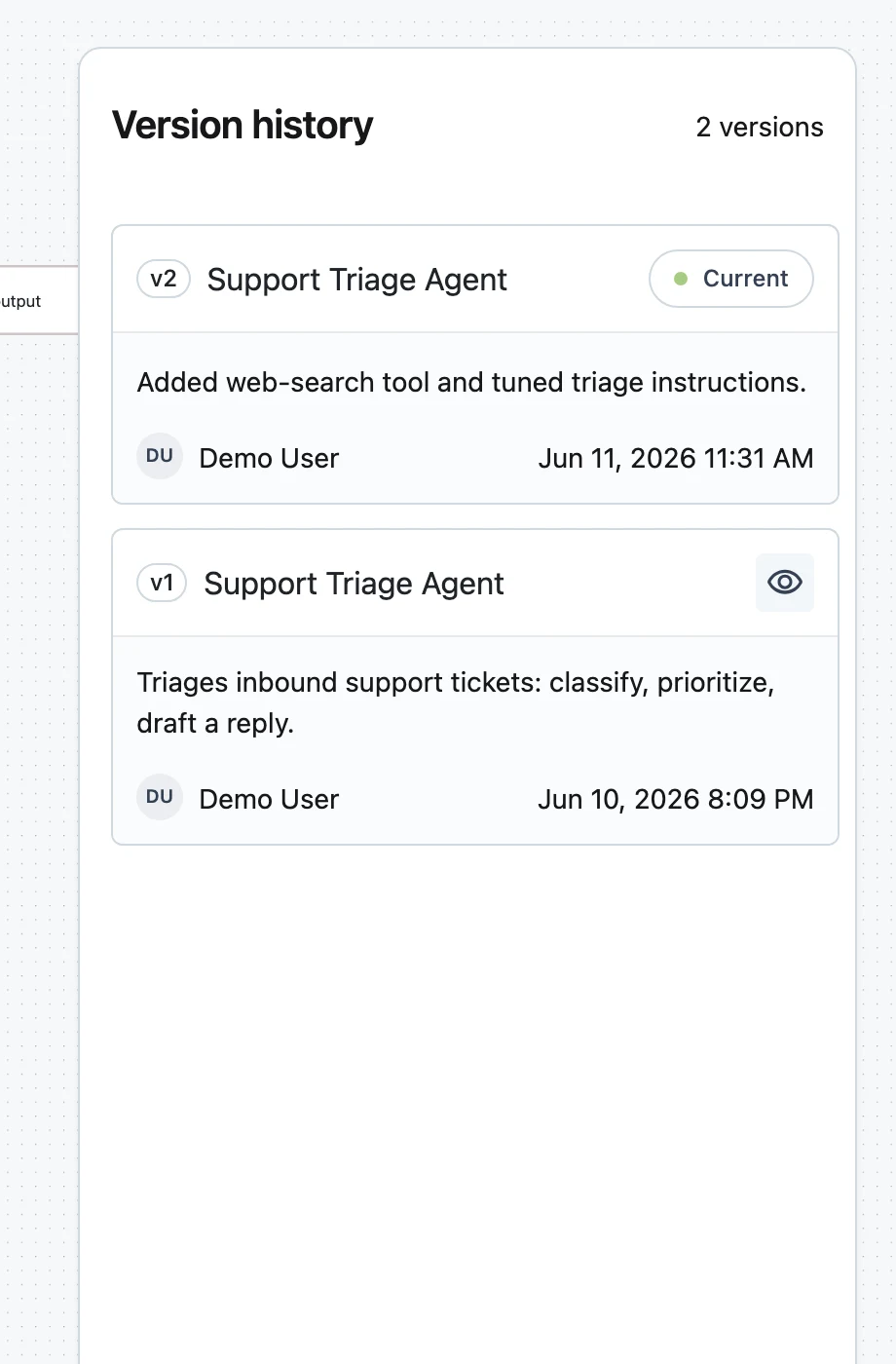
Preview and restore an older version
Clicking preview opens the version read-only, with a modal:
- Replace draft with this version — unlocks the canvas with the old version's content. Nothing is saved yet; clicking Save then creates a new version (the next number) whose content matches the old one. History is append-only — restoring never rewrites it.
- Back to draft — returns to the editor with your current state.
You can also Test a previewed version directly, which is the quickest way to bisect a regression.
Redeploying an older version
To roll an App back, you don't edit anything: deploy the earlier version to the App. The App's History tab tells you which version was live when — see Deployment history and rollback.
Save as new
The Save button is a split button: its menu contains Save as new, which forks the current canvas into a brand-new workflow — name, description, and v1 of its own — and navigates you to it. The original workflow and its history are untouched.
Use it to:
- branch an experiment off a production workflow without touching its version history,
- turn a heavily customized template into a separate base for future workflows,
- duplicate a workflow across use cases that will now evolve independently.
Save as new captures the canvas, not the history — the new workflow starts at v1 with no memory of the source workflow's versions.
Export a workflow
Export → Download in the editor header packages the current canvas as a ZIP you can run anywhere the Python SDK runs. The overlay's How to Run instructions are the whole story:
- Unzip the archive.
- Edit the YAML file to insert API keys where necessary.
- Run it:
pip install dynamiq
python main.py
The archive (workflow.zip) contains exactly two files:
| File | Contents |
|---|---|
config.yaml | The full workflow as a declarative DAG — nodes, connections, prompts, and input transformers — in the same YAML format the SDK loads with Workflow.from_yaml_file. |
main.py | A minimal runner that loads config.yaml and calls wf.run(input_data={}). |
Export validates the canvas first (a workflow with errors won't export), and connection credentials are not embedded — that's why step 2 exists. The YAML round-trips with the SDK in both directions; see YAML workflows.
Export via the API
The editor calls POST /v1/workflows/export, which streams the ZIP back as an attachment:
curl -X POST "https://api.getdynamiq.ai/v1/workflows/export" \
  -H "Authorization: Bearer $DYNAMIQ_PERSONAL_ACCESS_TOKEN" \
  -H "Content-Type: application/json" \
  -d '{
    "project_id": "<your-project-id>",
    "flow": {
      "id": "8c2f3f5e-7a1f-4f1e-9b9a-2a4f0c5d6e7f",
      "nodes": []
    }
  }' \
  --output workflow.zip
import os
import requests
response = requests.post(
"https://api.getdynamiq.ai/v1/workflows/export",
headers={"Authorization": f"Bearer {os.getenv('DYNAMIQ_PERSONAL_ACCESS_TOKEN')}"},
json={
"project_id": "<your-project-id>",
# The flow definition: the editor sends the current canvas;
# fetch a saved one from GET /v1/workflows/{workflow_id} (data.flow).
"flow": {"id": "8c2f3f5e-7a1f-4f1e-9b9a-2a4f0c5d6e7f", "nodes": []},
},
)
response.raise_for_status()
with open("workflow.zip", "wb") as f:
f.write(response.content)
print("Saved workflow.zip")import { writeFile } from "node:fs/promises";
const response = await fetch("https://api.getdynamiq.ai/v1/workflows/export", {
method: "POST",
headers: {
"Authorization": `Bearer ${process.env.DYNAMIQ_PERSONAL_ACCESS_TOKEN}`,
"Content-Type": "application/json",
},
body: JSON.stringify({
project_id: "<your-project-id>",
// The flow definition: the editor sends the current canvas;
// fetch a saved one from GET /v1/workflows/{workflow_id} (data.flow).
flow: { id: "8c2f3f5e-7a1f-4f1e-9b9a-2a4f0c5d6e7f", nodes: [] },
}),
});
if (!response.ok) {
throw new Error(`Export failed: ${response.status} ${await response.text()}`);
}
await writeFile("workflow.zip", Buffer.from(await response.arrayBuffer()));
console.log("Saved workflow.zip");Both project_id and flow are required; the response is application/octet-stream with a Content-Disposition: attachment; filename=workflow.zip header.
Versions via the API
Versions have their own endpoints (Personal Access Token auth):
| Method & path | Purpose |
|---|---|
GET /v1/workflows/{workflow_id}/versions | List the workflow's versions (archived and deleted versions are excluded). |
GET /v1/workflows/{workflow_id}/versions/{version_id} | Fetch one version — latest is accepted as the version id. |
POST /v1/workflows/{workflow_id}/versions/{version_id}/archive | Archive a version. |
POST /v1/workflows/{workflow_id}/save | Create the next version from a flow payload (flow, flow_ui, optional description) — the API form of Save. |
POST /v1/workflows/{workflow_id}/release | Release a draft (requires name, flow, flow_ui). Fails with "Only draft workflows can be released." on a non-draft. |
Archiving versions
Archiving hides a version from the history without deleting the workflow's audit trail:
curl -X POST "https://api.getdynamiq.ai/v1/workflows/<workflow-id>/versions/<version-id>/archive" \
  -H "Authorization: Bearer $DYNAMIQ_PERSONAL_ACCESS_TOKEN"
Two rules: archived versions stop appearing in version lists, and the latest version can't be archived — the API refuses with "Cannot archive the latest version of a workflow." (passing latest as the version id is rejected the same way).
Next steps
Test Cases
Save requests with the output they must produce, run them against the canvas after every change, read pass/fail and mismatches, import and export cases as CSV, and see which rules they cover.
Templates
Start a workflow from the template gallery — browse by category, load a prebuilt graph onto the canvas, and customize it into your own.