Test Cases
Save requests with the output they must produce, run them against the canvas after every change, read pass/fail and mismatches, import and export cases as CSV, and see which rules they cover.
A test case is a saved request paired with the output the workflow must return for it. The Test cases tab of the Test panel runs every case against the canvas as it is now — unsaved changes included — and tells you which ones still pass. For workflows built on rules, it is the regression suite: change a Decision Table cell or a rule, run the cases, and see which records flipped before anything is deployed.
Cases are saved with the workflow, so they travel with every version and count as unsaved work until you Save.
Write a case
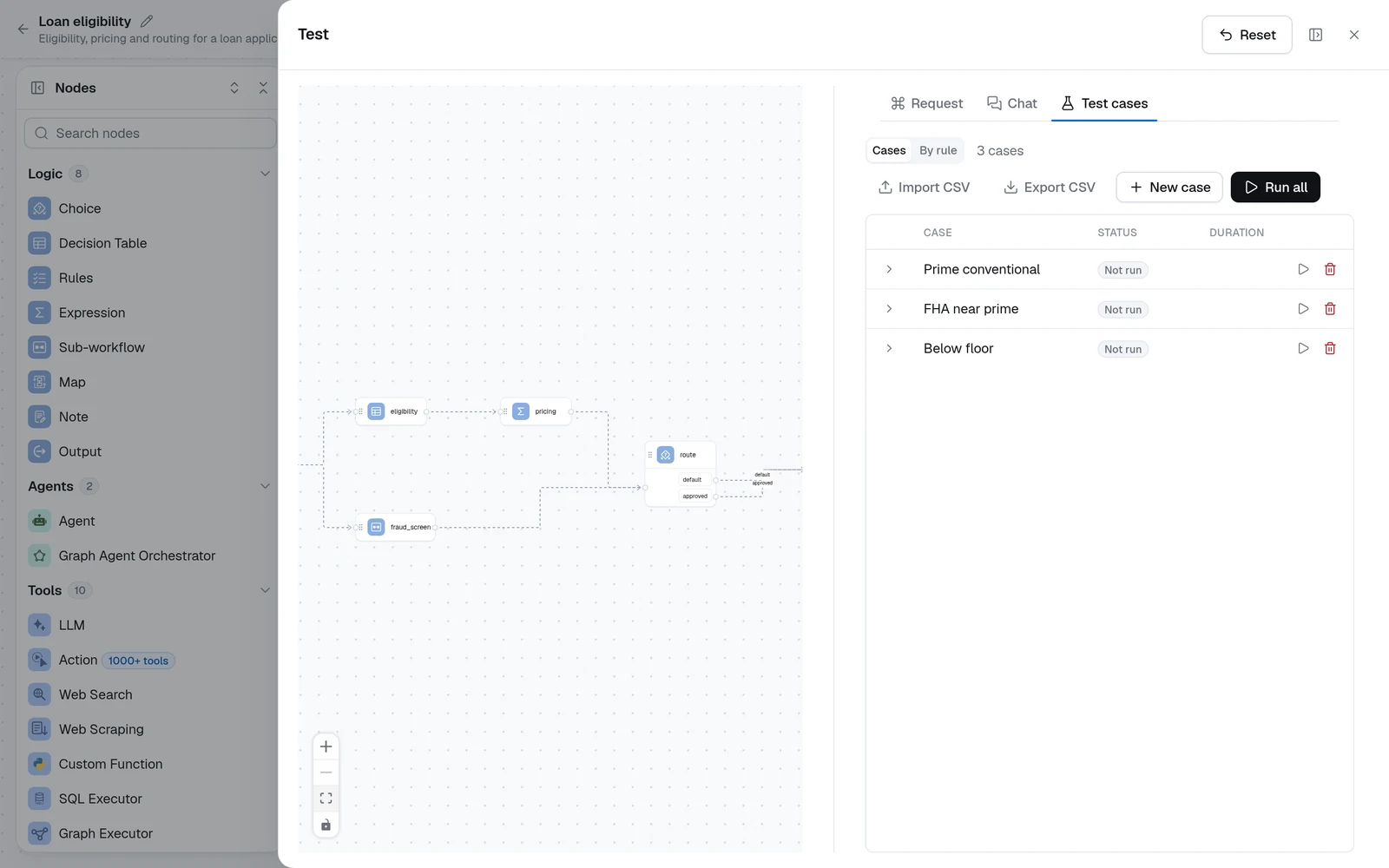
Open Test in the editor header and switch to the Test cases tab. Cases come from three places:
- New case — starts a case from the Request form as it is, filled in or not, and opens it for editing. Set the Name, the Input — the Input node's fields as JSON — and the Expected output.
- Save run as test case — on the Request tab, after a run, saves the request that ran together with the output it produced. The quickest way to pin today's behavior before changing anything.
- Import CSV — loads a sheet of cases; see CSV below.
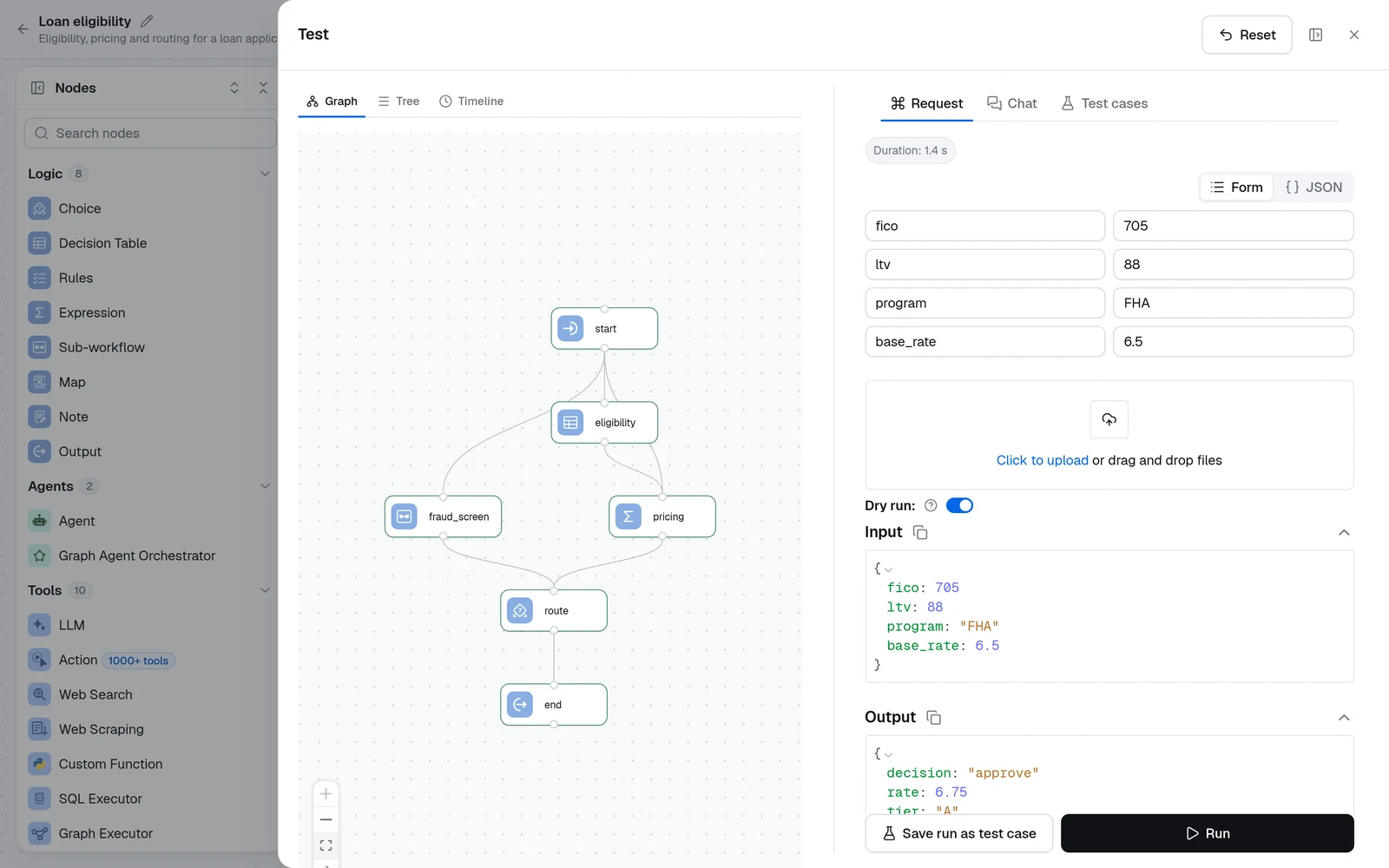
Expected output is checked key by key: every key you list must equal the value at the same path in the workflow's output, and keys you do not list are free to differ, so a case pins only what it cares about. Leave it empty to assert only that the run succeeds. After a run, Use last result copies the output the run produced into the expectation.
Run cases
Run all runs every case in order, one at a time; the play button on a row runs one case. Each case sends its input through the same endpoint as the Request tab, as a dry run, and gets a status:
| Status | Meaning |
|---|---|
| Passed | The run succeeded and every expected key matched. |
| Failed | The run succeeded but at least one expected key differs; expand the row to see the mismatches by path, with the expected and the actual value. |
| Error | A node failed; the row shows the error message. |
| Not run | The case has not run since the panel was opened. |
Expand a row to read its Last output and open its Show trace, the same per-node trace the Request tab shows. The header counts the results: 3 cases, 2 passed, 1 failed.
Rule coverage
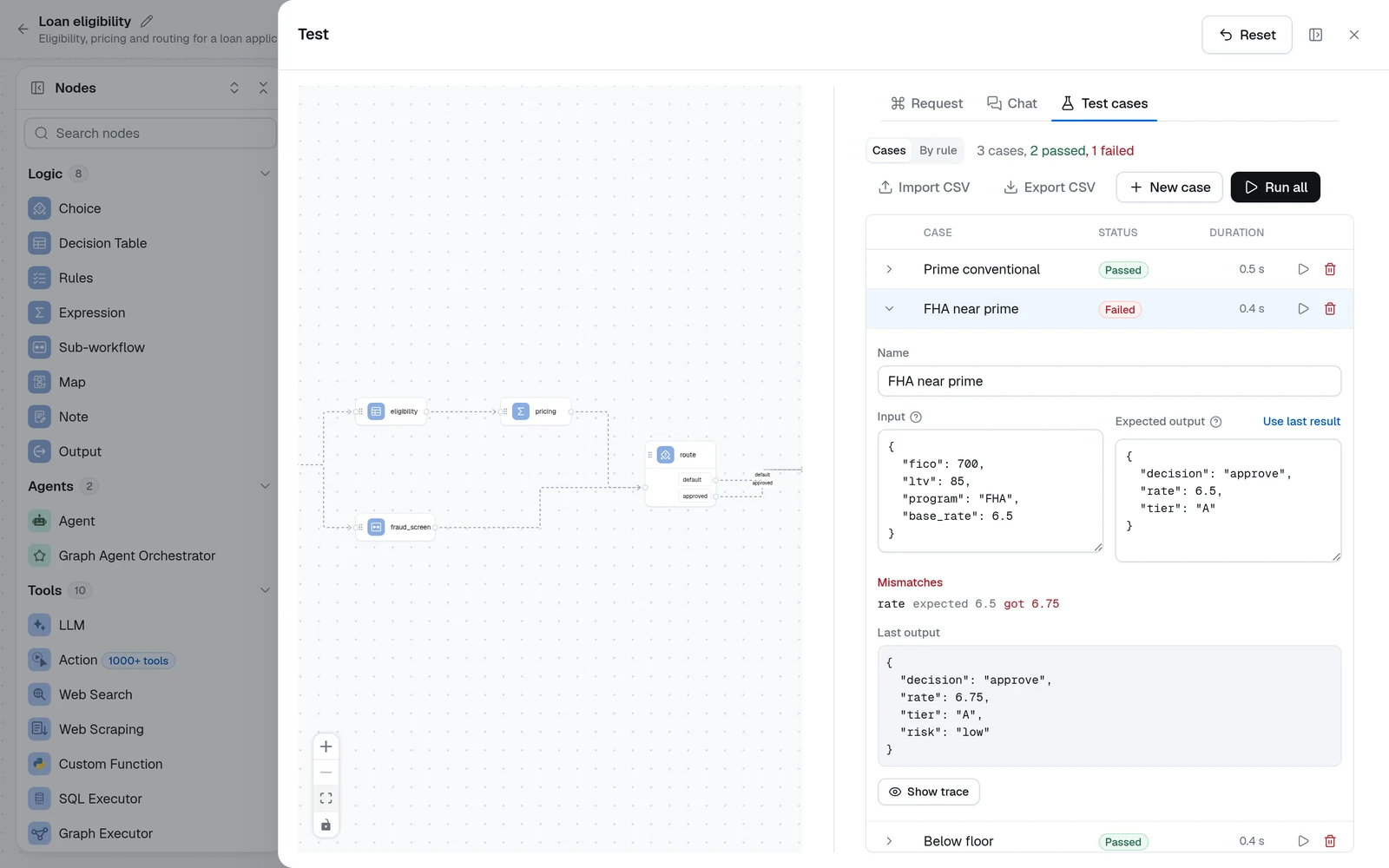
When cases run, every Decision Table and Rules node on the canvas learns how its rules did across them. A Decision Table's grid gains a Matched column and a summary line — Test cases matched 3 of 5 rules in their last run, counting only the rules that are on — and a Rules node's panel says how many of its rules fired. The By rule view of the tab lists every rule of every Decision Table and Rules node with how many cases fired it — a row that matched, a check that did not hold — and how many of those cases passed or failed. A rule that never fires across the cases is either dead or untested; a rule that fires in failing cases is the first to look at. A Rules node or Decision Table inside a Map counts every item it ran for. The coverage stays until the cases change or the last case is deleted.
A case whose output includes a Rules node's findings shows them as a table when expanded — one row per rule, the status as a badge, the message beside it — above the raw output. See Decision Table node and Rules node.
Import and export cases as CSV
Export CSV writes one row per case with a name column, one column per Input field, and one expected.<field> column per expected key — the layout a spreadsheet can review and extend. Import CSV reads that layout back, or any sheet whose header names the fields: name is optional, a column with the expected. prefix is an expected key, anything else is an input field. Values are typed by the Input and Output node schemas, so a Number field imports as a number. An empty cell leaves the field out of the case; null pins a null, "" an empty string, and a value wrapped in double quotes is kept as the text inside them, which is how the export writes an expectation the sheet could not otherwise tell from an empty cell. Imports are capped at 10 MB and 1000 cases and are appended to the existing list.
The name header is the case title unless the Input node declares a field called name, in which case a single name column is that field; the exported layout carries both, the title first.
Cases and versions
Cases are part of the workflow definition: Save stores them with the version, Save as new copies them into the new workflow, and a version opened from the history shows its cases read-only — you can still run them, which is how you confirm whether a regression came from your latest edits. They are stored with the workflow's flow_ui and never leave the project, so use synthetic data: everyone who can open the workflow can read them.
Runs with a Sub-workflow node
A case is scored against the workflow's own Output node, and coverage counts the workflow's own Decision Tables and Rules nodes; a Sub-workflow that runs inside the workflow is that node's business. Give the callee its own cases in its own editor.
Testing & Debugging
Run a workflow straight from the editor — the Test panel's Request, Chat and Test cases tabs, per-node trace inspection, dry runs, and the iterate loop.
Versions & Releases
The full workflow lifecycle — drafts, what every Save creates, version history and previews, Save as new, archiving, export, and what Apps pin to.