Workflow Canvas
Find your way around the editor — the node palette and its categories, adding and connecting nodes, sticky notes, groups, and canvas controls.
The workflow editor has three working areas: the node palette on the left, the canvas in the middle, and the node inspector that slides in on the right when you select a node. This page covers the palette and canvas; the inspector is documented in Node configuration.
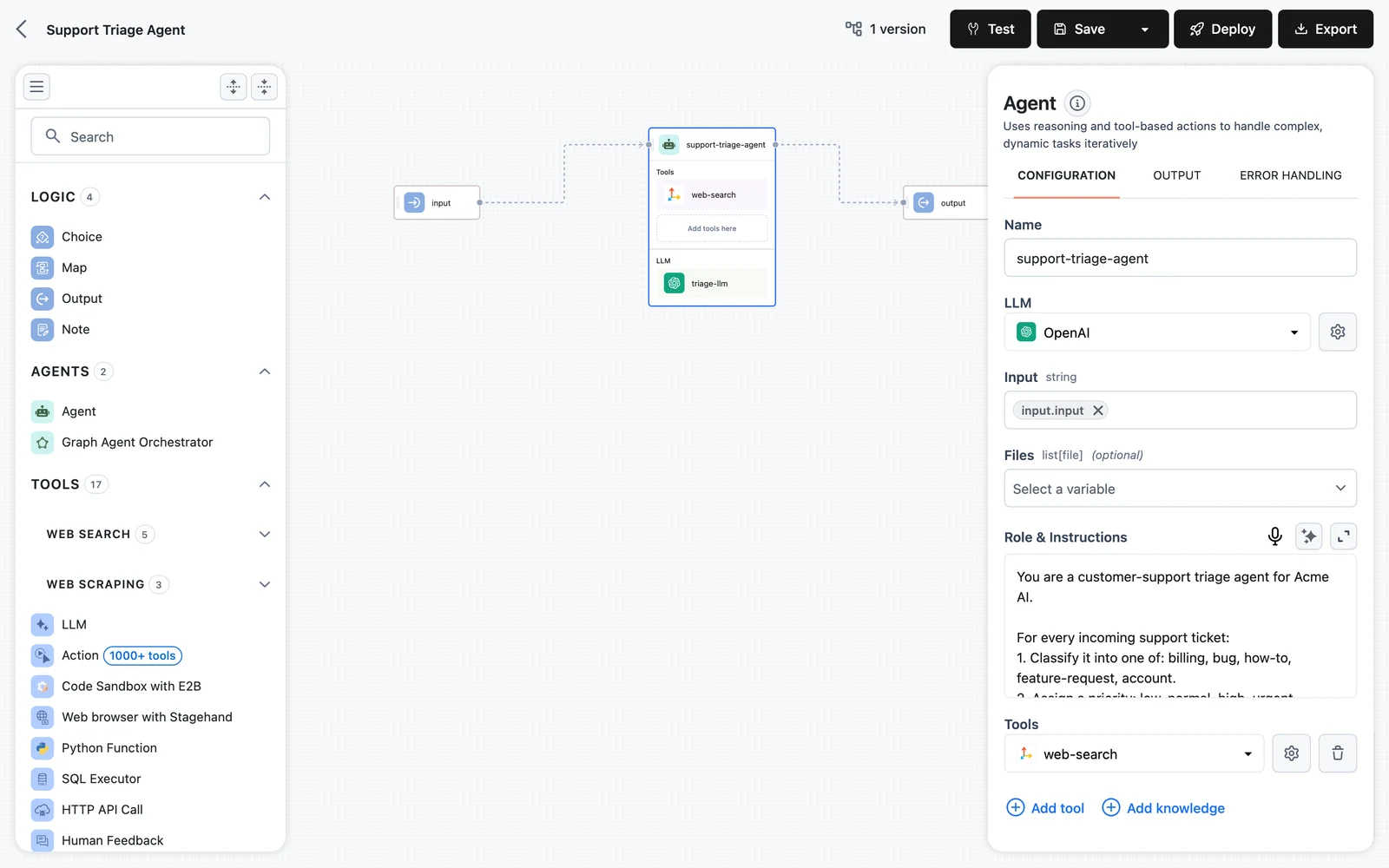
The node palette
The palette lists every node you can add, grouped into collapsible categories. Use the search box at the top to filter by node name — searching auto-expands all sections. The header buttons collapse the palette entirely, or Expand All / Collapse All the categories.
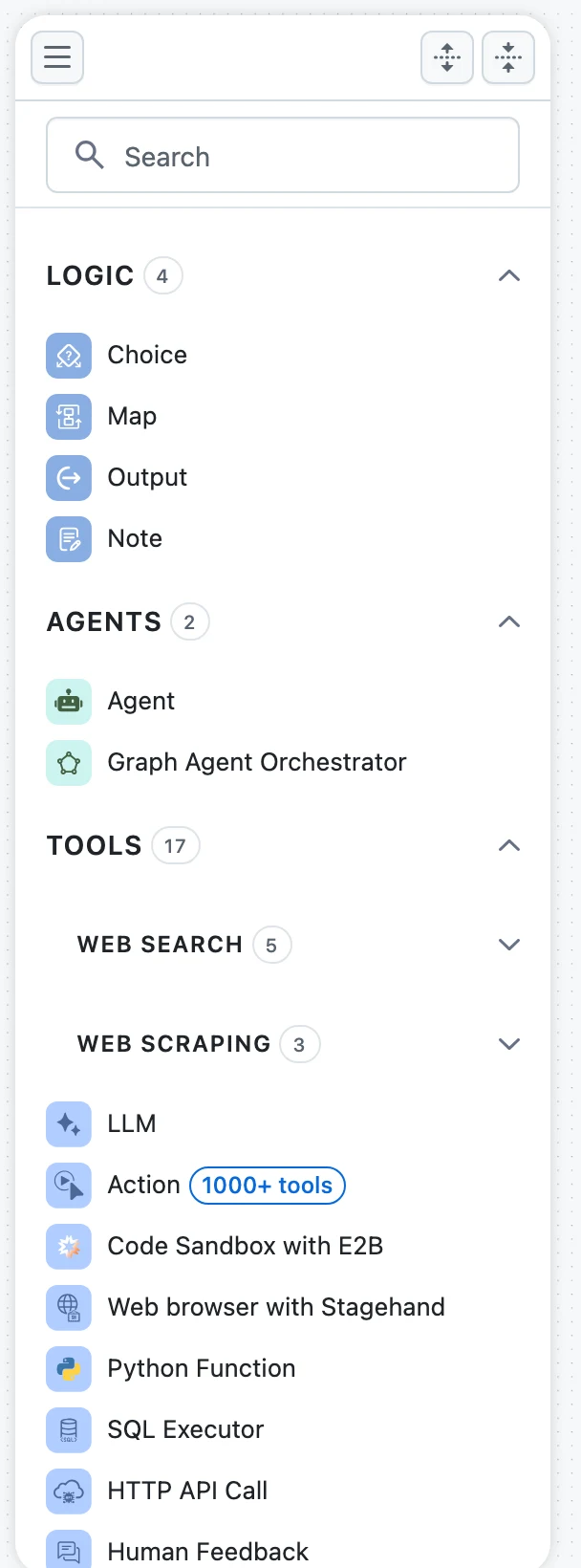
| Category | Contents |
|---|---|
| LOGIC | Choice, Decision Table, Rules, Expression, Sub-workflow, Map, Note (sticky note), Output |
| AGENTS | Agent, Graph Agent Orchestrator |
| TOOLS | WEB SEARCH (Tavily, Jina, Exa, ScaleSerp, Firecrawl) and WEB SCRAPING (ZenRows, Jina, Firecrawl) subgroups, plus LLM, Action (1000+ tools), Code Sandbox with E2B, Web browser with Stagehand, Custom Function, SQL Executor, HTTP API Call, Human Feedback, MCP Server |
| AUDIO | Whisper, ElevenLabs STS, ElevenLabs TTS |
| VALIDATORS | Regex Match, Valid Choices, Valid JSON, Valid Python, LlamaGuard Detector, PII Detector, Prompt Injection Detector |
| TRANSFORMATIONS | Text Template, Any to JSON, JSON to Any, Regex Extractor, Extract By Index, File Type Extractor |
| PRE-PROCESSING | File converters: Unstructured, LLM Image, LLM PDF, PDF, PPTX, DOCX, CSV, Text, Multi-file |
| CHUNKING | Document Splitter |
| RANKERS | LLM Document Ranker, Time Weighted Document Ranker, Cohere Ranker |
| VECTORIZATION | DOCUMENT EMBEDDERS and TEXT EMBEDDERS subgroups (OpenAI, Bedrock, Cohere, Hugging Face, Mistral, IBM watsonx, Gemini, VertexAI) |
| VECTOR STORES | Knowledge Base Retriever, Vector Store Retriever, Vector Store Writer, plus VECTOR STORE RETRIEVERS and VECTOR STORE WRITERS subgroups (Weaviate, Pinecone, Milvus, pgvector, Elasticsearch, OpenSearch, Chroma, Qdrant) |
In the Agent builder variant of the editor, indexing-oriented categories (PRE-PROCESSING parts, CHUNKING, RANKERS, VECTORIZATION, VECTOR STORES) are hidden — they only apply to full workflows and Knowledge Base ingestion.
Adding nodes
Drag a node from the palette and drop it anywhere on the canvas. Two kinds of drop targets behave differently:
- The canvas — creates a standalone node with its own left (target) and right (source) handles.
- Slots inside container nodes — the Agent node exposes Add tools here and Add LLM here placeholders. These accept only the matching kind of node ("Only tools are allowed to be added here" / "Only LLMs are allowed to be added here") and the dropped node becomes part of the agent rather than a canvas node.
Click a node to select it and open the inspector. Click a nested item (an agent's LLM or tool) to edit that item; the inspector shows a Go back link to return to the parent node.
Connecting nodes
Every standard node has a target handle on its left edge and a source handle on its right edge. Drag from a source handle to a target handle to create an edge. Edges from a Choice node are labeled with the name of the condition option they carry.
What an edge means — and why some connections are rejected — is covered in How nodes connect.
Sticky notes
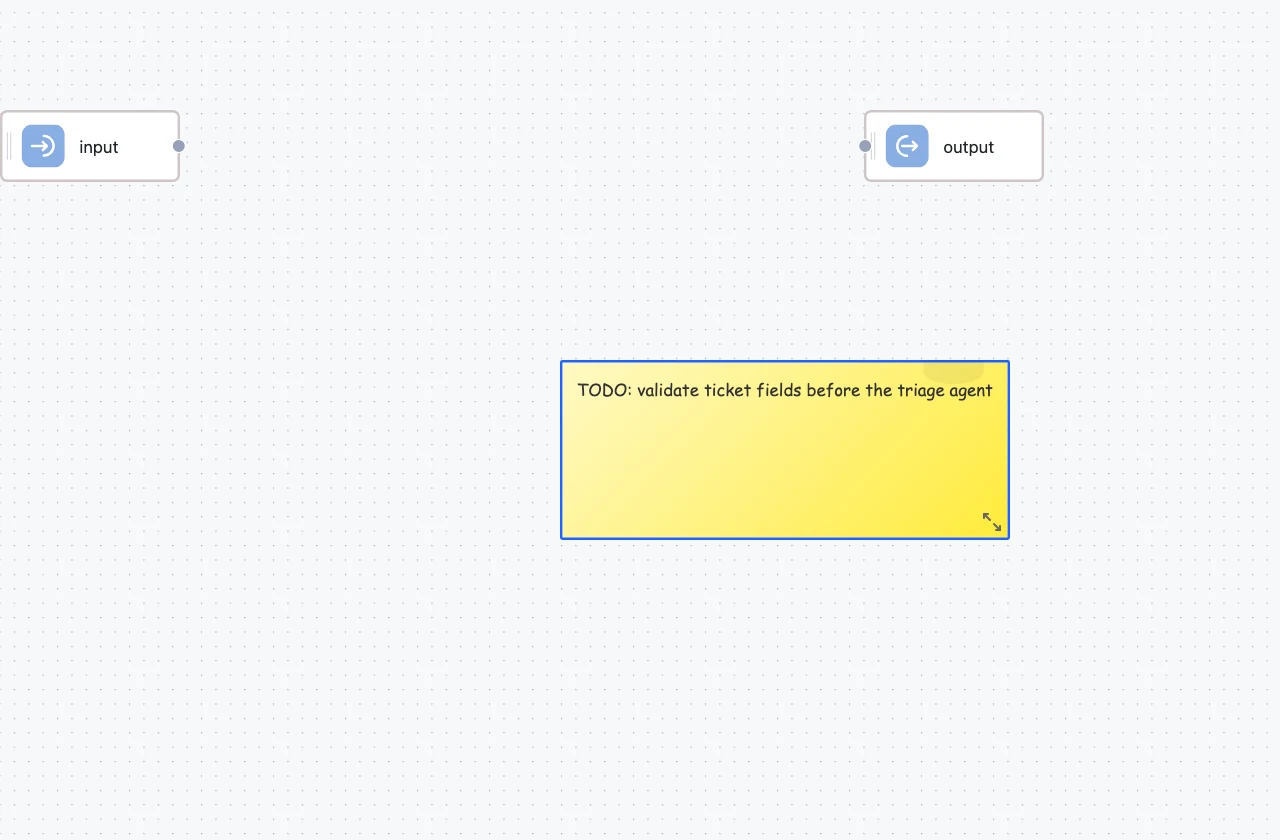
Add a Note from the LOGIC category to annotate the canvas:
- Double-click a note to edit its text; click elsewhere (or press Escape) to finish.
- Drag the resize control in the note's corner to change its size.
- Notes are purely visual — they never execute and take no part in validation.
Groups
Knowledge Base ingestion workflows organize the canvas into four fixed, dashed-border groups: Pre-processing, Chunking, Vectorization, and Storage. The groups themselves cannot be moved, deleted, or resized — they are lanes that show which stage each node belongs to. Drop nodes inside the matching lane when editing an ingestion workflow. See Customize the ingestion workflow.
Canvas controls and shortcuts
- Zoom and fit — the control cluster in the bottom-right corner zooms in/out, fits the view, and locks panning. Scroll to zoom, drag empty canvas to pan.
- Delete — select a node or edge and press Backspace or Delete. The Input and Output nodes are protected and cannot be deleted.
- Variable picker — inside any input field in the inspector, press
/to insert a variable from an upstream node. - Unsaved changes guard — leaving the editor with unsaved changes prompts for confirmation; for never-released drafts, leaving deletes the draft.
Templates and the generator
When creating a workflow, the template gallery offers prebuilt workflows you can load onto the canvas, and the generate from prompt sidebar drafts a workflow from a natural-language description. Both produce ordinary nodes and edges you edit like anything else. See Templates.
Next steps
Build Your First Workflow
A hands-on tutorial: wire Input → Agent → Output, map the data between them, test-run it, inspect the trace, and release v1.
How Nodes Connect
The rules behind every edge — flow handles, typed inputs and outputs, type compatibility, agent slots vs. edges, and the wiring mistakes to avoid.