Deployment History & Rollback
Audit every deployment of an App on the History tab and roll back by redeploying an earlier workflow version.
Every time you deploy an App, Dynamiq records a deployment: which workflow version went live, on which runtime, with which configuration, by whom, and when. The History tab is the audit trail; rolling back is simply deploying an earlier workflow version to the same App.
What a deployment pins
An App is a deployed workflow, and each deployment freezes three things:
| Pinned | Meaning |
|---|---|
| Workflow version | The saved release of the workflow DAG. The App keeps serving this exact version until the next deployment, no matter how the draft workflow changes. |
| Runtime | The runtime version the App executes on. |
| Deployment config | Deployment type (serverless or server-based) and, for server-based Apps, replica autoscaling: min/max replicas and target CPU. |
Because the App itself — its hostname, Access Keys, variables, and triggers — is stable across deployments, callers never notice a redeploy or rollback beyond the changed behavior.
The History tab
Open the History tab
Go to Deployments, open your App, and select the History tab. The Deployment history table lists every deployment, newest first.
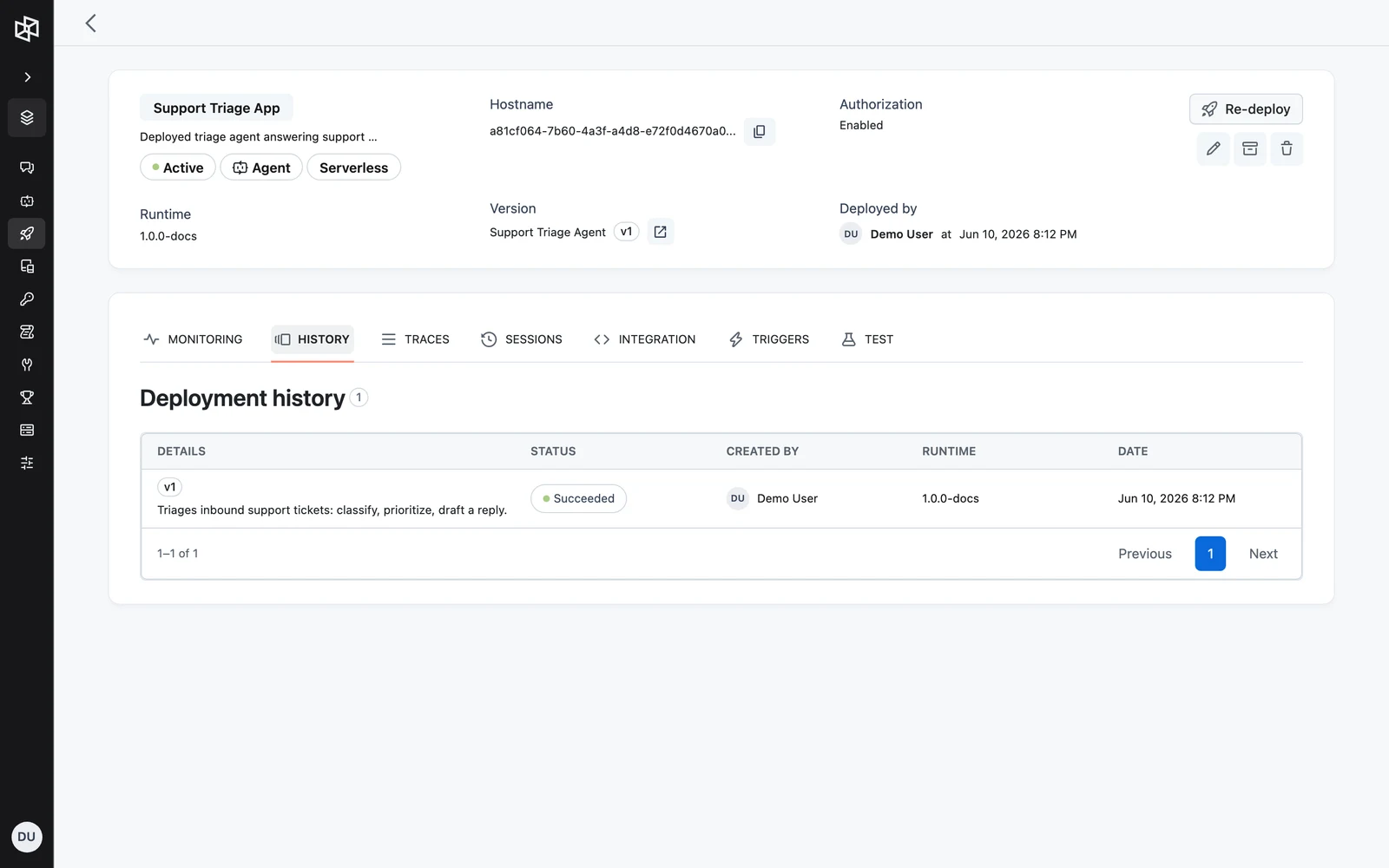
Read the columns
| Column | Contents |
|---|---|
| DETAILS | The workflow version (e.g. v3) and the workflow description. |
| STATUS | Outcome of the deployment, with a colored status indicator. |
| CREATED BY | The user who started the deployment. |
| RUNTIME | The runtime version the deployment used. |
| DATE | When the deployment started. |
The version in DETAILS is what you need for a rollback: it tells you which workflow version was running when the App last behaved the way you want.
Deployment history via API
The same records are available from the management API (authenticate with a Personal Access Token):
curl "https://api.getdynamiq.ai/v1/apps/<your-app-id>/deployments" \
  -H "Authorization: Bearer $DYNAMIQ_PERSONAL_ACCESS_TOKEN"
import os
import requests
app_id = "<your-app-id>"
response = requests.get(
f"https://api.getdynamiq.ai/v1/apps/{app_id}/deployments",
headers={"Authorization": f"Bearer {os.getenv('DYNAMIQ_PERSONAL_ACCESS_TOKEN')}"},
)
response.raise_for_status()
for deployment in response.json()["data"]:
print(deployment)const appId = "<your-app-id>";
const response = await fetch(
`https://api.getdynamiq.ai/v1/apps/${appId}/deployments`,
{
headers: {
Authorization: `Bearer ${process.env.DYNAMIQ_PERSONAL_ACCESS_TOKEN}`,
},
},
);
const { data } = await response.json();
console.log(data);Roll back to an earlier version
Rolling back means redeploying the App from an older workflow version. The App's hostname and integrations stay untouched; only the workflow version (and optionally runtime/config) changes.
Find the target version
On the App's History tab, note the workflow version from the DETAILS column of the last good deployment — say v3.
Start a deploy from the workflow
Open the App's workflow and click Deploy. In the deployment mode switcher choose Existing deployment (it is preselected when the workflow already has deployments). The Deploy panel opens.
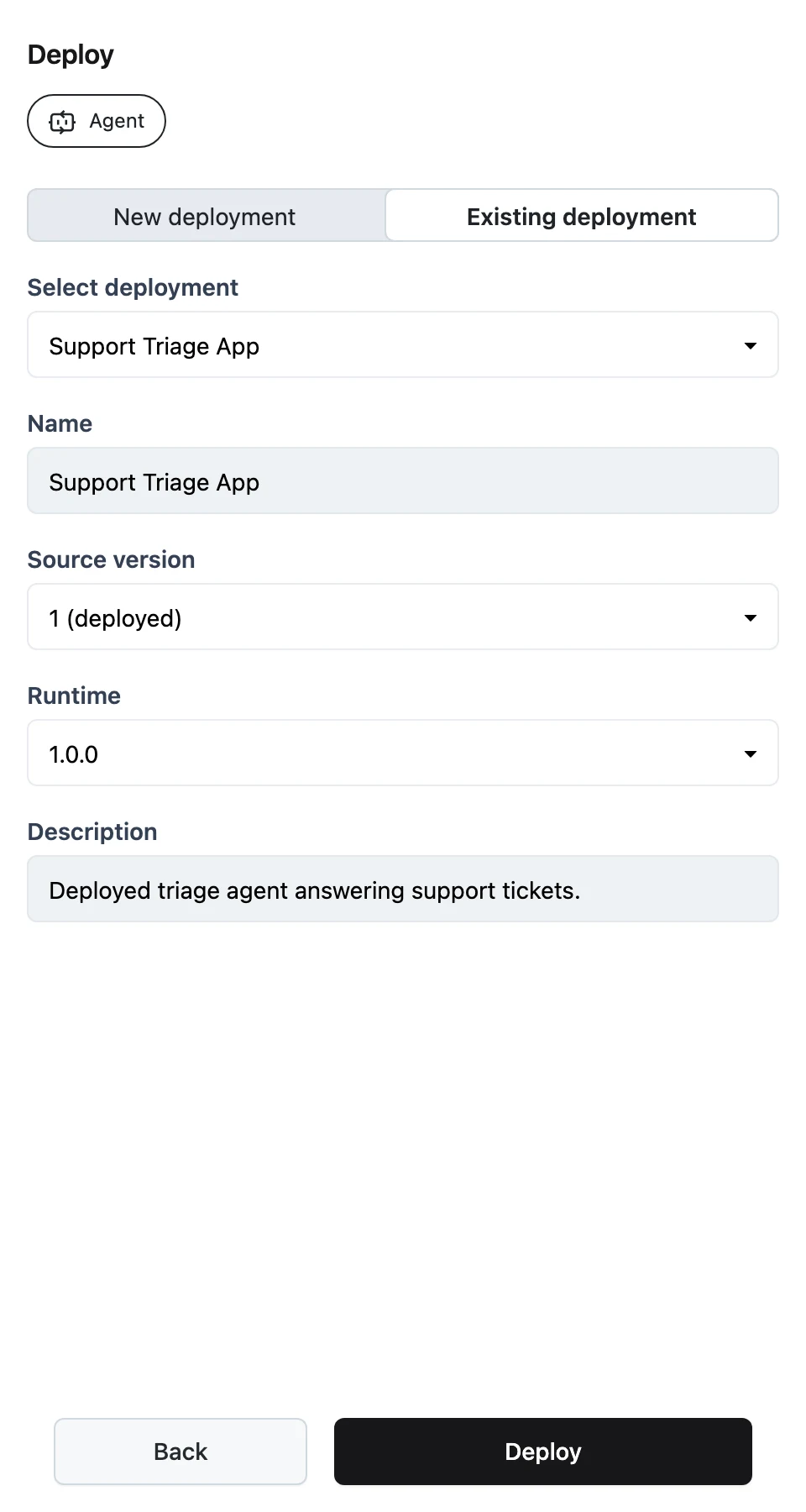
Select the App and the source version
Under Select deployment, pick the App you are rolling back. Name and Description are shown read-only. Then open the Source version dropdown — the version currently live is marked (deployed) — and select the older version you identified in step 1.
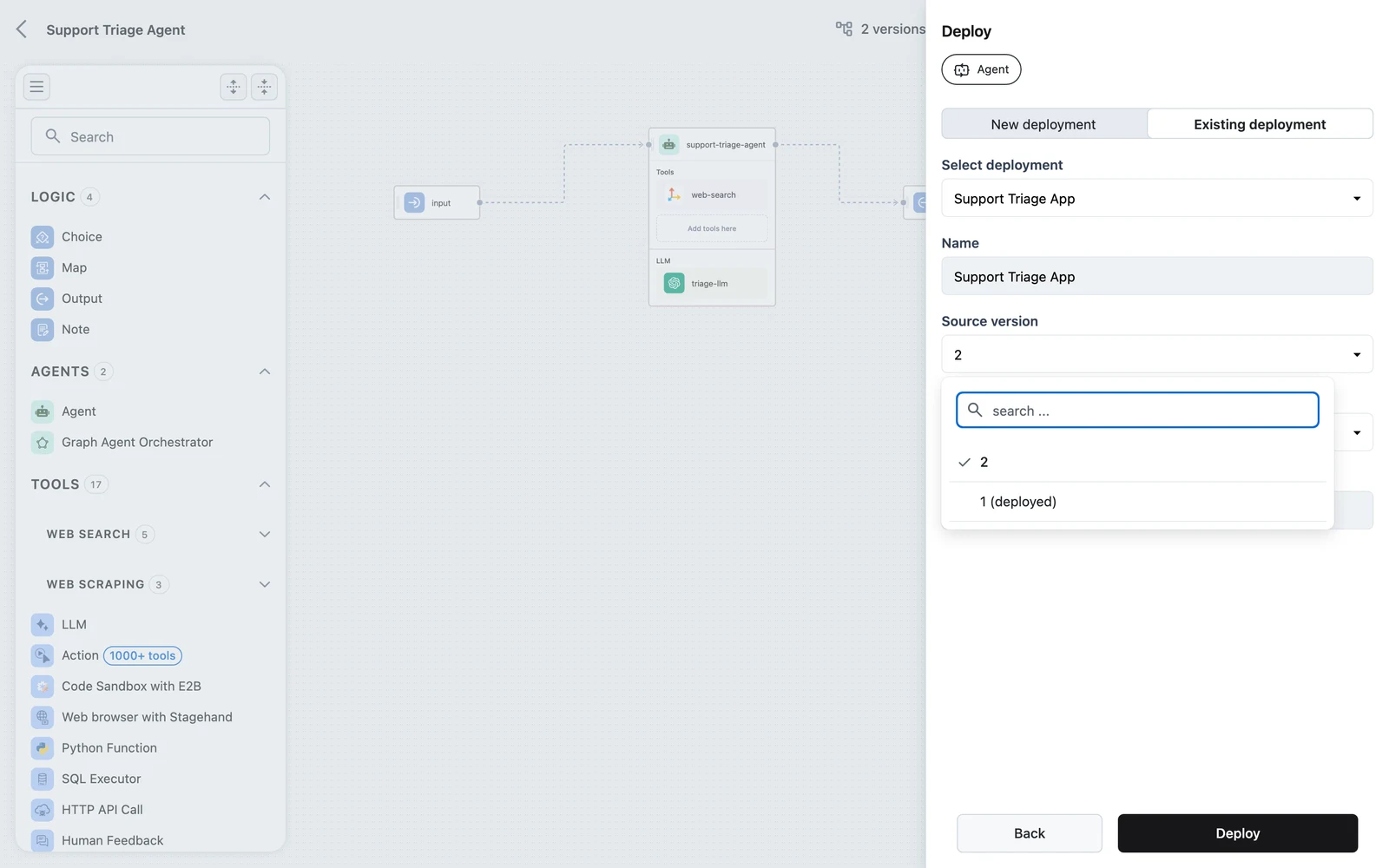
Confirm runtime and configuration
Pick a Runtime. For server-based Apps, expand Advanced configuration to review Replica Autoscaling (Min/Max replicas) and Target CPU — the form is prefilled from the App's current deployment config, so leaving it untouched keeps the existing scaling behavior.
Deploy
Click Deploy. Dynamiq creates a new deployment of the older version; once it completes, the App serves the rolled-back version on the same hostname. The rollback appears as the newest row on the History tab.
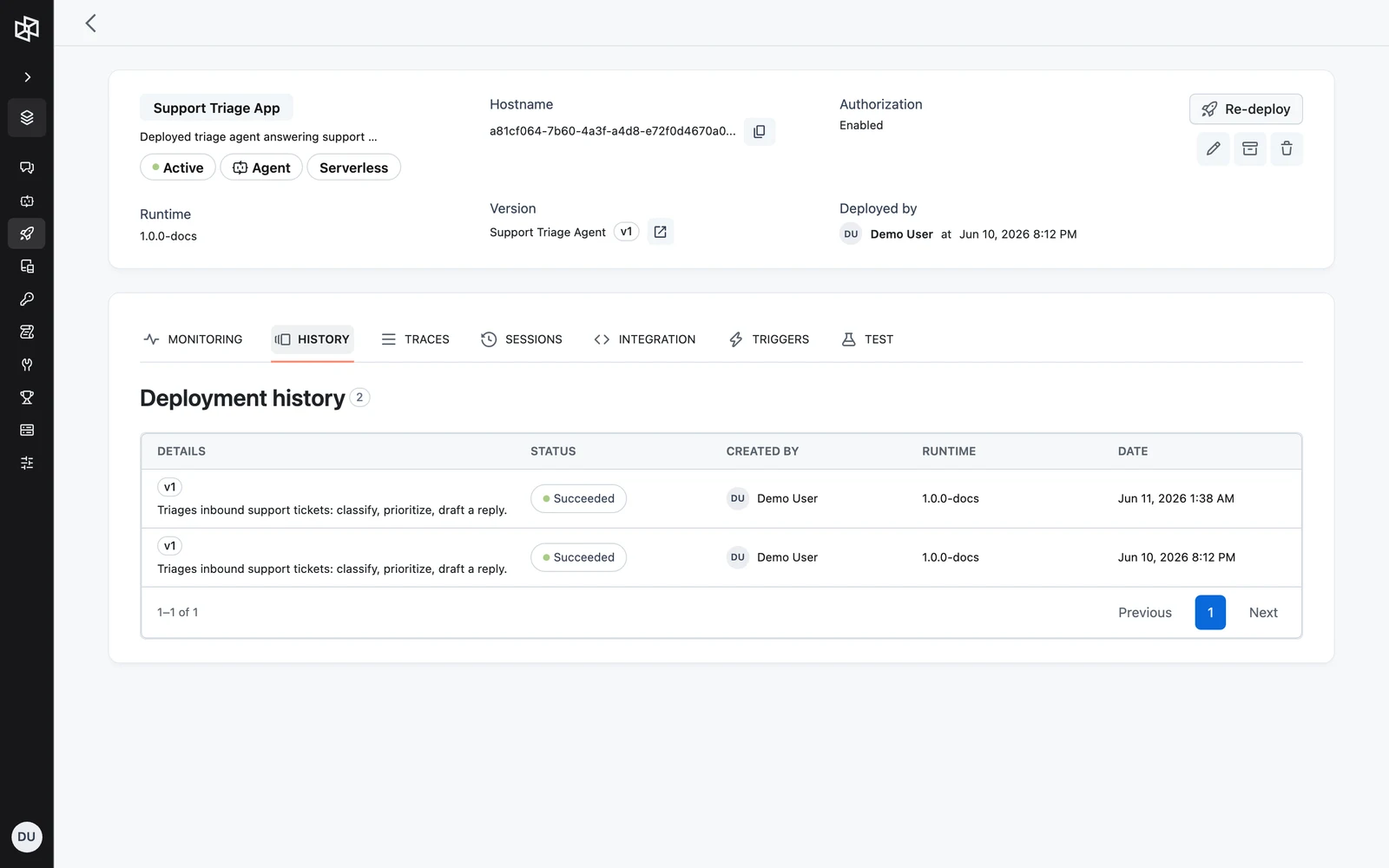
Rollback via API
A deployment is created with POST /v1/apps/{app_id}/deploy. Point workflow_version_id at the older version:
curl -X POST "https://api.getdynamiq.ai/v1/apps/<your-app-id>/deploy" \
  -H "Content-Type: application/json" \
  -H "Authorization: Bearer $DYNAMIQ_PERSONAL_ACCESS_TOKEN" \
  -d '{
    "workflow_id": "<workflow-id>",
    "workflow_version_id": "<older-workflow-version-id>",
    "runtime_id": "<runtime-id>"
}'workflow_idstring (UUID)requiredworkflow_version_idstring (UUID)runtime_idstring (UUID)deployment_configobjectNext steps
Monitoring, History & Traces
Track invocations, latency, token usage, and cost for a deployed App, and drill into the full execution trace of every run.
Model Inference Deployments
Deploy open-source models on vLLM or LoRAX runtimes and call them through OpenAI-compatible chat, embeddings, and audio endpoints.