Prompts, Roles & Inference Modes
Write agent roles and instructions, template them with Jinja variables, and enforce structured output with Response format.
The Agent node composes its own system prompt: it combines built-in reasoning instructions (chosen by the inference mode) with the Role & Instructions you write, the descriptions of its tools, and runtime context. This page covers what you control in that prompt, how to template it, and how to make the agent return schema-conformant JSON instead of prose.
How the agent's system prompt is assembled
You write the role; the agent assembles the rest. The system prompt is built from ordered sections:
- Primary instructions — the reasoning and output-format rules for the selected inference mode (e.g. the
Thought:/Action:/Answer:protocol). Picked automatically; you never edit these. - Environment — present when a sandbox is enabled; tells the agent its working directory.
- Operational instructions — guidance added by features you enable (parallel tool calls, delegation, context compaction, todo management, sub-agents). In the SDK, the agent's
instructionsfield is appended here. - Available tools — one line per tool, built from each tool's name and description (see Agent Tools).
- Available skills — when Skills are enabled.
- Response format — how to emit the final answer.
- Agent persona & style — your Role & Instructions text. The template explicitly marks this section as supplementary: it shapes personality, tone, and behavioral guidelines but must never override the primary instructions.
- Current date — injected automatically (e.g.
11 June 2026), so agents know what "today" is without a tool call.
The practical consequence: don't restate format rules ("respond with Thought and Action...") in your role — the agent already gets them, and contradicting them causes parse failures. Spend the role on domain behavior instead.
Write the role
Open Role & Instructions
Select the Agent node and find the Role & Instructions text area in the configuration panel. Use the Expand button for a full-screen editor when the role gets long.
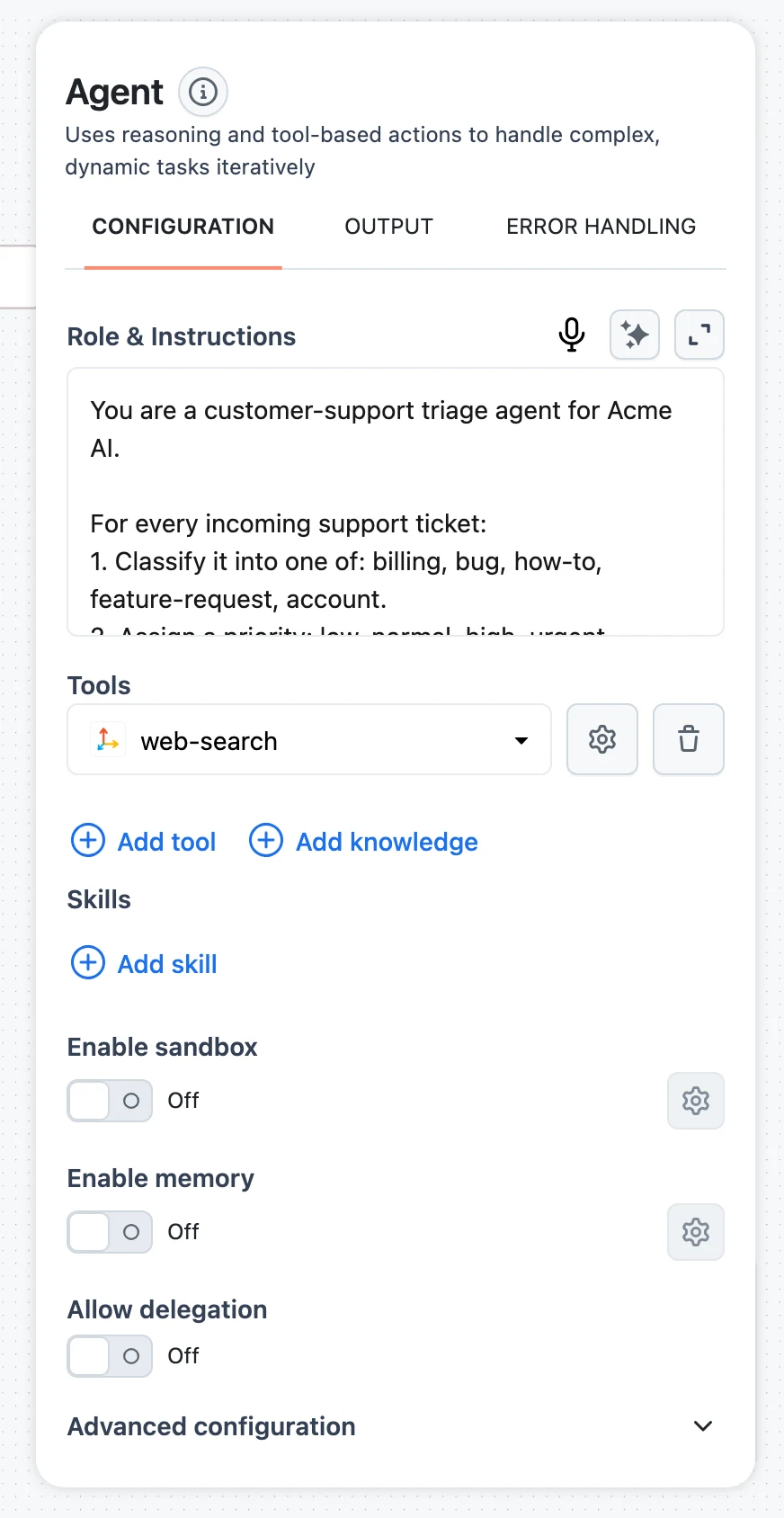
Draft it — or generate a starting point
Write the role directly, or click the Generate prompt button on the field, describe what the agent should do under Prompt description, and click Generate to produce a draft you then refine.
Cover the four things a role needs
- Identity — who the agent is and what domain it owns.
- Boundaries — what it must not do, and when it should refuse or escalate.
- Tool habits — when to search, when to ask, when to answer from context.
- Output style — tone, length, formatting, language.
A role that works:
You are a support agent for Acme's billing product.

- Answer only billing questions: invoices, refunds, subscription changes.
  For anything else, tell the user to contact general support.
- Always look the customer up in the CRM before answering questions about
  their account. Never guess account data.
- If a refund exceeds $500, do not approve it - say it requires a human review.
- Reply in short paragraphs. No markdown headers. Match the user's language.
Compare with "You are a helpful assistant" — it gives the loop nothing to act on: no boundaries to enforce, no tool habits to follow, no refusal criteria.
Template variables in roles
The Role & Instructions field accepts Jinja template variables. Every {{ variable }} you write becomes a mapped input field on the Agent node, and the value is substituted into the prompt at runtime:
You are a support agent for {{ company_name }}.
The user's subscription tier is {{ tier }} - tailor your answers to what
that tier includes.
company_name and tier appear as inputs above the role field; map them from your workflow input like any other field. This is how you build one agent that serves many tenants or configurations. See Input Transformers & Jinja for the templating rules.
Literal braces in the role are safe: text that is not a mapped {{ variable }} is passed to the model as-is, so JSON examples inside your role do not break templating.
Roles vs. saved Prompts
The Prompts library (with Prompt Library / Inline Prompt tabs and versioning) belongs to standalone LLM nodes — nodes that make one model call with a prompt you fully control. An LLM attached to an Agent node shows no prompt tabs at all: the agent composes the prompt itself, and your contribution to it is the Role & Instructions field. Iterate on role wording in the Prompts Playground if you want side-by-side model comparisons before pasting the result into the agent.
Instructions (SDK)
Alongside role, the SDK Agent has a separate instructions field. While role lands in the persona section (tone and style), instructions is appended to the operational instructions block — the right place for hard procedural rules that should sit next to the agent's built-in operating guidance rather than its personality:
agent = Agent(
    name="billing-agent",
    llm=llm,
    role="You are a friendly billing assistant for Acme.",
    instructions=(
        "Before answering any account question, call the CRM tool first. "
        "Never include raw customer IDs in your final answer."
    ),
)
The UI exposes only Role & Instructions (the role field); put everything there when building in the canvas.
Structured output with Response format
By default the agent's final answer is a string. To get a typed object instead, set a Response format JSON schema:
- In the UI, switch Inference mode to Function calling or Structured output; a Response format row appears in Advanced configuration. The gear icon opens the schema editor, the trash icon clears the schema.
- If you set a response format while the mode is Default or XML, the agent automatically switches itself to Structured output — those text modes cannot guarantee schema-conformant JSON.
- If the model's final answer does not validate against the schema, the agent appends a correction instruction ("Return only the JSON document...") and retries within the loop budget, so transient formatting slips do not fail the run.
In the SDK, response_format accepts either a raw JSON schema dict or a Pydantic BaseModel subclass (converted to its schema automatically). The final answer is parsed from JSON into a dict:
from pydantic import BaseModel

from dynamiq.connections import OpenAI as OpenAIConnection
from dynamiq.nodes.agents import Agent
from dynamiq.nodes.llms import OpenAI


class TicketTriage(BaseModel):
    category: str
    priority: str
    summary: str


agent = Agent(
    name="triage-agent",
    llm=OpenAI(connection=OpenAIConnection(), model="gpt-4o"),
    role="You triage incoming support tickets for a SaaS billing product.",
    response_format=TicketTriage,
)

result = agent.run(
    input_data={"input": "Customer says they were double-charged on the annual plan."}
)
triage = result.output["content"]  # dict matching the TicketTriage schema
print(triage["category"], triage["priority"])
Downstream nodes receive the parsed object, so a Choice node can branch on priority without any string parsing.
Inference modes in one minute
The inference mode decides the wire format of the loop — how thoughts, tool calls, and answers travel between the agent and the model: Default (plain text sections), XML (tagged), Function calling (native tools), and Structured output (JSON steps). It changes the primary instructions block but not your role. The full comparison, including which modes support Response format and parallel tool calls, lives on The Agent Node.