Decision Table Node
Model business rules as a table — typed input columns, output columns, a rules grid with a cell grammar, hit policies, CSV import and export, and coverage from test cases.
The Decision Table node turns a rules matrix — an eligibility check, a pricing grid, a scorecard, a lookup — into a workflow step that a domain expert can read and edit without code. Each input is a typed value mapped from an upstream node, each output is a named value later nodes can read, and each rule is one row of the grid: a condition cell per input and a value cell per output. At run time the node evaluates the rules in table order and returns the outputs of the matching rows, plus matched_rules, the rows that fired.
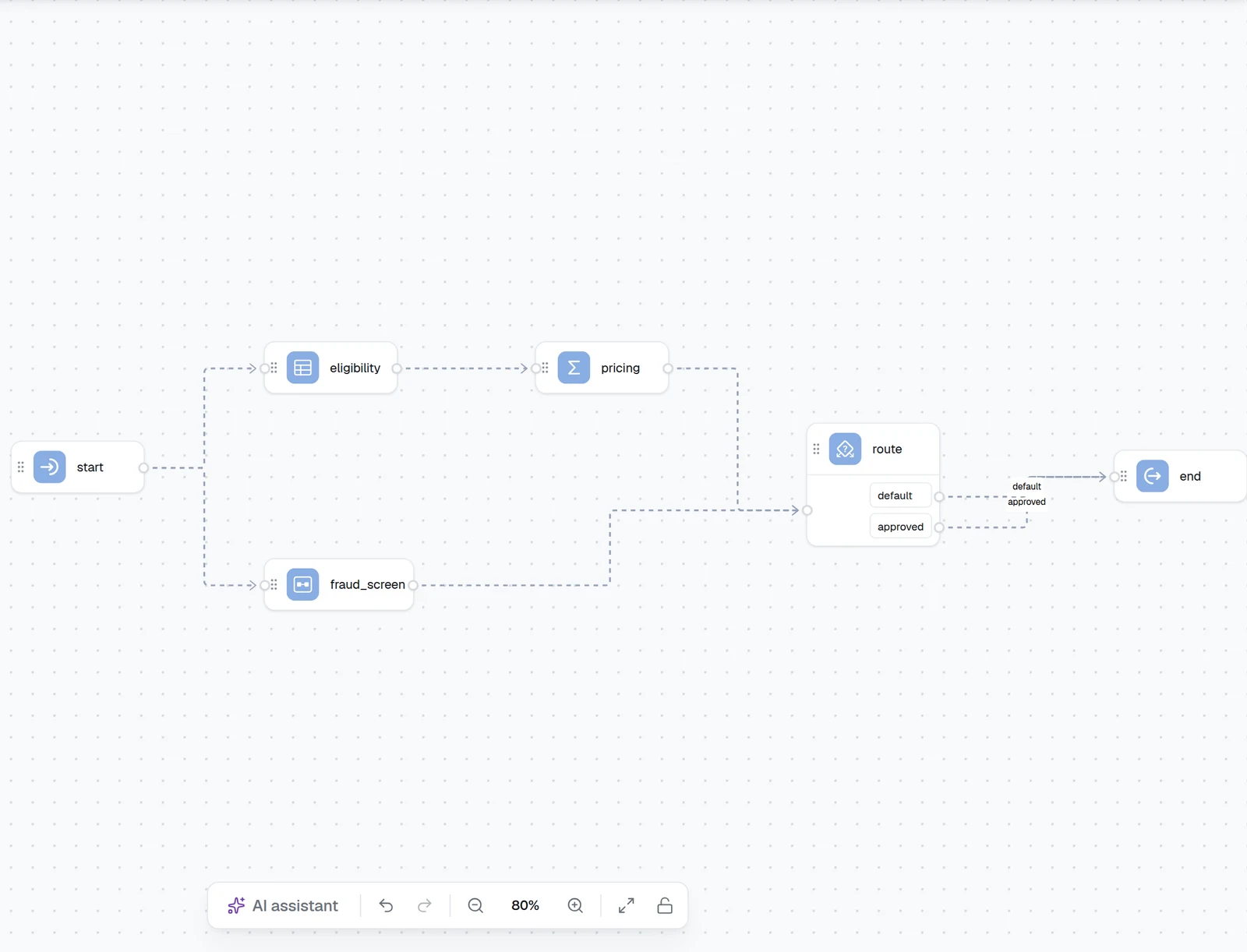
Configure a Decision Table on the canvas
Add the node and name it
Drag Decision Table from the Logic group of the node palette onto the canvas and connect an edge from the node that produces the values it should check — usually the Input node. Give it a short Name: later nodes read its outputs as $.<name>.output.<column>, and the coverage shown after test runs is keyed by it too.
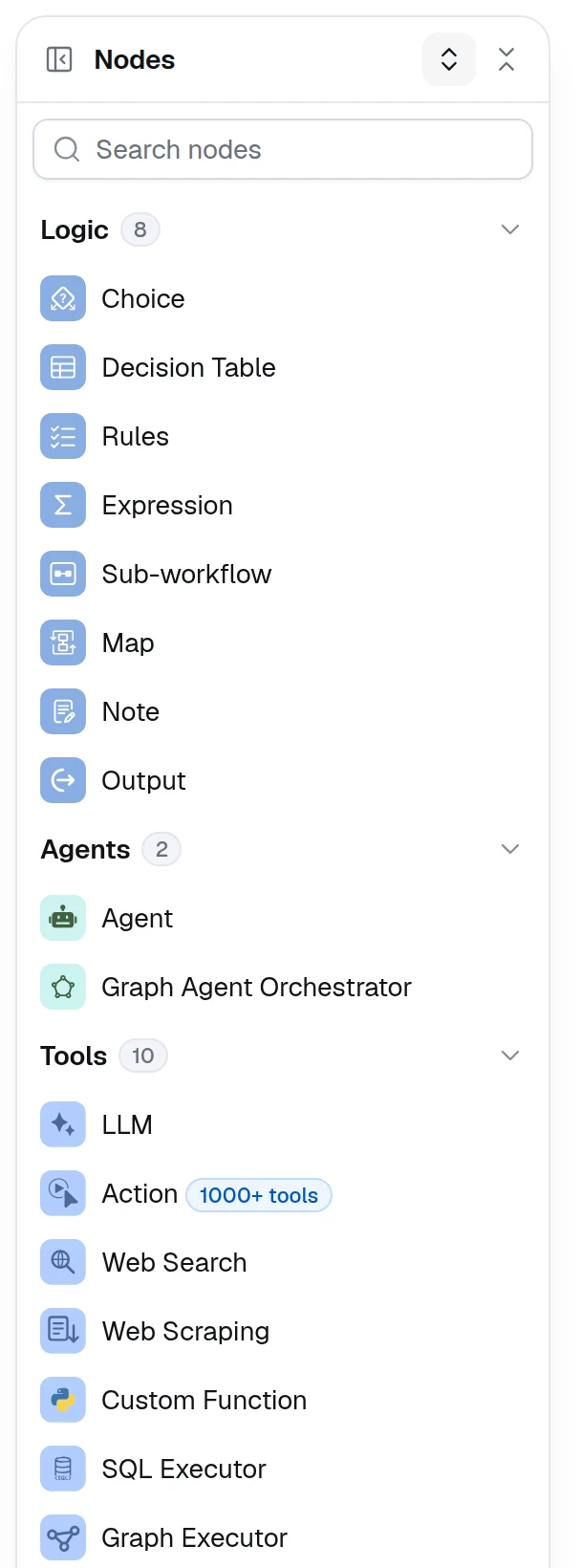
Define the inputs
Under Inputs, click Add input for each value the rules check. Each input has a Name, a Type — Any, String, Number or Boolean, the first four of the Input node's field types — and a Source: press / to pick an upstream output, or type a value. The picker offers only outputs compatible with the type; a nested path such as extract.content.fico from an agent's response format is accepted for any type, since the runtime coerces the value by the column type. A List, Dictionary or File field has no column type of its own: read the scalar you need out of it with a nested path, claim.total inside a Dictionary field, or type the column Any and leave its cells empty, since a literal cell cannot equal a list or a dictionary.
The type matters: a Number column reads 620 as a number so >= 620 works, while a String column keeps the text as typed. Set it before writing rules — the grid validates every cell against it.
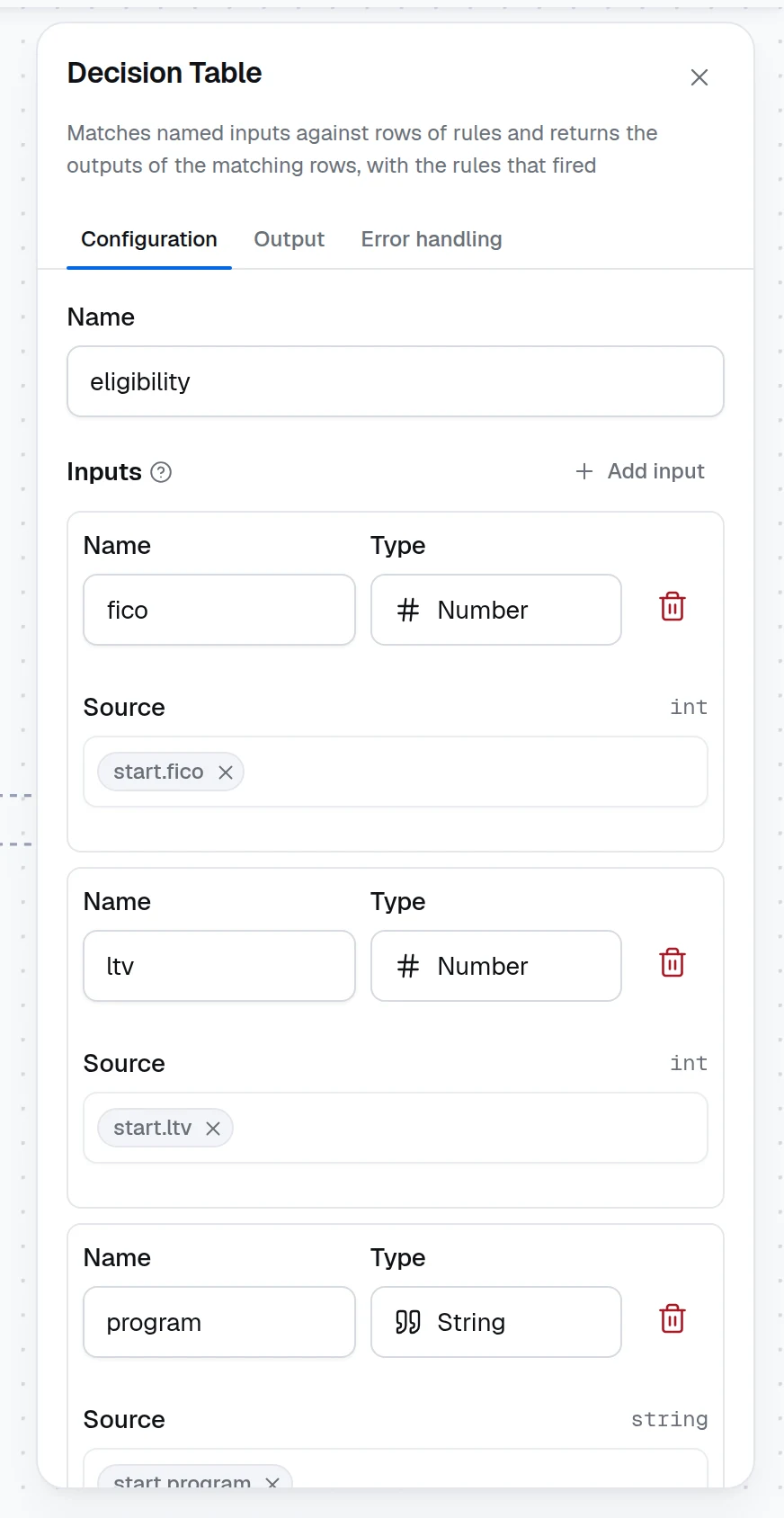
Define the outputs
Under Outputs, click Add output for each value a matching rule returns, with a Name and a Type. Later nodes read them by name from this node, and the Output tab lists them next to matched_rules. The name matched_rules is reserved.
Choose a hit policy
Hit policy decides what happens when more than one rule matches:
| Hit policy | Result |
|---|---|
| First matching rule | The first matching row in table order wins; rows below it are not evaluated. The default. |
| At most one matching rule | Every row is evaluated and only one may match. Two matching rows fail the run and name the overlapping rules — use it when the rules are meant to be exclusive. |
| All matching rules | Every matching row contributes, and each output is folded with the Aggregation that appears next to the policy: List of values, Sum, Minimum, Maximum or Count of matches. Sum is the scorecard pattern: every matching row adds its points. |
Under All matching rules the shape of each output follows the Aggregation: List of values returns the matched cells of every column as a list, numeric or not; Count of matches returns the number of matching rules for every column; Sum, Minimum and Maximum fold a Number column (or an Any column whose Then cells are all numbers, judged over the whole table so the shape of the output is the same on every run) into one number, null when nothing matched or when every matched cell was empty, and keep the list for any other column.
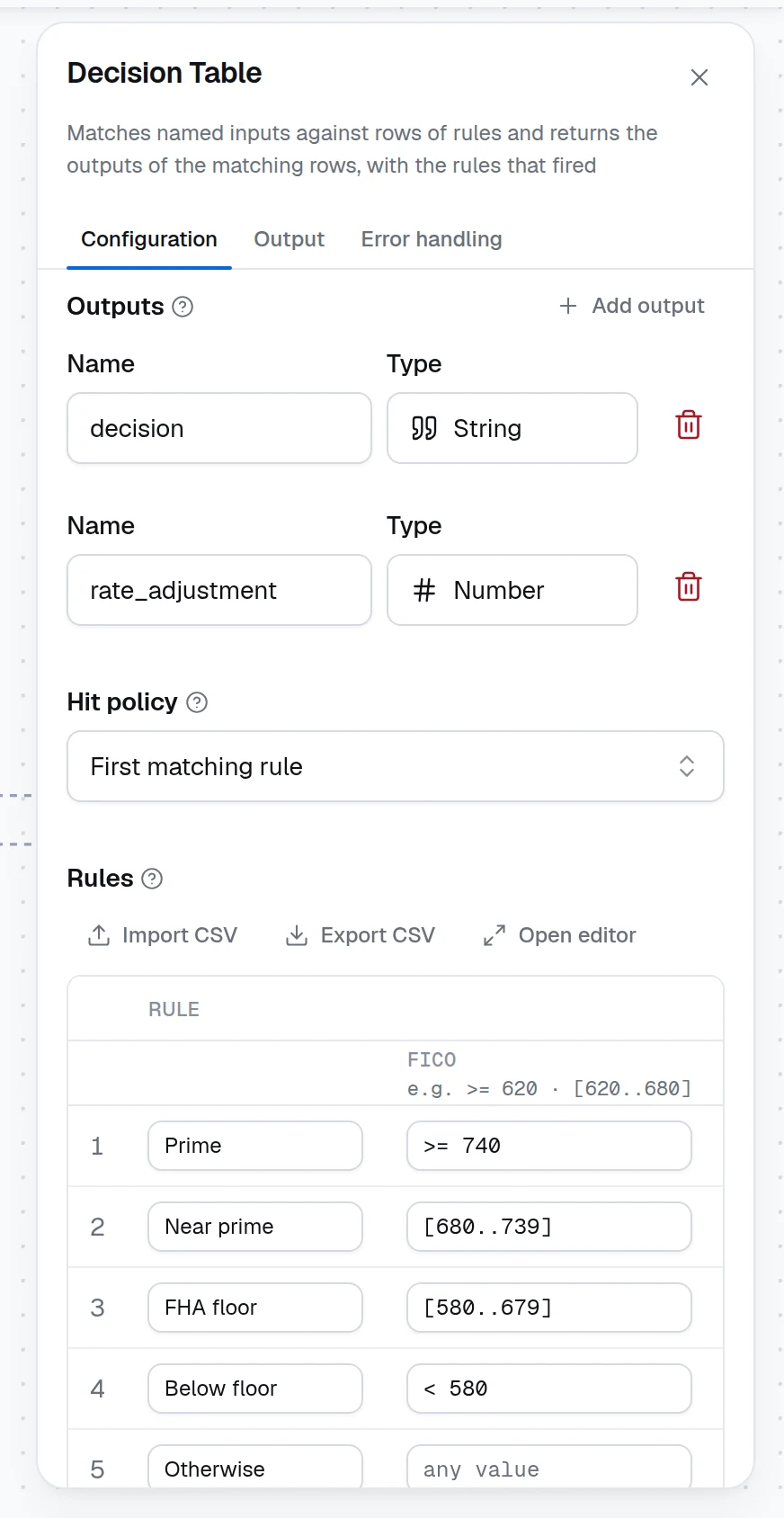
Write the rules
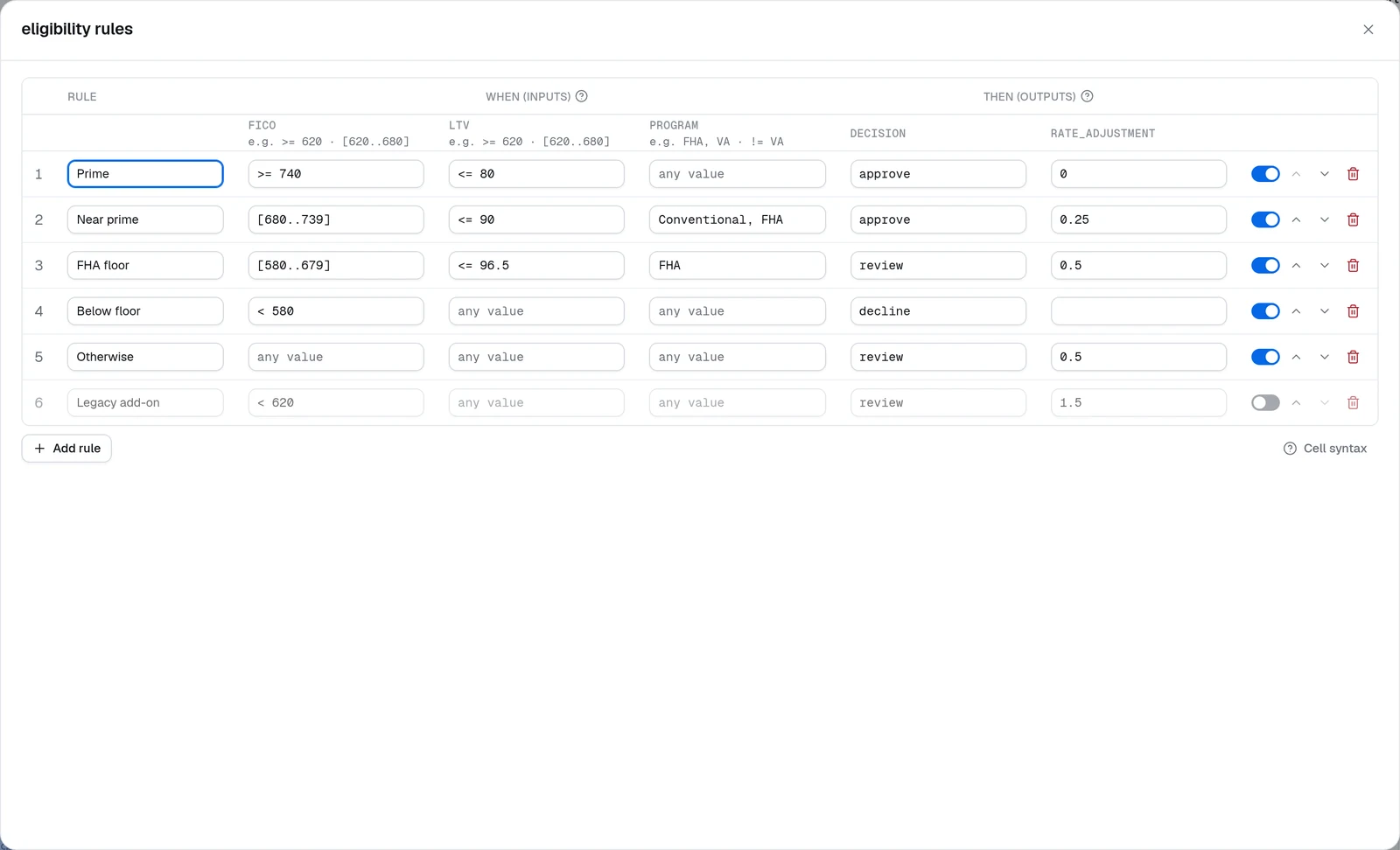
The Rules grid has one row per rule. The When (inputs) columns hold a condition per input; the Then (outputs) columns hold the value each output takes when the row matches. Each input column header shows example conditions for its type, an empty cell means any value, and hovering a cell reads it back in words. Click Add rule to append a row, the arrows to reorder rows — order is what First matching rule follows — and the switch to take a rule out without deleting it: an Off rule stays in the table but never matches.
The side panel shows the first 25 rules, and adding a rule past them opens the editor on it; Open editor opens the whole grid in a dialog with wider cells, which is where a larger table is easier to edit.
Connect the outputs
Draw an edge from the table to the nodes that use its result, then map their inputs from the table's outputs — the variable picker lists every output column and matched_rules. A Choice condition on $.<name>.output.decision routes on the decision; an Expression node computes a price from a numeric output; the Output node returns the result to the caller.
Cell syntax
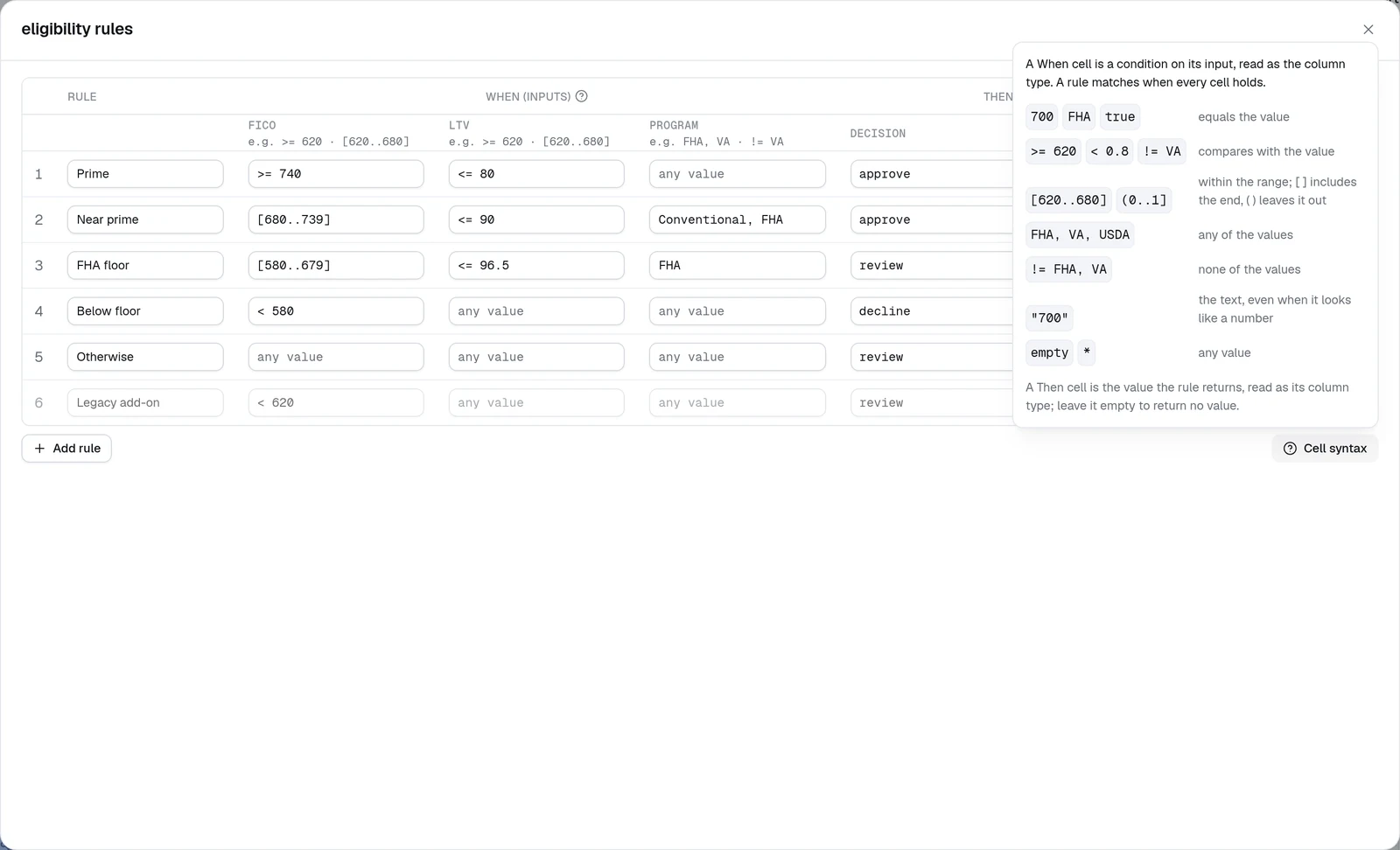
A When cell is a condition on its input, read as the column type. A rule matches when every cell holds. The Cell syntax button under the grid opens the same reference in the editor.
| Cell | Meaning |
|---|---|
empty, * | any value |
700, FHA, true | equals the value |
>= 620, < 0.8, != VA | compares with the value |
[620..680], (0..1] | within the range; [ ] include the end, ( ) leave it out |
FHA, VA, USDA | any of the values |
!= FHA, VA | none of the values |
"700" | the text 700, even though it looks like a number |
A Then cell is the value the rule returns, read as its column type; leave it empty to return no value.
The grid validates as you type, by column type: a range in a String column, a non-number in a Number column, or anything but true / false in a Boolean column is outlined and its message names the problem. A number may be written in exponent form, 1E-05, which is how a spreadsheet exports a small value, so a sheet imported as CSV keeps such a cell. What the editor accepts, the runtime accepts — a cell the runtime would refuse when it builds the table is flagged here first. Inside a list, a quote opens an alternative only at its start, so O'Brien, Smith is two names.
How inputs are matched
Each input is read as its column type before the rules run. A Number input accepts numbers and numeric text; a Boolean input accepts true / false; a String input turns numbers and booleans into text. A value the column cannot read — or one that is missing — matches only a cell that accepts any value, one left empty or holding *: it never satisfies a condition, not even !=, so a missing input cannot slip through a negative rule, while a catch-all row still catches it. A boolean never equals a number.
When nothing matches, every output is empty (null) and matched_rules is an empty list; under All matching rules a Count of matches is 0 and a List of values is []. A Sum, Minimum or Maximum is null as well when the rules that matched all left the column empty, while matched_rules still lists them, so a scorecard whose matching rows carry no points needs the same (points or 0) guard downstream as a run with no match.
Import and export rules as CSV
Export CSV downloads the table with one header row — Rule, Enabled, then the input columns, then the output columns — and one row per rule, which is the natural format for review in a spreadsheet. Import CSV reads a sheet in that layout back, or any sheet whose header names the table's columns in any order; a Rule name column and an Enabled column (false, 0, no or off switch a rule off) are optional. A column the sheet lacks or repeats is refused rather than guessed, and importing into a table that already has rules asks before replacing them. Imports are capped at 10 MB and 5000 rules.
Coverage from test cases
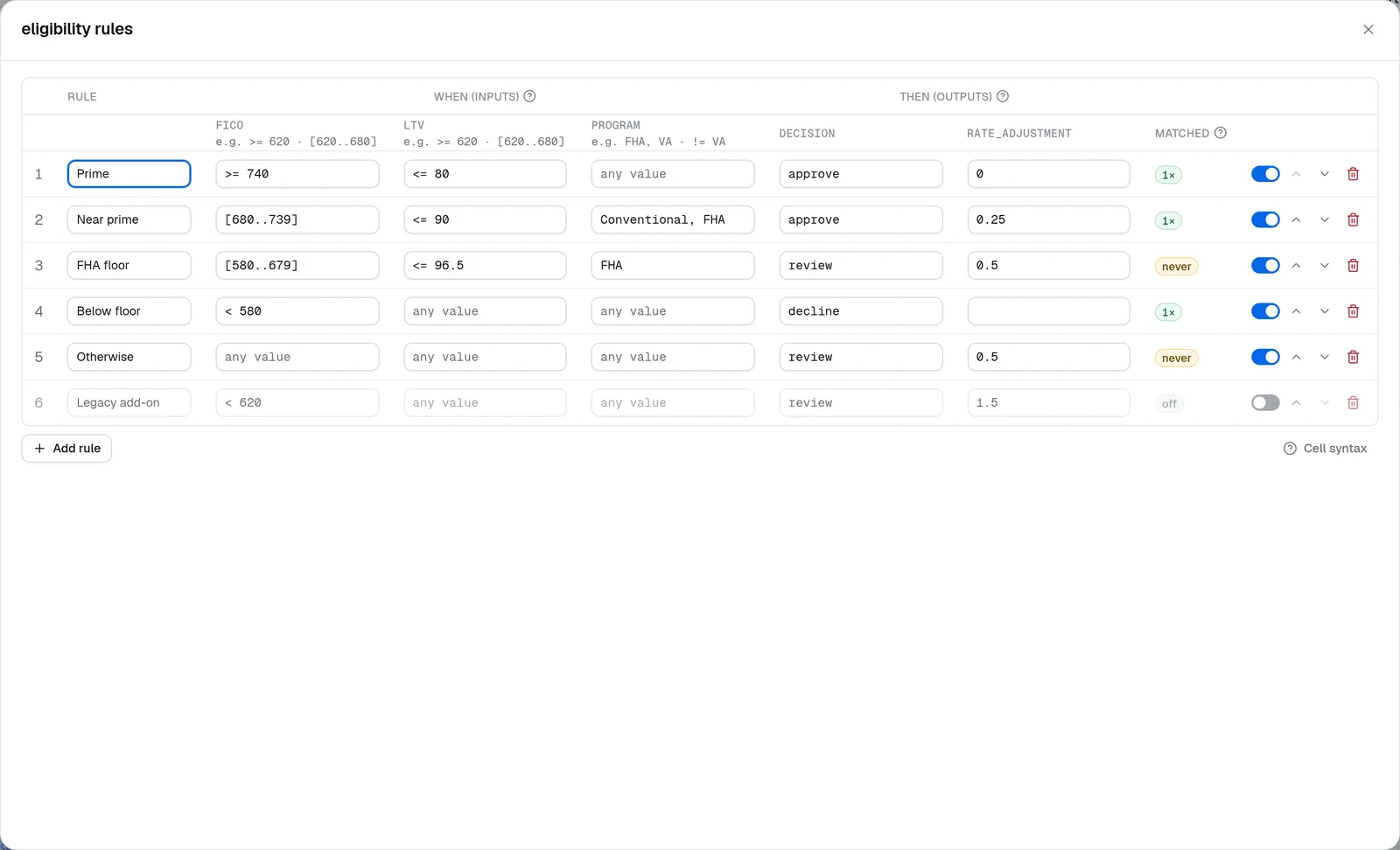
After the workflow's test cases run, the grid gains a Matched column showing how many times each rule fired across the run — 3×, never, or off for a switched-off rule — and the panel summarises it: Test cases matched 3 of 5 rules in their last run. Both numbers count the rules that are on: a switched-off rule is in neither, so the six-rule table below reads 3 of 5. A rule that never matches is either dead or untested; either way it deserves a case.
Worked example: loan eligibility
Inputs fico (Number), ltv (Number) and program (String) from the Input node; outputs decision (String) and rate_adjustment (Number); First matching rule:
| # | Rule | fico | ltv | program | decision | rate_adjustment |
|---|---|---|---|---|---|---|
| 1 | Prime | >= 740 | <= 80 | approve | 0 | |
| 2 | Near prime | [680..739] | <= 90 | Conventional, FHA | approve | 0.25 |
| 3 | FHA floor | [580..679] | <= 96.5 | FHA | review | 0.5 |
| 4 | Below floor | < 580 | decline | |||
| 5 | Otherwise | review | 0.5 |
An application with fico 700, ltv 85 and program FHA matches rule 2 and returns {"decision": "approve", "rate_adjustment": 0.25, "matched_rules": [{"id": "…", "name": "Near prime"}]}. Rule 5 is the catch-all, so it sits last; put it first and nothing below it ever runs.
Runtime and SDK
The node is dynamiq.nodes.operators.DecisionTable. The editor validates every cell against its column type and blocks Save and Test on a malformed one, naming the rule and the column; the runtime compiles the rules when the workflow is built and refuses the same cells and a column name used twice, so a bad table never fails in the middle of a run; a run coerces each input once and evaluates the rows in order, so tables of thousands of rules cost milliseconds. The Error handling tab applies as on any node: with Return, a failing table — an overlap under At most one matching rule — fails alone and the nodes after it still run. The SDK class, the cell grammar and the YAML form are documented in Decision Table.
Pitfalls
Choice Node
Branch a workflow deterministically — condition rules, operators, AND/OR groups, one labeled output per branch, and the default else branch.
Rules Node
Check a record against a list of rules — inputs read by path, derived values, severities, conditions and effective windows, messages that insert the record's values, CSV import and export, and findings in test cases.