Human in the Loop
Pause a running workflow for human input — the Human Feedback tool, per-node execution approval, and how replies resume the run.
Some steps shouldn't run unattended: sending an email, executing SQL against production, committing a refund. Dynamiq gives you two human-in-the-loop mechanisms — a Human Feedback tool the agent calls when it needs a person, and execution approval you switch on per node so a person must sign off before the node runs. Both pause the run, surface a prompt over your streaming connection, and resume the moment a reply arrives.
| Mechanism | Who initiates | Typical use |
|---|---|---|
| Human Feedback tool | The agent, when it decides it needs input | Clarifying questions, confirmations, progress updates |
| Execution approval on a node | The platform, every time the node is about to run | Approval gates before irreversible actions |
The Human Feedback tool
The Human Feedback tool is a regular agent tool. Once attached, the agent can take two actions with it:
| Action | Behavior |
|---|---|
ask | Sends a question and waits — the run pauses until the user replies; the reply text becomes the tool's observation |
info | Sends a status message and continues immediately — no reply expected |
This single tool covers both directions of communication: gathering approval, confirmation, clarification, or missing information (ask), and pushing progress notifications to the user (info).
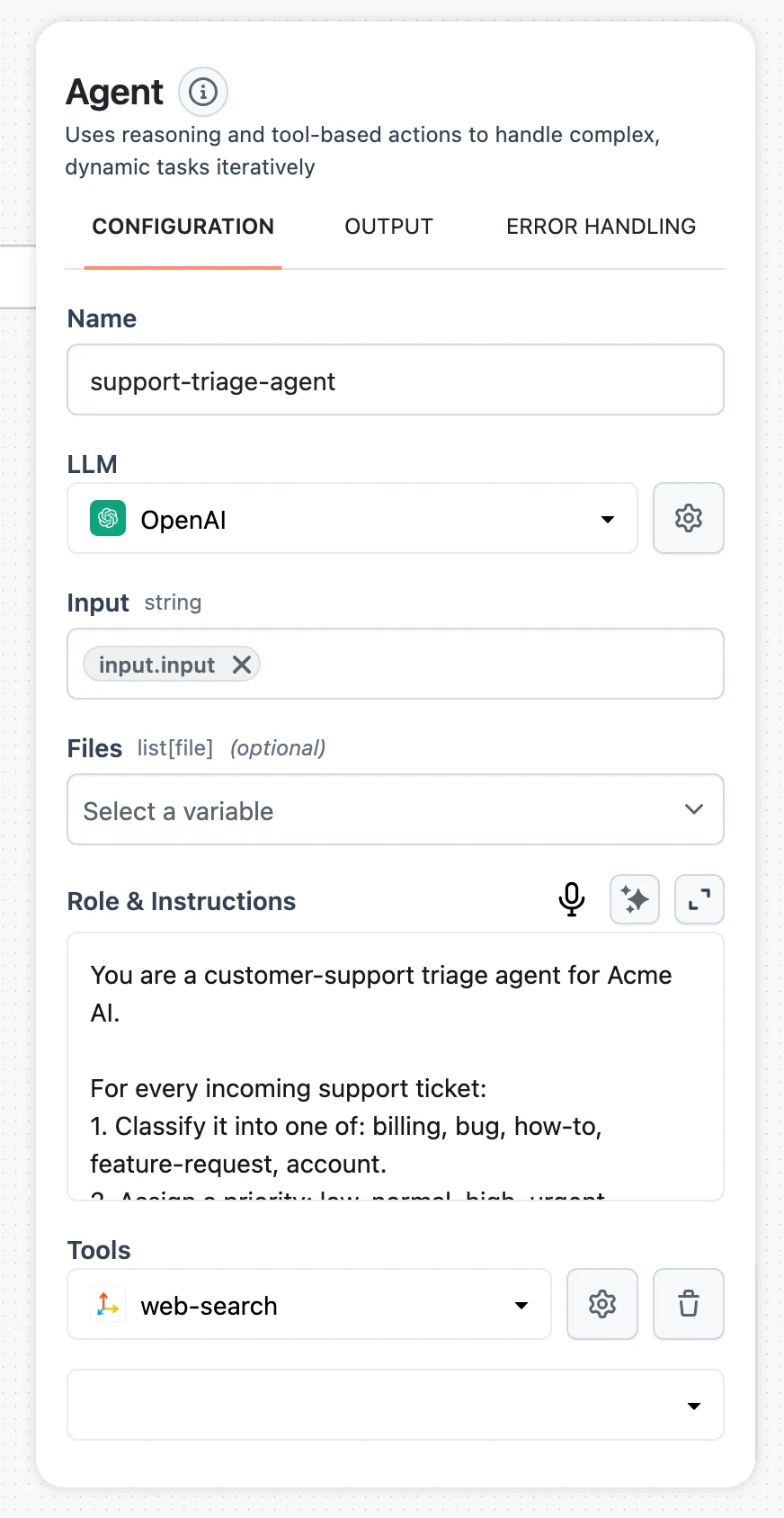
Configure the message template
Click the gear icon to open the tool's configuration:
TemplateJinja templateStreamingtoggleInput timeoutnumber (seconds)Tell the agent when to use it
Mention the tool in the agent's role or instructions — for example: "Before sending any email, confirm the draft with the user via the human feedback tool (action='ask'). Notify the user when the task completes (action='info')." The agent's LLM decides when to call it, so explicit instructions make the behavior deterministic.
Execution approval on a node
Approval gates don't rely on the agent choosing to ask — they intercept a specific node every time it is about to execute. They are available on tool nodes (HTTP API Call, SQL Executor, Python Function, web search and scraping tools, and others) via the Human in the loop section of the node's configuration.
Enable approval
Select the node, expand the Human in the loop accordion, and check Enable execution approval. This also enables streaming on the node so the approval request can reach your client.
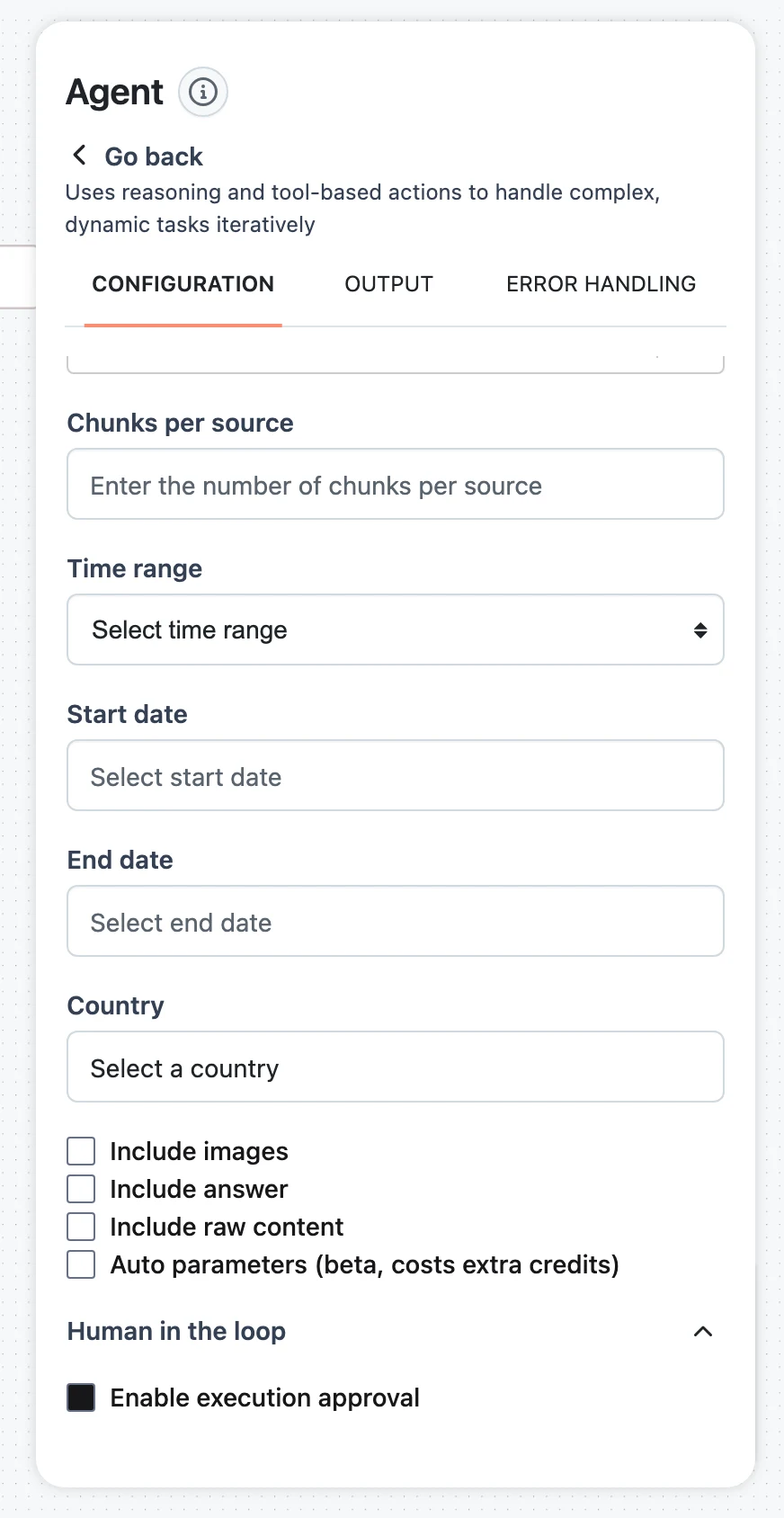
Customize the approval message
The Approval message is a Jinja template rendered with the node's input data, so the reviewer sees exactly what is about to run. The default is:
Node {{name}}: Approve or cancel execution. Send nothing for approval; provide feedback to cancel.For an email-sending node you might use: Email draft: {{input_data.email}}. Send nothing to approve; provide feedback to cancel and regenerate.
Optionally allow edits with Mutable params
Mutable params lists the node input fields the reviewer is allowed to change when approving — for example letting them correct the body of an HTTP call while everything else stays locked. Fields not in the list cannot be modified by the reply.
When the node is reached, the run emits an approval request and waits. The reviewer can:
- Approve — execution proceeds, optionally with edited values for the mutable params.
- Reject with feedback — the node does not execute; the feedback text flows back into the run (an agent sees it as the observation and can revise its plan).
plan_approval instead of approval).How a paused run resumes
Both mechanisms follow the same lifecycle on a deployed App:
- The run pauses at the Human Feedback
askcall or the approval gate. - An event is emitted on your open connection. Over a WebSocket, approval requests arrive with
"event": "approval"and the rendered message indata.template; over the Runs API event stream you receiveagent.human_feedback.requestedorapproval_request.createdwith a request id. - You reply on the same channel — send the event back with your feedback over the WebSocket, or
POST /v1/runs/{run_id}/inputwith the request id. The run resumes immediately and the stream continues. - If no reply arrives within the node's Input timeout, the run checkpoints and pauses (
run.paused). It is listed underGET /v1/runs?status=awaiting_inputwith its pendinginput_requests, and resumes whenever the input POST finally arrives — minutes or days later.
The Runs API input payload distinguishes the three reply kinds: human_feedback (with feedback), approval_request.confirmed (optionally with edited data), and approval_request.rejected (with feedback).
How pauses persist
The pause in step 4 is durable because the run's state is checkpointed. When the input wait times out, Dynamiq snapshots the run — completed steps and the agent's loop progress — to storage and marks the run paused; the pending request is tracked on the run and surfaced under GET /v1/runs?status=awaiting_input. The process handling the request can exit in the meantime. Delivering the reply with POST /v1/runs/{run_id}/input resumes the run from that checkpoint, which is why a paused run that never captured one returns 400 ("No checkpoint available to resume from"). The same snapshot-and-resume mechanism is available in code — see Checkpoints for how input-timeout checkpointing works in the SDK, with a complete worked example of an approval that survives a process exit.
Full transport details — WebSocket client code, the typed event stream, reconnecting, and the input endpoint contract — are covered in Streaming & Async Jobs and The Runs API. The Integration tab of your App page generates ready-to-run human-feedback snippets prefilled with your hostname.
Patterns
- Approval gate before irreversible actions. Enable execution approval on the one node that touches the outside world (send email, write to DB, call a payment API). The agent plans and drafts freely; nothing ships without sign-off. Put the draft into the approval message template so the reviewer sees the exact payload.
- Clarifying questions. Attach Human Feedback and instruct the agent to
askwhenever the request is ambiguous instead of guessing. This converts hallucinated assumptions into one extra round trip. - Confirm-then-execute. Combine both: the agent uses Human Feedback
askto confirm intent early ("You want me to cancel all 3 subscriptions — correct?"), and an approval gate still protects the final action. - Progress updates on long runs. Have the agent send
infomessages at milestones so users watching a chat UI see movement during multi-minute runs — no pause involved. - Escalation from guardrails. Route inputs flagged by a detector to a human review branch rather than a flat refusal.
SDK example
With the Python SDK you can run the whole loop locally using the console as the feedback channel — the same workflow deployed as an App switches to streaming methods without code changes to the agent logic:
import os

from dynamiq.connections import OpenAI as OpenAIConnection
from dynamiq.nodes.agents import Agent
from dynamiq.nodes.llms import OpenAI
from dynamiq.nodes.tools.human_feedback import HumanFeedbackTool
from dynamiq.nodes.tools.python import Python
from dynamiq.types.feedback import ApprovalConfig, FeedbackMethod

SEND_EMAIL_CODE = """
def run(inputs):
    return {"content": "Email was sent."}
"""

# A tool guarded by an approval gate: the user must approve before it executes.
email_sender = Python(
    name="EmailSenderTool",
    description="Sends an email. Put the full email text under the 'email' key.",
    code=SEND_EMAIL_CODE,
    approval=ApprovalConfig(
        enabled=True,
        feedback_method=FeedbackMethod.CONSOLE,
        msg_template=(
            "Email draft: {{input_data.email}}\n"
            "Send nothing to approve; provide feedback to cancel and regenerate."
        ),
    ),
)

# A tool the agent can use to ask questions or send status updates.
human_feedback = HumanFeedbackTool(
    name="human-feedback",
    description="Tool for human interaction. Use action='ask' to request clarifications, "
    "action='info' to notify the user.",
    input_method=FeedbackMethod.CONSOLE,
    output_method=FeedbackMethod.CONSOLE,
)

agent = Agent(
    name="email-agent",
    role=(
        "You write and send emails. Ask clarifying questions with the human-feedback tool "
        "(action='ask') when the request is ambiguous, and notify the user about the result "
        "(action='info')."
    ),
    llm=OpenAI(
        connection=OpenAIConnection(api_key=os.getenv("OPENAI_API_KEY")),
        model="gpt-4o",
    ),
    tools=[email_sender, human_feedback],
)

result = agent.run(
    input_data={"input": "Write and send a short email to the team about Friday's release."}
)
print(result.output.get("content"))
Running this, the agent drafts the email, the console shows the approval prompt rendered from msg_template, and pressing Enter (sending nothing) approves execution. On the platform the equivalent configuration uses FeedbackMethod.STREAM, and the prompts travel over the WebSocket or Runs API connections described above.
Next steps
Guardrails & Validators
Screen workflow inputs with PII, prompt-injection, and LlamaGuard detectors, and validate outputs with JSON, Python, choices, and regex validators.
Overview
What you can deploy on Dynamiq — workflow Apps, AI models, vector databases, and services — and how the deployment lifecycle works.