Build a Search Assistant
Build an assistant that searches the web and answers with cited sources — as a single agent, a manager-and-specialists team, or a deterministic pipeline.
This tutorial builds one assistant: you ask it a question, it searches the web, and it answers with cited sources. You will build it three ways, each trading a little autonomy for a little more control:
- A single agent with a search tool — one Agent node that decides when to search and how to answer. This is the recommended default.
- A manager and specialists — a Graph Agent Orchestrator that splits the work between a Searcher agent and a Writer agent, for when the answer's structure matters.
- A deterministic pipeline — an LLM to rephrase, a search node, and an LLM to write, wired together with input mappings, for when you want every request to run the exact same steps.
Reach for the single agent first; move to the orchestrator when you need a clean separation between finding facts and writing them up, and to the pipeline when you want fixed cost and no LLM deciding the control flow. The full decision guide is at the end of this page.
Each pattern uses web search with Tavily as the search tool; the same steps work with Exa, ScaleSerp, or Firecrawl by swapping the node and its Connection.
Pattern 1 — Single agent with a search tool
The whole assistant is three nodes: Input → Agent → Output. The Agent node runs a reasoning loop — it reads the question, calls the search tool, reads the results, and decides whether to search again or answer. You describe the behavior you want in the agent's role; the loop does the rest.
Create the workflow and wire Input to Output
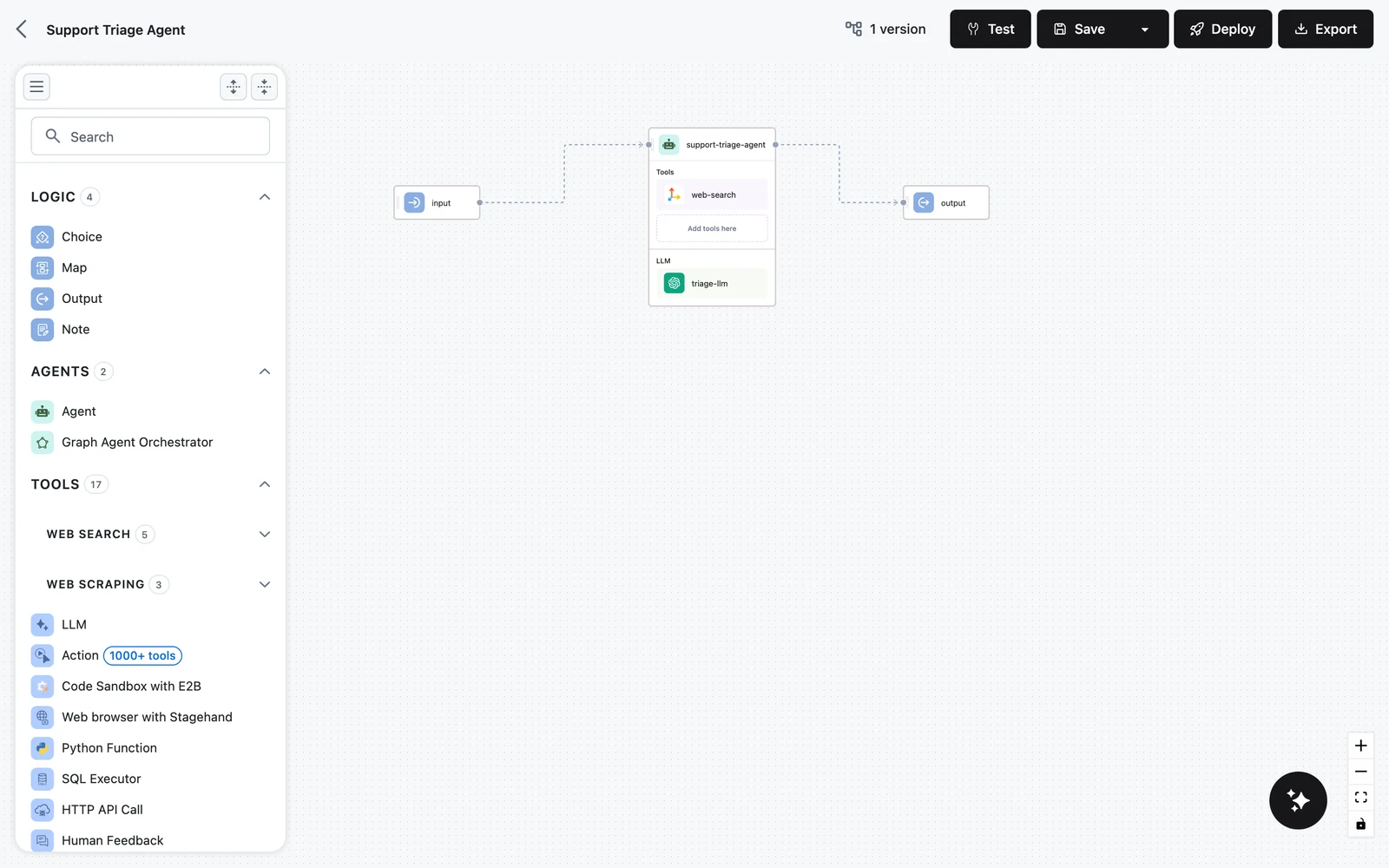
Create a new workflow. Drag an Agent node onto the canvas between the Input and Output nodes, and connect Input → Agent → Output. On the Input node, add a single input field named question — that is what callers send.
Pick the agent's model
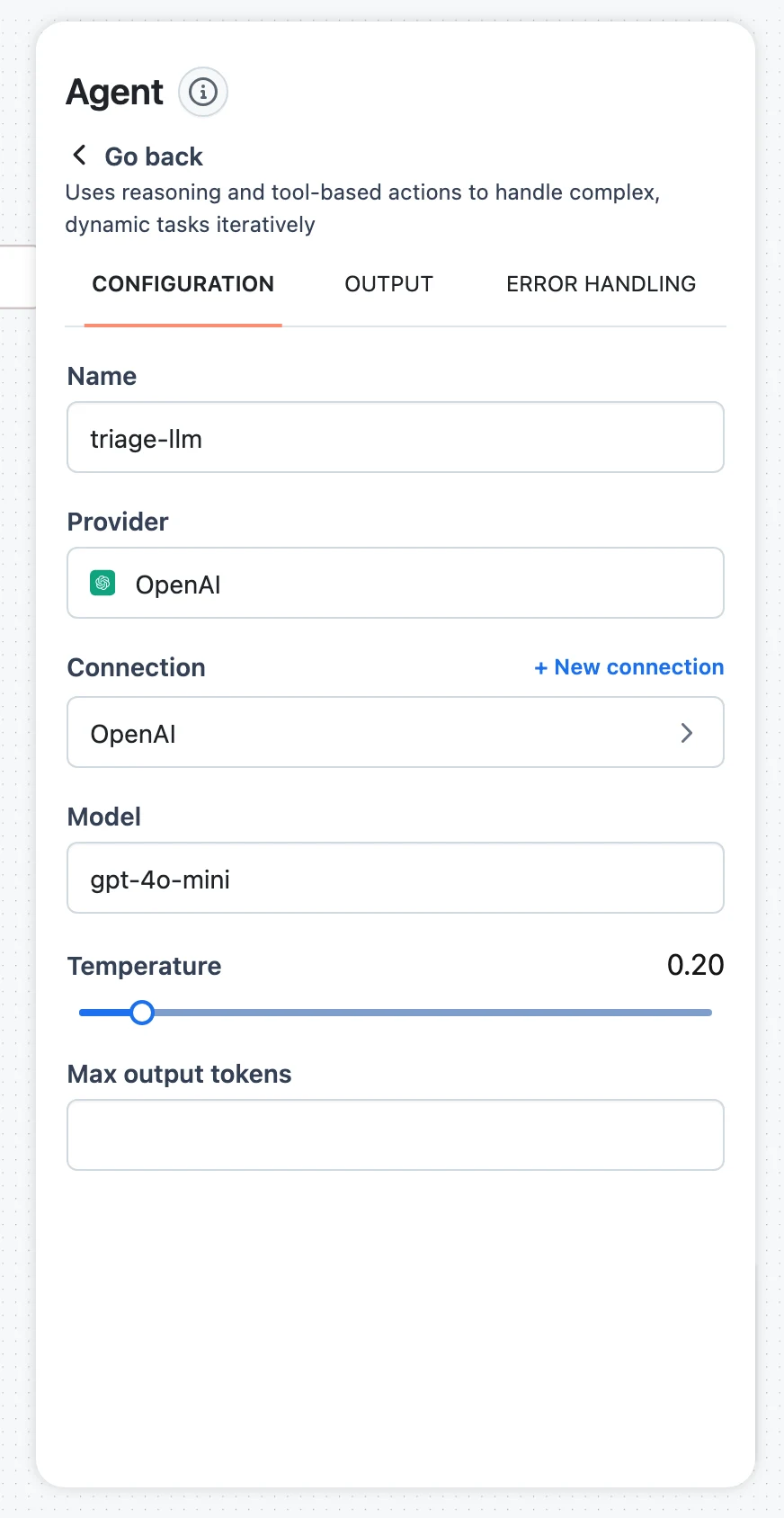
Select the Agent node and choose a model under LLM. Any LLM provider available in your project works — use your default LLM connection; the gear icon next to the selector opens the model's own settings if you want to adjust temperature or the connection. See The Agent Node for the full configuration reference.
Attach a web-search tool
In the Agent panel's Tools section, click Add tool and pick Web search with Tavily from the catalog.
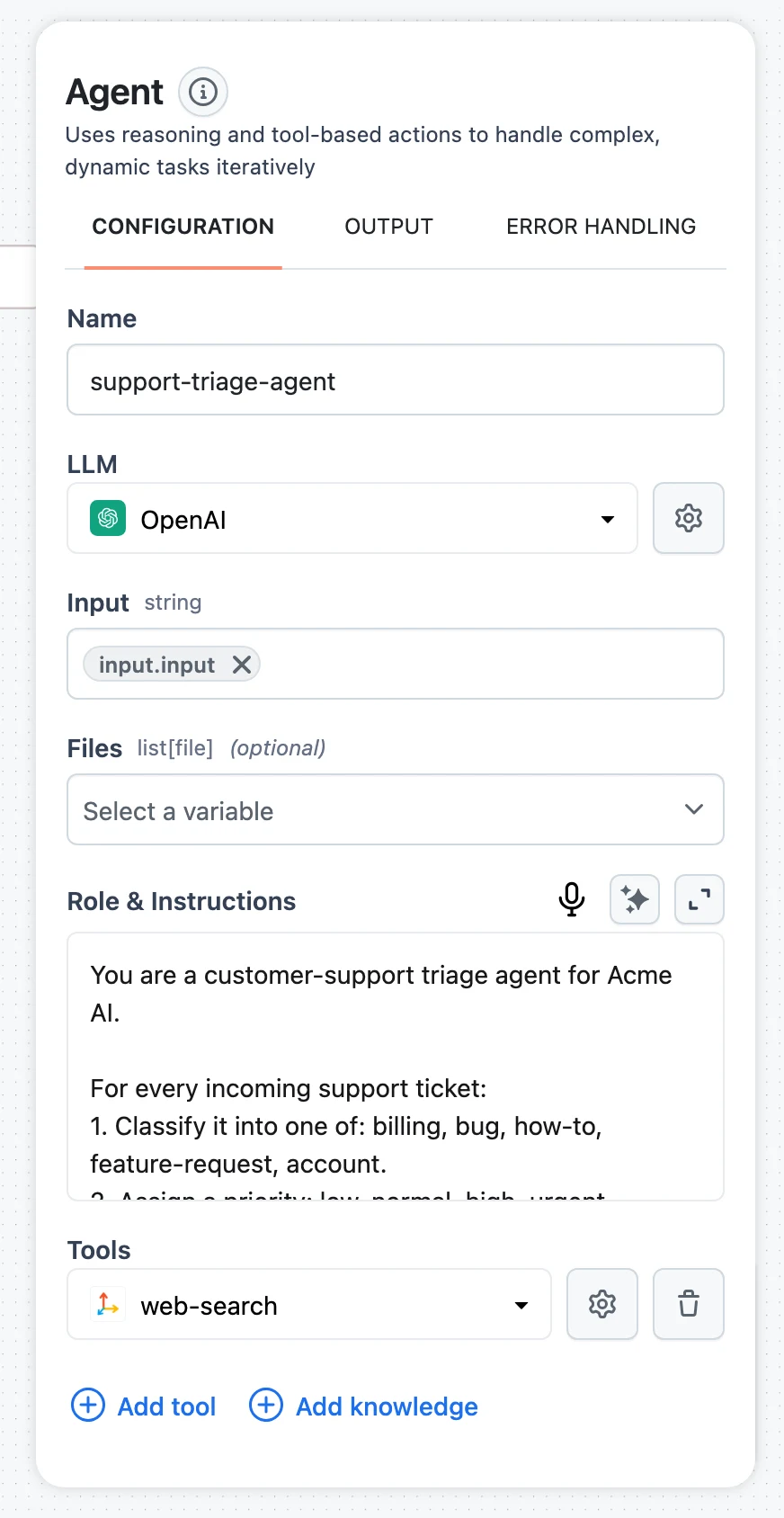
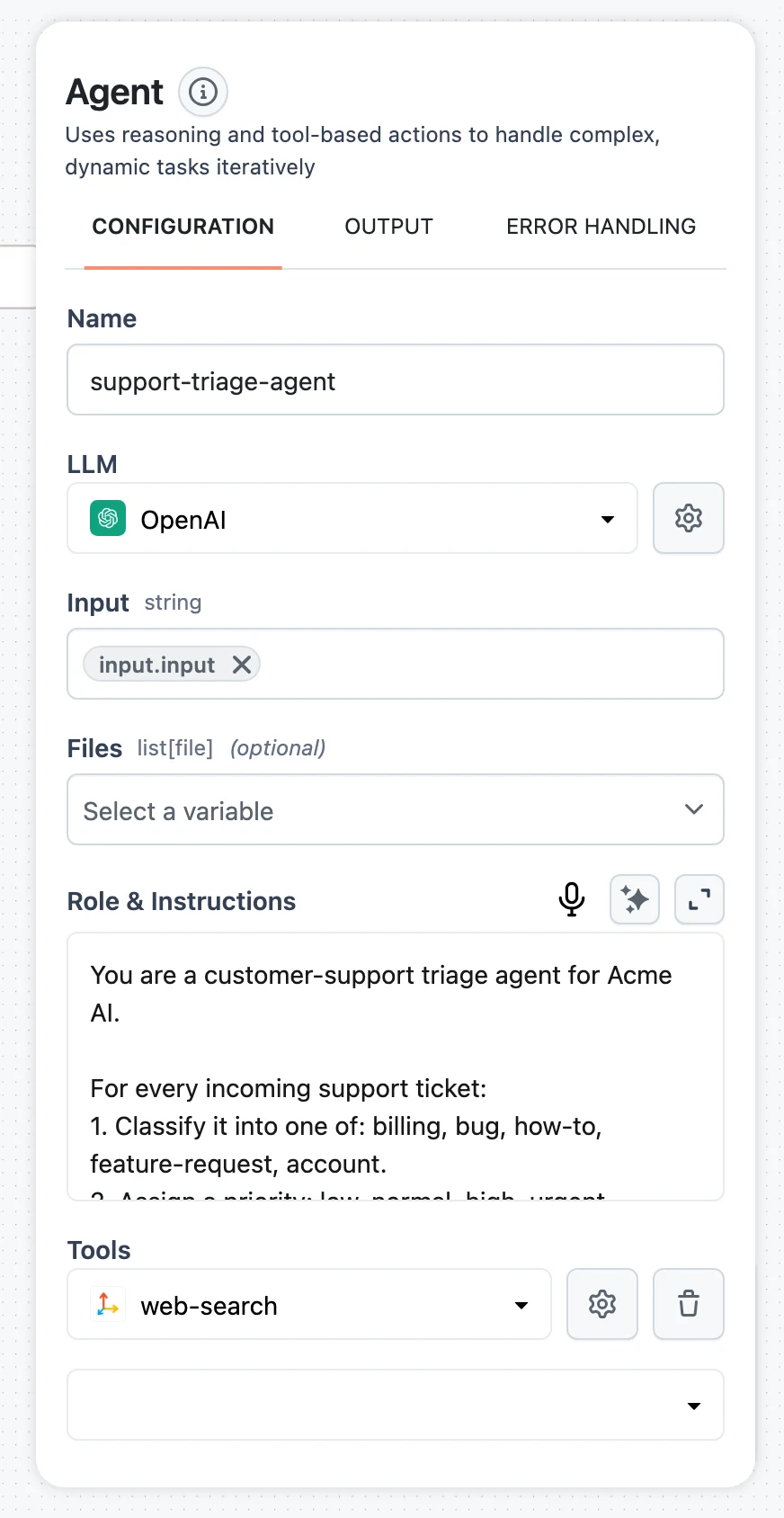
The tool attaches as a child node under the agent. To use a different provider, choose Web search with Exa, Web search with ScaleSerp, or Web search with Firecrawl instead — each has its own node reference and Connection type.
Create the Tavily Connection
Click the gear icon on the attached tool to set its Connection. Create a new Tavily Connection (it needs only an api_key) or pick an existing one — the full flow is in Create a Connection. The tool cannot run until it points at an active Connection.
Give the agent its role
In Role & Instructions, paste a role that tells the agent to refine the query, search, and cite its sources:
You are a web research assistant. For every question:

1. Refine the request into one or two precise search queries before searching.
2. Use the web search tool to gather current information. Search again with
   different terms if the first results are thin or off-topic.
3. Answer only from what the search results support. If the results do not
   answer the question, say so plainly instead of guessing.
4. Write a concise, direct answer, then a "Sources" list with the title and URL
   of every page you relied on. Cite each claim inline with a bracketed number
   that maps to that list.
The role field accepts Jinja, so you can inject workflow inputs into it later — see Prompts, Roles & Inference Modes.
Test it
Open the Test panel, enter a question that needs current information, and run it.
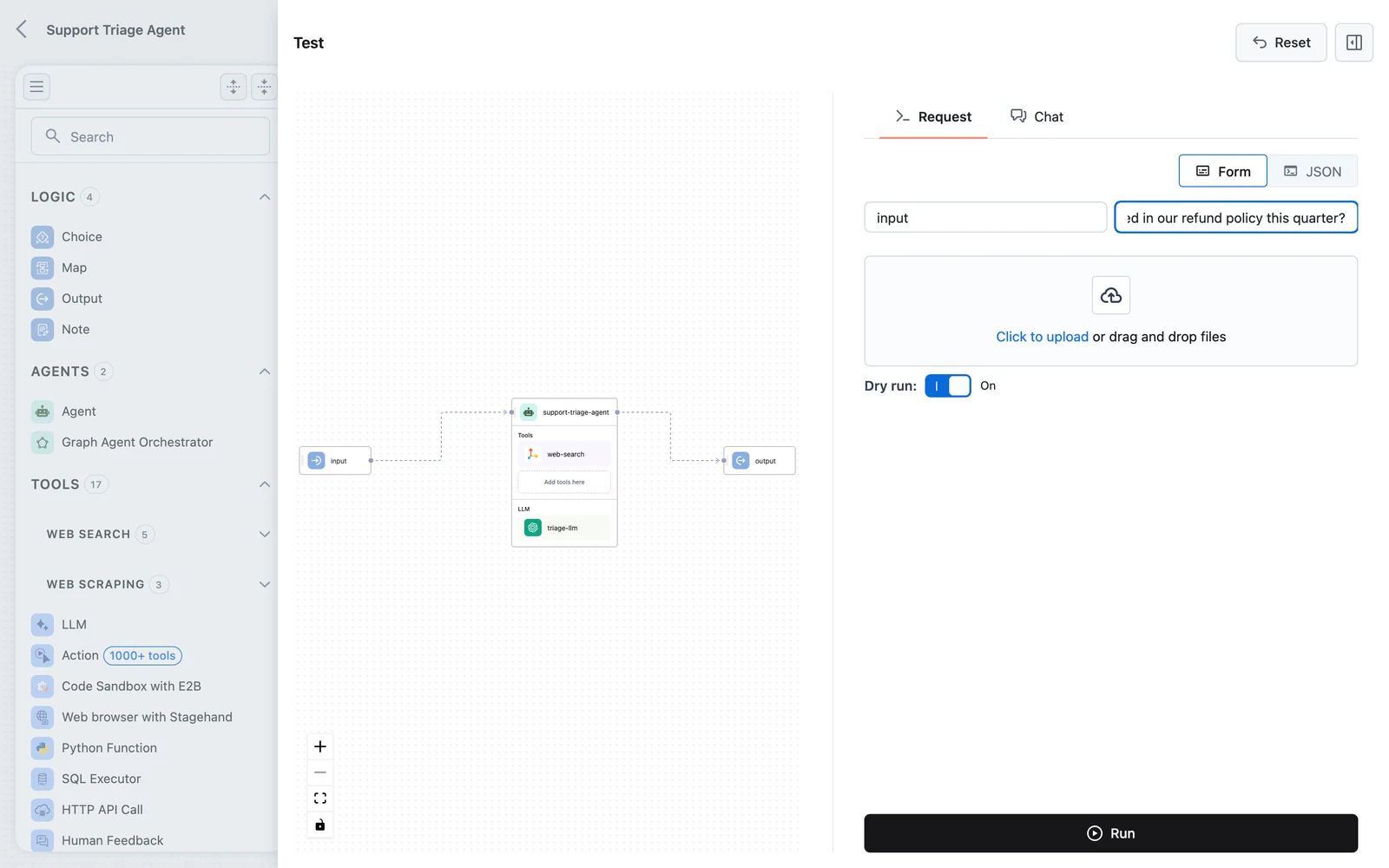
Watch the result: the agent should search, then return a cited answer. Open the trace to see each search query and the results the agent read — if it answered without searching or cited nothing, tighten the role.
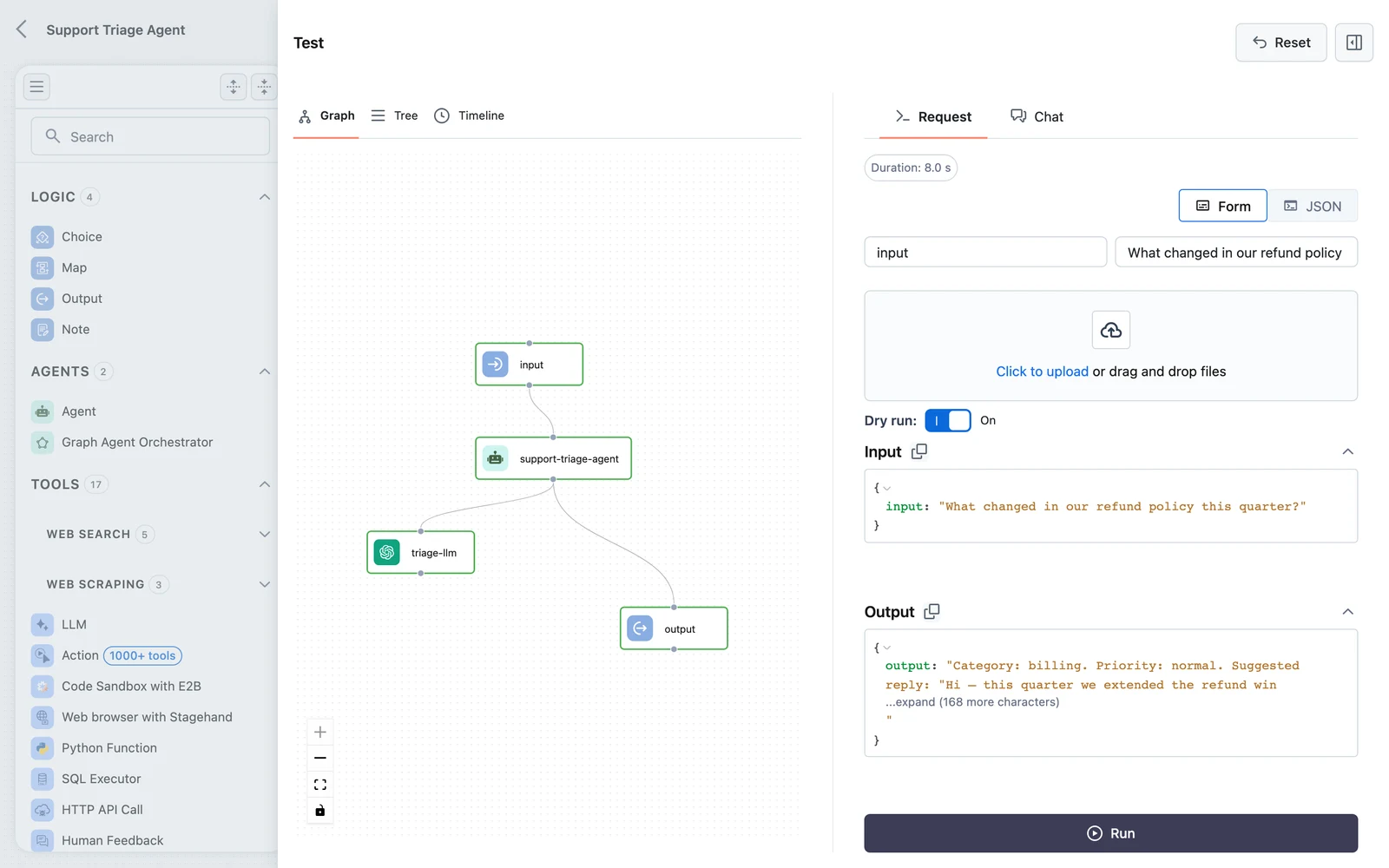
That is a complete, working search assistant. Deploy it as-is, or read on for when the other two patterns pay off.
Pattern 2 — Manager and specialists
When the answer's quality and structure matter, separate finding facts from writing them up. A manager coordinates two focused agents: a Searcher that only gathers sourced facts, and a Writer that only turns those facts into a structured answer. Because each agent has one job and a short role, both are easier to tune than a single do-everything agent.
You build this on Dynamiq with the Graph Agent Orchestrator — the orchestrator in the node palette. You model the team as two states the orchestrator runs in order, with a Manager LLM generating each agent's input:
Input ─▶ Graph Agent Orchestrator ─▶ Output
             START ─▶ search ─▶ write ─▶ END
                       │          │
                   Searcher     Writer
                  (web search)  (no tools)
Add the orchestrator and its Manager LLM
Drag Graph Agent Orchestrator from the AGENTS section of the palette onto the canvas, between Input and Output. Drop an LLM node onto its Add LLM here placeholder to set the Manager LLM — a fast, inexpensive model is right here, since the manager only makes small routing and input-shaping decisions.
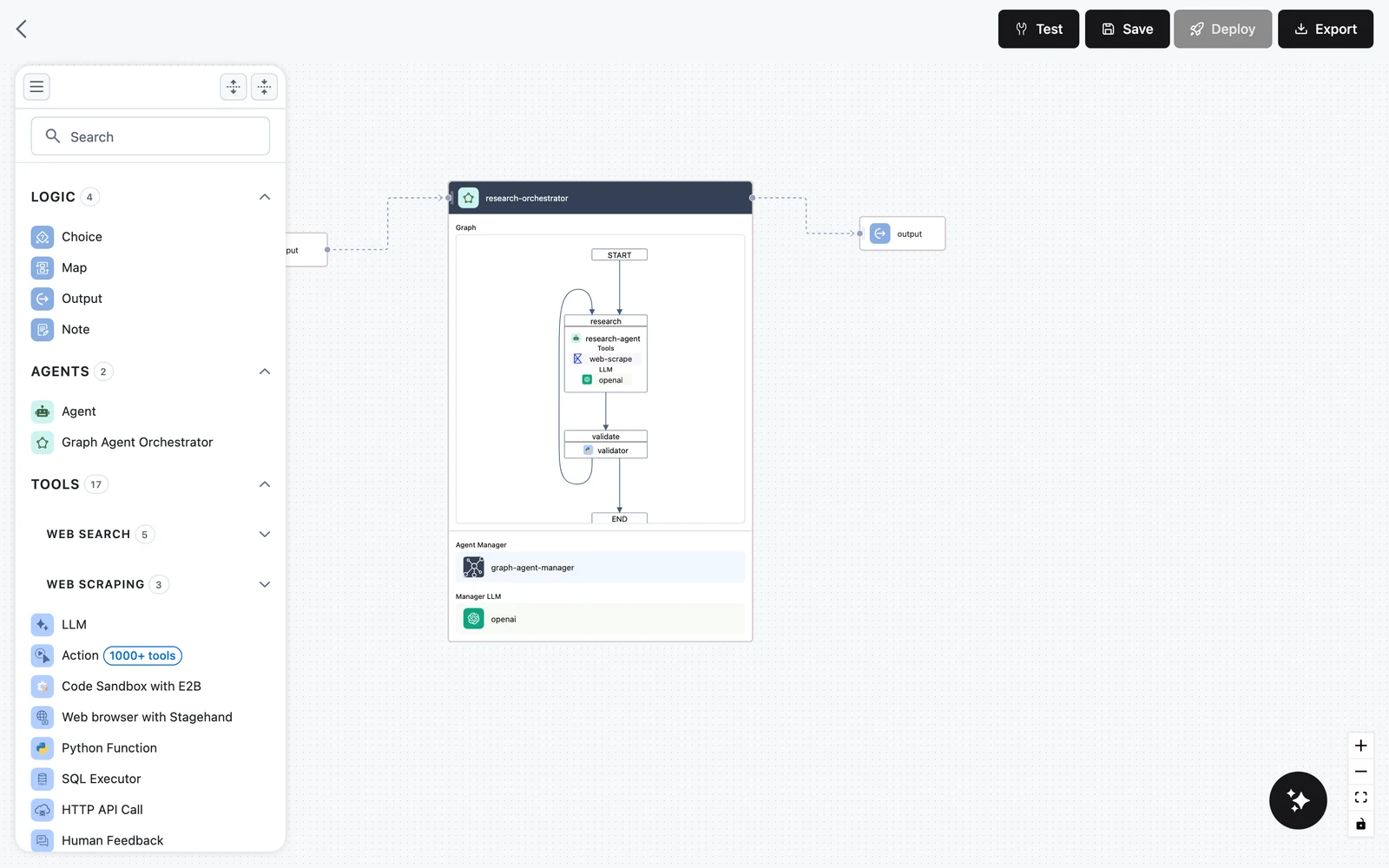
(The screenshot shows the graph-researcher template's research and validate states; yours will be named search and write.)
Create the search and write states
Open the orchestrator's panel and add two states under Nodes, renaming them search and write. Give each an Agent task under its Tasks section.
In search, attach Web search with Tavily to the agent (as in Pattern 1) and give it a researcher role:
You are the researcher on a two-agent team. Given a question, produce the raw
material another agent will write from.

1. Break the question into the specific facts you need to find.
2. Use the web search tool to gather them, searching multiple times with
   different queries until you have enough.
3. Return your findings as bullet points. After each fact, include the source
   title and URL it came from. Do not write prose or a final answer — that is
   the writer's job.
In write, the agent has no tools; it works only from the researcher's notes:
You are the writer on a two-agent team. You receive research notes with sources
and turn them into the final answer. You have no tools — work only from the
notes you are given.

Produce:
- A two to three sentence summary that answers the question directly.
- A short section of supporting detail, with each claim cited inline as a
  bracketed number.
- A "Sources" list mapping each number to its title and URL.

If the notes do not support an answer, say what is missing rather than inventing
detail.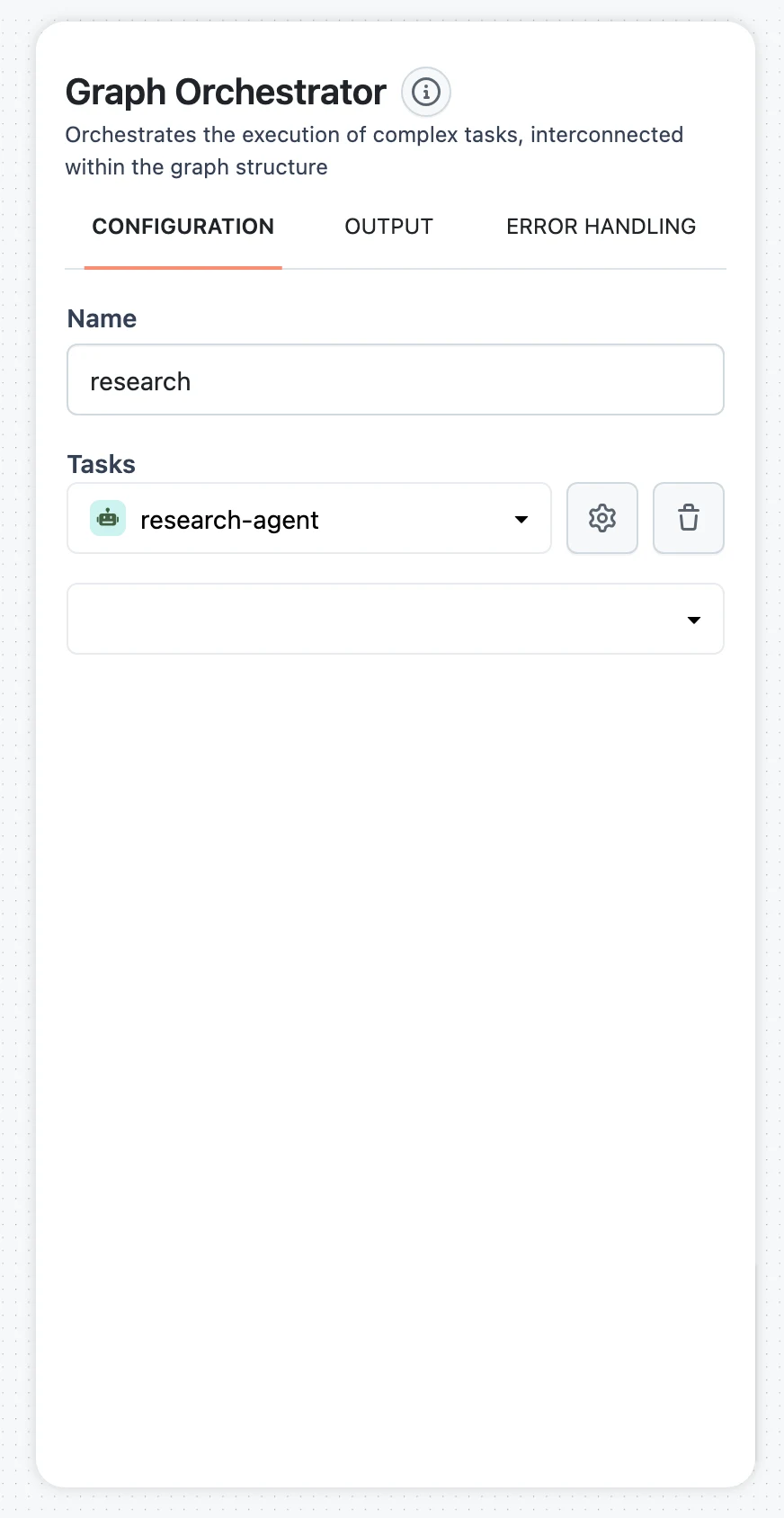
Wire the states and test
In the orchestrator's Edges section, replace the default START → END edge so the flow is START → search, search → write, write → END. Connect Input → orchestrator → Output, map the orchestrator's Input to $.input.output.question, and run it from the Test panel. The orchestrator returns the writer's final message as its content output.
This is deliberately tighter than the full Graph Orchestrator tutorial, which adds conditional edges and loops — reach for those when the team needs to iterate (for example, a reviewer that sends thin research back to the searcher). For the trade-offs between this and a single agent, see the Orchestration overview.
Pattern 3 — Deterministic pipeline
When you want maximum control and predictable cost, take the LLM out of the driver's seat entirely. Instead of an agent deciding when to search, wire a fixed sequence: one LLM node rephrases the question into a search query, a Web search node runs exactly once, and a second LLM node writes the answer from the results. Every request runs the same three steps.
Input ─▶ Rephrase (LLM) ─▶ Web search (Tavily) ─▶ Answer (LLM) ─▶ Output
          query only          content.result         cited answer
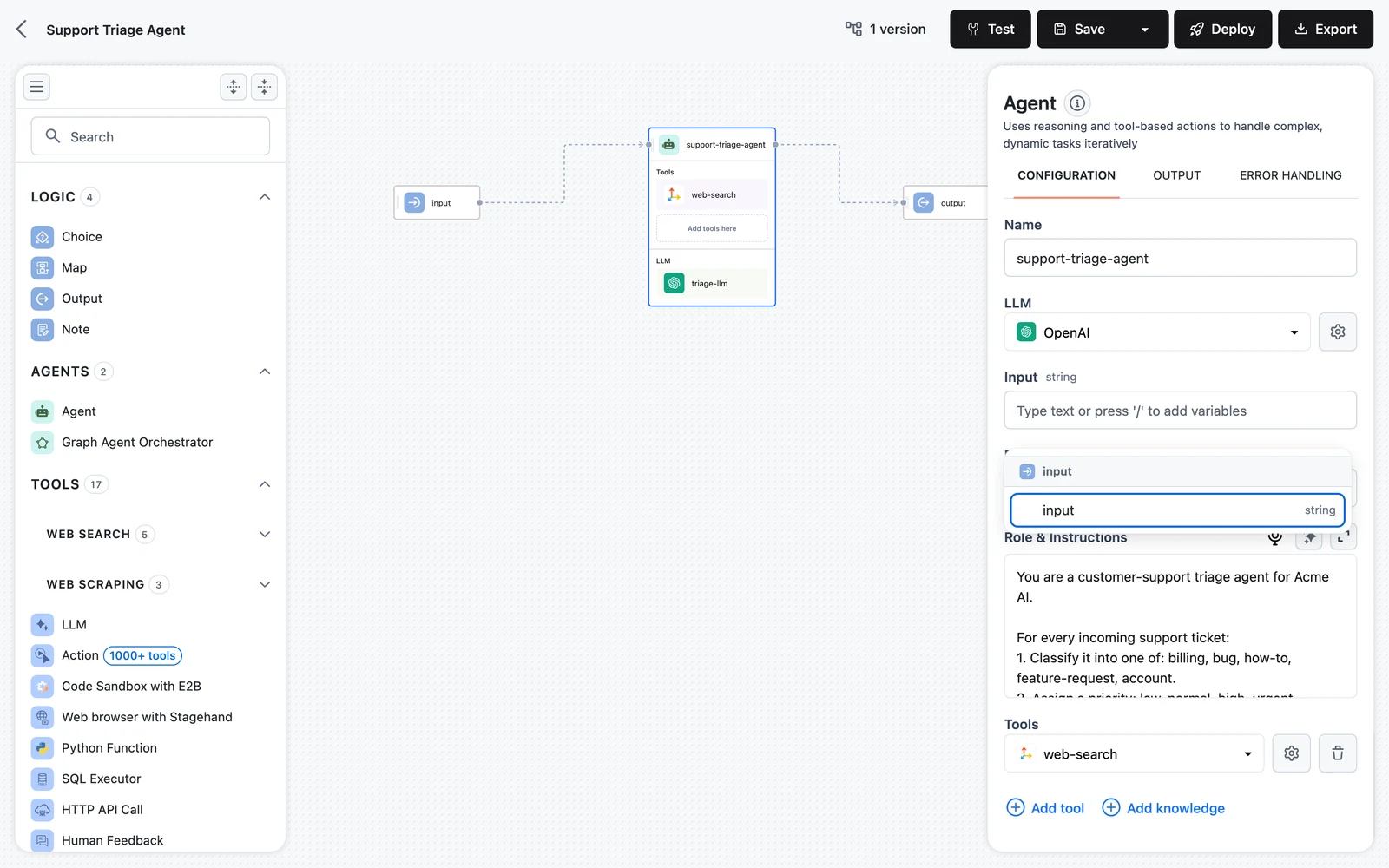
The nodes are connected by input mappings: each node reads specific values out of the upstream results with a JSONPath selector of the form $.<node-name>.output.<key>, and prompt text pulls those values in with Jinja {{ variable }} placeholders. Press / in any input field to insert a selector from the variable picker.
Rephrase the question
As in Pattern 1, the Input node has a single field named question. Add an LLM node after Input, and rename it rephrase (selectors bind by node name, so name it before mapping anything downstream). Give it a prompt that emits only a search query:
Rewrite the user's question as a single, focused web-search query. Return only
the query text, with no quotation marks or commentary.

Question: {{ question }}
The {{ question }} placeholder becomes an input field — map it to $.input.output.question.
Search with the rephrased query
Add a Web search with Tavily node after the rephrase node, rename it websearch, and set its Tavily Connection as in Pattern 1. Map its Query input to the rephraser's output:
$.rephrase.output.contentWrite the cited answer
Add a second LLM node — the writer — after the websearch node. Its prompt takes the question and the search results:
Answer the question using only the search results below. Cite each claim inline
with a bracketed number, and end with a "Sources" list mapping each number to
its title and URL. If the results do not answer the question, say so.

Question: {{ question }}

Search results:
{{ results }}
Map the two placeholders:
| Placeholder | Selector | What it binds |
|---|---|---|
question | $.input.output.question | The original question from the Input node |
results | $.websearch.output.content.result | The search tool's result text |
Connect the writer to Output, then test. Because there is no agent loop, a typo in a selector fails quietly — a mapped field that finds no match resolves to null. If an answer comes back empty, open the trace and check each node's resolved input against How nodes connect and the selector rules.
Which pattern should you use?
| Pattern | Best for | Trade-off |
|---|---|---|
| Single agent with a search tool | Most assistants — one agent that decides when and how to search | Output shape and search discipline live in the role prompt; the agent controls the loop |
| Manager and specialists (Graph Agent Orchestrator) | When answer structure matters and research and writing should be separate, focused agents | More nodes to configure, and the Manager LLM adds a call per transition |
| Deterministic pipeline (LLM → search → LLM) | Maximum control and predictable cost — every request runs the same fixed steps | No autonomy: it searches exactly once and can't adapt when results are thin |
Deploy your assistant
Any of the three workflows deploys the same way. Save a version and deploy it as an App — the full flow is in Deploy & Call Your Agent. Once deployed, you can put a chat UI in front of it with the hosted assistant page or an embedded widget; see Chat Widget & Assistant.
Next steps
Connect a Knowledge Base to Agents
Ground the assistant in your own documents, not just the open web.
Agent Tools
Add scraping, code execution, and more — and write tool descriptions the agent acts on.
Graph Orchestrator
Add loops and conditional routing when the specialists need to iterate.
Evaluation Runs
Score answer quality on a fixed question set before and after every change.
Use Cases
End-to-end journeys showing how enterprise teams assemble Dynamiq features into production agents — architecture, permissions, deployment, and evaluation.
Customer Support: Triage Agent
Build a support triage agent that answers from a product-docs Knowledge Base, holds multi-turn conversations, escalates to humans, and leaves an audit trail.