MCP Servers
Connect agents to Model Context Protocol servers over SSE or Streamable HTTP — tool discovery, filtering, auth headers, and troubleshooting.
The MCP Server tool node connects an Agent node to any Model Context Protocol server. At run time the node asks the server which tools it offers, turns each one into a regular agent tool with a typed input schema, and routes the agent's calls back to the server. One node can expose a whole toolbox — and you control exactly which tools the agent sees.
Connection types
The platform supports the two remote MCP transports as Connection types:
| Connection type | Transport | Typical endpoint |
|---|---|---|
| MCP Streamable HTTP | Streamable HTTP — the current MCP standard | https://<server>/mcp |
| MCP SSE | Server-Sent Events — the legacy MCP transport | https://<server>/sse |
Pick the one your server documents. Modern servers usually serve Streamable HTTP on /mcp; older servers serve SSE on /sse. Connecting with the wrong transport (or the wrong path) is the most common setup failure — see troubleshooting below.
MCPStdio for spawning a local MCP server as a subprocess. Stdio is SDK-only; deployed Apps connect to MCP servers over SSE or Streamable HTTP.Create an MCP Connection
Add a new Connection
In your project, go to Connections and click Add new connection. In the Type dropdown pick MCP Streamable HTTP (or MCP SSE), and give the Connection a Name.
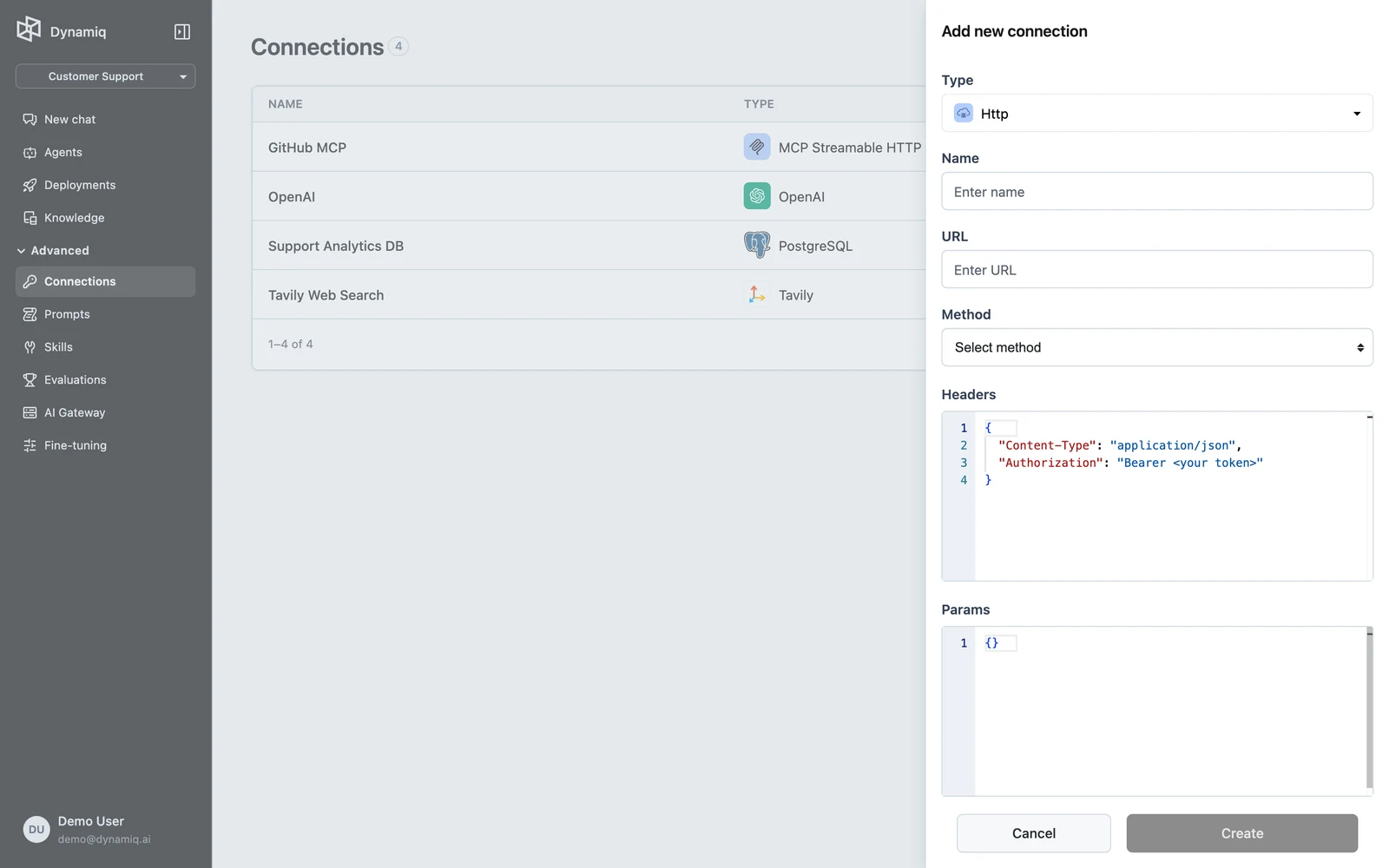
Fill in the server details
URLstringrequiredHeaderskey-value pairsTimeout (seconds)numberSSE read timeout (seconds)numberCreate
Click Create. The Connection is active immediately and can be selected on any MCP Server node in the project.
Auth headers
MCP Connections authenticate with HTTP headers. Add whatever scheme your server expects under Headers — most commonly a bearer token:
| Key | Value |
|---|---|
Authorization | Bearer <your-server-token> |
Some servers use a custom header instead (for example an X-API-Key). The headers are stored on the Connection and sent with every request the node makes — both the initial tool discovery and each tool call.
MCPStdio and a proxy such as npx mcp-remote <server-url>; on the platform, prefer servers that accept token auth.Add the MCP Server tool to an agent
Attach the tool
Select your Agent node, open Tools, click Add tool, and pick MCP Server. The tool appears as a child node of the agent on the canvas.
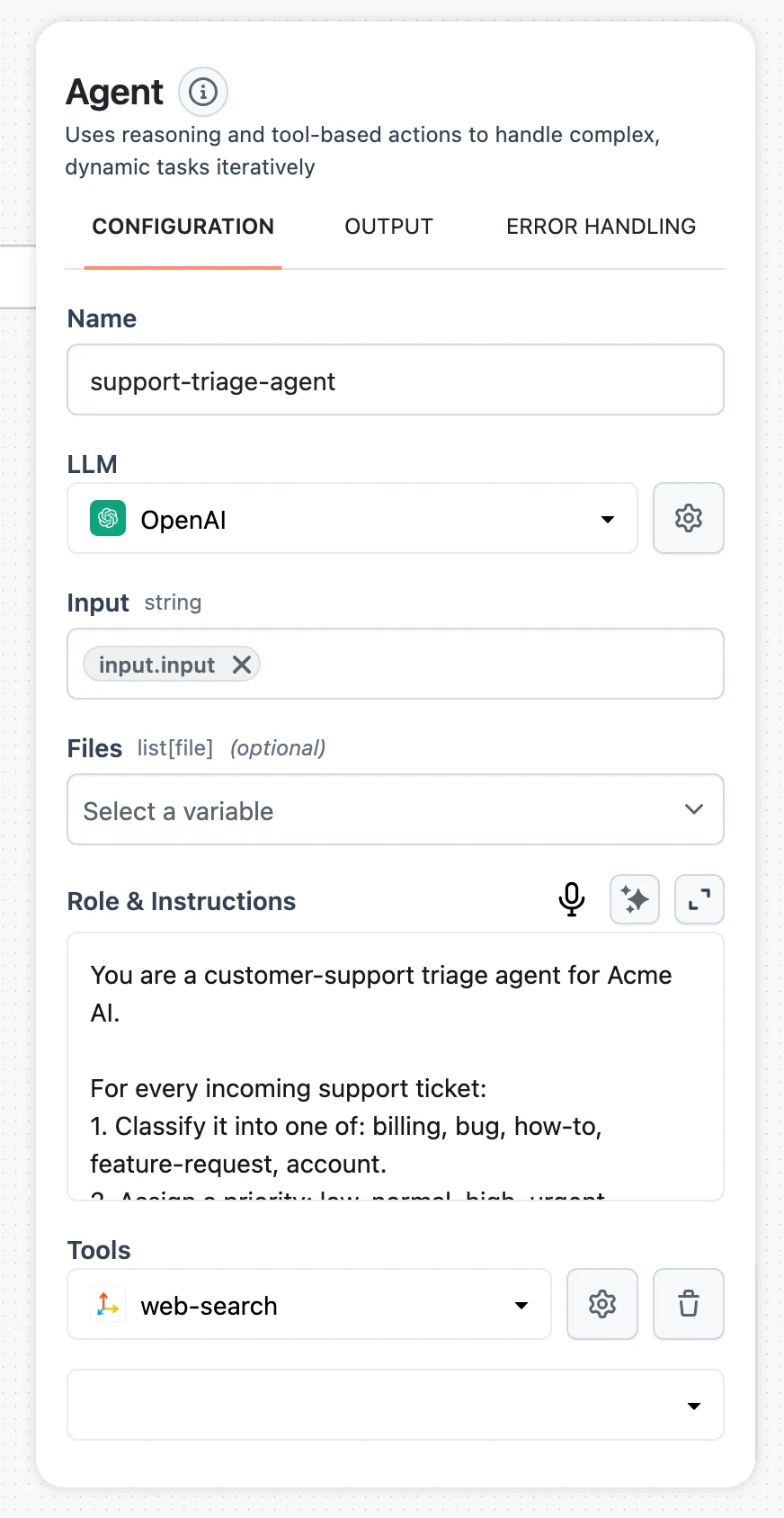
Pick the Connection
Click the gear icon to open the MCP Server configuration and select the MCP Connection you created. The panel connects to the server and lists its tools, which tests the Connection before anything runs: it shows Connected to with the server's name and version, or the reason the server couldn't be reached (see troubleshooting). You can also rename the node — the name shows up in traces as the server the tools came from.
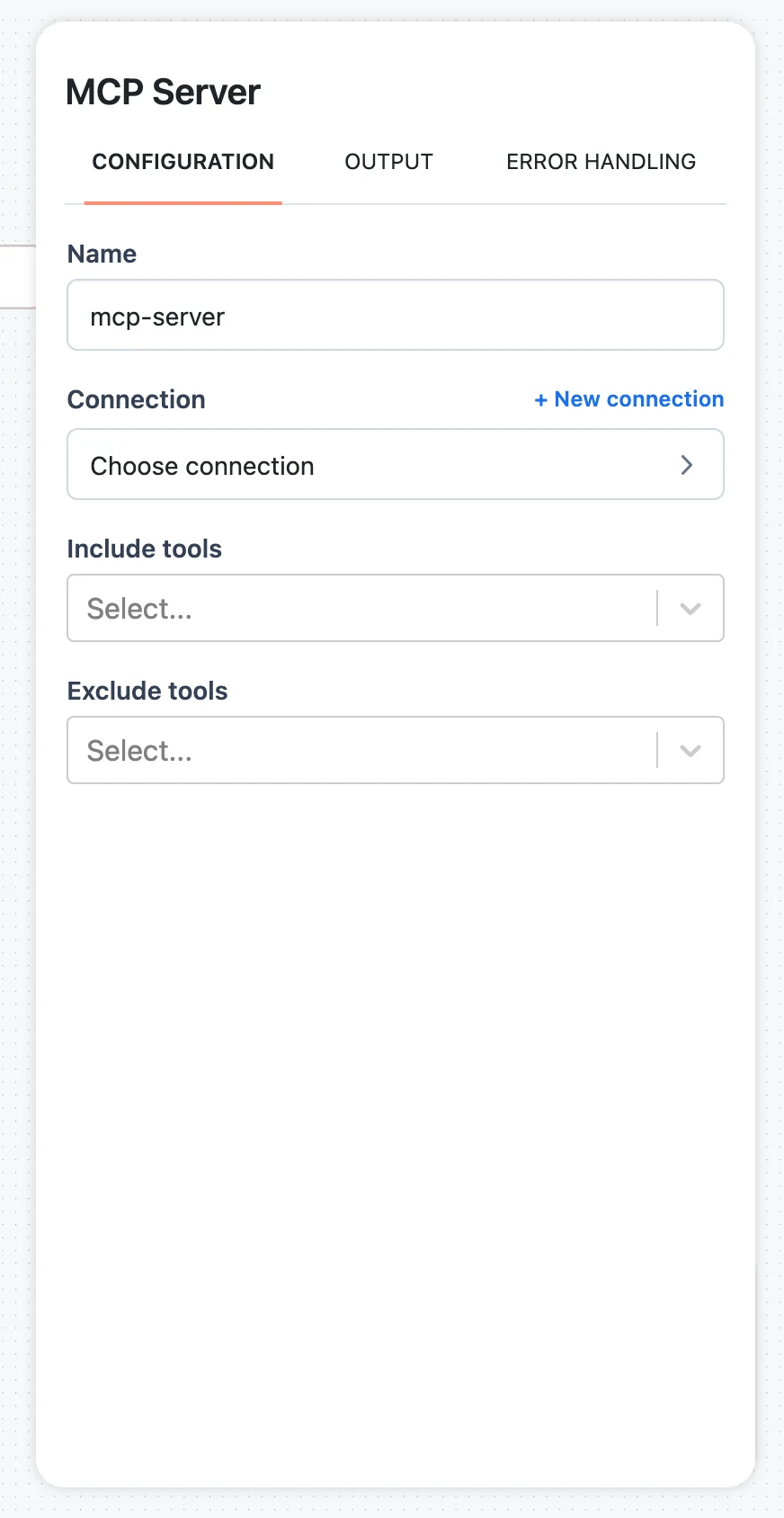
Optionally choose the tools
Under Tools, keep All or pick Selected or All except, then tick the tools the agent may use (details below). Each tool shows its description, the server's read-only or destructive hint, and its parameters.
How tool discovery works
You never define schemas for MCP tools — they are discovered dynamically:
- When the agent initializes, the MCP Server node opens a session against the Connection and calls the server's
list_toolsendpoint. - Every tool the server advertises becomes an individual agent tool, carrying the server-provided name and description — that text is what the agent's LLM reads when deciding which tool to call, so the server's own docs drive tool selection.
- Each tool's JSON Schema is converted into a typed input schema. Nested objects, arrays, unions (
anyOf/oneOf),allOfcomposition, recursive$refs, and enums are all supported; enum values are appended to the field description as "Allowed values: …" so the model picks valid ones. - When the agent calls a tool, the node opens a session, invokes the tool on the server with the validated arguments, and returns the result text (or the server's structured content, when provided) as the tool observation.
Because discovery happens at initialization, tools added to the server later are picked up on the next run — no workflow changes needed. If the server changes a tool's input schema, the node picks that up the same way.
Filter the exposed tools
Big MCP servers can advertise dozens of tools, and every one of them adds a line to the agent's system prompt. Filtering keeps the prompt small and removes tools you don't want the agent to ever call. Tools on the MCP Server node has three modes:
- All — every tool the server lists, including tools it adds later.
- Selected — only the ticked tools. Tools the server adds later stay off. Until you tick one, the agent gets every tool, and the panel says so.
- All except — every tool except the unticked ones, including tools the server adds later.
The panel also warns when more than 40 tools from one server reach the agent, and when a tool name saved on the node isn't one the server lists, such as a typo or a tool the server dropped. The agent never gets such a tool, so fix or remove the name. When the editor can't reach the server, or the Connection is a requirement filled in when the workflow runs, type the tool names instead; they must match the server's tool names exactly.
In the SDK and the API the same choice is two lists on MCPServer: include_tools (if non-empty, only these names are exposed) and exclude_tools (these names are removed). Selected saves an include list, All except an exclude list, and All leaves both empty.
Runnable example: a public MCP server
The community fetch server at https://remote.mcpservers.org/fetch/mcp is public (no auth) and speaks Streamable HTTP — it exposes a tool that fetches a web page and returns its content.
In the UI:
- Create a Connection of type MCP Streamable HTTP with URL
https://remote.mcpservers.org/fetch/mcpand no headers. - Attach an MCP Server tool to your Agent node and select that Connection.
- Open the Test tab and ask: "Retrieve the information displayed on https://www.apple.com/ and summarize it." The trace shows the agent discovering the server's tools and calling the fetch tool.
The same setup with the Python SDK:
import os

from dynamiq import Workflow
from dynamiq.connections import MCPStreamableHTTP
from dynamiq.connections import OpenAI as OpenAIConnection
from dynamiq.nodes.agents import Agent
from dynamiq.nodes.llms import OpenAI
from dynamiq.nodes.tools import MCPServer

# Public, no-auth MCP server speaking Streamable HTTP
connection = MCPStreamableHTTP(url="https://remote.mcpservers.org/fetch/mcp")

mcp_server = MCPServer(
    name="fetch-mcp",
    connection=connection,
    # include_tools=["fetch"],   # optional: expose only specific tools
    # exclude_tools=[...],       # optional: hide specific tools
)

agent = Agent(
    name="agent",
    id="agent",
    llm=OpenAI(
        connection=OpenAIConnection(api_key=os.getenv("OPENAI_API_KEY")),
        model="gpt-4o",
    ),
    tools=[mcp_server],
    max_loops=10,
)

wf = Workflow()
wf.flow.add_nodes(agent)

result = wf.run(
    input_data={"input": "Retrieve the information displayed on https://www.apple.com/ and summarize it."}
)
print(result.output.get("agent", {}).get("output", {}).get("content"))
For a server that needs auth, add headers to the connection:
connection = MCPStreamableHTTP(
    url="https://your-mcp-server.example.com/mcp",
    headers={"Authorization": f"Bearer {os.getenv('MCP_SERVER_TOKEN')}"},
)
Troubleshooting
Next steps
Sub-workflow Node
Run a released version of another workflow as one step — pick the workflow and version, map its Input fields, read its Output fields, and keep the pin stable across deployments.
Guardrails & Validators
Screen workflow inputs with PII, prompt-injection, and LlamaGuard detectors, and validate outputs with JSON, Python, choices, and regex validators.