Choice Node
Branch a workflow deterministically — condition rules, operators, AND/OR groups, one labeled output per branch, and the default else branch.
The Choice node routes a workflow down different paths based on conditions over upstream outputs — no LLM involved, fully deterministic, and free. Each branch is an option with its own output handle on the canvas; the first option whose conditions match wins, and everything connected to the other branches is skipped. A built-in default branch catches anything that matches no rule.
How evaluation works
- Options are evaluated top to bottom, in the order shown in the configuration panel.
- The first option whose condition is true succeeds; all options after it are skipped without being evaluated.
- Options whose conditions were evaluated and failed are marked false.
- The default branch has no condition, sits last, and therefore succeeds exactly when no named option matched — it's the
else.
That is the default Branching setting, First matching branch. Switch it to All matching branches and every option whose condition holds succeeds, so several paths can run for one input; the default branch then runs only when no named option matched. See Branching below.
Downstream consequences: a node connected to a branch runs only if that branch succeeded. Nodes behind a false branch fail their dependency check and don't run; nodes behind a skipped branch are skipped. Under First matching branch, order your options from most to least specific — a broad rule placed first shadows every rule below it. Under All matching branches nothing shadows anything: every option whose condition holds succeeds, wherever it sits.
Configure a Choice on the canvas
Add the node and create branches
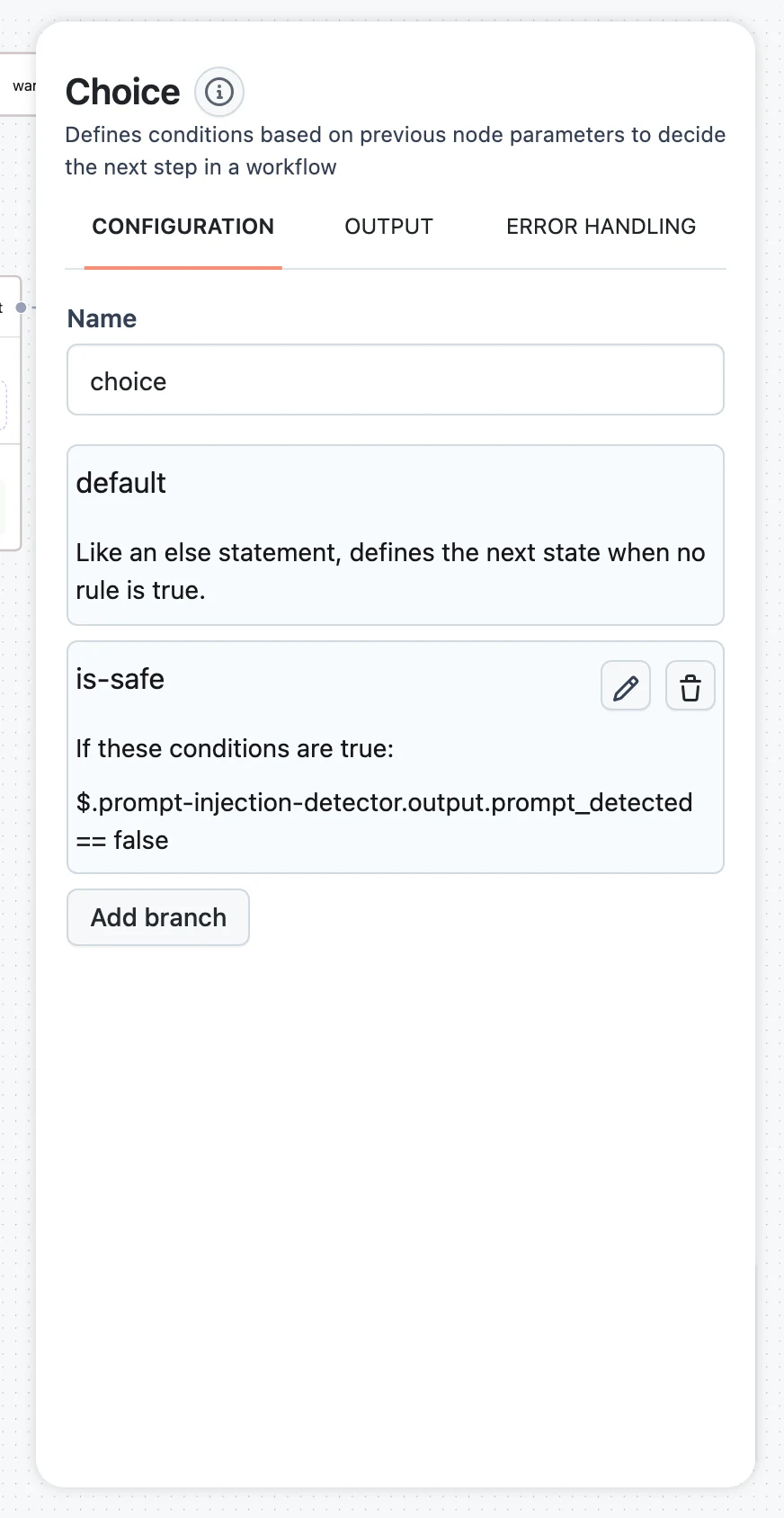
Drag Choice from the LOGIC section of the node palette onto the canvas. The configuration panel shows the branch list, starting with the built-in default branch (described in the panel as: "Like an else statement, defines the next state when no rule is true." — it cannot be edited or deleted). Click Add branch for each named branch you need; a Choice supports up to 10 branches.
Define each branch's rule
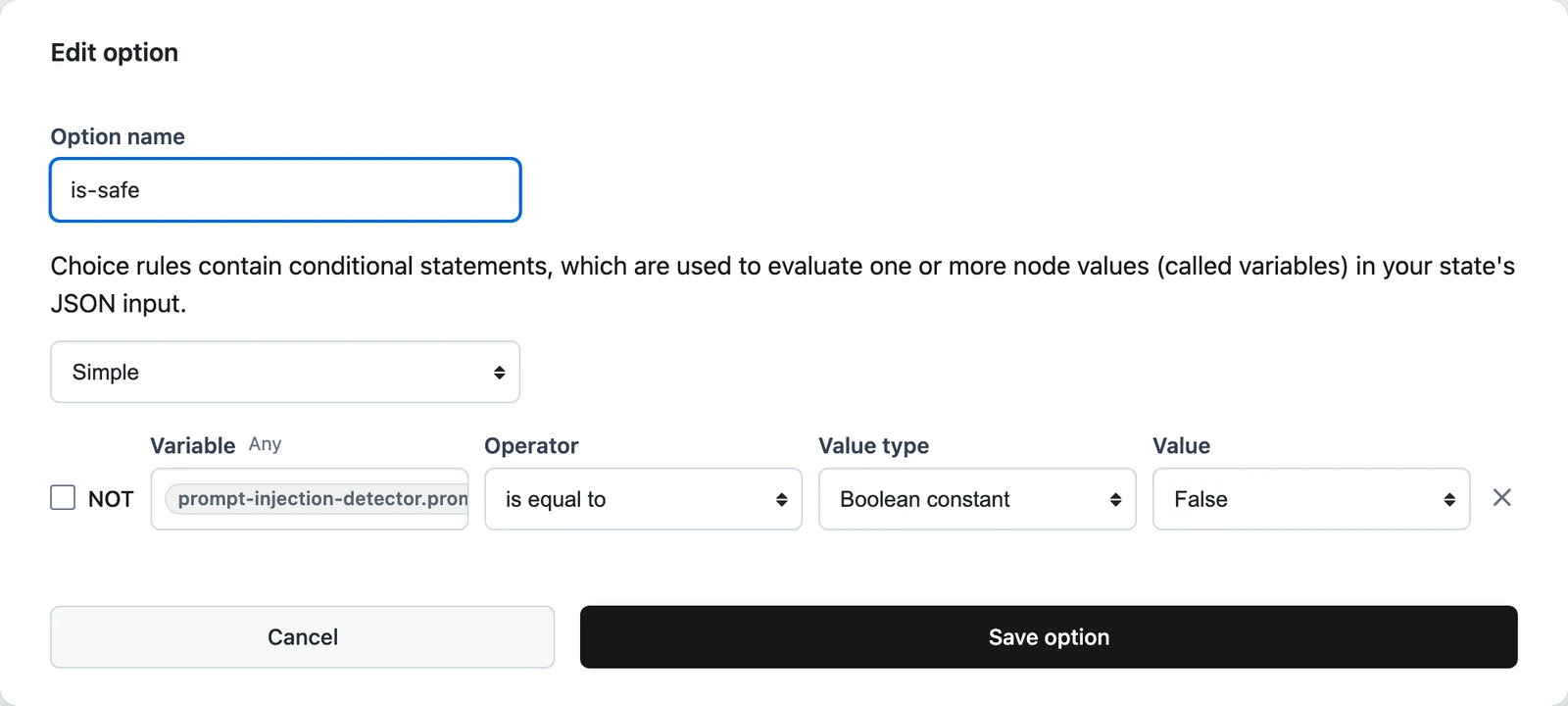
Click a branch's pencil icon to open the Edit option modal. Give it a meaningful Option name — the name labels the output handle and the edges you draw from it.
Pick the rule shape: Simple (one condition), AND, or OR (multiple conditions). Each condition row has five parts:
| Field | Meaning |
|---|---|
| NOT | Inverts the condition. |
| Variable | A JSONPath into the node's input — typically an upstream output, e.g. $.openai.output.content. Press / to pick from upstream variables. |
| Operator | The comparison — see the table below. |
| Value type | What you compare against: a Number/String constant, a Number/String variable (another JSONPath), or — for is equal to only — a Boolean constant/variable. |
| Value | The constant, or the JSONPath when a variable type is selected. |
With AND/OR selected, Add new statement appends conditions, and you can nest an AND group or OR group inside for compound logic like (a AND b) OR c.
Connect the branches
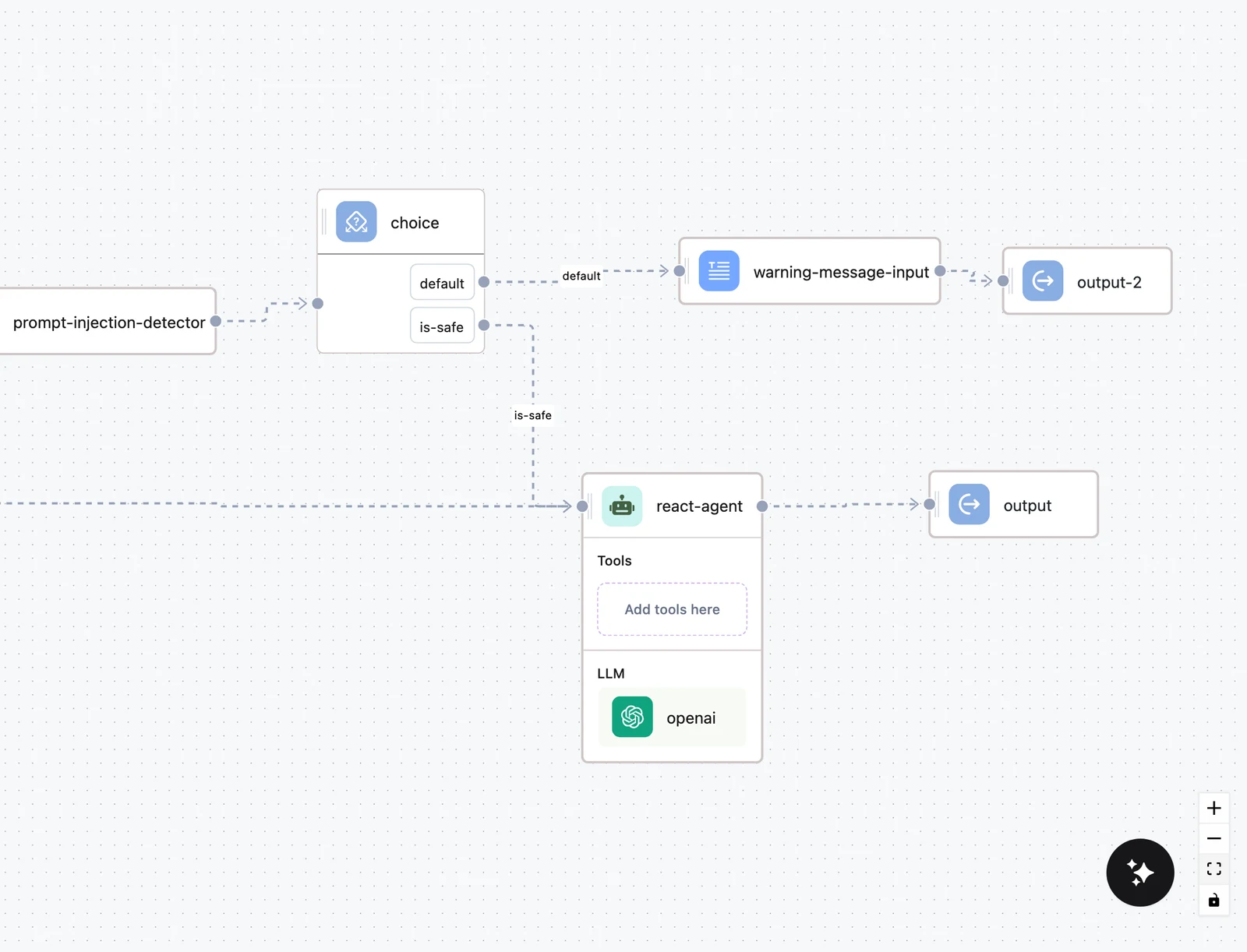
On the canvas, the Choice node shows one source handle per branch, each labeled with its option name. Draw an edge from each branch handle to the node(s) that should run when that branch matches; the edge itself carries the option name as its label, so the routing stays readable (see How nodes connect).
Always connect the default handle too — to a fallback path or directly to your Output node — so unmatched inputs produce a deliberate result instead of a dead end.
Branching: first or all matching branches
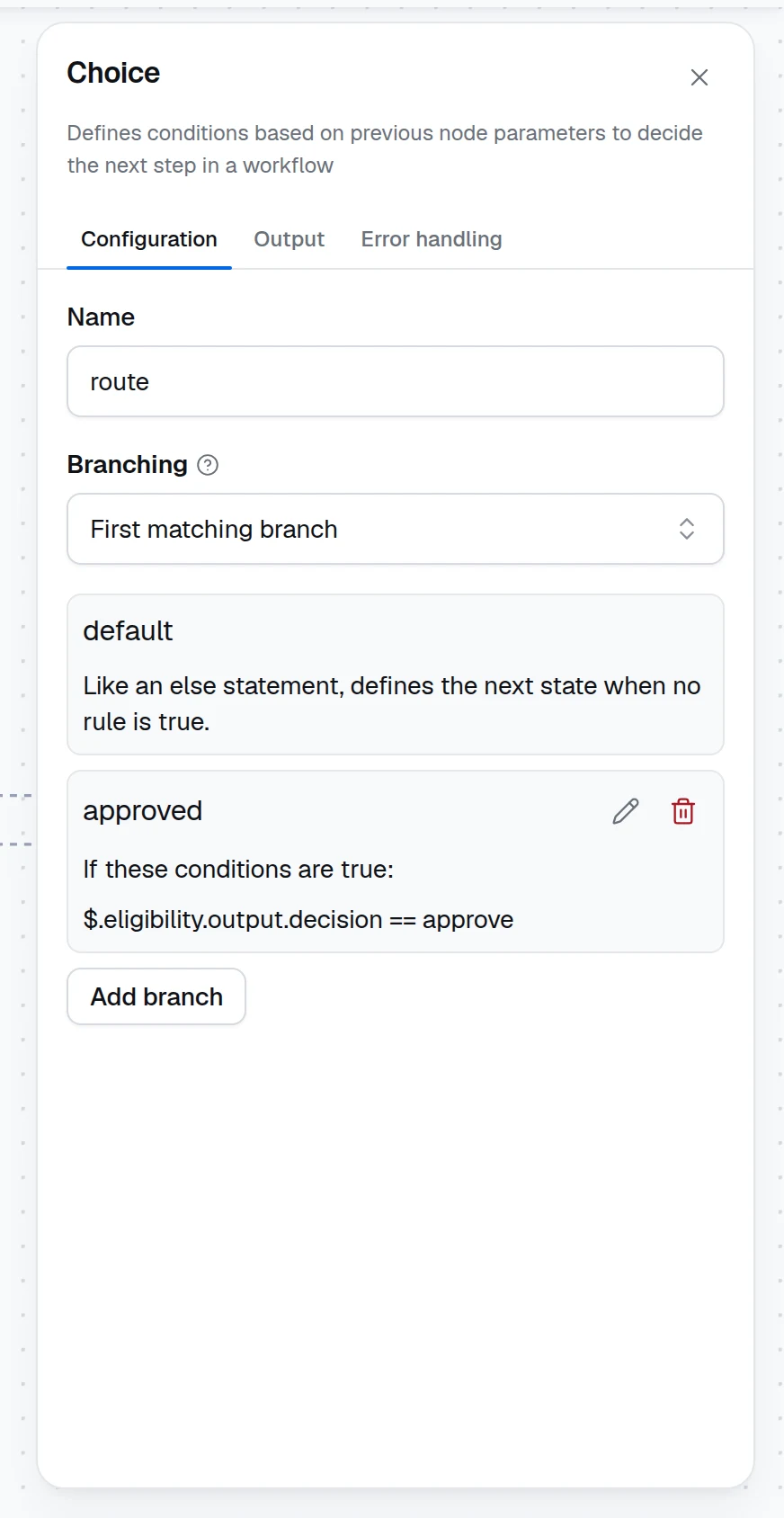
The Branching select at the top of the panel decides how many branches an input can take:
| Branching | Behavior |
|---|---|
| First matching branch | The first option whose condition holds wins and every option below it is skipped. The default, and the behavior described above. |
| All matching branches | Every option whose condition holds succeeds, and the nodes behind each of them run. The default branch stays the fallback: it runs only when no named option matched. |
Use All matching branches when the branches are independent checks rather than alternatives — a large payment that is also international should trigger both the manual review and the VAT calculation. Keep First matching branch when the branches are mutually exclusive outcomes, which is what a router usually is.
Under All matching branches a node that several branches lead to runs once its dependencies settle, so two branches can both feed the Output node. The Output node's fallback hint, which suggests a fallback between two branches of the same Choice, is skipped for a Choice set to run all matching branches, since both can legitimately produce a value.
Operators
| Operator (UI label) | Applies to | True when the variable… |
|---|---|---|
| is equal to | number, string, boolean | equals the value |
| is less than / is less than or equal to | number, string | compares below the value |
| is greater than / is greater than or equal to | number, string | compares above the value |
| starts with | string | starts with the value |
| ends with | string | ends with the value |
| contains | string | contains the value as a substring |
| matches regex | string | matches the value as a regular expression (an invalid pattern fails the run) |
The string-only operators (starts with, ends with, contains, matches regex) compare against a String constant. Comparison operators accept either a constant or a variable — variable values are JSONPaths resolved against the node's input, which lets you compare two upstream outputs to each other. Check NOT on any row to invert it.
Worked example: route by sentiment score
An upstream Python node score outputs {"sentiment": 0.87, "category": "billing"}. Route angry billing requests to escalation, other billing to the billing flow, everything else to the default:
| # | Option name | Rule |
|---|---|---|
| 1 | escalate | AND: $.score.output.sentiment is less than 0.3 · $.score.output.category is equal to billing |
| 2 | billing | Simple: $.score.output.category is equal to billing |
| 3 | default | (built-in — everything else) |
Order matters here: if billing came first, it would also capture the angry cases and escalate would never fire.
SDK equivalent
In the Python SDK, options are ChoiceOption objects and rules are ChoiceCondition trees; an option with no condition is the catch-all, and hit_policy="all" is All matching branches (the default "first" is First matching branch — see Operators for an example). Downstream nodes attach to a branch by declaring a dependency on the Choice node with that option's id:
from dynamiq import Workflow
from dynamiq.connections import OpenAI as OpenAIConnection
from dynamiq.flows import Flow
from dynamiq.nodes.llms import OpenAI
from dynamiq.nodes.node import NodeDependency
from dynamiq.nodes.operators import Choice, ChoiceOption
from dynamiq.nodes.types import ChoiceCondition, ConditionOperator
from dynamiq.prompts import Message, Prompt

choice = Choice(
    name="route-by-sentiment",
    options=[
        ChoiceOption(
            id="escalate",
            name="escalate",
            condition=ChoiceCondition(
                operator=ConditionOperator.AND,
                operands=[
                    ChoiceCondition(
                        operator=ConditionOperator.NUMERIC_LESS_THAN,
                        variable="$.sentiment",
                        value=0.3,
                    ),
                    ChoiceCondition(
                        operator=ConditionOperator.STRING_EQUALS,
                        variable="$.category",
                        value="billing",
                    ),
                ],
            ),
        ),
        ChoiceOption(
            id="billing",
            name="billing",
            condition=ChoiceCondition(
                operator=ConditionOperator.STRING_EQUALS,
                variable="$.category",
                value="billing",
            ),
        ),
        ChoiceOption(id="default", name="default"),  # no condition = else
    ],
)

escalation_llm = OpenAI(
    name="escalation-writer",
    model="gpt-4o-mini",
    connection=OpenAIConnection(),
    prompt=Prompt(
        messages=[Message(role="user", content="Draft an apology and escalation summary.")],
    ),
    depends=[NodeDependency(choice, option="escalate")],
)

workflow = Workflow(flow=Flow(nodes=[choice, escalation_llm]))
result = workflow.run(input_data={"sentiment": 0.1, "category": "billing"})
escalation_llm runs only when the escalate option succeeded; on any other input it is skipped.
Pitfalls
Map Node
Run one node once per item of a list — fan-out with optional concurrency, failure behavior, and a predictable list output.
Decision Table Node
Model business rules as a table — typed input columns, output columns, a rules grid with a cell grammar, hit policies, CSV import and export, and coverage from test cases.