File Store & Artifacts
Give your agent a file workspace without a full sandbox — file read/write/search tools, todo lists, and how files flow in and out of a run.
The file store gives an agent a lightweight workspace for files — read what the user uploaded, write drafts and deliverables, search across documents — without provisioning a full sandbox VM. Files the agent produces come back as artifacts of the run.
File store vs. sandbox
| File store | Sandbox | |
|---|---|---|
| What it is | A file storage backend (in-memory by default) | A full Linux VM in your E2B/Daytona account |
| File tools | file-read, file-search, file-list, optional file-write | file-read, file-write against the VM filesystem |
| Shell & code execution | No | Yes |
| Startup cost | None | VM provisioning + provider compute charges |
| Use when | The agent works with documents | The agent needs a computer |
The two are mutually exclusive — enabling both on one agent is a configuration error. A sandbox supersedes the file store: it provides its own file tools backed by the real filesystem.
Enable it in the UI
Open Advanced configuration
Select the Agent node and expand the Advanced configuration accordion at the bottom of the configuration panel.
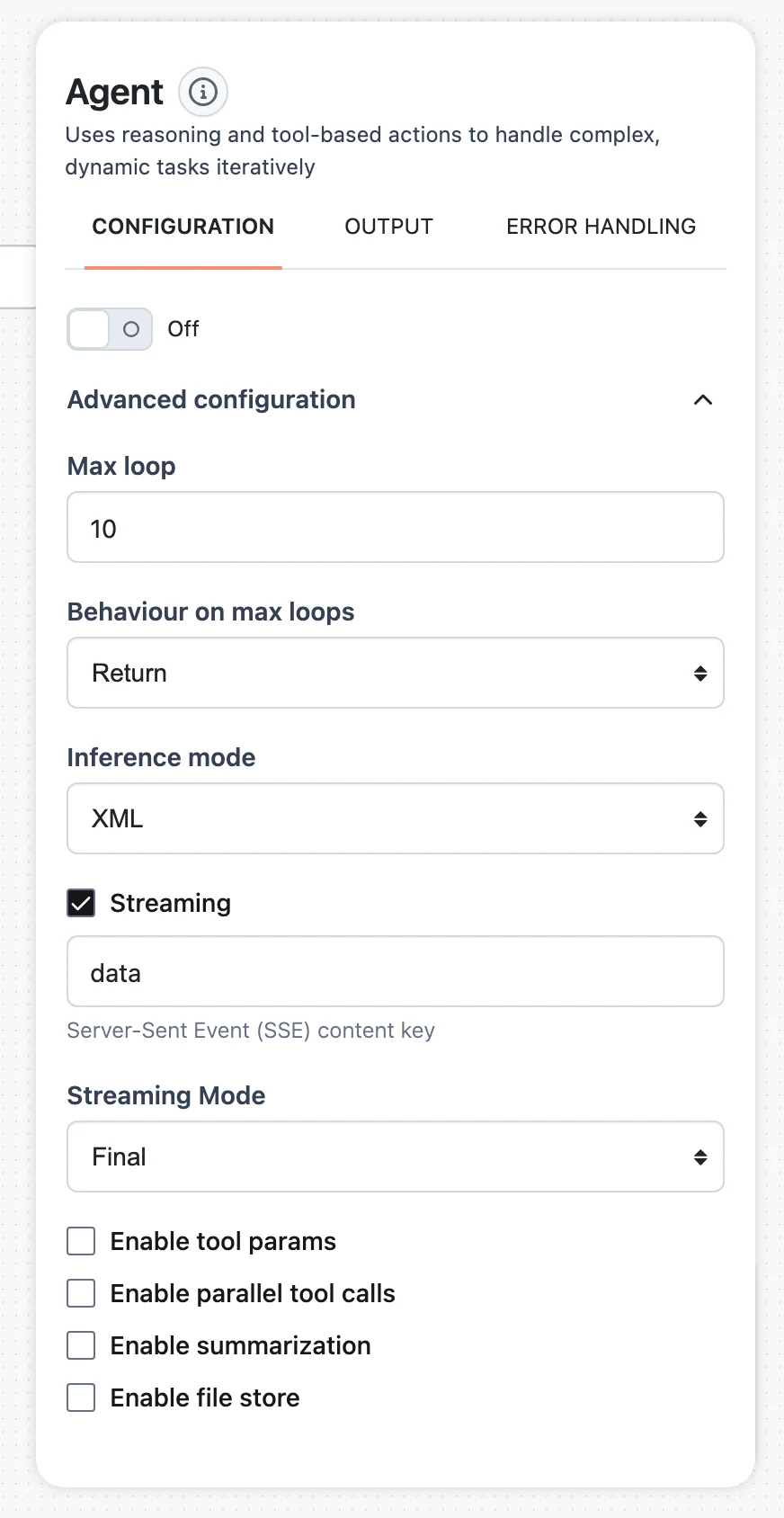
Check Enable file store
Tick Enable file store. This configures the In-Memory backend (dynamiq.storages.file.InMemoryFileStore) and allows the agent to write files. In-memory files live for the duration of the run — they are a scratch space, not persistent storage; anything worth keeping should be returned as an output file.
Tools the file store adds
With the file store enabled, these tools are attached automatically (they don't appear under Tools):
| Tool | What the agent uses it for |
|---|---|
file-read | Read a stored file; large files can be summarized with the agent's LLM. |
file-search | Search across stored files. |
file-list | List what's in the store. |
file-write | Create and edit files — only when agent file writes are enabled (the UI checkbox enables them). |
See the node reference pages for details: File Read Tool, File Write Tool.
How files flow through a run
- Files in — files passed to the agent (from the workflow input, the Run API, or a parent agent) are stored in the file store under unique names and referenced in the prompt, so the agent knows what it received and can open each one with
file-read. If you pass files to an agent that has no file store or sandbox configured, an in-memory store and its file tools are set up on demand for that run. - Files the agent makes — with file writes enabled, the agent saves drafts, intermediate results, and deliverables with
file-write. - Files out — when the agent finishes, it lists the paths it wants to return; those files are collected from the store and returned with the run output as downloadable artifacts. Each path is resolved as given first, then by file name; if a listed file doesn't exist, the agent gets an error and retries. In Chat and on deployed Apps, returned files surface as run artifacts.
Todo lists
FileStoreConfig has a todo_enabled flag (SDK; off by default). When the file store is enabled together with it, the agent gets a todo-write tool and maintains a structured task list in a reserved file, ._agent/todos.json. The agent updates item statuses as it works, the current list is folded into its loop context to keep long multi-step jobs on track, and the file is cleared when the run ends. Sandboxed agents get todo-write automatically — no flag needed.
The ._agent/ prefix is reserved: file-write refuses to touch paths under it, so the agent can't corrupt its own bookkeeping. See the Todo Write Tool reference.
SDK: FileStoreConfig
from dynamiq import Workflow
from dynamiq.connections import OpenAI as OpenAIConnection
from dynamiq.flows import Flow
from dynamiq.nodes.agents import Agent
from dynamiq.nodes.llms import OpenAI
from dynamiq.storages.file import FileStoreConfig, InMemoryFileStore

agent = Agent(
    name="Document Agent",
    llm=OpenAI(connection=OpenAIConnection(), model="gpt-4o"),
    role=(
        "You process the attached documents and produce a merged summary. "
        "Save the summary as summary.md and return it as an output file."
    ),
    file_store=FileStoreConfig(
        enabled=True,
        backend=InMemoryFileStore(),
        agent_file_write_enabled=True,
        todo_enabled=True,
    ),
    max_loops=10,
)

wf = Workflow(flow=Flow(nodes=[agent]))

with open("report-q1.txt", "rb") as f:
    result = wf.run(
        input_data={
            "input": "Summarize the attached report.",
            "files": [f],
        }
    )

output = result.output[agent.id]["output"]
print(output["content"])
for artifact in output.get("files", []):
print("artifact:", artifact.name)enabledbooleanbackendFileStorerequiredagent_file_write_enabledbooleantodo_enabledbooleanconfigobjectLarge tool outputs
Persisting oversized tool outputs to files (anything over 7,000 characters is saved and only a preview enters the agent's context) is a sandbox feature — it needs a real filesystem the agent can grep. With a plain file store, long tool observations are instead truncated at the agent's tool_output_max_length (64,000 tokens by default). If your agent routinely handles huge tool outputs, that's a sign to switch to the sandbox.
Context Management & Summarization
Automatic history compaction for long agent runs — token-based triggers, what gets summarized vs. preserved, and how to tune the thresholds.
Orchestration Overview
Choose the right coordination pattern — a single Agent, the Graph Orchestrator, or the deterministic operators: Choice, Map, Decision Table, Rules, Expression and Sub-workflow.