Sandbox
Give your agent a full Linux computer — an isolated E2B or Daytona VM with a shell, a filesystem, code execution, and public web previews.
Enabling the sandbox gives an Agent node its own computer: an isolated cloud Linux machine where it can run shell commands, write and execute code, install packages, manage files, and even start a web server you can open in your browser. This is the same capability behind "agent with a computer" products — research agents that crunch data with real Python, coding agents that scaffold and preview an app, document agents that produce file artifacts.
What becomes possible
With Enable sandbox on, the agent stops being limited to text in / text out:
- Shell access —
pip install,git clone,ffmpeg,pandoc, anything a Linux box can run. - Real code execution — write a script with the file tools, run it with the shell tool, read the results back.
- File artifacts — generated CSVs, charts, decks, and archives are collected from the sandbox and returned as output files of the run.
- Web preview — if the agent starts a dev server (Vite, Next.js,
python -m http.server), it can fetch a public HTTPS URL for that port and share it with the user. - Working memory on disk — large tool outputs are persisted as files in the sandbox instead of flooding the model's context.
The sandbox is provisioned lazily — the first time the agent touches it during a run — and lives in your own E2B or Daytona account, isolated from Dynamiq infrastructure and from other runs.
Tools the sandbox adds
When the sandbox is enabled, these tools are attached to the agent automatically — you don't add them under Tools, and they don't appear on the canvas:
| Tool | What the agent uses it for |
|---|---|
sandbox-shell | Execute a shell command, with a per-command timeout (60 s default) and an optional background mode for long-running processes like dev servers. |
file-write | Create and edit files anywhere in the sandbox (absolute paths allowed). |
file-read | Read files back, including summarizing large ones with the agent's LLM. |
todo-write | Maintain a task list for long multi-step jobs (see File Store & Artifacts). |
sandbox-info | Look up sandbox metadata — base path, sandbox ID, and the public HTTPS URL for a port when the agent has started a server. |
Each tool is documented in the node reference: Sandbox Shell Tool, Sandbox Info Tool, File Read Tool, File Write Tool, Todo Write Tool.
Enable the sandbox in the UI
Toggle Enable sandbox
Select your Agent node on the workflow canvas. In the configuration panel, between the Skills and Memory sections, switch on Enable sandbox. The Sandbox configuration modal opens immediately.
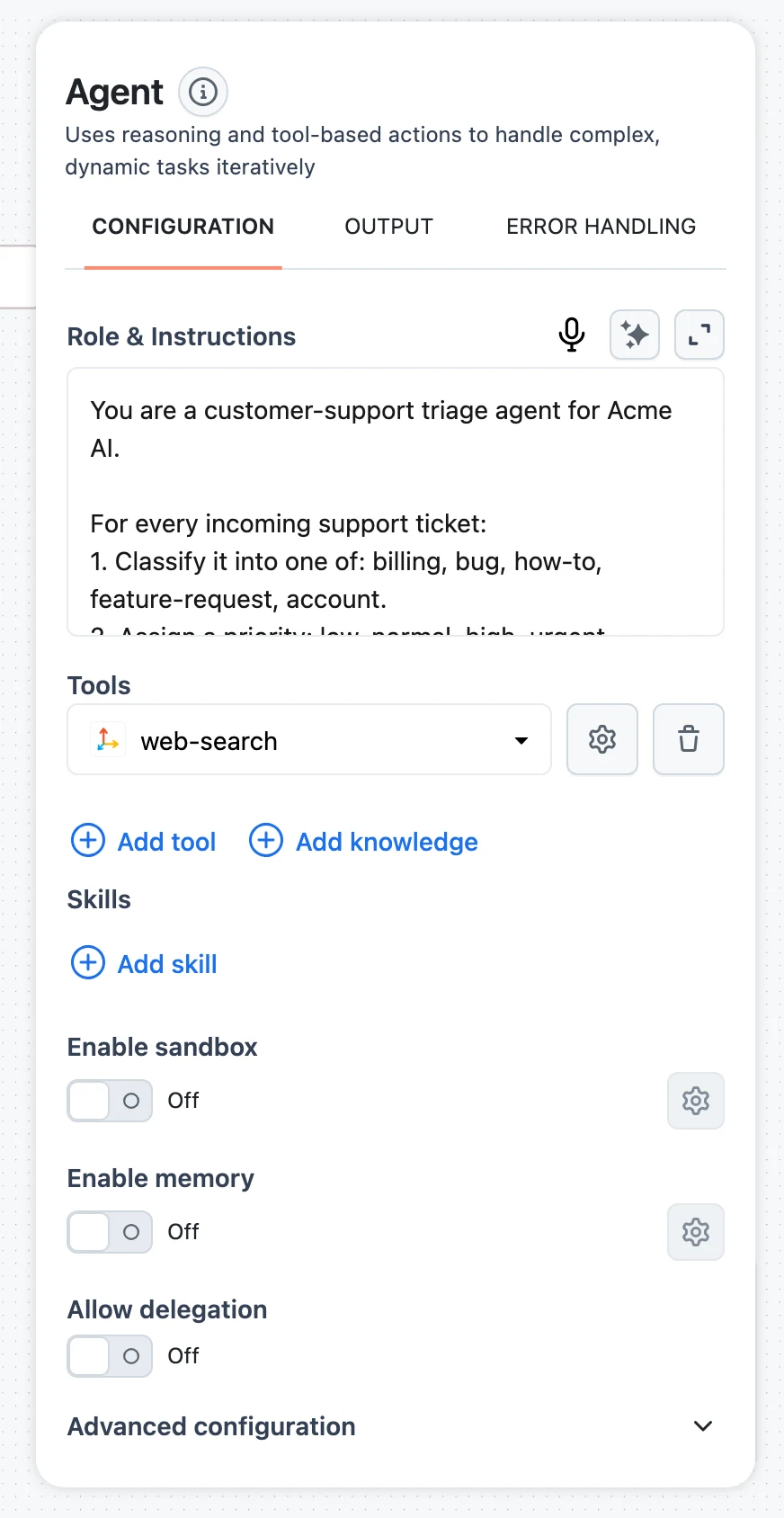
Pick a backend and connection
Choose Backend type — E2B or Daytona — and select (or create) the matching Connection that holds your provider API key.
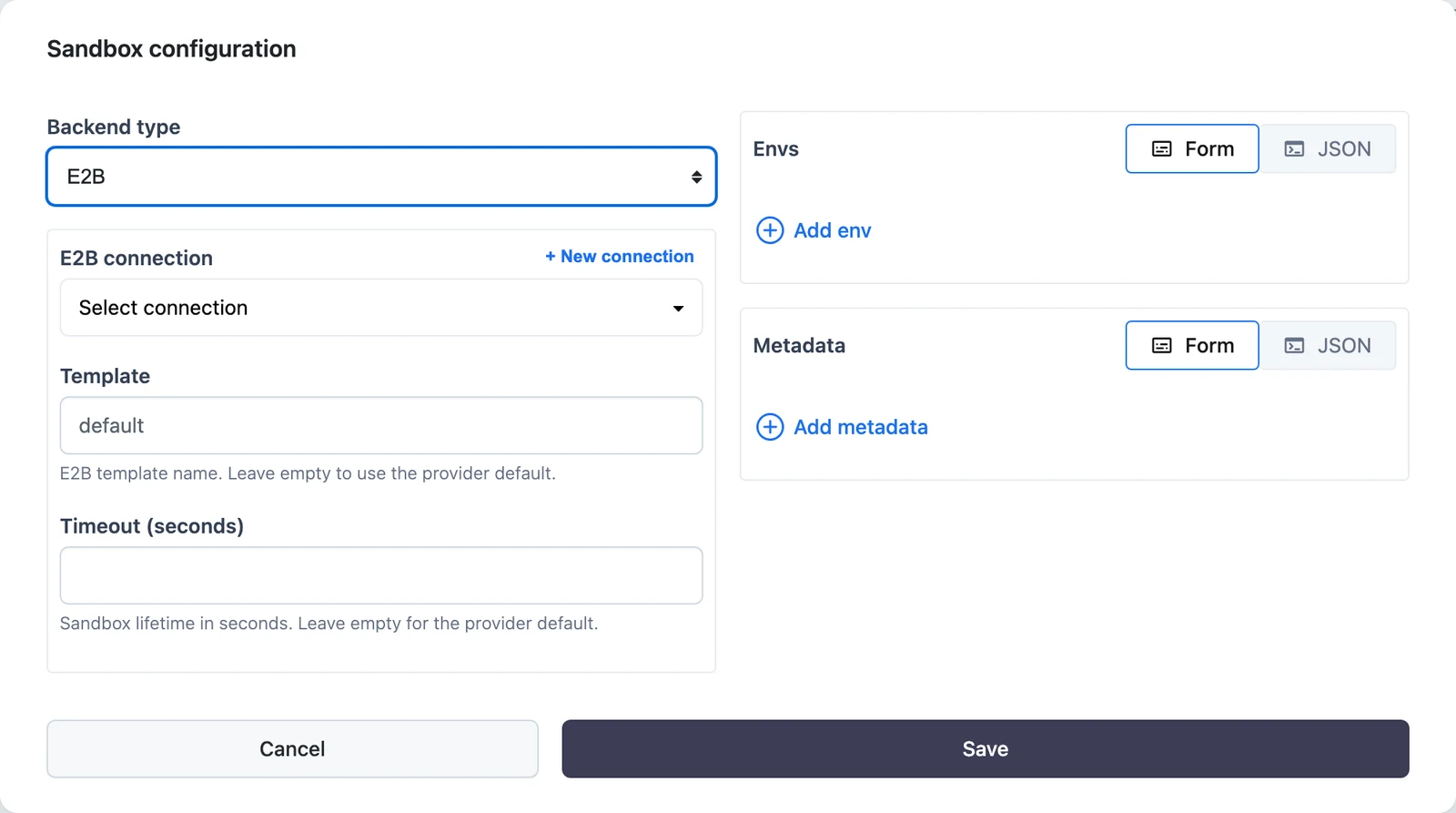
Configure the environment
Fill in the backend fields (described below), add any Envs the agent's processes should see (API keys for scripts, for example), and click Save. Reopen the modal anytime with the gear icon next to the toggle.
Env values are passed to the sandbox at creation and are excluded from traces, so secrets don't leak into run history.
Backend configuration
E2B
| Field | Description |
|---|---|
| E2B connection | Connection with your E2B API key. |
| Template | E2B template name. Leave empty to use the provider default. Build a custom template to pre-install heavy dependencies. |
| Timeout (seconds) | Sandbox lifetime in seconds. Defaults to 3600 (1 hour). |
| Envs | Environment variables passed to the sandbox on creation. |
| Metadata | Custom metadata attached to the sandbox on creation. |
In the SDK, E2BSandbox additionally accepts base_path (default /home/user), max_output_files (default 50), and sandbox_id to reconnect to an existing sandbox instead of creating a new one.
Daytona
| Field | Description |
|---|---|
| Daytona connection | Connection with your Daytona API key. |
| Snapshot | Daytona snapshot ID. Takes precedence over image when both are set. |
| Image | Container image (e.g. python:3.12-slim). Used when no snapshot is provided. |
| Timeout (seconds) | Sandbox creation timeout. Defaults to 3600. |
| Auto-stop interval (minutes) | Idle minutes before the sandbox auto-stops. 0 disables auto-stop. |
| Envs | Environment variables passed to the sandbox on creation. |
| Labels | Custom labels attached to the sandbox on creation. |
DaytonaSandbox in the SDK defaults base_path to /home/daytona and also supports max_output_files (default 50) and sandbox_id reconnection.
How files flow through a sandbox run
- Files in — files you pass to the agent (workflow input, parent agent handoff) are uploaded to
{base_path}/input/before the run starts, with duplicate names made unique. The agent is told where to find them. - Files the agent makes — the shell tool's instructions direct the agent to write deliverables to
{base_path}/output/; it can also write anywhere else withfile-write. - Files out — when the agent finishes, any paths it lists as output files are collected from the sandbox and returned with the run result as downloadable artifacts. If a listed file doesn't exist, the agent gets an error and retries. (
max_output_files, 50 by default, caps directory scans when files are collected without explicit paths in the SDK — explicitly listed files are always fetched.) - Large tool outputs — when any tool returns more than 7,000 characters, the full output is saved as a file under
/home/user/.tools/in the sandbox and the agent receives the file path plus a 7,000-character preview. The agent can read or grep the full output later instead of carrying it in context. This works hand-in-hand with context summarization.
Web preview URLs
When the agent starts a server in the sandbox (say npm run dev in background mode), it calls sandbox-info with the port the server listens on and receives a public HTTPS URL — on E2B this looks like https://5173-<sandbox-id>.e2b.app. The URL works only while a process is listening on that port and the sandbox is alive, so treat it as a live preview, not a deployment.
SDK equivalent
from dynamiq import Workflow
from dynamiq.connections import E2B, OpenAI as OpenAIConnection
from dynamiq.flows import Flow
from dynamiq.nodes.agents import Agent
from dynamiq.nodes.llms import OpenAI
from dynamiq.sandboxes import E2BSandbox, SandboxConfig

llm = OpenAI(connection=OpenAIConnection(), model="gpt-4o", temperature=0.2)

sandbox = E2BSandbox(
    connection=E2B(),  # reads E2B_API_KEY from the environment
    timeout=3600,
    base_path="/home/user",
)

agent = Agent(
    name="Sandbox Agent",
    llm=llm,
    sandbox=SandboxConfig(enabled=True, backend=sandbox),
    role=(
        "You are an engineer with a full Linux sandbox. "
        "Write code, run it, and save deliverables to the output directory."
    ),
    max_loops=10,
)

wf = Workflow(flow=Flow(nodes=[agent]))
result = wf.run(
    input_data={"input": "Analyze the trend of prime gaps up to 10000 and produce a CSV summary."}
)
print(result.output[agent.id]["output"]["content"])

sandbox.close(kill=True)  # kill the VM; omit kill=True to keep it for reconnection
SandboxConfig fields:
enabledbooleanbackendSandboxrequiredconfigobjectWhen to enable it — and what it costs
Enable the sandbox when the task genuinely needs computation or a filesystem: data analysis, code generation with verification, document/report generation, scraping pipelines, building and previewing UIs. Skip it for plain Q&A, retrieval, or API-calling agents — every sandboxed run provisions a VM in your provider account, which adds startup latency (seconds) and provider compute charges for the full sandbox lifetime, not just active commands. Tune Timeout (E2B) or Auto-stop interval (Daytona) so idle sandboxes don't keep billing.
On the safety side: the agent executes arbitrary shell commands, but only inside the disposable VM — it has no access to Dynamiq infrastructure or your other workflows. Still, treat Envs as the agent's secrets: anything you put there is readable by code the agent writes. In the SDK, SandboxShellTool accepts a blocked_commands list to reject commands containing given substrings.
Prompts, Roles & Inference Modes
Write agent roles and instructions, template them with Jinja variables, and enforce structured output with Response format.
Subagents & Delegation
Attach agents as tools of other agents — specialist delegation, delegate_final passthrough, parallel-safe factories, and per-run call limits.